
Automated Personalization with AI: Pages for Each Audience, Recommendations Set Up for You
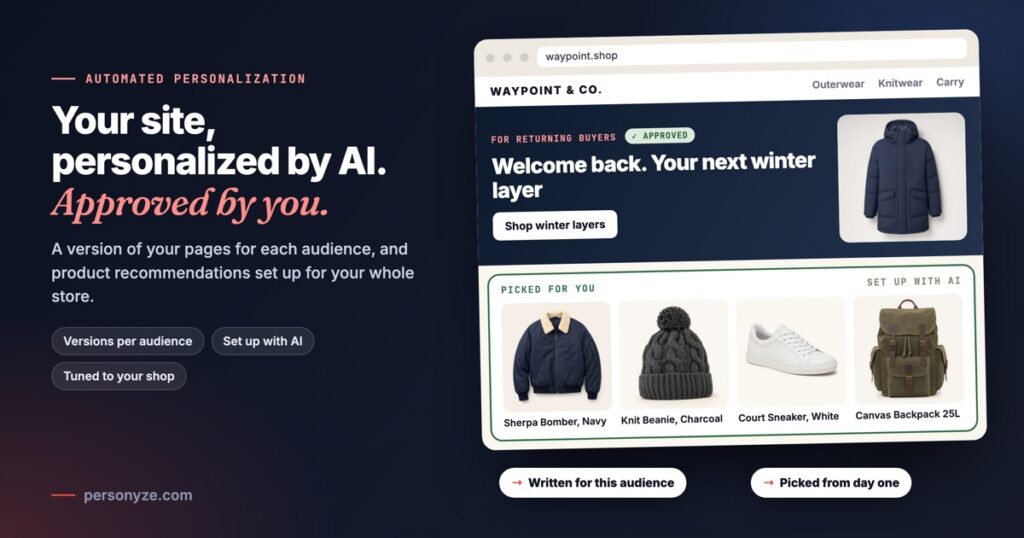
Personalization has always come with a stack of jobs before anything goes live: work out who visits, write a version of the page for each of them, decide which products to recommend on which page, then build it and test it. Each job waits on someone’s time, which is why so many sites still show everyone the same page.
Personyze does that work with AI, in three places. For your pages, the AI reads your site, finds your audiences and writes a version of your pages’ key parts for each. For your store, Set it up with AI places product recommendations across it. And the recommendation algorithms are tuned to your kind of shop: they read the products themselves, so they work from day one and blend in what shoppers do as it builds up.
One idea: automation you still approve
All three follow one pattern. Personyze reads, writes and places; you make the calls that matter, and nothing reaches a visitor until you publish. Once live, every change is measured, so you see what it earns.
- PersonyzeReads your siteIts kinds of page, their parts, the audiences they speak to
- PersonyzeProposes segmentsWho visits, and what puts a visit in each
- YouCheck the segmentsRename, remove or add your own
- PersonyzeWrites the versionsFrom what your site already says
- YouApprove, then publishStaging first, then live
- MeasuredAgainst your pageA share of visits keeps your page as it is
- PersonyzeReads your productsFrom your store, your feed or your product pages
- PersonyzeSees what visitors look atViews, adds to cart and purchases
- PersonyzeTunes it to your shopFashion, electronics, home and more
- PersonyzePlaces each widgetHome, product and cart pages, in your look
- YouCheck, then publishEach widget on a real page of yours
- MeasuredPer widget and sourceShown, clicked and bought
A version of your pages for each audience
With automated AI personalization, the AI reads your site and makes your own pages speak to each visitor’s segment: your hero, a message bar, your header’s button, a menu item, your pricing table, your form and more, each in words written for that segment. You start it from its card in New campaign.
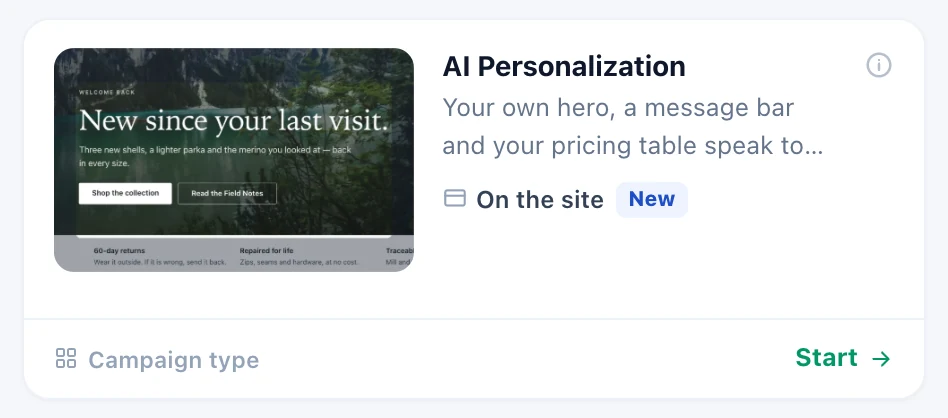
- It reads your site. Read my site finds what each kind of page shares, such as the hero, a pricing table or an FAQ, and the audiences your pages speak to, in a few minutes and without you.
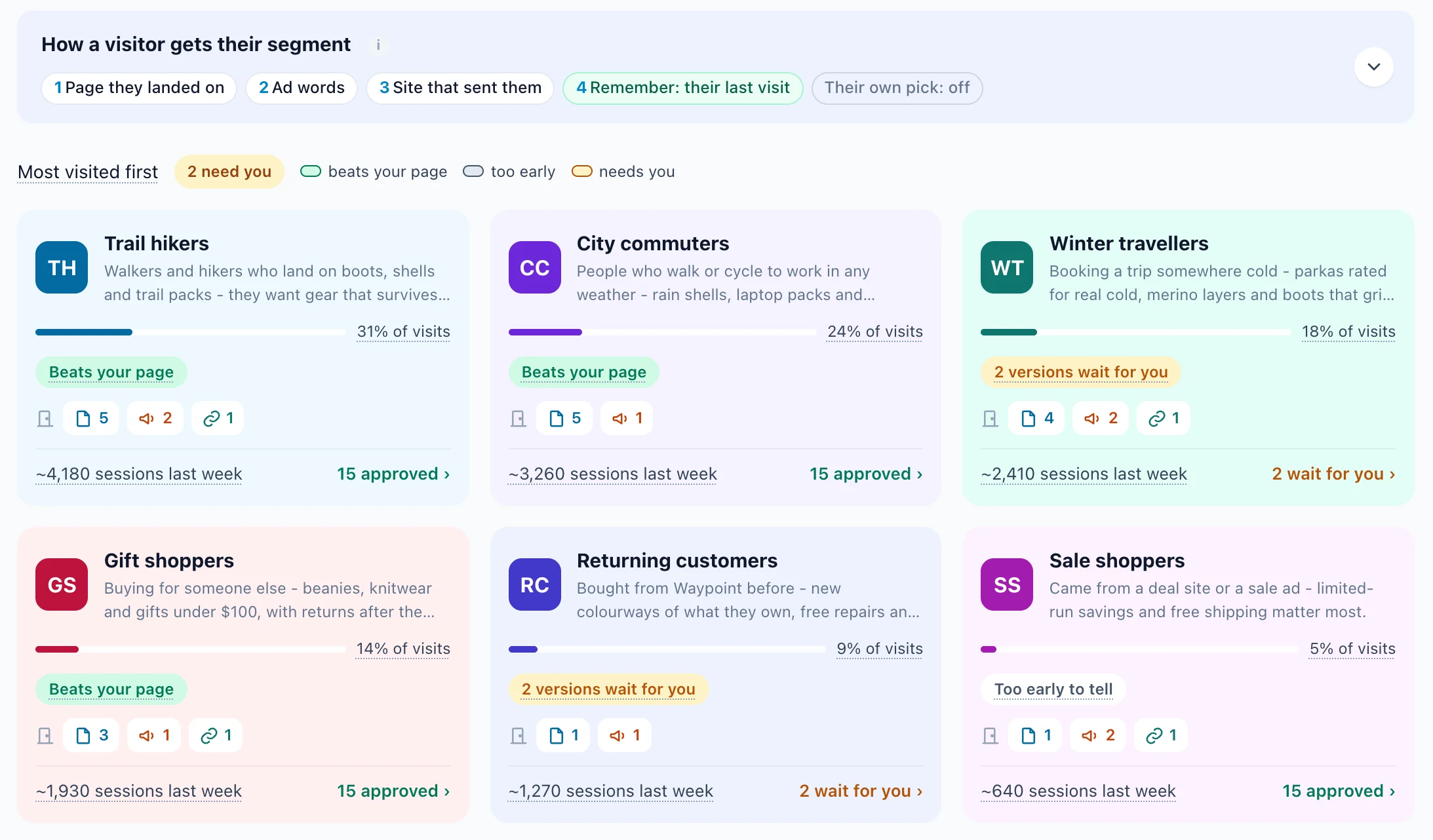
- You check the segments. Rename, remove or add your own, and say what puts a visitor in each: the page they landed on, the ad they came from, the site that sent them, their company, or any targeting rule, an audience Personyze discovered among them. The first that recognizes a visitor sets their segment for the whole visit.
- You choose what changes. Turn on the parts it found and add the ones you want. A hero changes its headline and the line under it, and its button and picture if you choose. A pricing table highlights the plan that fits, with no price changed. An FAQ changes only its order.
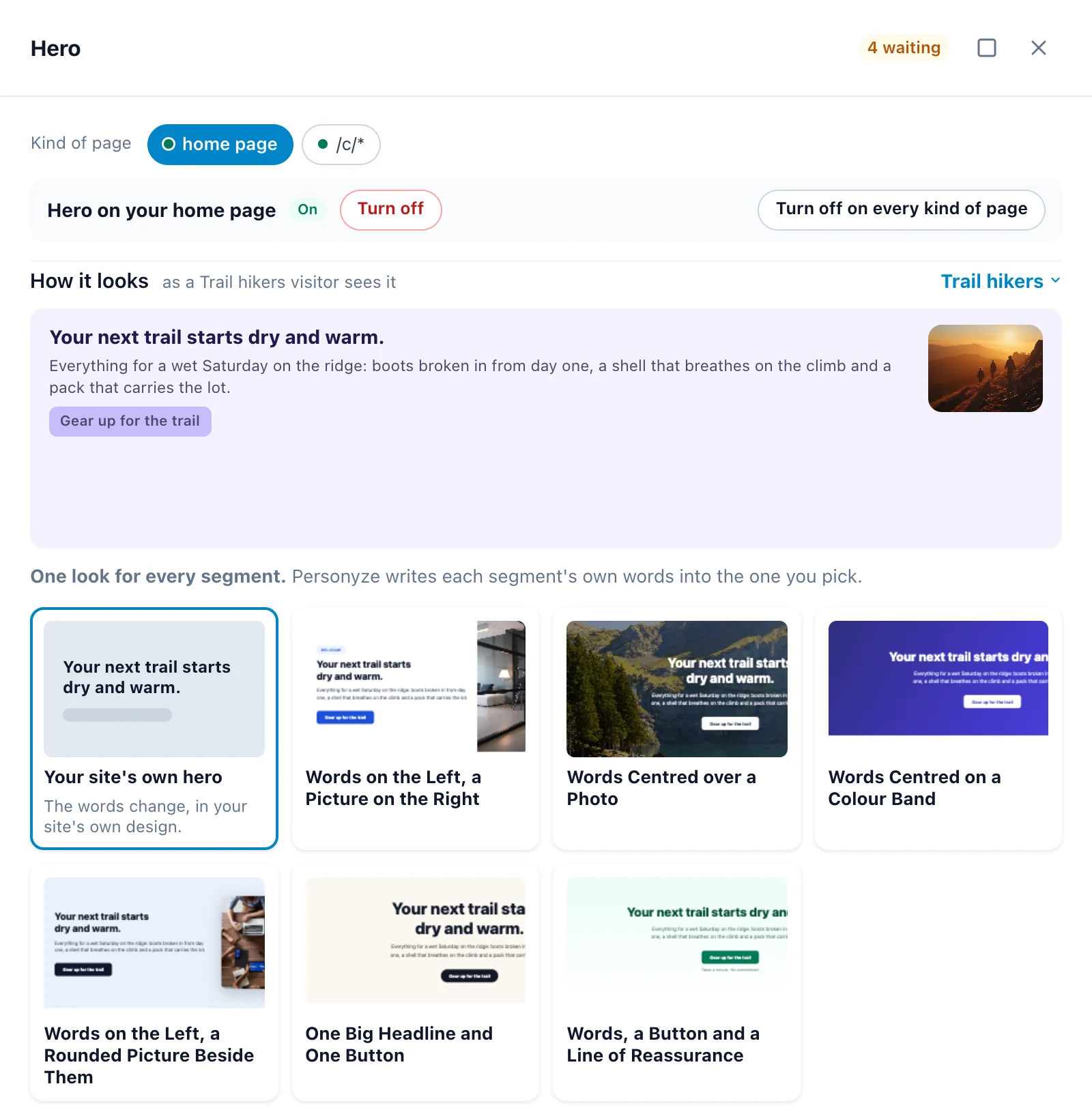
- It writes the versions from what your site already says: two per segment for a hero or a pricing table, so they can compete. A version that adds a number, a price, a name, a deadline or a claim your page does not make is dropped, and none uses a word on your Words never to use list.
- You approve. Review all opens every waiting version: Approve, Edit, Write again or Reject, one at a time or all at once.
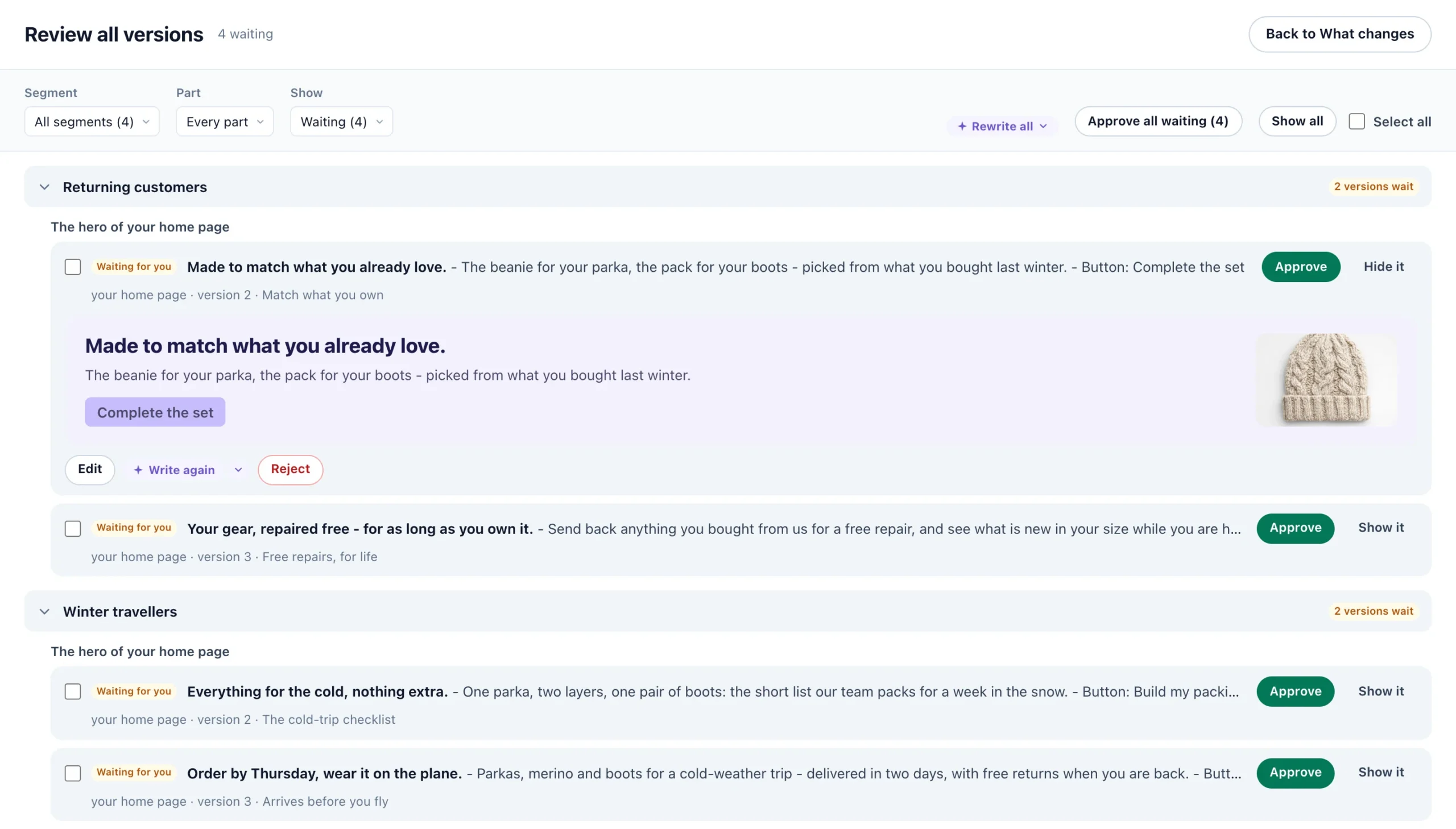
Then you publish, to staging first. The QA step gives you a link for each segment that opens your site as that segment sees it, to check yourself or send to a colleague.
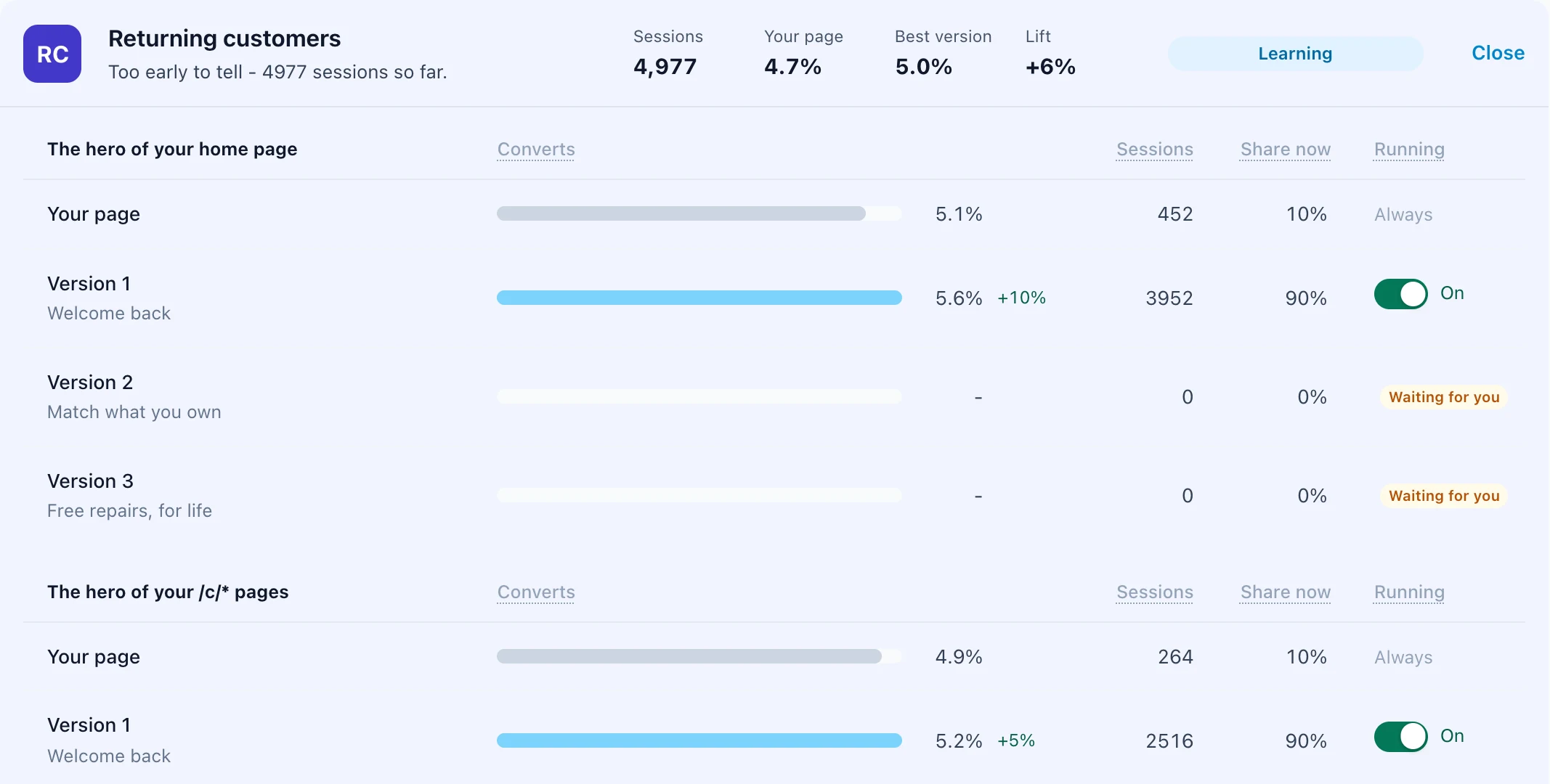
Once live, each visitor sees their segment’s approved versions. A visitor no segment fits sees your page as it is, and so does a share of each segment you choose, up to half, so every version is measured against your page, as in an A/B test. With Auto-optimize, the default, visits shift to the version that converts best, a clear loser is retired and another written for your approval, and where your page beats every version for a segment, that part shows your page.
Every step is documented in the help center, and AI website personalization shows the whole flow on a demo store.
Product recommendations, set up by AI
Recommendations have always needed setup work: a clean catalog, product events, an algorithm for each page, the right spot on each template. Set it up with AI does it for your whole store, in four steps, from the Product Recommendations card in New campaign.
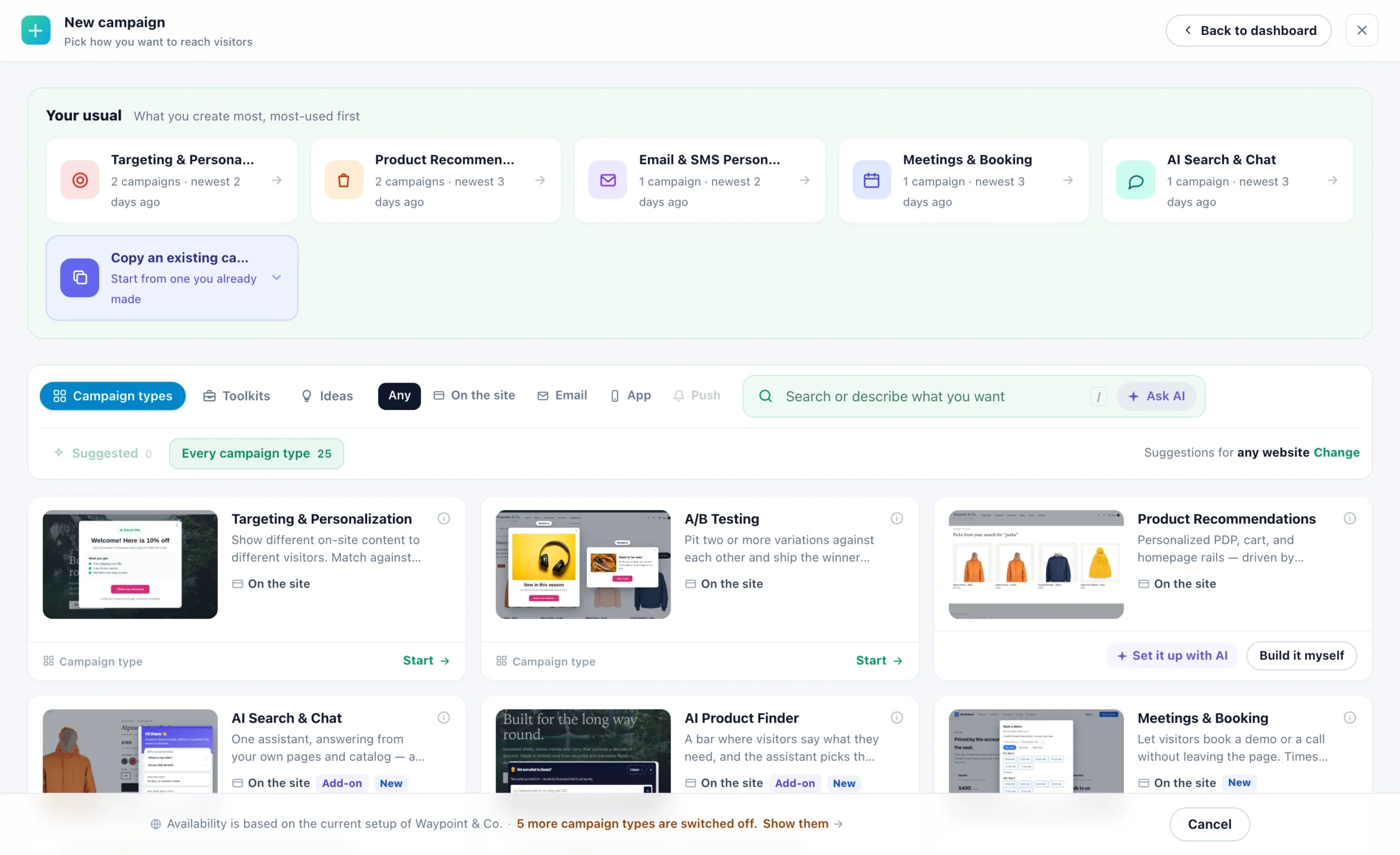
1. Your products. Connect your store (Shopify, Magento, WooCommerce, BigCommerce or Shopware), give it your product feed, or let Personyze read your product pages. It shows what it found and checks the catalog is ready for recommendations.
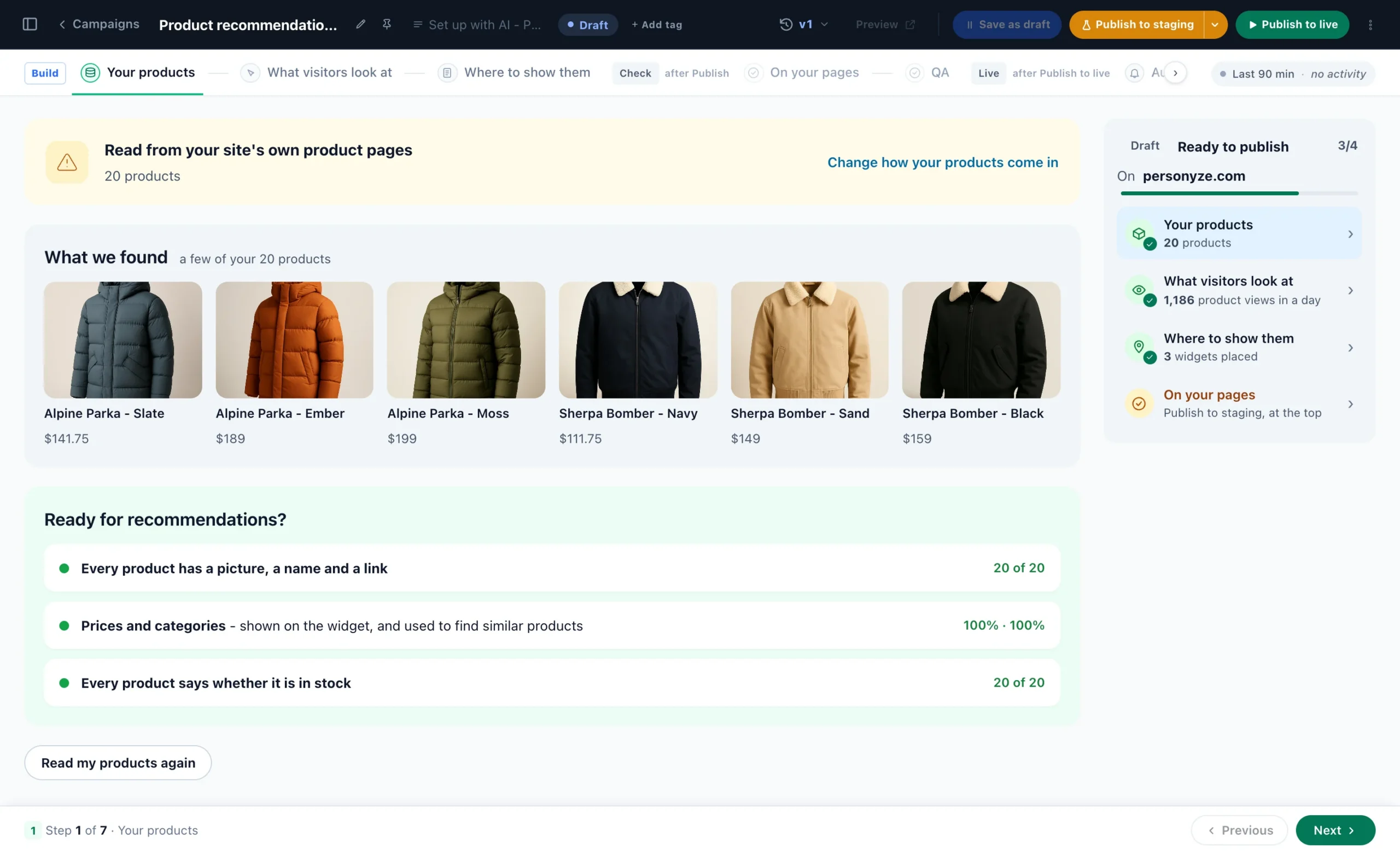
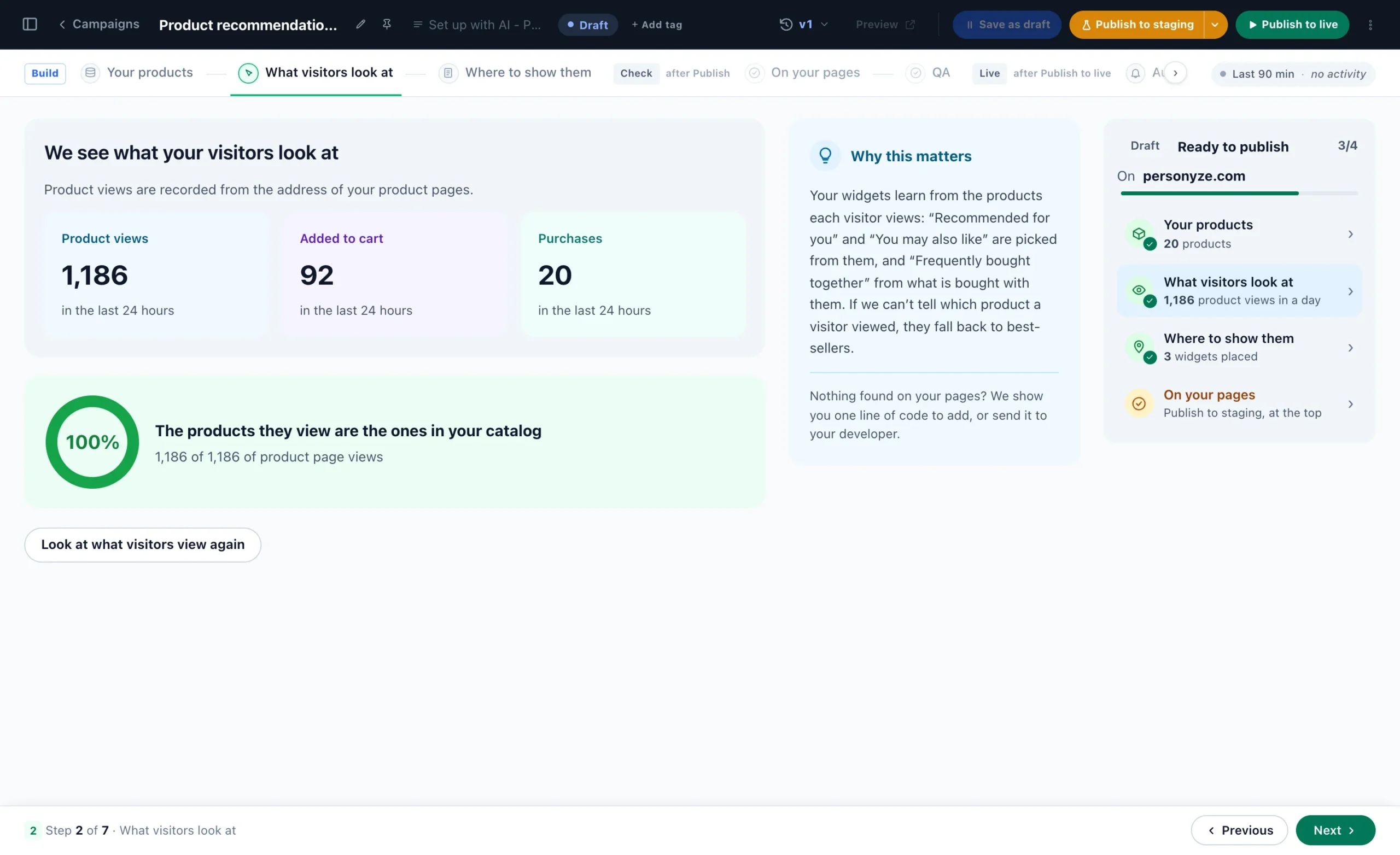
2. What visitors look at. Recommendations learn from the products each visitor views, adds to the cart and buys, so the setup checks it sees those events, and that the products visitors view are the ones in your catalog.
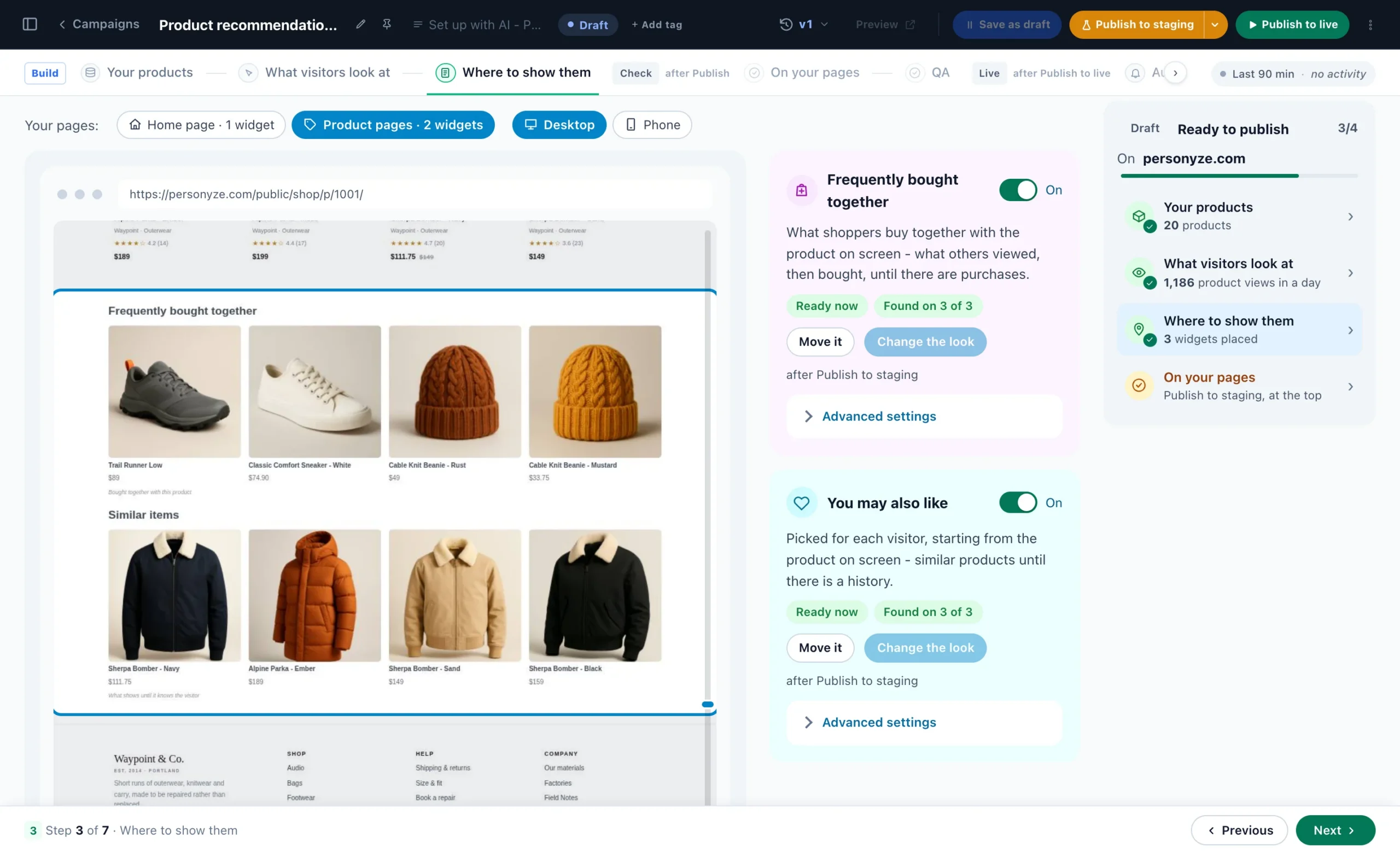
3. Where to show them. It reads your kind of shop, finds the spot on your home, product and cart pages, and places each widget in your store’s look, drawn on a picture of your own page.
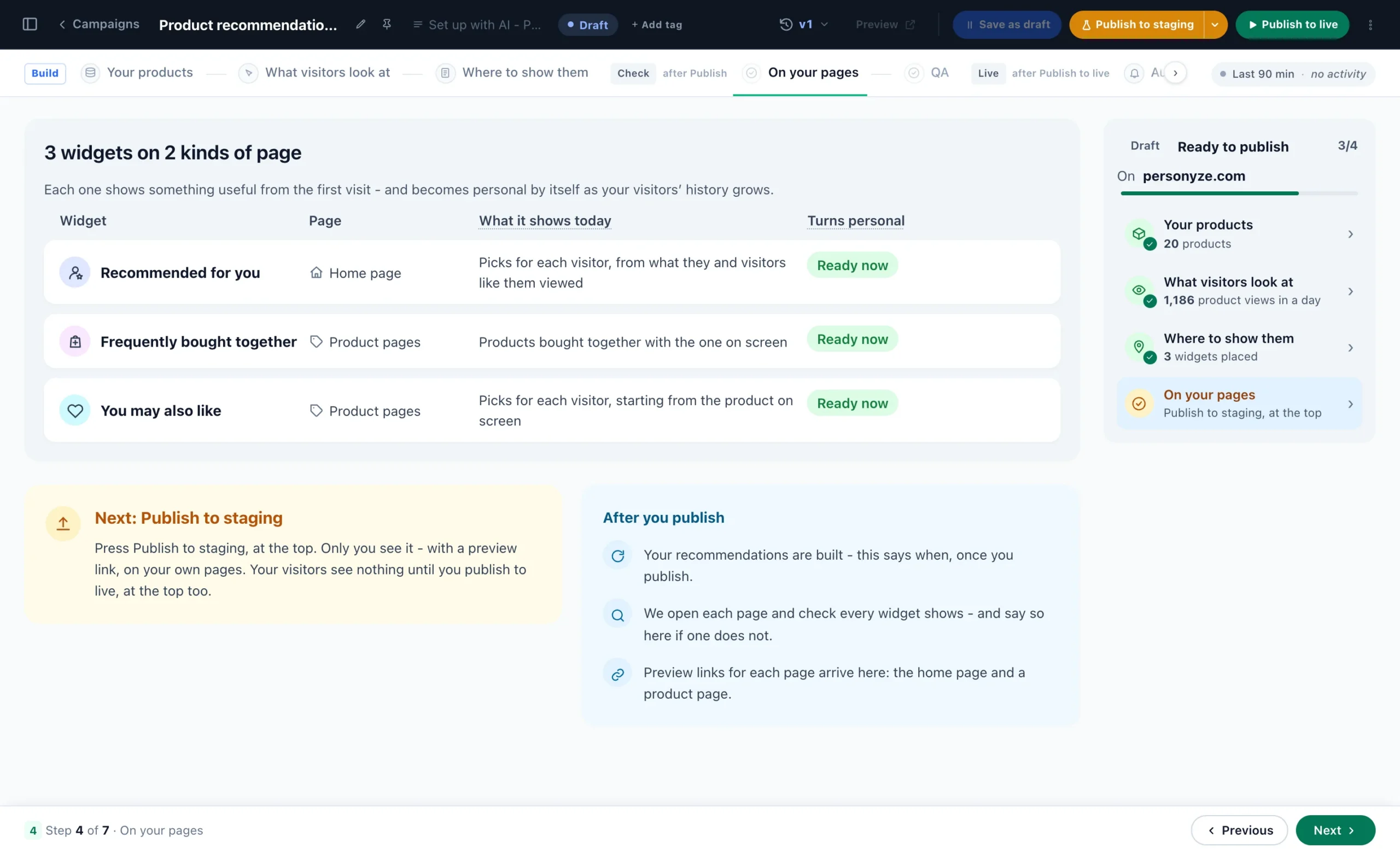
4. Check it, then publish. The last step lists every widget, the page it goes on and what it shows today. Publish to staging and only you see it, on your own pages; your visitors see nothing until you publish live.
Prefer to build a widget by hand, or want to see every setting? Product recommendations, start to finish walks through the catalog, the algorithm and its fallbacks, the design, a preview as a real shopper and a test against no widget.
Algorithms tuned to your kind of shop
The setup reads more than your product list. Personyze works out from your catalog what kind of shop it is and adapts its algorithms to it, with nothing to configure. A fashion store gets outfits, an electronics store gets the accessories that fit, a pet store gets the refill before the bag runs out.





Most of these read the products themselves: each product’s picture and title, read once. Reading product pictures is one switch in Recommendation settings, and before you turn it on you see the estimated AI credits for your own catalog. Recommendation engine algorithms lays every kind out side by side; for the detail, see recommendations for fashion stores and for electronics stores.
Day one without data, then crowd wisdom
Classic recommendation algorithms are crowd wisdom: customers who bought this also bought, who viewed this also viewed, best sellers. They work well, and they need traffic. A product added this morning has none, and neither does a store that has just added the tag.
The AI algorithms do not wait for it. Because they read what each product is, a product has neighbours before its first visitor: Similar Items (AI) finds them from titles, brands, descriptions and categories, and the look-based rows recommend a product added today mostly from how it looks.




Crowd wisdom then blends in. Purchases count from day one, and for each product Personyze weighs two signals, what shoppers did with it and how it looks. As purchases build up, the balance shifts by itself, until a bestseller is recommended mostly from real purchases. Each signal also corrects the other: the look drops bought-together pairs that cannot go together, such as the same jacket in another size, or a gift card bought with everything.
The setup screens above say the same. Frequently bought together shows what others viewed, then bought, until there are purchases; You may also like shows similar products until there is a history. Each widget “shows something useful from the first visit, and becomes personal by itself as your visitors’ history grows.”
One limit, plainly: Time to restock is learned from how often your shoppers rebuy each item, so it starts once orders come in. And if you have past orders, upload them, one row per order line: the engine then starts from what already sold together instead of waiting weeks.
What stays in your hands
- Nothing goes live until you publish. Approving a version or finishing the setup changes a draft. Publish to staging shows it to you alone; Publish to live shows it to visitors.
- Only what your site says. Versions are written from your own pages. A hero’s picture is one of yours, or found on your own pages, never made up.
- Your page stays in the test. You choose its share of each segment’s visits, and you can switch any version off on By segment.
- Your rules on recommendations. Skip what a shopper is viewing, has in the cart or has bought; never recommend chosen categories; and add Match the visitor to put their own brand, size and a price like theirs first. Out-of-stock products are never recommended.
- The cost before the switch. Reading product pictures shows the estimated AI credits for your catalog before you turn it on.
Some things do run on their own once you publish, because that is the point: Auto-optimize shifting visits and retiring a loser, and recommendations learning from every visit. Publishing versions by themselves is off unless you switch it on; then it is capped at the number a day you choose, and each one has Undo.
How to start
- Add the Personyze tag to your site, and set a goal, so versions are measured by what converts.
- For your pages: in New campaign, open Toolkits, then Personalize your pages, click Start and then Read my site. Come back to check the segments and approve the versions.
- For your store: on the Product Recommendations card, click Set it up with AI and connect your catalog.
- Publish to staging, open each segment’s link and each page, then publish live.
Running a content site rather than a store? The same reading works on articles: see content recommendations.
Questions people ask
What is automated personalization?
Personalization where software does the work a team used to do by hand: finding who visits, writing a version of the page for each audience, choosing and placing product recommendations, and measuring each change. In Personyze, AI does that work and you approve it: nothing reaches your visitors until you publish.
Does the AI change my site without my approval?
No. Approving a version changes the campaign’s draft, and it reaches your site only when you publish, to staging first and then live. The one exception is yours to choose: publishing versions by themselves is off unless you switch it on, and then it is limited to the number a day you set, each one with Undo.
Will the AI write things my business does not offer?
No. Each version is written from what your site already says. A version that adds a number, a price, a name, a deadline or any claim your page does not make is dropped, none uses a word on your Words never to use list, and a hero’s picture is always one of yours or found on your own pages.
How do I know the AI-written versions work?
Your page stays in the test: a share of each segment’s visits, which you choose, sees it as it is, and every version is measured against it on By segment. With Auto-optimize, visits shift to the version that converts best, a clear loser is retired, and where your page beats every version for a segment, that part shows your page.
Do AI product recommendations work without shopper data?
Yes, from the products themselves. Similar Items (AI) reads titles, brands, descriptions and categories, so a product has matches before anyone views it, and a product added today is recommended mostly from how it looks. Crowd wisdom, what shoppers bought and viewed together, counts from day one and takes a larger share as it builds up. Time to restock is the exception: it is learned from how often shoppers rebuy each item.
How does the AI setup of product recommendations work?
On the Product Recommendations card in New campaign, click Set it up with AI. Personyze reads your products from your store, your feed or your product pages, checks what your visitors look at, finds the spot on your home, product and cart pages and places each widget in your store’s look, and lists each one for you to check. Nothing changes on your site until you publish.
Book a demo with a personalization expert
30 minutes with a personalization expert. Bring your stack, your goals, your skepticism. We'll show you what changes when every visit feels like the only one.