
Every shopper’s question, answered from your catalogue.
A playbook for the AI Product Finder — bring the catalogue, write the bar, decide what it may pick, place it and read what shoppers asked. With recipes for stores, product pages, seasonal campaigns and content libraries.
Start Now →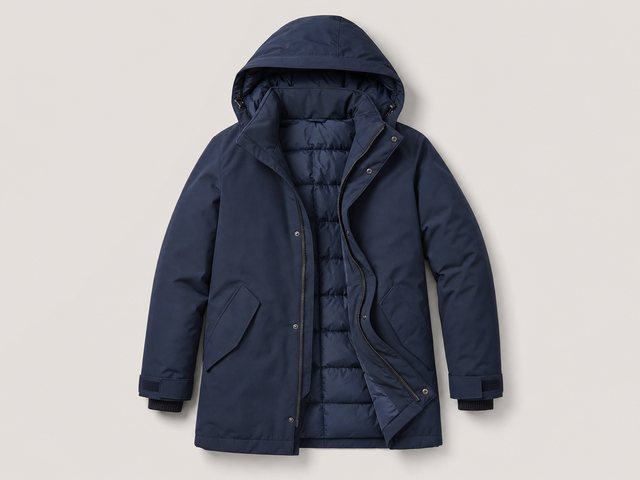



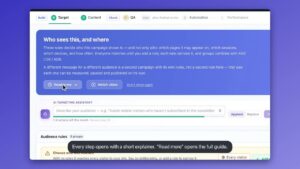
Watch the playbook done
Two walkthroughs in the real panel — a product finder set up start to finish, then the same assistant as a content finder. Then put one on your own catalogue.
1Start a finder campaign
The AI Product Finder is the AI assistant asked for a recommendation instead of a conversation. A shopper describes what they need in their own words, and gets a short summary and a shortlist from your catalogue, each pick with the reason it fits — not a page of keyword matches.
It lives in an AI Search & Chat campaign, beside the chat bubble and the ask box. Create a campaign, choose A product finder on the Content step, and the editor puts the two steps a finder cannot work without — Catalog and Product events — in front of the rest.
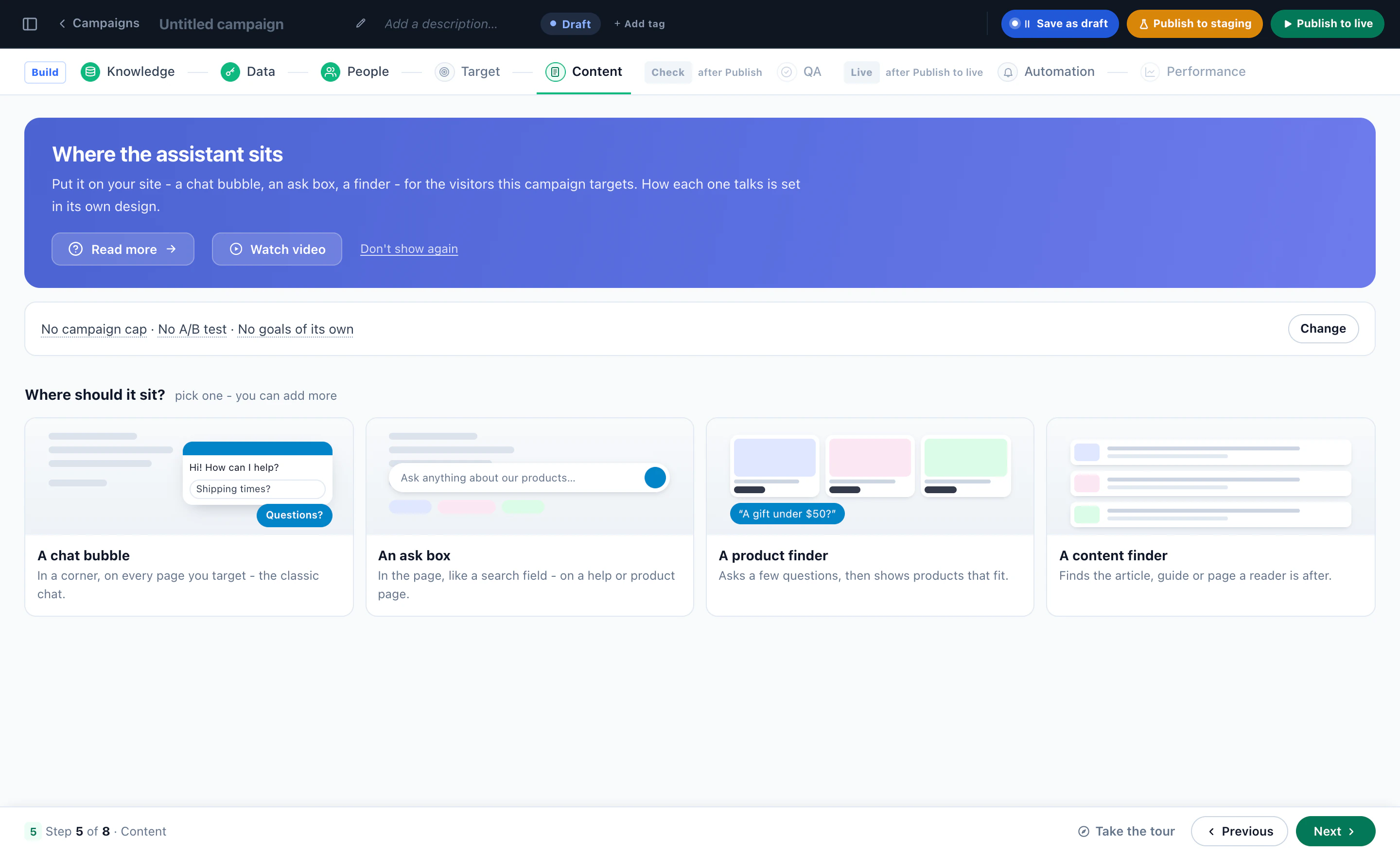
From there the editor walks it in order, and so does this playbook:
- BuildCatalog, Product events, Knowledge, Data, People, Target and Content — the finder’s own designer is on Content.
- CheckQA, with the finder previewed as a real visitor before anyone else sees it.
- LiveAutomation and Performance, once it is published.
Five of those steps reach beyond this campaign. The catalogue and its events belong to the whole site; Knowledge, Data and People belong to the assistant, shared by every chat and finder on the account. Each step says so, so nothing changes elsewhere by surprise.
2Bring the catalogue, and check its events
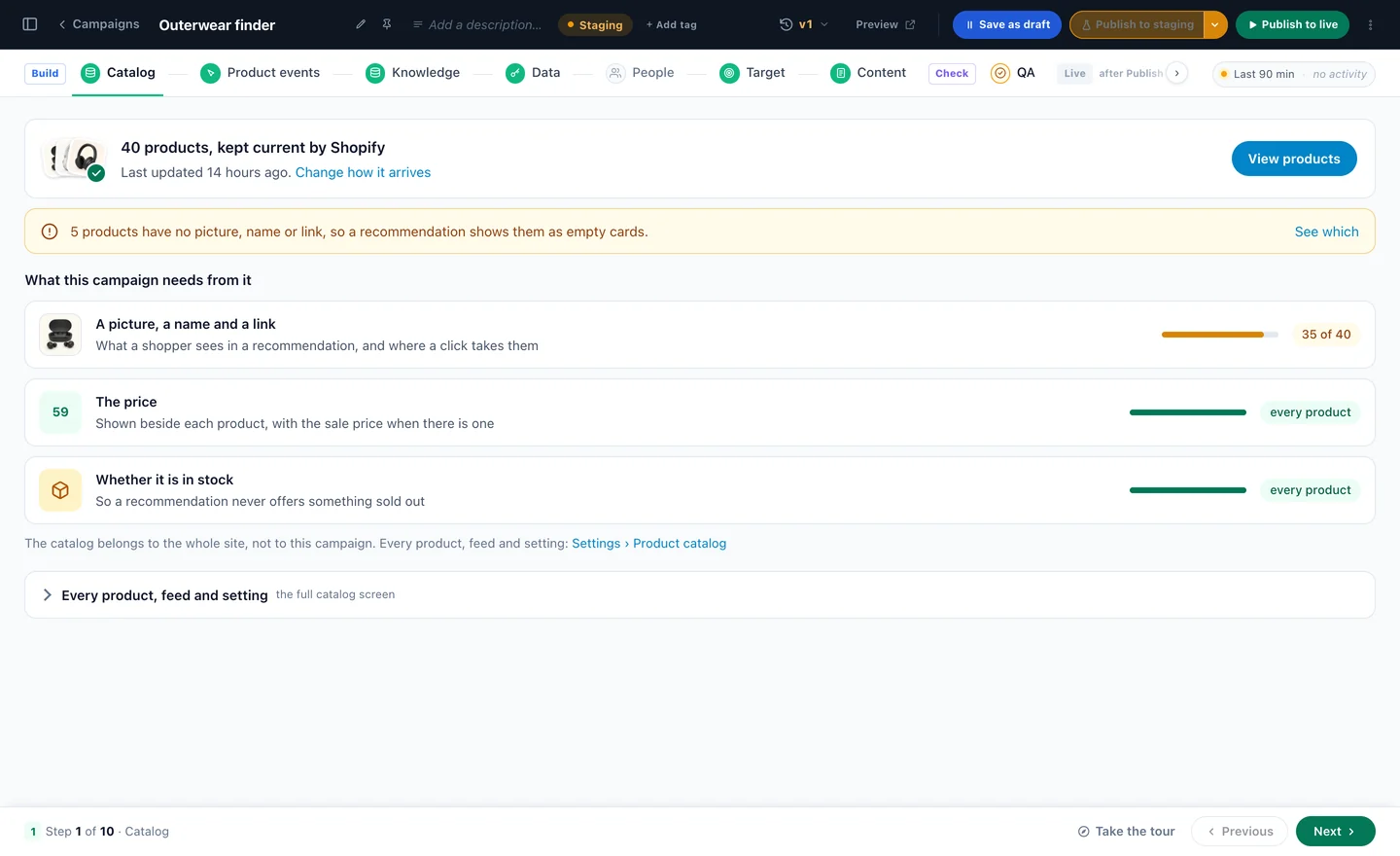
The Catalog step checks what the finder picks from: how many products, where they come from and when they last updated, and what every card needs — a picture, a name and a link, the price (with the sale price when there is one), and whether it is in stock. Products missing a picture, a name or a link are counted, with See which.
The catalogue can come from a connected store, a feed, a file or SFTP — or Personyze reads the products off your site. With more than one feed, the finder’s designer chooses which one it picks from.
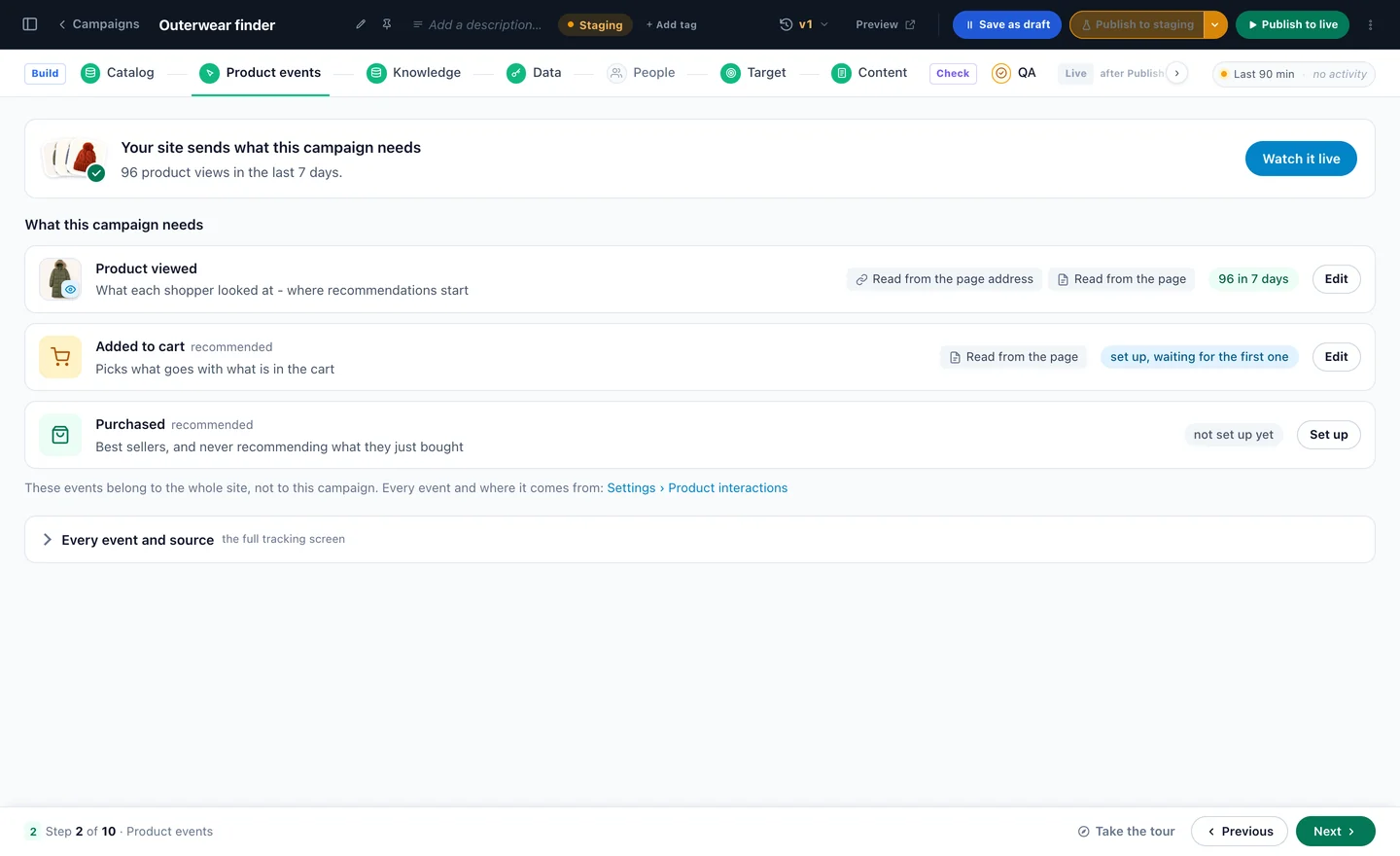
The Product events step checks what shoppers do with those products: Product viewed, read from the page address or the page; Added to cart; and Purchased. Views are what trending and most popular count; purchases are what best sellers count — the rankings the finder can lean on in step 8.
3Give it knowledge, and decide what it may know
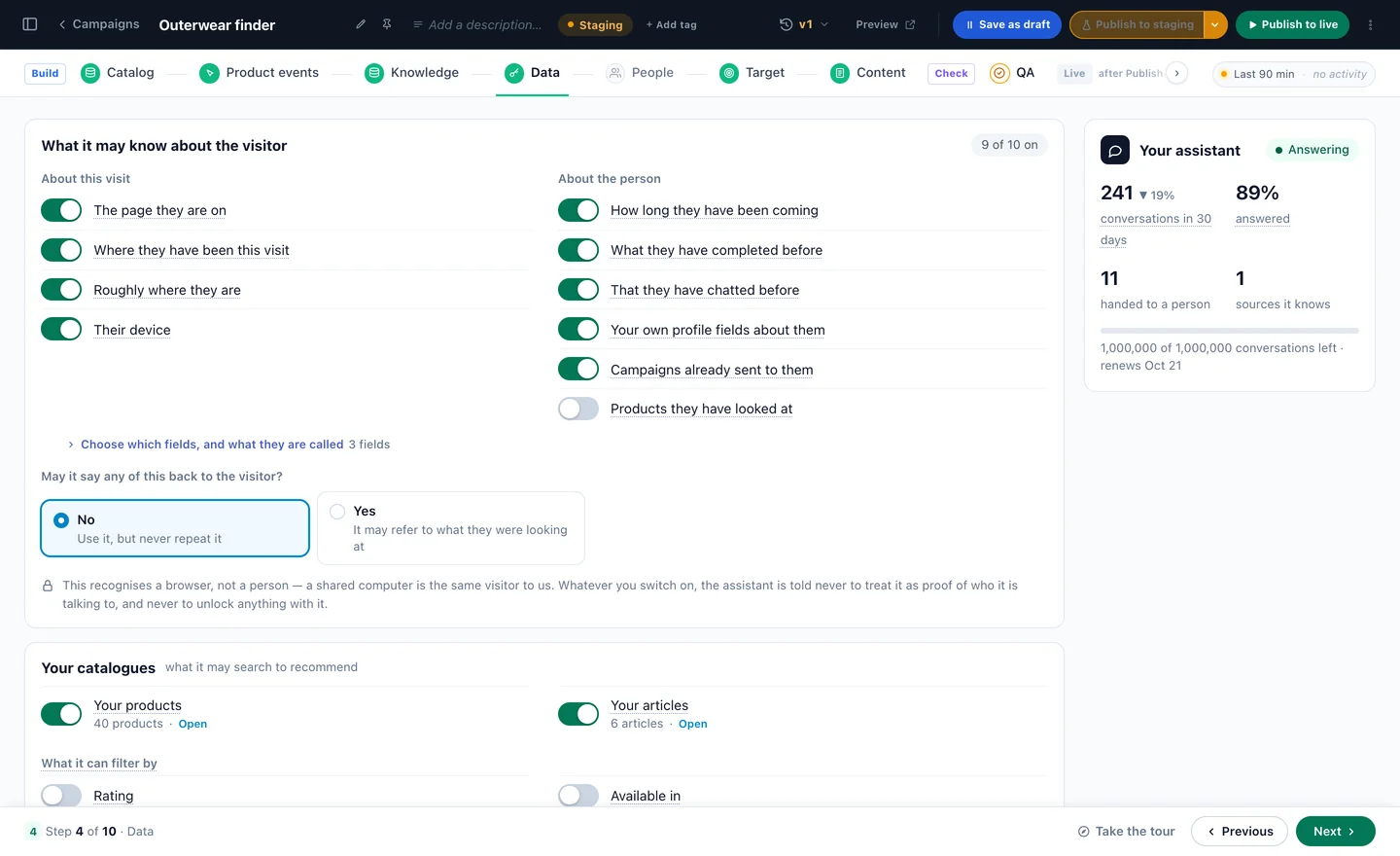
Knowledge is what the assistant may answer from — web pages, files and pasted text. The product finder recommends only from your catalogue, but reads the knowledge base to understand what a need means: how something is used, what suits whom. Its sizing, care and delivery answers come from here too.
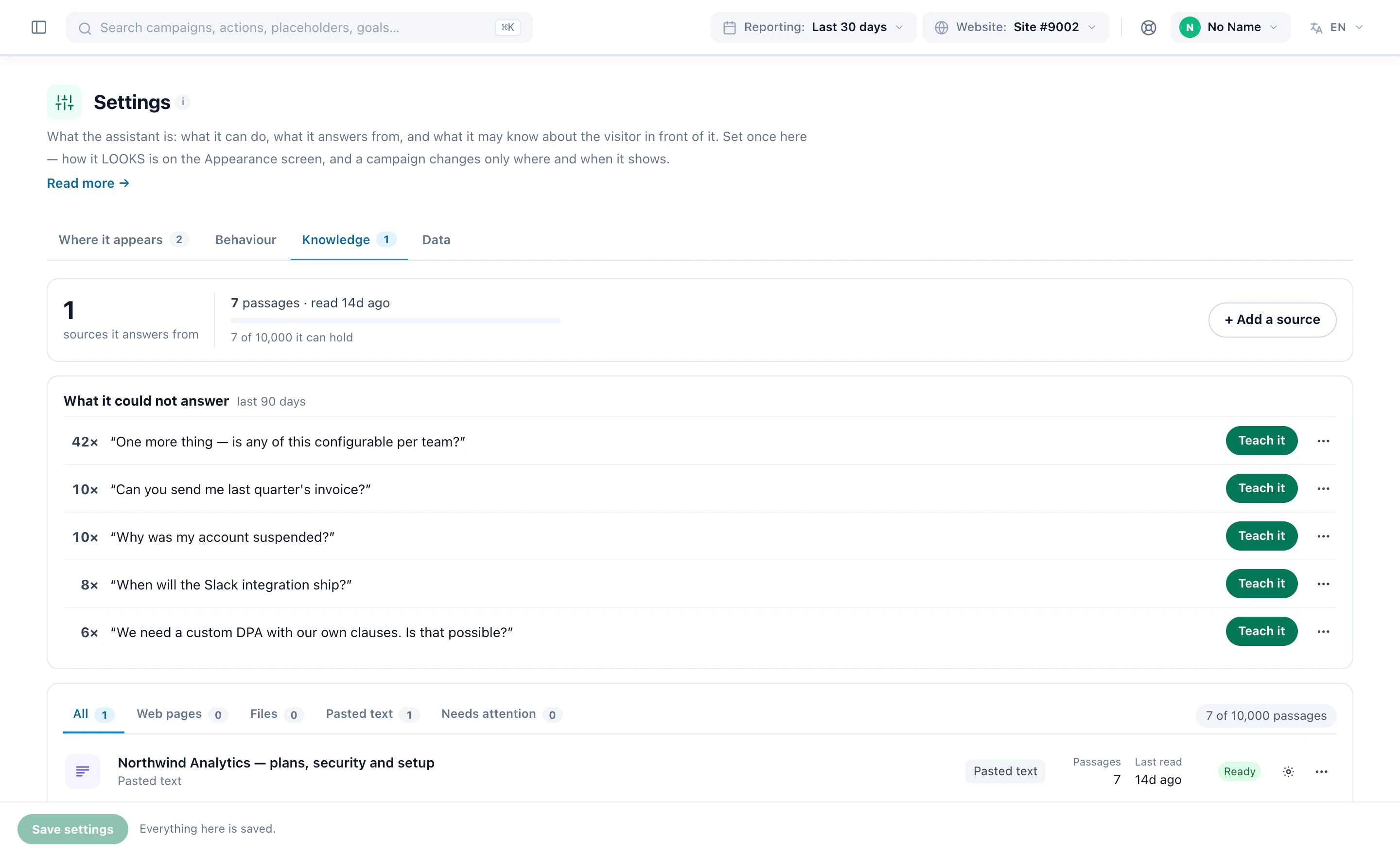
Data decides what it may know about the visitor in front of it: about this visit — the page, where they have been, roughly where they are, their device — and about the person — how long they have been coming, what they completed before, earlier chats, your own profile fields, campaigns already sent to them, and the products they have looked at. A separate choice says whether it may ever say any of it back; No — use it, but never repeat it is the one to keep for a finder.
Switch on Products they have looked at and the finder gets one more list by itself: products picked for this visitor from what they looked at, beside its own search. The same screen sets which catalogues it may search — your products, your articles — and which fields it may filter by beyond the name, brand, colour, size and price it always searches.
People names who takes over when the assistant hands a visitor to your team. A finder hands over only if you switch that on in its own rules, and only from the follow-up questions — never from the recommendation itself.
4Choose who gets it
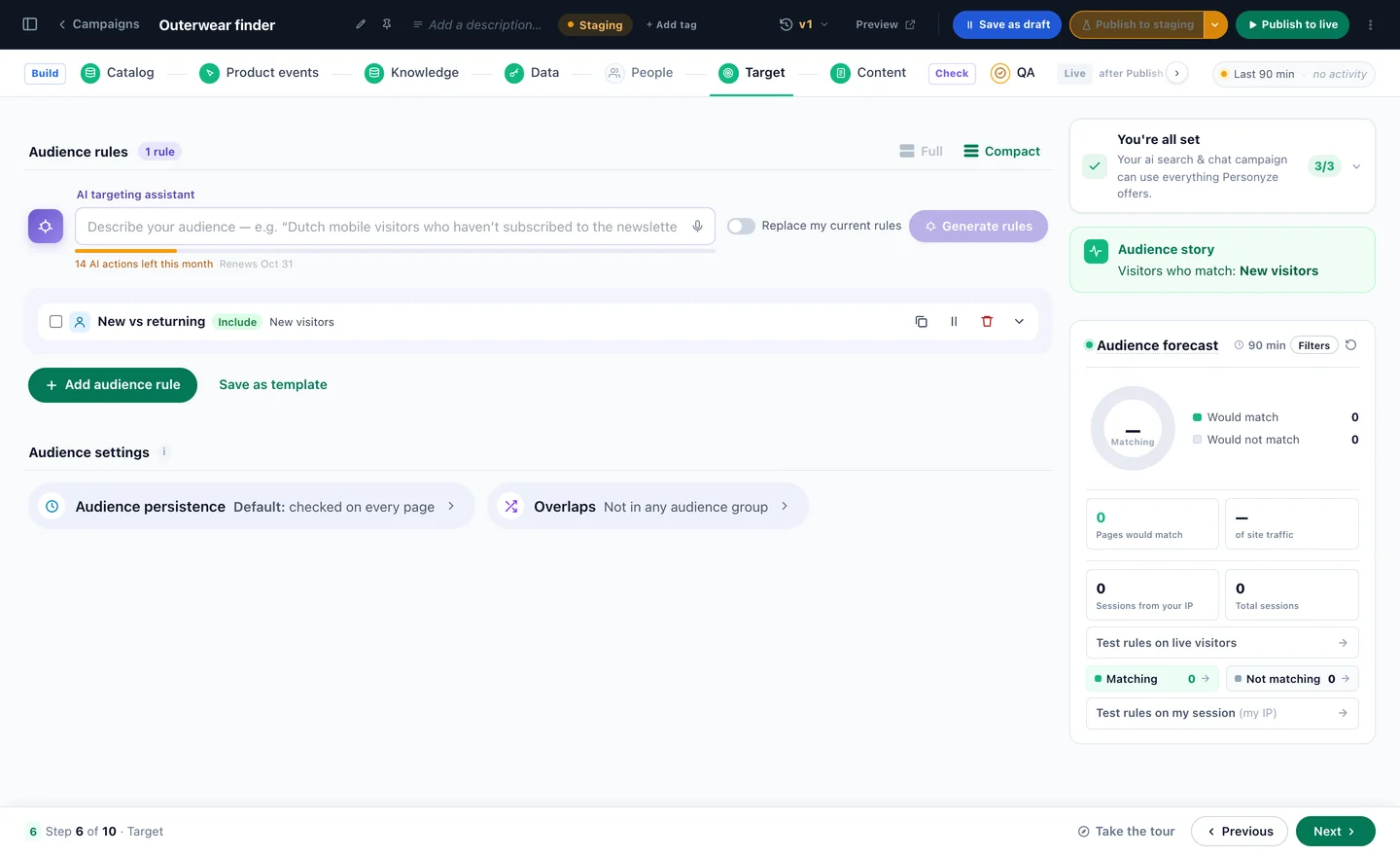
Target is the audience step of every Personyze campaign: rules built from conditions, or described in a sentence to the AI targeting assistant, with a forecast of who will match and a test on live visitors or on your own session.
A finder is an action in a campaign, so the targeting you already use applies — new or returning, page, country, device, a field from your CRM. Start with the visitors who need help choosing: first visits, category pages, phones.
5Make it look like your site
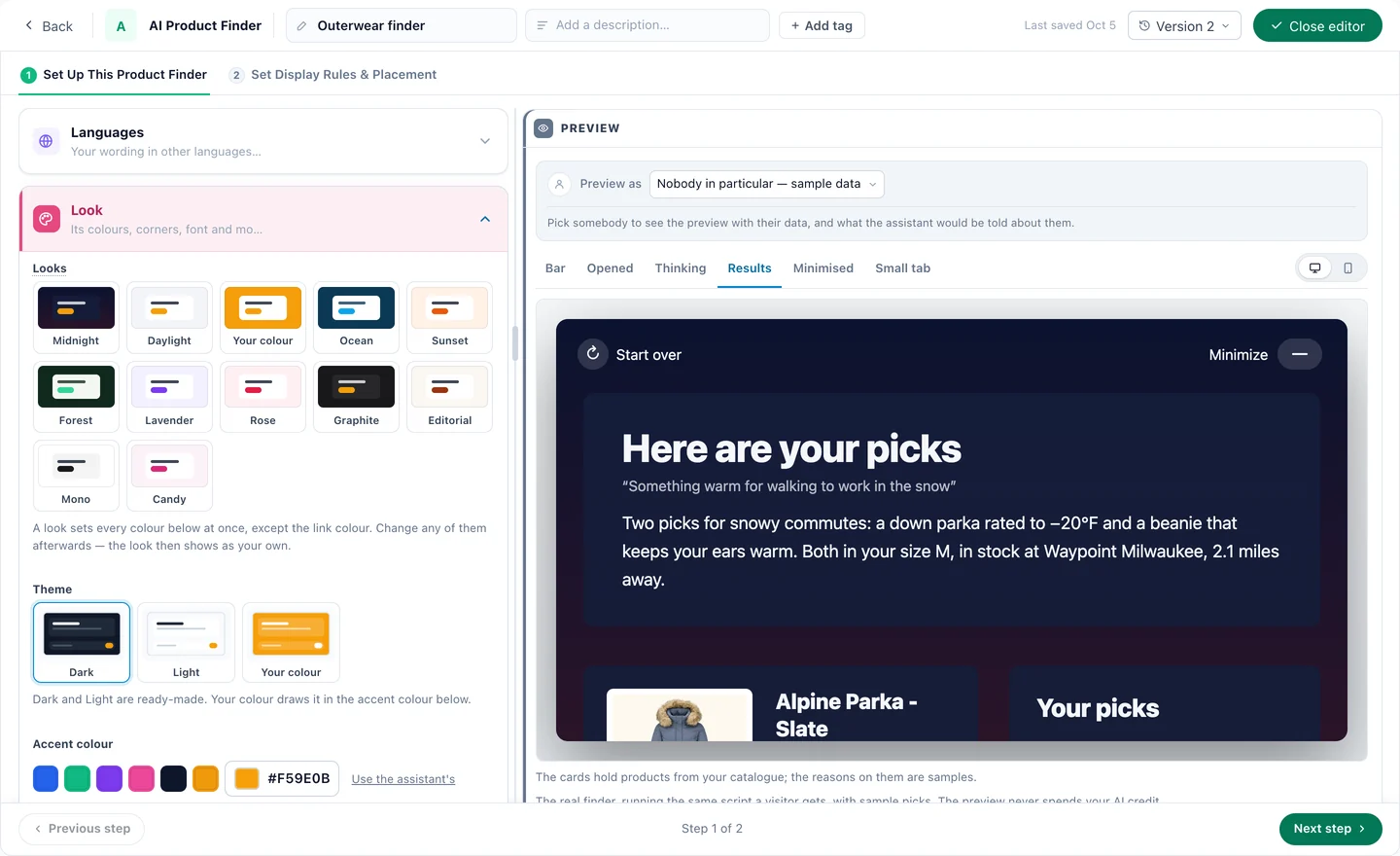
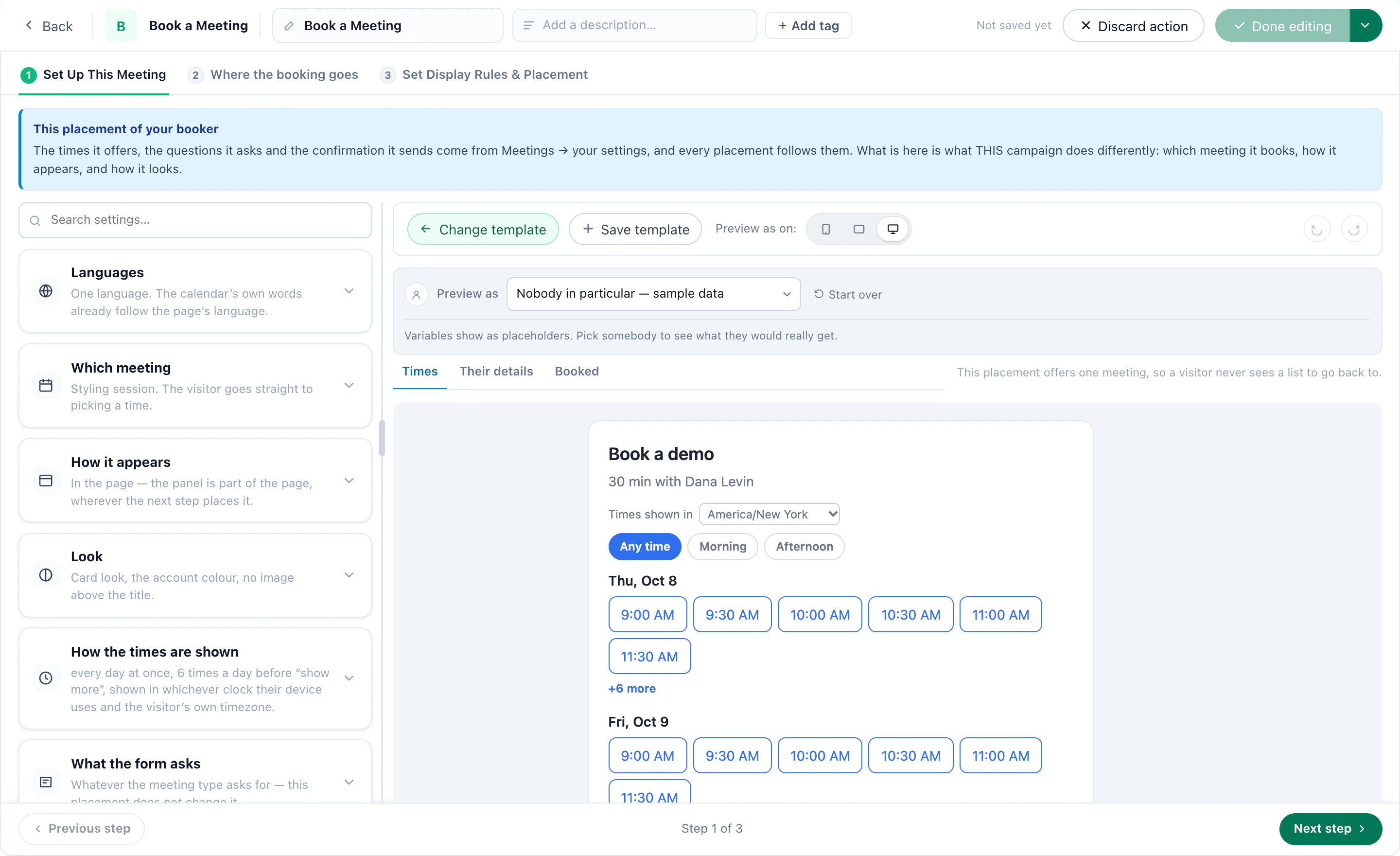
The Content step opens the finder’s designer in two steps — Set Up This Product Finder, then Set Display Rules & Placement — with the preview beside every setting. Its cards come in the order they are changed most, and the next five sections follow them.
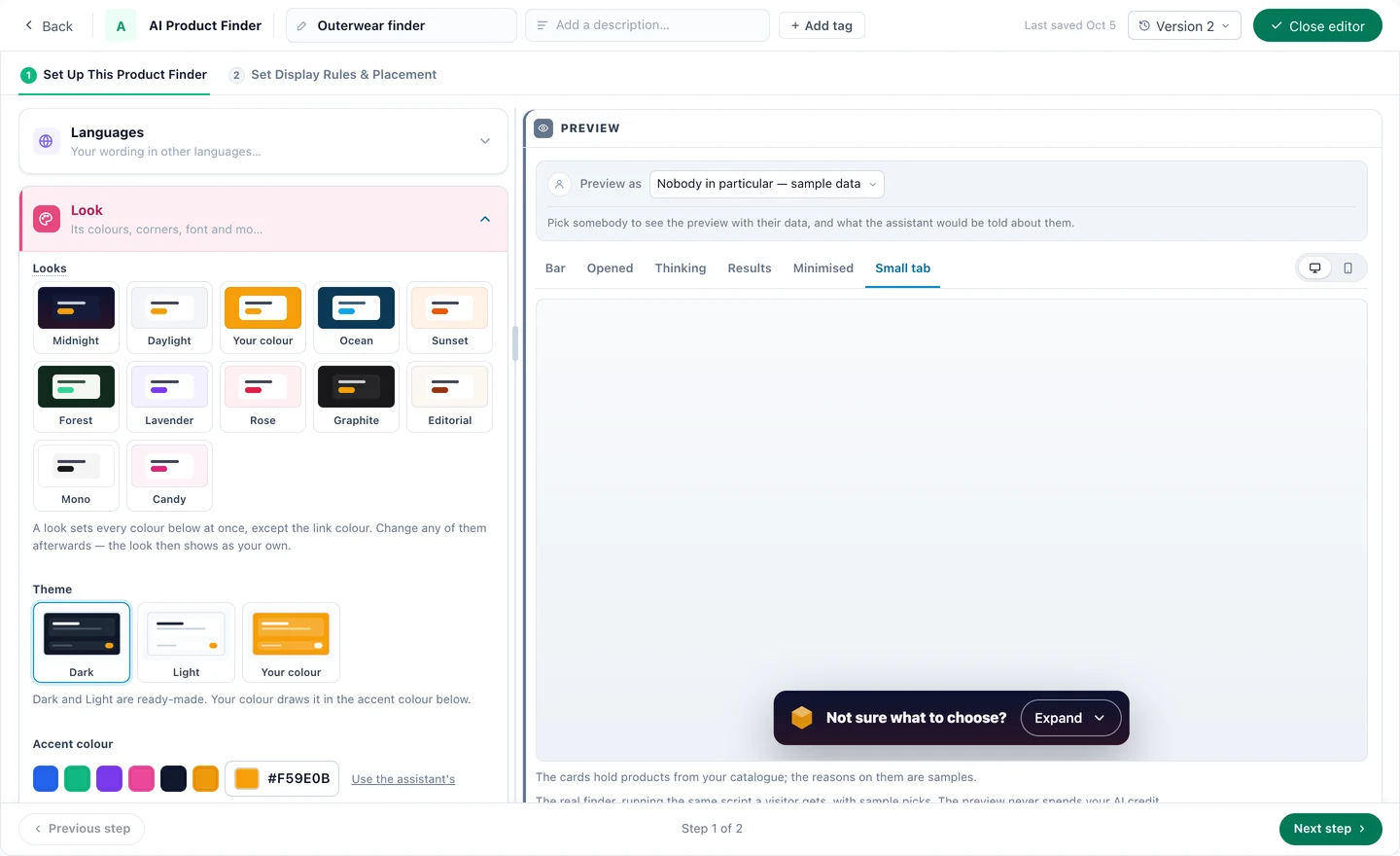
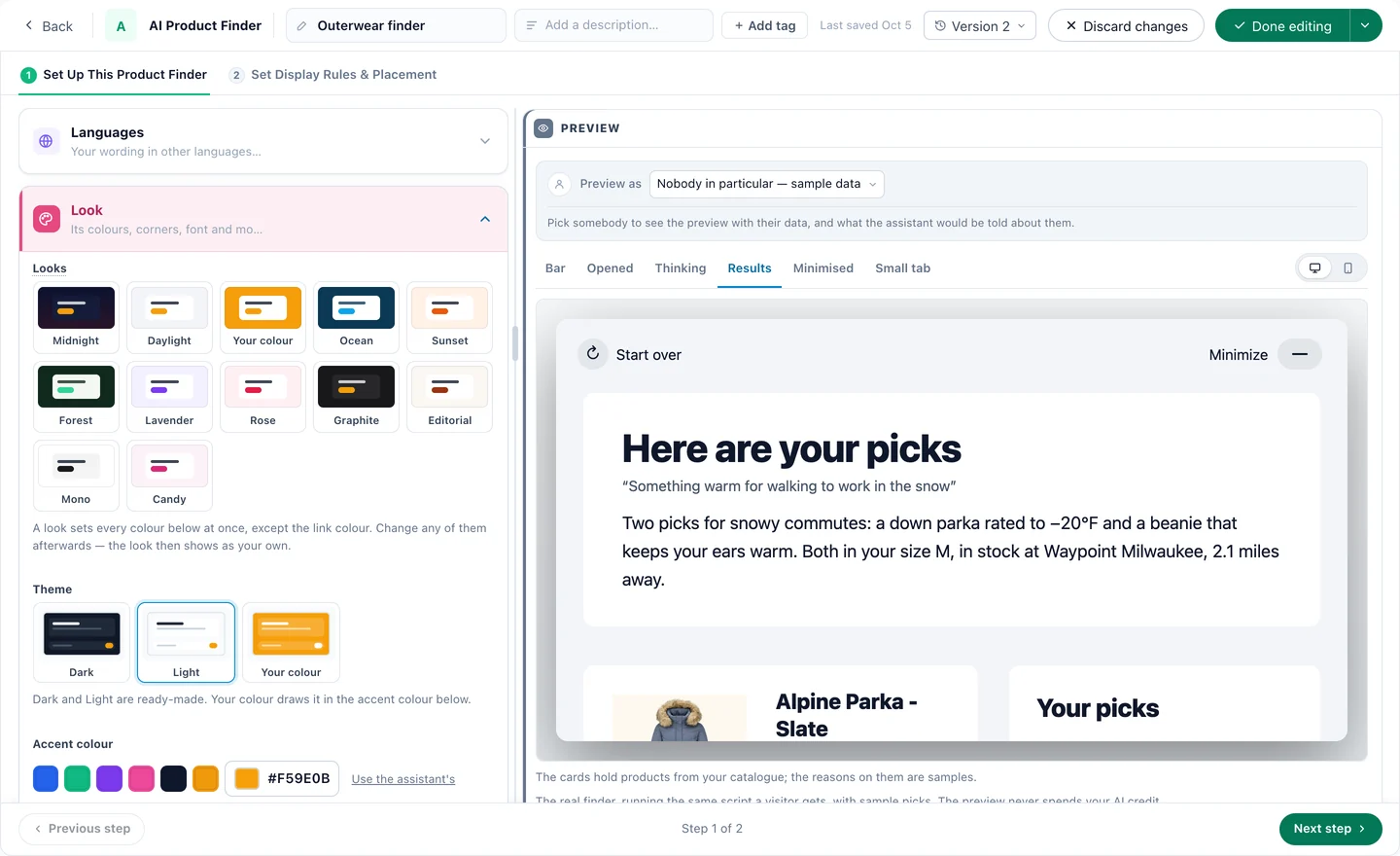
Look starts from one of twelve looks — Midnight, Daylight, Your colour, Ocean, Sunset, Forest, Lavender, Rose, Graphite, Editorial, Mono, Candy — a Dark, Light or Your colour theme, and an accent colour. A look sets every colour at once except the link colour; change any of them afterwards and it shows as your own. Then box edges, corners, font and motion.
Languages
Answers, and the reason beside each pick, are always in the visitor’s language, and it searches your catalogue in the catalogue’s own. The finder’s own words — “Here are your picks”, “Start over” — follow the assistant, stay in English, or follow the page’s language; add a language under Languages to give your own wording in it.
6Write the bar
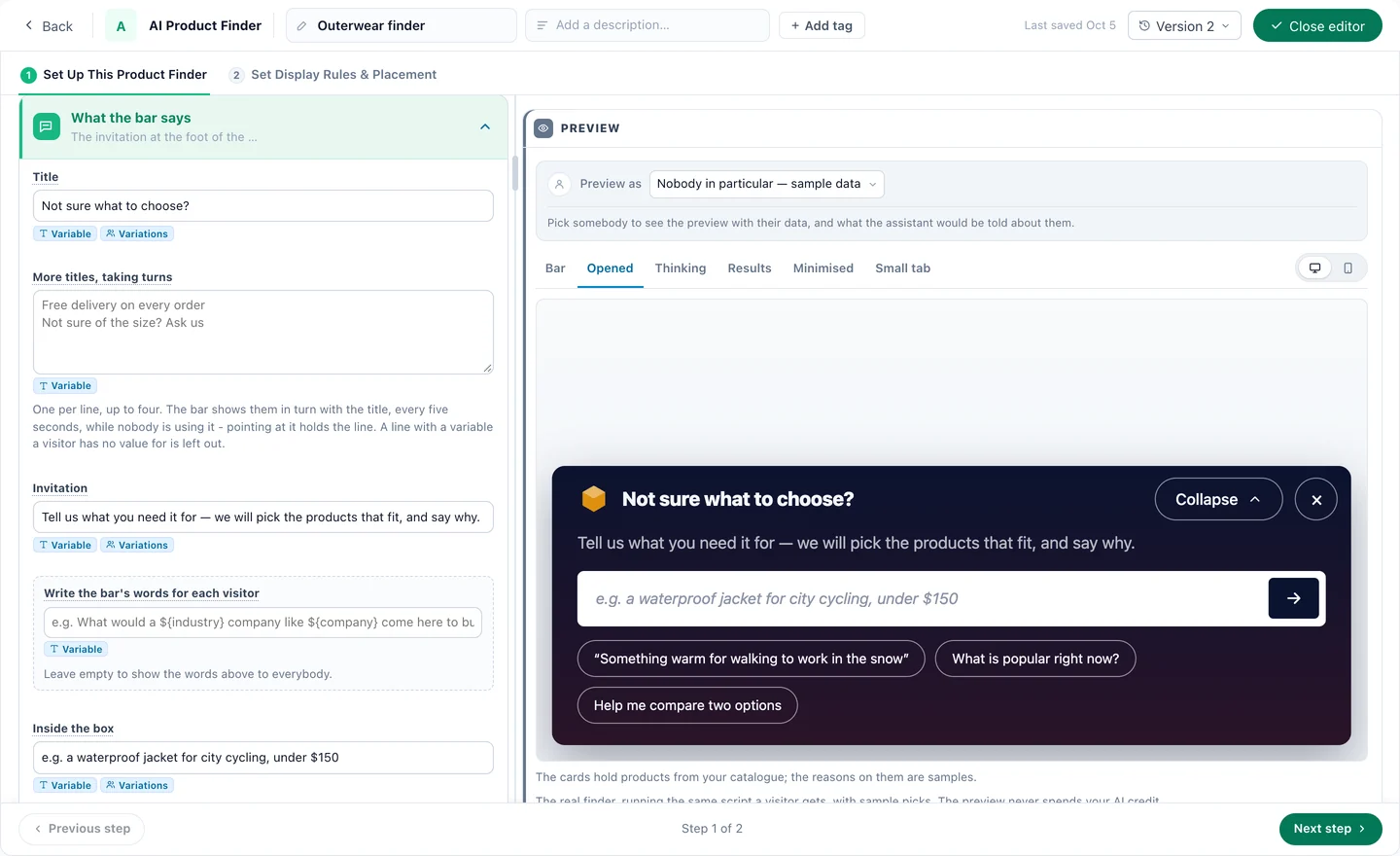
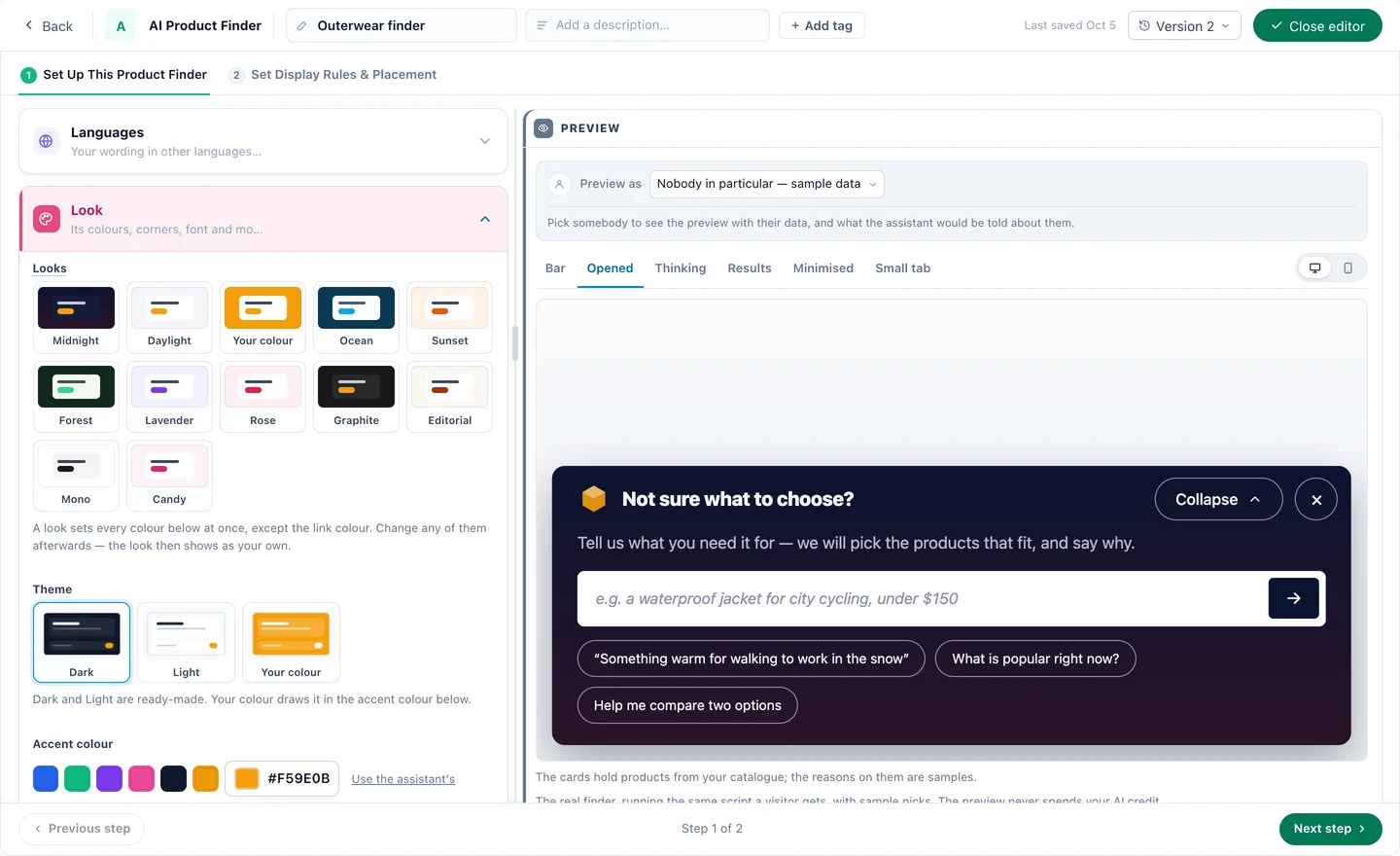
The bar is the first thing a shopper meets, at the foot of the page. What the bar says:
- Title — the bold first line — and More titles, taking turns: up to four, shown in turn every five seconds while nobody is using the bar.
- Invitation — the smaller line saying what to ask — and the hint Inside the box.
- Examples to tap — up to four ready questions; one tap asks it. They show shoppers what kind of need to describe.
- Write the bar’s words for each visitor — a question built from what you know, such as ${industry} or ${company}. Its answer replaces the invitation or the title, once per question, kept for the visit; a visitor without that detail sees your own lines or another question.
- Ask a question by itself — asked once a visit as the finder arrives, so the picks are waiting instead of asked for. Each visitor it reaches is one AI conversation, so target that campaign narrowly.
- Let visitors speak their question — a microphone in the box; what they say fills it, so a misheard word can be fixed before it is asked.
Every field takes the visitor’s own details (Variable) and different words per audience (Variations) — recipe 3 builds on that.
Closing, and the small tab
The × hides the finder until it comes back — on the next page, the next visit, after a day, a week or 30 days, or never on that browser — or folds it into a small tab with your logo and title, which opens it again in one click. Or leave no × at all: then it can only be collapsed to its title. It can also start as the small tab.
7Shape the results page
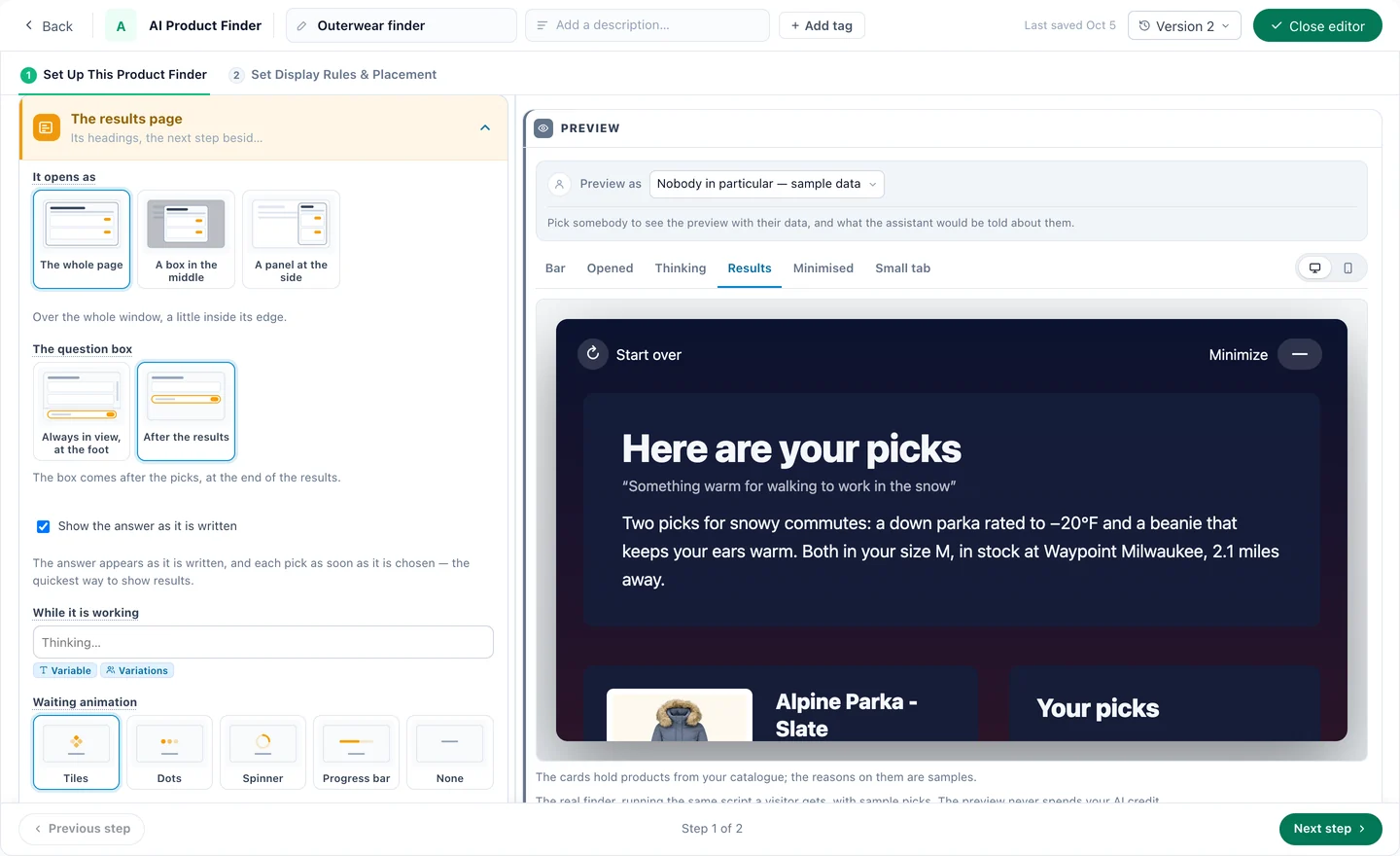
The answer is a short summary — two to four sentences on what fits the need and why — then up to four picks, each with one sentence on why it fits and up to three short points, and up to three more under Also worth a look. Every card is drawn from a catalogue row: the AI writes the summary and the reasons, never the picture, price or link, and a sold-out product is never a pick.
- It opens as the whole page, a box in the middle or a panel at the side. In a box or a panel the first three picks show and Show more brings the rest; on a phone it is the whole screen.
- The question box for follow-ups — “Ask about your picks” — always in view at the foot, or after the results. Which one is warmer, does it come in navy: answered without starting over.
- Show the answer as it is written, each pick as soon as it is chosen — or a waiting screen until everything is ready, with your own words and tiles, dots, a spinner or a progress bar.
- Review stars from your Reviews or the catalogue’s rating, and up to two next-step buttons in the card beside the picks — Book a fitting, See the range.
More on the results page
Add up to three of your other actions — a survey or a feedback question, reviews, survey results, social proof, a meeting booking, a recommendations widget, a form — above the picks, under them or in the side column, always or only when the AI finds it relevant. Each runs as itself, from a running campaign, and counts in its own campaign’s report.
Links and buttons
Each pick opens with a button or a text link, in a new tab or the same one, and Add to cart appears on a pick wherever your store’s add-to-cart is set up in product tracking. The results stay for the visit: See your picks on the bar brings them back on the next page.
8Decide what it picks from
What it picks from is where a finder is held to your business rather than to the whole catalogue.
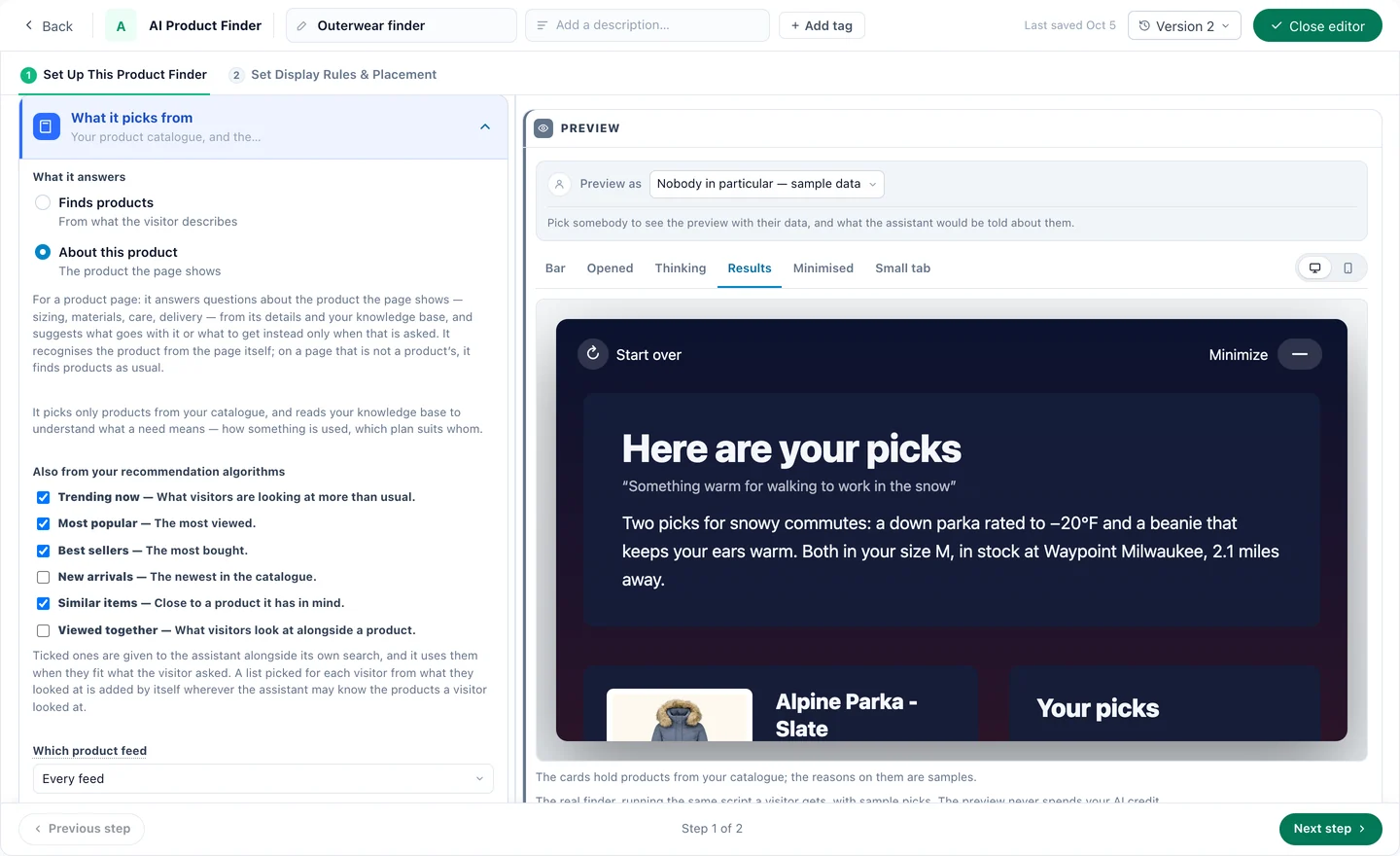
- What it answers — Finds products from what the visitor describes, or About this product for a product page (recipe 2).
- Also from your recommendation algorithms — Trending now, Most popular, Best sellers, New arrivals, Similar items and Viewed together. The ones you tick are given to the assistant beside its own search, and used when they fit what was asked.
- Which product feed, when the account has more than one, and which part of the knowledge base — a tag — with what to do when that part has no answer.
- Only recommend — rules built like a recommendation’s filters: only these brands, only this category. Empty means any product.
The account decides what the assistant may read at all, on its Data step. This narrows it for this finder only, and can never switch on something the account turned off.
9Set its own rules
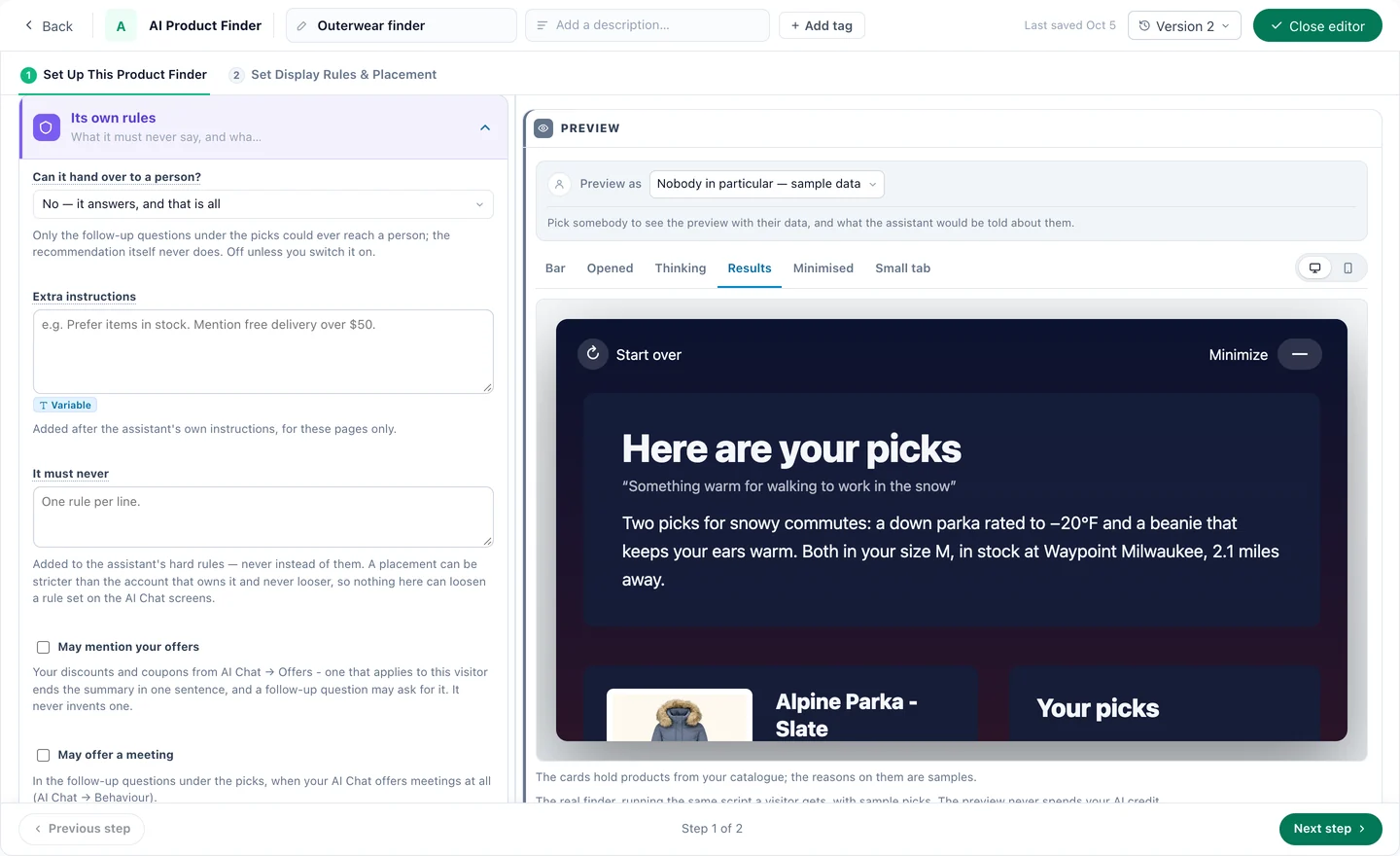
- Can it hand over to a person? — off unless you switch it on, and then only from the follow-up questions under the picks.
- Extra instructions — added after the assistant’s own, for these pages only: “Prefer items in stock. Mention free delivery over $50.”
- It must never — hard rules, one per line, added to the assistant’s. A finder can be stricter than the account, never looser.
- May mention your offers — your discounts and coupons from AI Chat → Offers, then from your Promotions list. One that applies to this visitor ends the summary in one sentence, with its card on the results page. It never invents one.
- May offer a meeting — in its answer, with the calendar under the summary, and in the follow-up questions — when your AI Chat offers meetings at all.
Under More settings: the small print under the box (visitors in the EU must be told they are talking to an AI, so hide it only where the title already says so), hiding it on small screens, extra CSS, and the events it sends when somebody asks and when somebody opens a pick — named events you can use as goals and in audiences.
10Place it, preview it, publish it
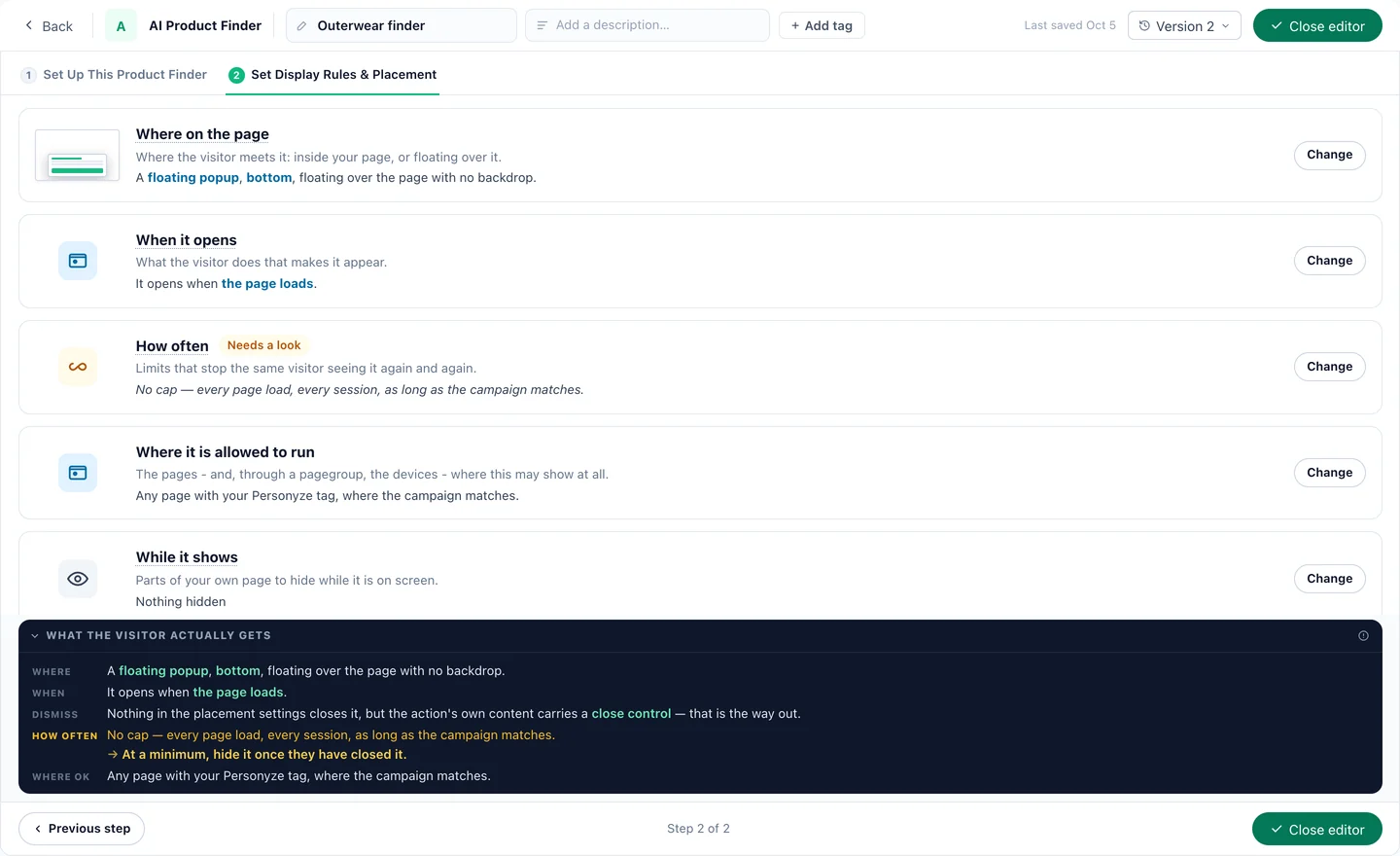
The designer’s second step, Set Display Rules & Placement, asks five things and then says back what the visitor actually gets:
- Where on the pageInside your page, or floating over it — a bar at the foot, a side spot.
- When it opensOn page load, or on what the visitor does.
- How oftenLimits that stop the same visitor seeing it again and again.
- Where it may runThe pages, and through a page group the devices, where it may show at all.
- While it showsParts of your own page to hide while it is on screen.
In a placeholder on the page the finder is part of the page, with no × and no small tab. It can also sit inside a design you build in the Canvas — a pop-up or a landing page — as one of its elements, still tested and reported on its own.
Preview, then publish
Preview as any visitor you pick, to see the finder with their data and what the assistant would be told about them, in each of its states — Bar, Opened, Thinking, Results, Minimised, Small tab — on a desktop or a phone. The preview runs the same script a visitor gets, with sample picks, and never spends your AI credit. Then QA, then Publish to staging to try it on your own site from a staging address before Publish to live.
11Recipe 1: The online store — from a need to the cart
A store where shoppers know what it is for, not which item it is: outerwear, outdoor gear, home goods. Let them say the need, and end the answer in the cart.
- WhereA bar at the foot of the home and category pages, targeted at first visits and phones.
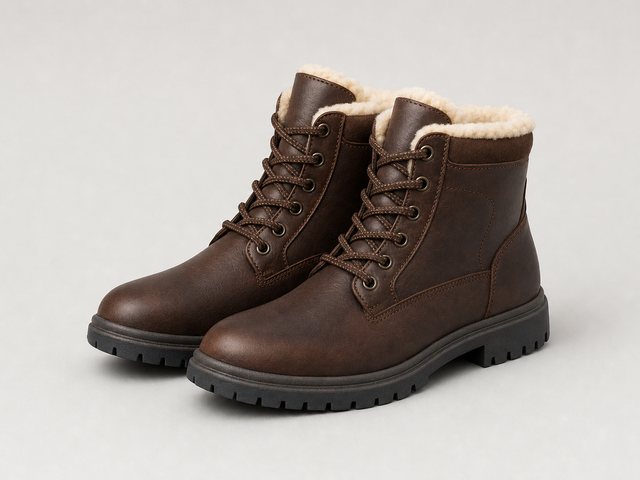
- The bar“Not sure what to choose?”, an invitation, and examples to tap: “Something warm for walking to work in the snow”, “What is popular right now?”, “Help me compare two options”.
- What it leans onTrending now, Best sellers and Similar items — and, with Products they have looked at on, the list picked from what this shopper looked at.
- After the picksAdd to cart on each pick, review stars, the offer that applies to this shopper, and a next-step button.
Keep May it say any of this back at No: what they viewed shapes the picks, and is never said back to them. Name an event for somebody opens a pick and make it a goal, so the report can tell you how many questions led somewhere.
12Recipe 2: Product pages — answer questions about this product
On a product page the question is rarely “what should I buy?” — it is “will this fit?”, “can it go in the dryer?”, “when will it arrive?”. Set What it answers to About this product:
- It recognises the product from the page itself, and answers about it — sizing, materials, care, delivery — from its details and your knowledge base.
- It suggests what goes with it, or what to get instead, only when that is asked.
- On a page that is not a product’s, the same finder finds products as usual — so one finder can cover the whole store.
Add your size guides, care pages and delivery policy to Knowledge, tag them, and point the finder at that tag under Which part of the knowledge base. Then choose what happens when the tag has no answer: answer from the whole knowledge base, answer and say it is outside what this box covers, or say it cannot help with that here.
Put it in a placeholder near the buy button: there it is part of the page, with no × and no small tab. The setting is on the What it picks from card in step 8.
13Recipe 3: One finder, a bar for every audience
The kitchen store in our AI Product Finder example runs one finder with four versions of its bar. The question is always the shopper’s; what changes is the title, the invitation and the examples to tap:
- DefaultA first visit: “Not sure where to start? Describe what you need — your kitchen, your budget.”
- GiftSwitched on by the campaign’s December dates: “a gift for my dad, he just got into coffee, under $100”.
- From the adFor visitors from the cast-iron ad, by its UTM parameters: “my first cast-iron pan”.
- CompareFor shoppers who viewed espresso machines in two earlier visits: help deciding between two machines.
Keep Also worth a look on for a row of what goes with the picks, tick Viewed together so it can lean on what visitors look at alongside them, and add the reviews widget to the results page as a section shown only when the AI finds it relevant: the shopper who asks what owners say gets the reviews, and nobody else has to scroll past them.
For a landing page made for one campaign — a gift guide — let it ask a question by itself and open the results page as soon as the picks are ready. Target that page narrowly: every visitor it reaches is one AI conversation.
14Recipe 4: B2B and publishers — the AI Content Finder
The same assistant pointed at your articles is the AI Content Finder: a reader describes the problem and gets the guides, templates, webinars and pages that answer it, each with its reason. Its campaign gets a Catalog step for your articles and a Content events step for what readers do with them. Set it up like the service-software site in our AI Content Finder example:
- The libraryYour content catalogue and the pages of your site in the knowledge base. To recommend only some pages, list their addresses — /guides/, /templates/ — under Pages of your site: only these addresses.
- A bar per segmentA question with ${industry}, answered once per segment: every mid-size HVAC firm reads the same line. A chip that needs a detail the reader lacks is left out, never shown with a gap.
- CustomersA CRM lifecycle stage of customer switches the bar to its help-center version, without “Book a demo”.
- A person, when askedA meeting booking on the results page, shown only when the AI finds it relevant — “can someone walk me through it?”.
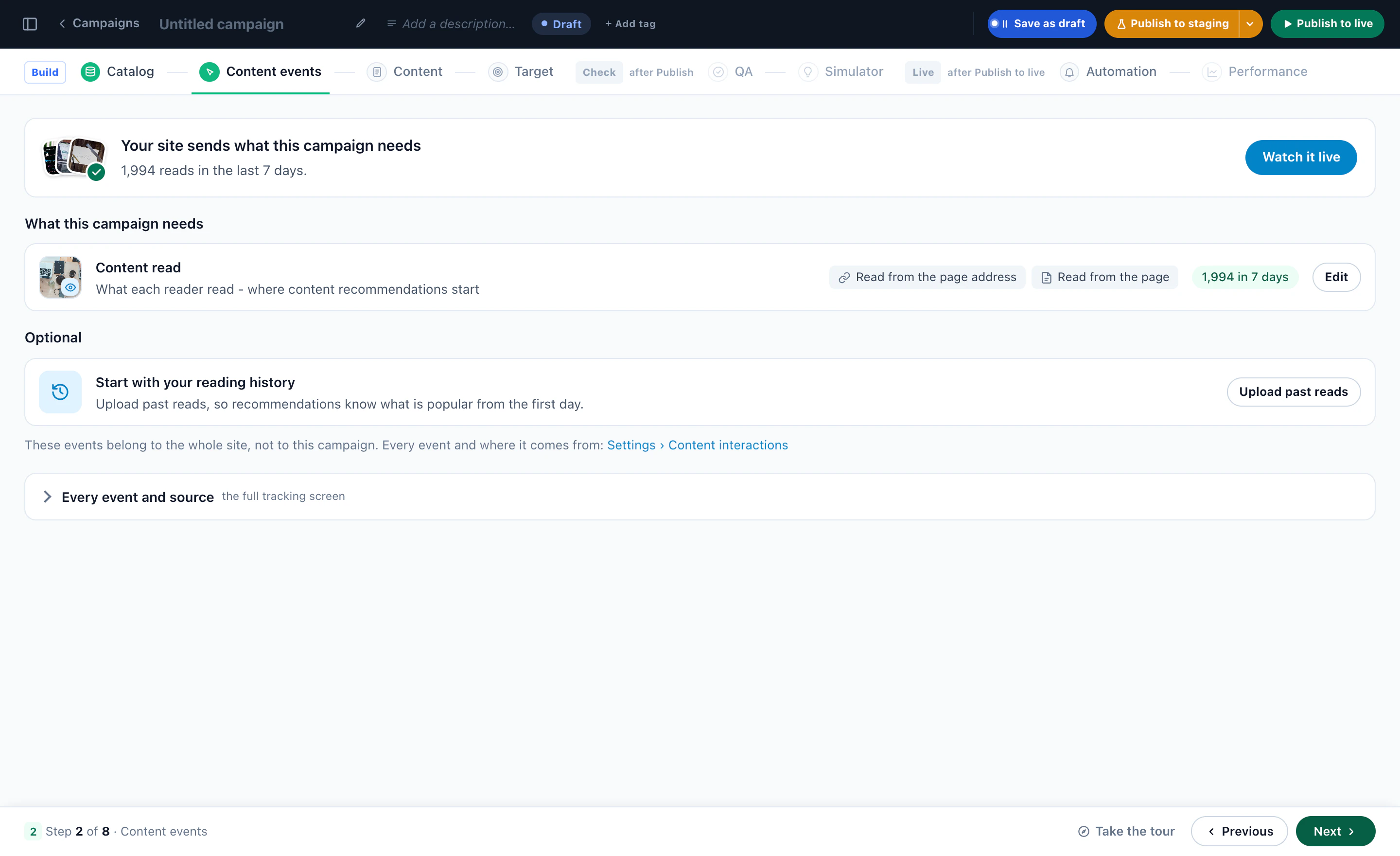
Its rankings are the content ones: Trending now, Most read, Newest and Similar reading. Asked what people are reading, it answers from those.
15Measure it, and read what they asked
A finder tells you two things a search box cannot: whether people use it, and what they wanted in their own words.
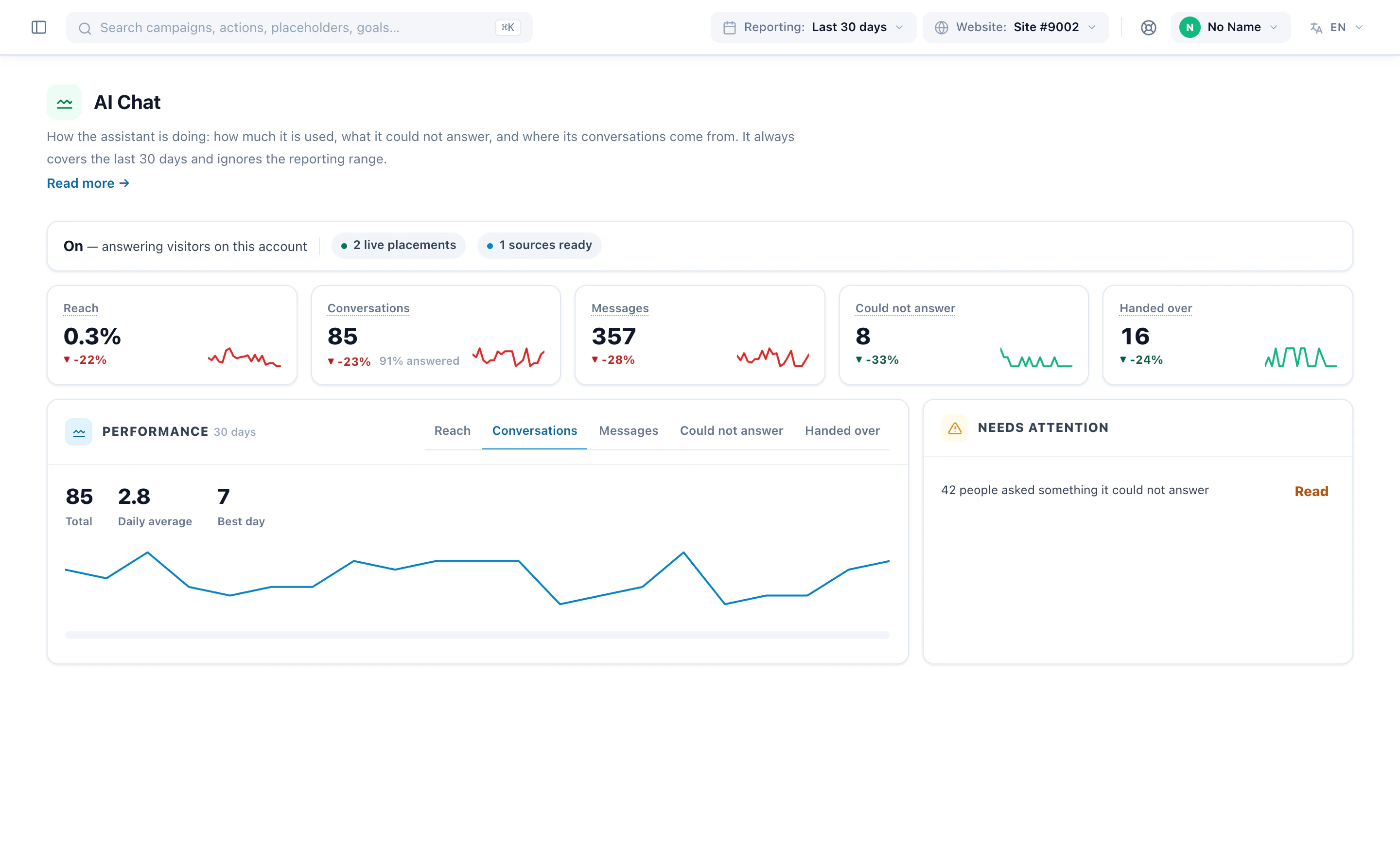
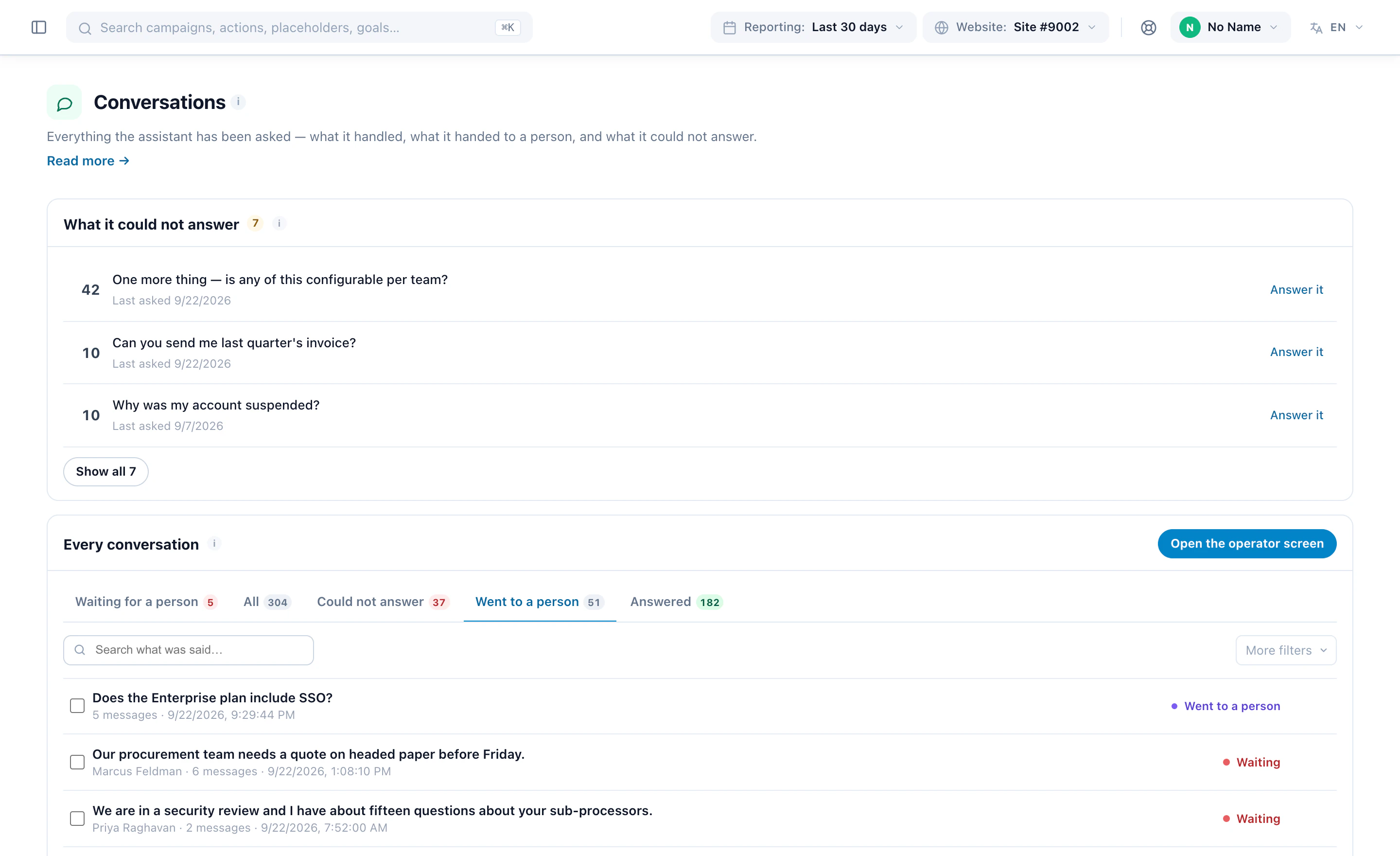
- The campaign’s Performance step counts its shows, clicks and goals, and its Conversations tab what was said and what it could not answer.
- The events it sends — a question asked, a pick opened — are goals and audience rules like any other: a shopper who opened a pick and did not buy is an audience for your next campaign.
- The AI Chat report shows reach, conversations, messages, questions it could not answer and conversations handed over, each against the period before.
Everything the assistant has been asked lands on its Conversations screen, searchable by what was said. Read it weekly: the questions are your shoppers’ needs in their own words, and the ones it could not answer are each a page worth writing — Teach it on the Knowledge screen.
To know what the finder adds rather than what it is used for, run the campaign as an A/B test from the line above its designs. The A/B tests report shows each arm’s visits, conversions, lift against the control and confidence.
More on the product: AI Product Finder and AI Chat Agent.