
Book the visitors worth a call.
A playbook for the Meeting Scheduler — hosts, hours and meeting types set once, a booker offered only to the visitors who should see it, and a report that shows which campaign earned each meeting.
Start Now →


1Set it up in the order the panel does
Create a campaign and choose Meetings & Booking. The editor walks it in the order a booking depends on: Hosts, Availability and Meeting types first, then Target, Content and Sharing, then QA before anything goes live, and Automation and Performance after.
The order is not a preference. A meeting type has to name a host, hours belong to a host, and nothing can go on your site until there is something to book. A booking needs four things — a host, their hours, a meeting type and a placement. A connected calendar is not one of them, but it is the difference between offering times a host can keep and times they cannot.
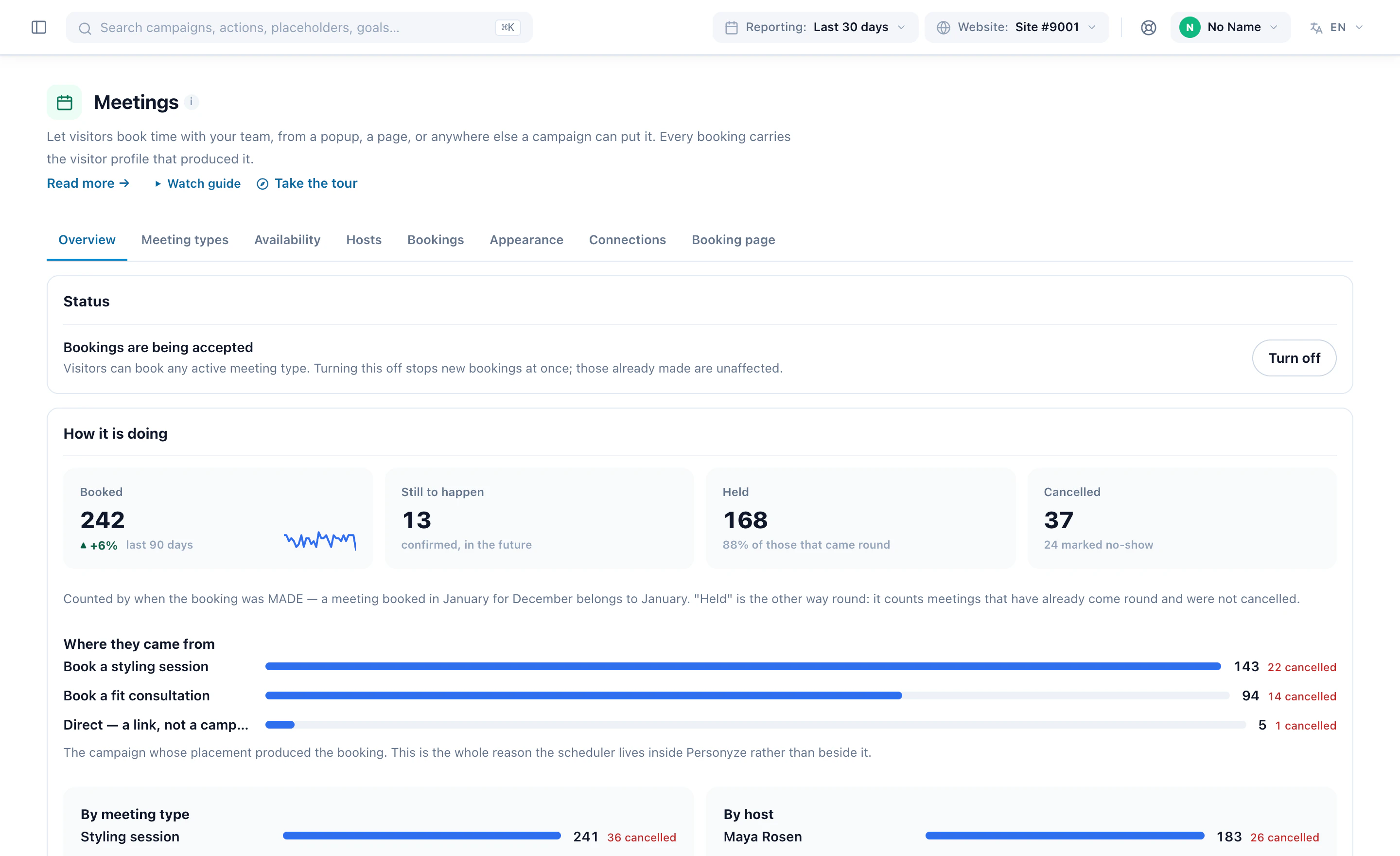
Hosts, hours and meeting types belong to the account, so a second meetings campaign books the same people under the same rules. What each campaign decides is who is offered a meeting, which one, and where.
2Add the people visitors meet
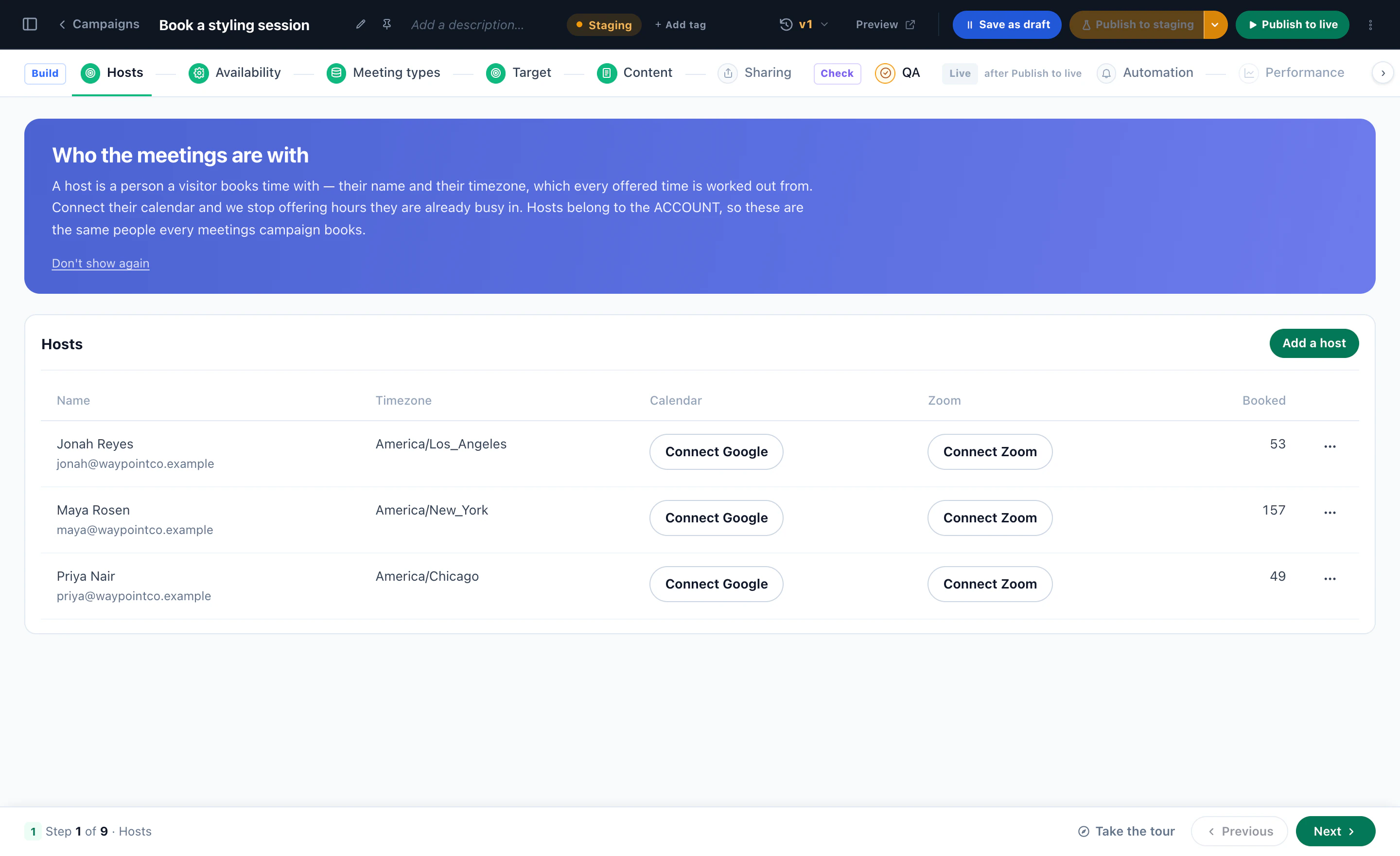
A host is a person a visitor books time with: a name, an email address — where their copy of every booking goes — and a time zone, which every offered time is worked out from. A host is not a Personyze login and costs no seat, so you can add the whole team.
- Connect GoogleTheir calendar’s busy time starts blocking new bookings within a few minutes, so a meeting they accepted elsewhere is not offered again.
- Connect ZoomA Zoom room for every booking. Zoom cannot see their diary, so pair it with a calendar.
- A private linkTheir own schedule, opened from a link instead of a login. They can cancel from it; roll the link to take it back.
- Move or switch offHand a booking to a colleague and the calendar invitation moves with it. Switch a host off and new times stop; booked meetings stand.
Rather use your own Google or Zoom app — so the consent screen names your company, or so Zoom links work for every host without anyone authorising anything? Add it on Connections. Phone, in-person and your own meeting link need nothing connected.
3Set the hours each host can be booked
Working hours are set per host, per day, in the host’s own time zone, and stay in it when the clocks change. Nothing is ever offered outside them, so a host with no hours has no times at all — the usual reason a booker looks empty.
- Two ranges on one day are a lunch break: nothing is offered in the gap.
- Buffers, notice and how far ahead the calendar opens belong to the meeting type, not to the hours.
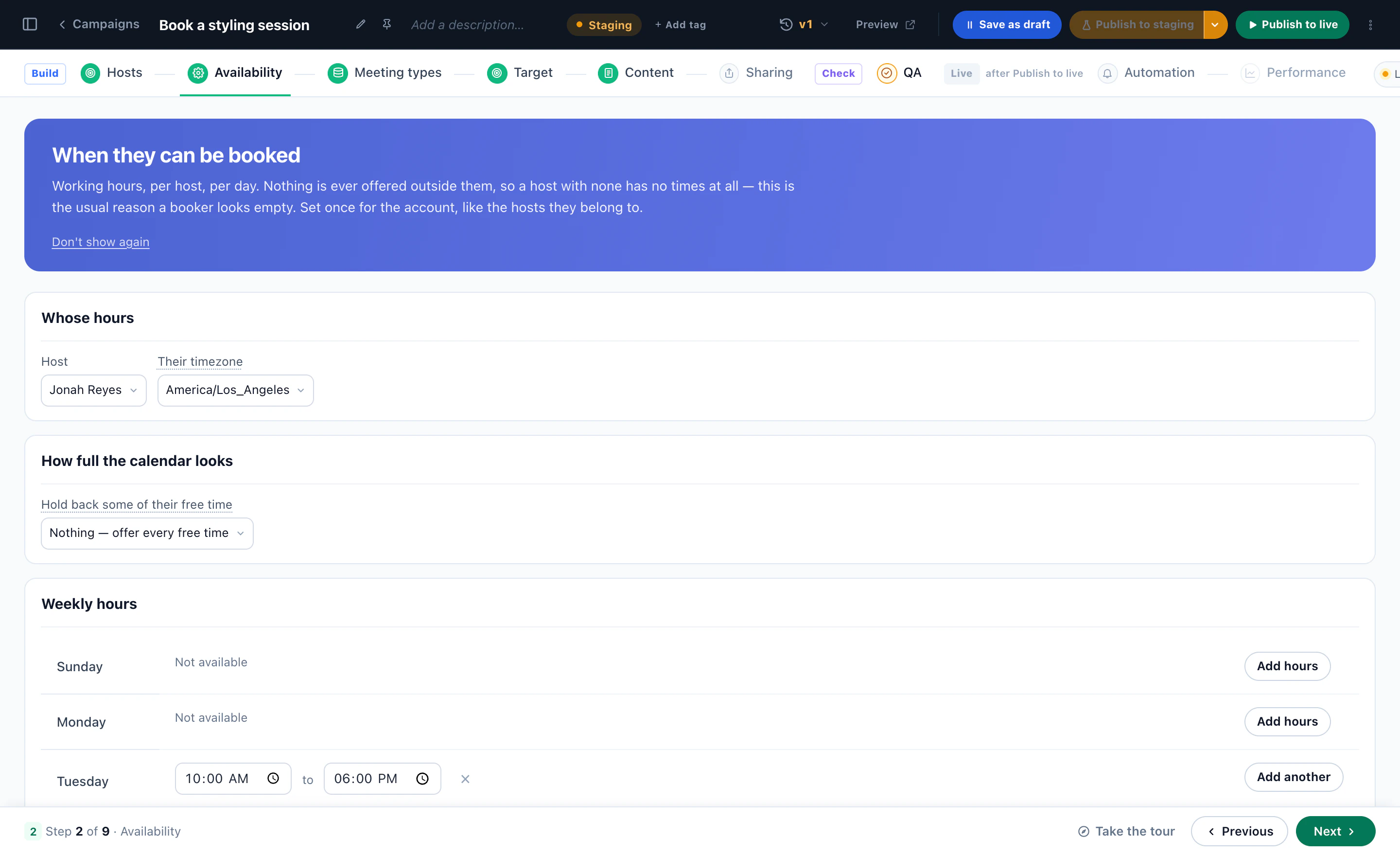
How full the calendar looks
A calendar with every half hour free tells a visitor that nobody books it. Hold back some of their free time — a fifth, a third, half or two thirds — keeps part of the diary out of what visitors are offered: in blocks, the same ones every time, and never so many that a quiet day looks broken. Nothing is written to anyone’s calendar and no meeting is invented; turn it off and the whole diary is back at once.
4Decide what can be booked
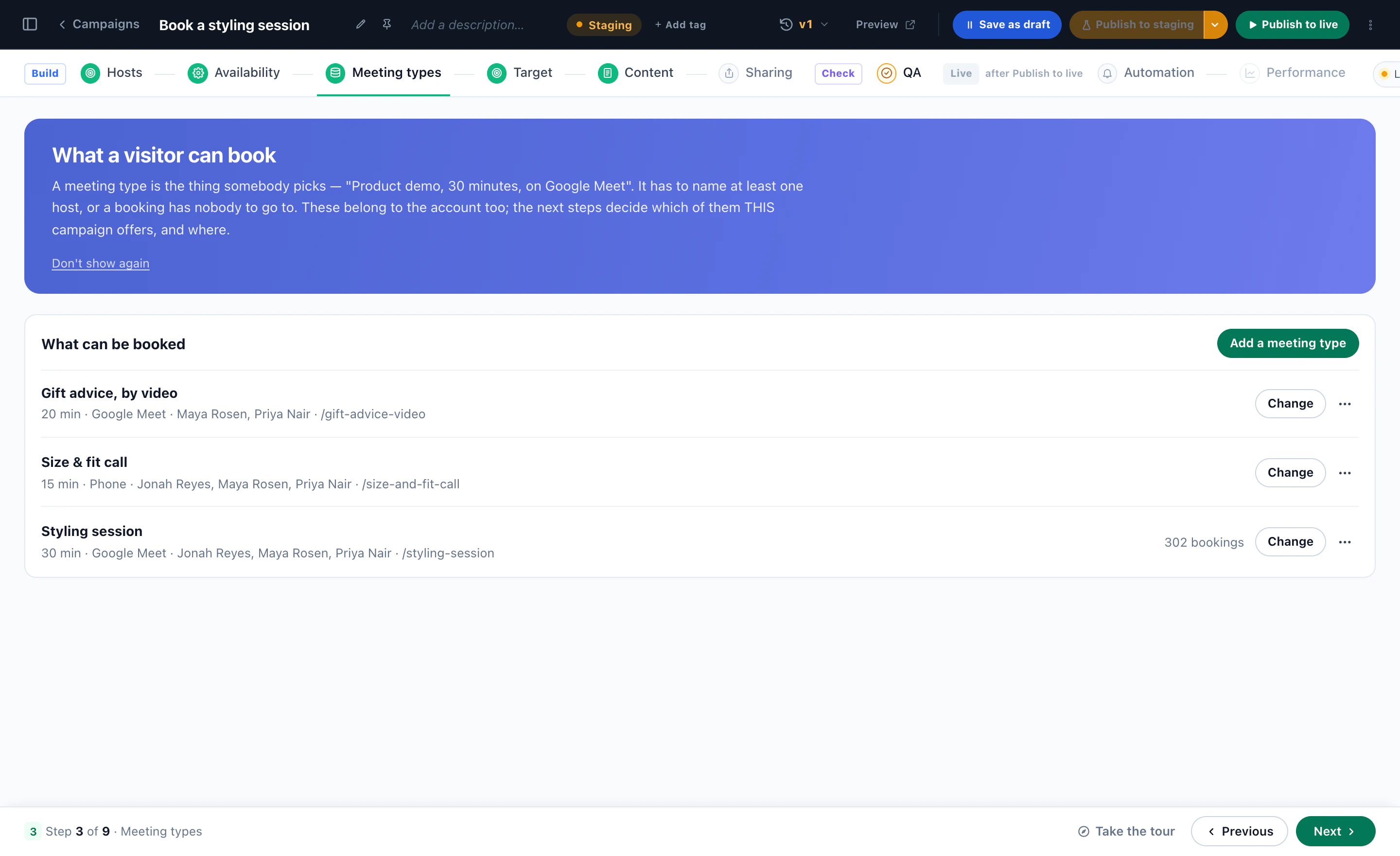
A meeting type is the thing somebody picks — “Product demo, 30 minutes, on Google Meet”. It needs at least one host, or a booking has nobody to go to. Each type sets:
- Length and spacingHow long it runs, and how often a slot starts.
- Gaps before and afterHeld as busy time, so no meeting starts the minute the last one ends.
- Least notice and days aheadHow soon the first time can be, and how far ahead the calendar opens. A new type starts on four hours’ notice and sixty days ahead.
- Most per day, per hostA daily cap, so nobody’s whole day is booked away.
- WhereGoogle Meet, Zoom, a phone call, in person, or a link you provide.
- Who can take itOne host or several. With several, book the first, or share it out: everyone’s free time is offered, and the booking goes to whoever is quieter.
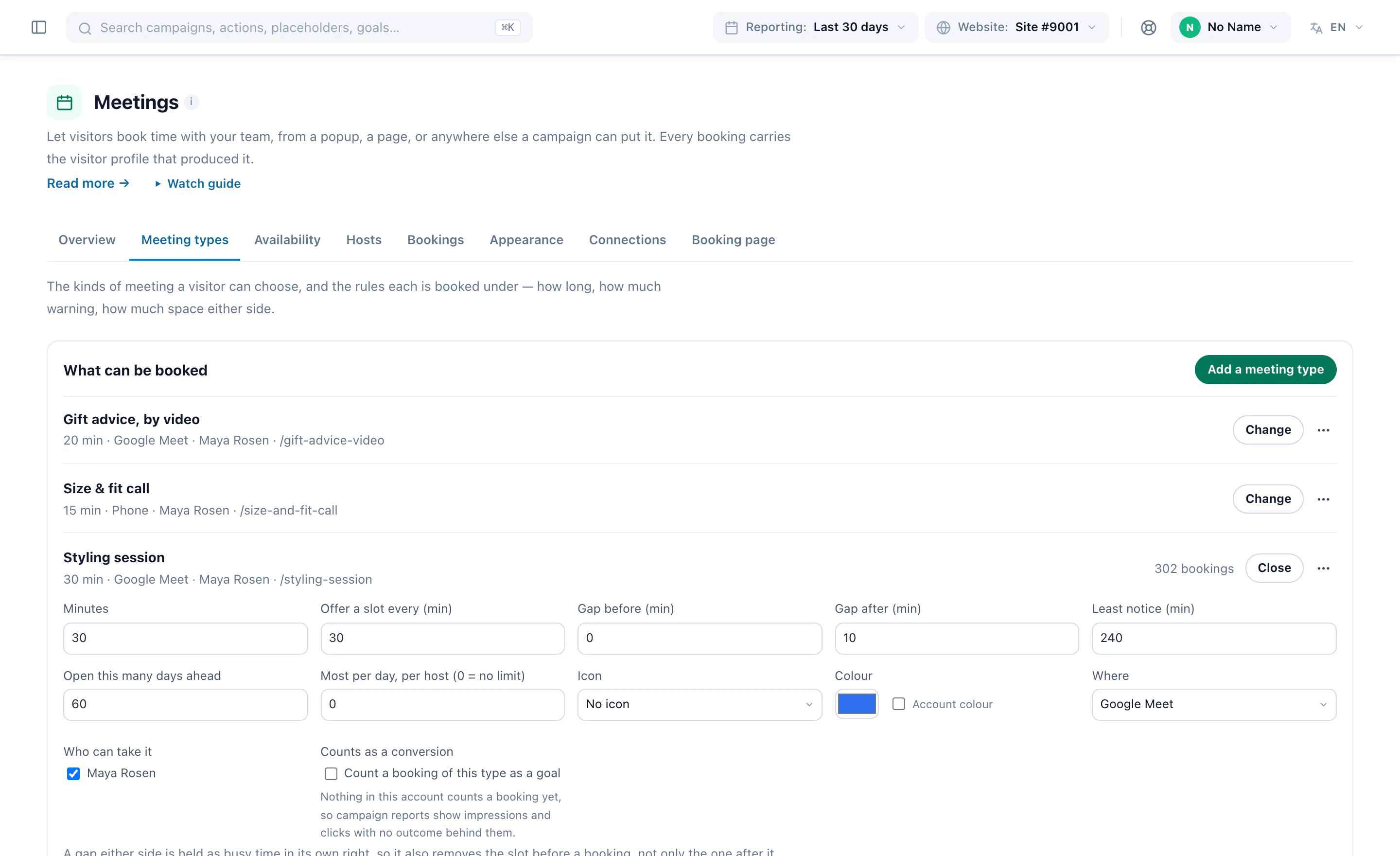
Tick Counts as a conversion and every booking of the type counts as a goal — worth a fixed amount, the value of an answer on the booking form, or simply counted. Without a goal, campaign reports show impressions and clicks with no outcome behind them.
5Design the booking calendar
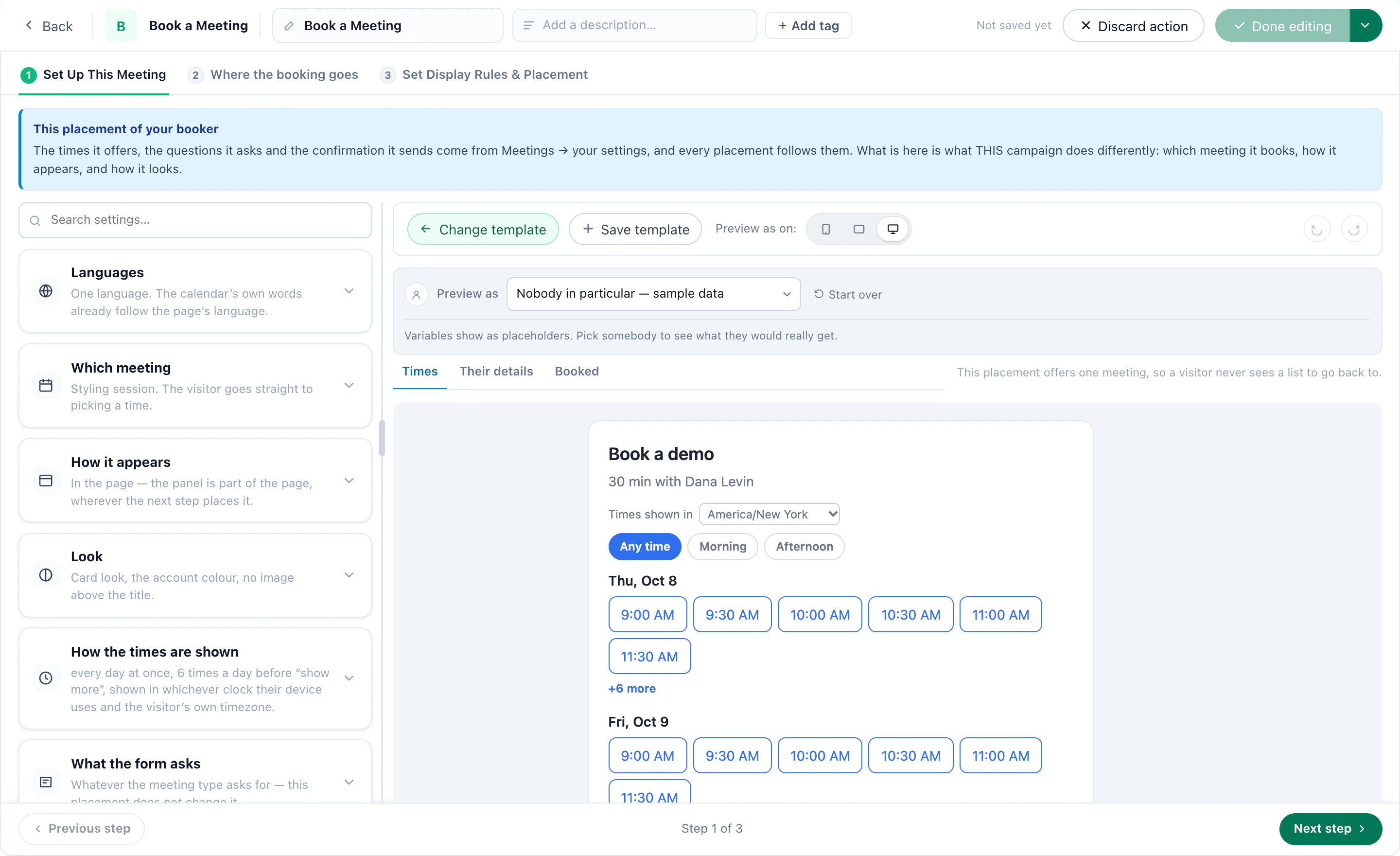
On the Content step, add Book a Meeting. Its designer shows the booker beside its settings, and Preview as shows what a real visitor would get.
- Which meetingOne type, and the visitor goes straight to picking a time; several, and they choose first.
- How it appearsIn the page, as part of it — or behind a button or a small card that opens the panel in place or over the page.
- LookA ready look, then your accent colour and the text on its buttons, corners, type, width and alignment — or your own CSS.
- How the times are shownEvery day at once, or pick a day then a time; four, six or ten times a day before “show more”; a morning, afternoon or evening filter.
Their clock, not yours
Times are shown in the visitor’s own time zone, read from their browser and never guessed. Let them change it, or switch the picker off where everyone is local. Show who they are meeting, so it is a person and not a form.
Words that fit the visitor
The heading, the button and the confirmation can carry what you know — greet them by first name, or name their company — with your own wording for anybody without a value. Add a language for pages in another language, such as Dutch on addresses starting with /nl/. The calendar’s own words — the dates, the buttons, the form — already follow the visitor’s language, and every booking still counts in the one campaign.
What the form asks
By default the booker asks for a name and an email address. The email is always asked, because that is where the confirmation goes. Add typed questions — a phone number, a drop-down of topics, a company size — for the whole account, for one meeting type or for one placement. Set Save to visitor profile on an answer, and every campaign, audience and recommendation for that visitor can use it.
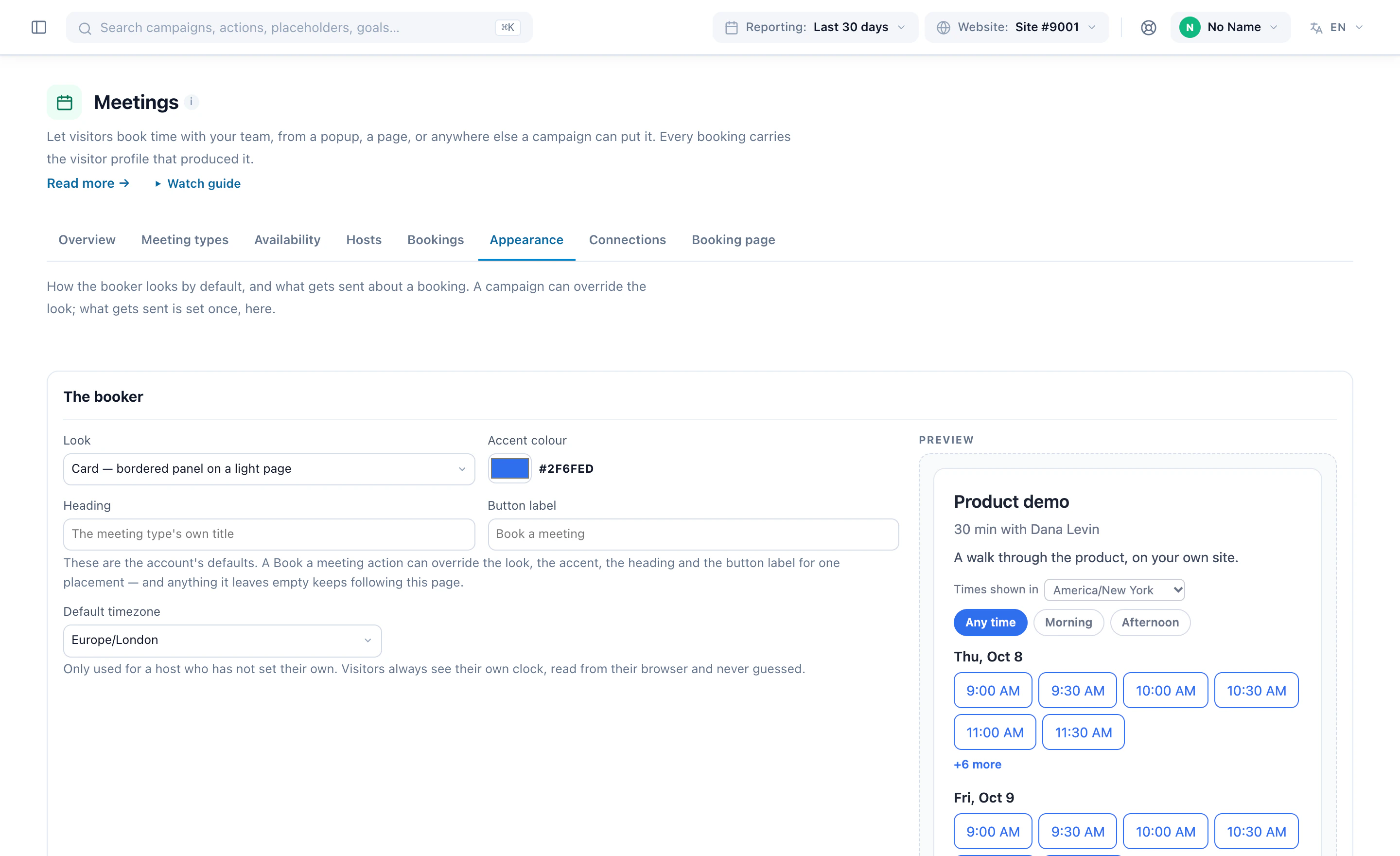
The account’s defaults
Appearance holds the look every booker starts from: style, accent colour, heading, button label, and a default time zone for hosts who have not set their own. A placement can override the look, the accent, the heading and the button label; anything it leaves empty keeps following the account.
A visitor who has already booked is greeted with their meeting rather than an empty calendar — with a countdown to it, if you switch that on.
6Confirm, remind, and let them change their plans
Once somebody books, the booker shows a confirmation in your words — thank them, greet them by name, tell them what to bring — and, if you choose, who is taking the meeting, with their photo. Before the booking there is nobody to name: a meeting several hosts can take is assigned only when it is taken.
What gets sent
- A confirmation, as soon as they book — always.
- Reminders a day before and an hour before — the single most effective thing against no-shows.
- The host’s own copy, in the host’s time zone, with what is known about who is coming.
Meeting emails go out under your brand, from the senders your other emails use or your own Amazon SES or SMTP service, and a reply reaches the other party. With Zoom or Google Meet connected, every booking gets its own link, created as it is booked.
The booking page
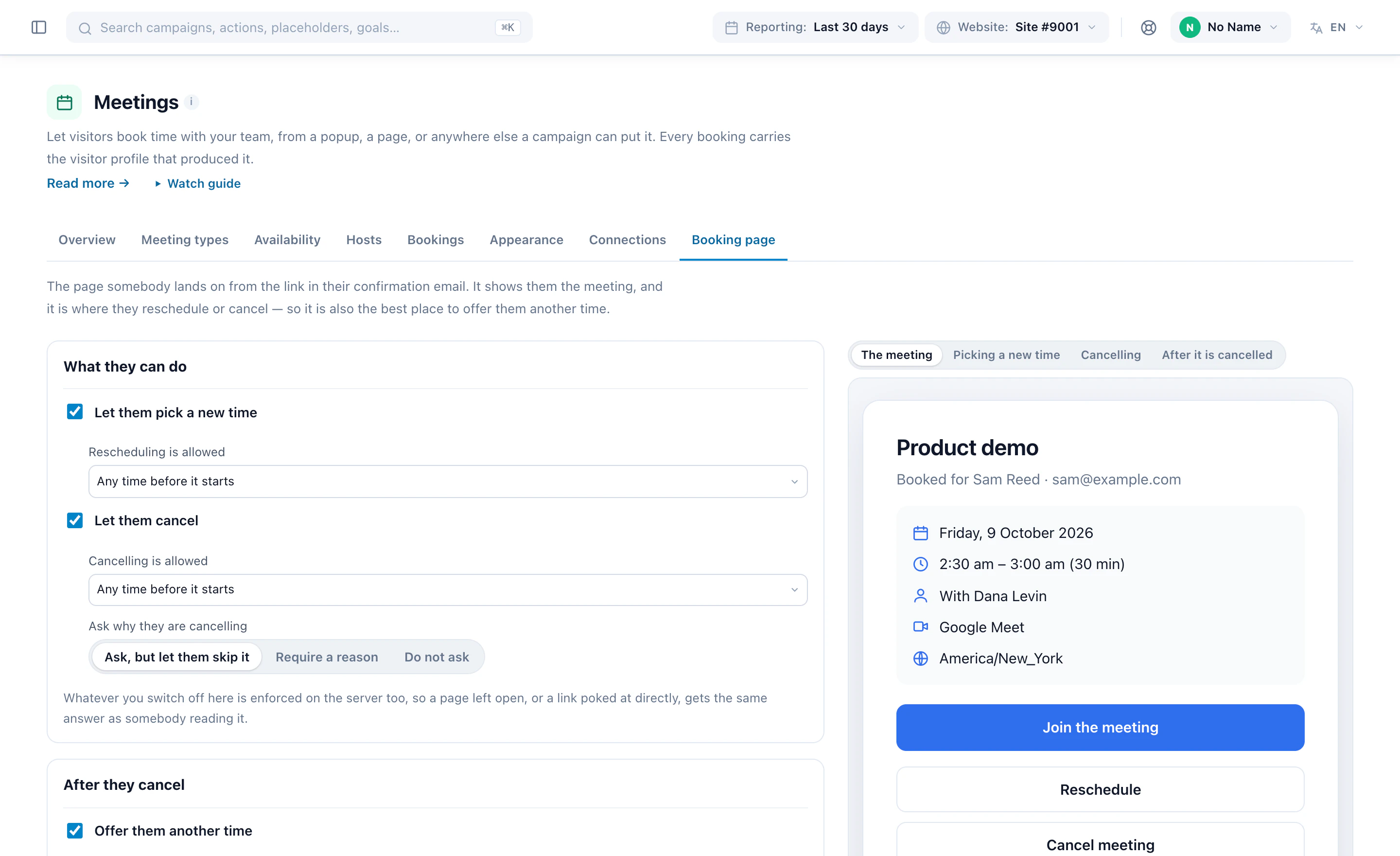
The link in the confirmation opens a page where they can join, add the meeting to Google, Outlook or iCal, pick a new time or cancel. You decide what they may do and how late; whether to ask why they cancel; and what comes after — another time, offered back on the page they booked from, or a page of your own. Add your cancellation policy and a note, such as where to park. Whatever you switch off is enforced on the server too, so a page left open gets the same answer.
Where the booking goes
Every booking is stored in Personyze and lands on the visitor’s profile. On the action’s Where the booking goes step, send it on as well — to email, Zapier, Slack, HubSpot, Klaviyo or your own webhook. Those deliveries happen from our servers after the visitor already has their confirmation, so a slow destination never slows a booking down. With Salesforce connected, a booking updates the matching Contact or Lead, or creates a new Lead.
A booking also counts as a submission of its booker, so an email campaign can start on Books a meeting: preparation notes a day after somebody books, or a welcome as soon as they do.
7Choose who is offered a meeting
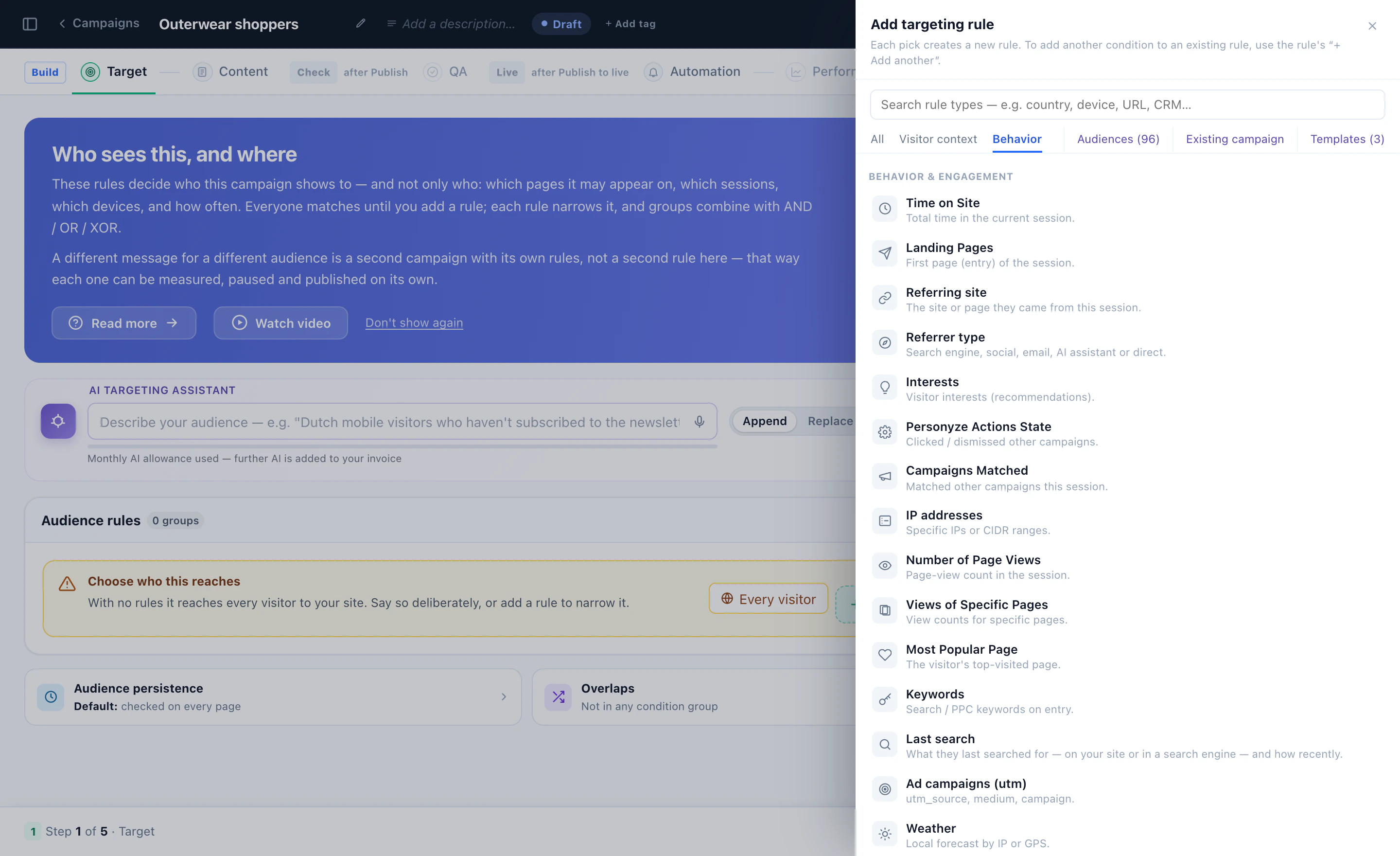
A meeting offered to everyone is a meeting few take. The booker is a campaign action, so the Target step decides who is offered one at all — by what they read and did, the company behind the visit, a field from your CRM, where they are, or an audience you already have. Describe the audience in a sentence and the AI targeting assistant writes the rules.
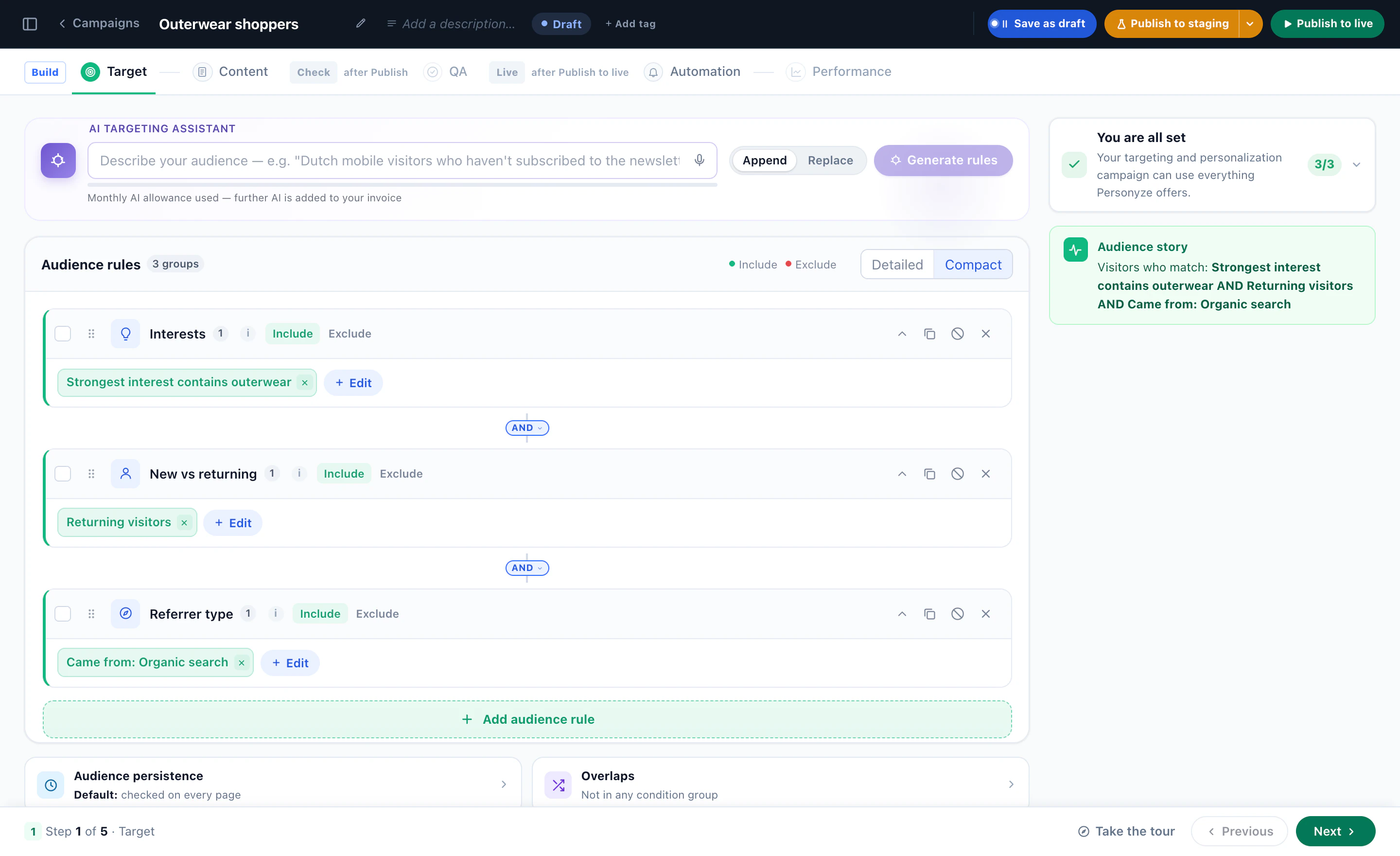
Visitors who match no rule see your page exactly as it was. A different invitation for a different audience is a second campaign with its own rules, its own meeting type and its own wording — so each one is measured, paused and published on its own.
Place it, and time it
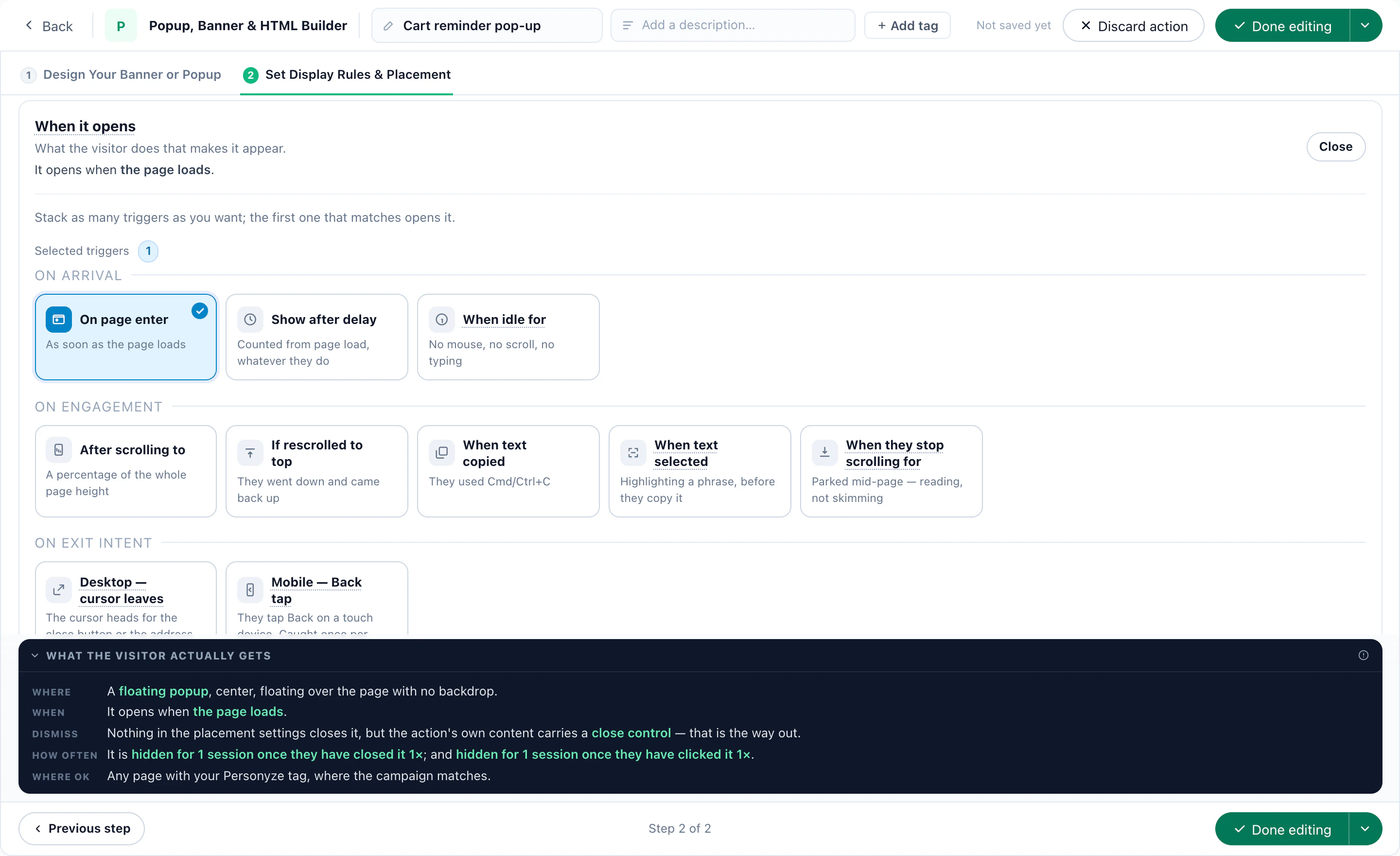
The action’s last step, Set Display Rules & Placement, is the one every Personyze action shares: a spot on the page, or a pop-up — on page load, after a delay, on scroll, on exit intent or when the visitor goes idle — with how often it may come back.
8Take the booker beyond your site
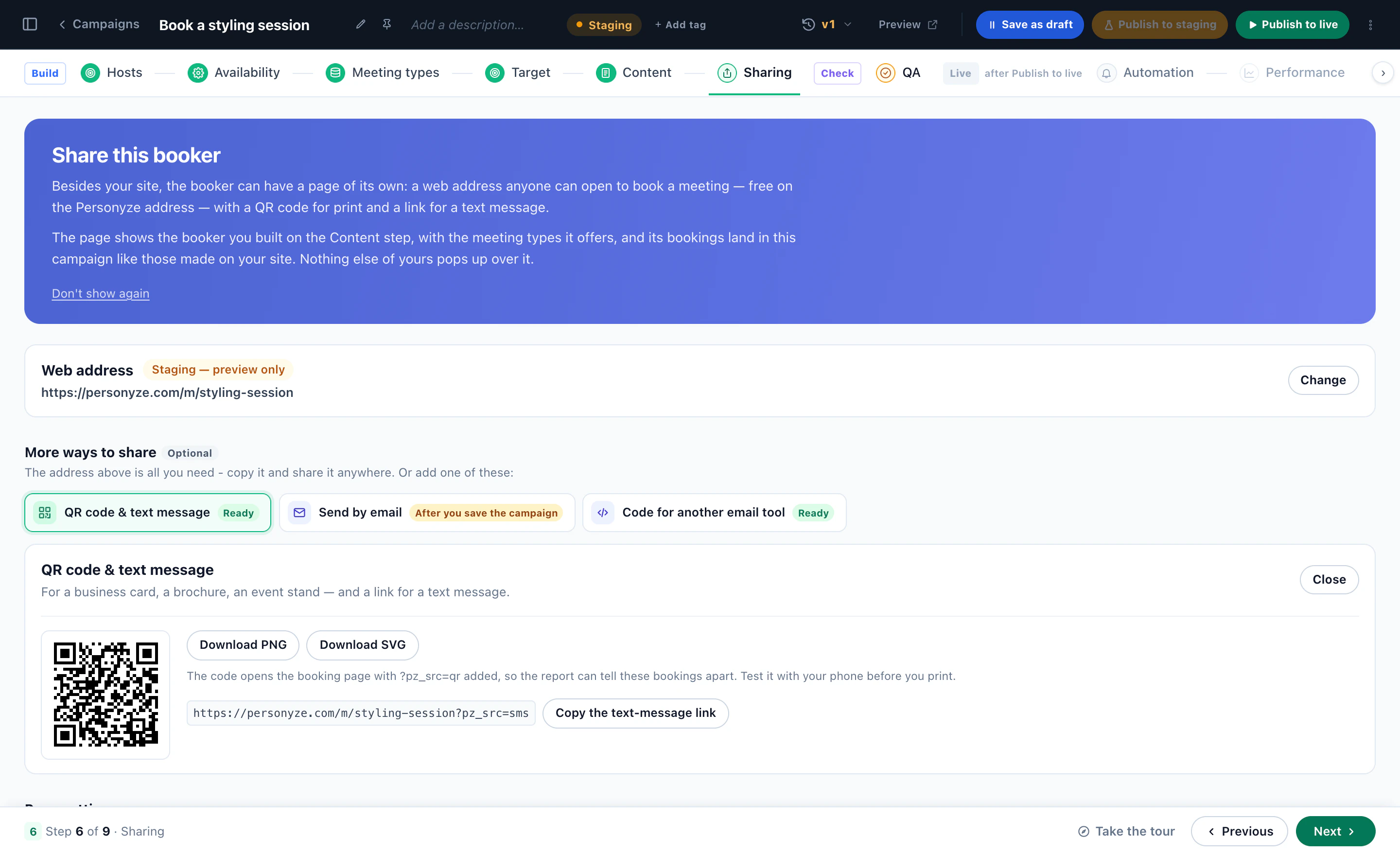
On the Sharing step the booker gets a page of its own: a web address anyone can open to book — on your account’s default address or your own domain — showing the booker you built, with nothing else of yours popping up over it. Its bookings land in the same campaign as those made on your site.
- QR code & text message — for a business card, a brochure or an event stand, as PNG or SVG, and a link for a text message. Each is tagged, so the report tells those bookings apart.
- Send by email — an email with a button to the page, or the next free times: three days of times, worked out when the email is sent and shown in each reader’s time zone. Every link is signed for its reader, so the page fills in their name and email.
- Code for another email tool — a Pick a time button for Klaviyo, Mailchimp, HubSpot, Brevo and others.
The booker also goes inside a Canvas design or a landing page, as a block with your own content around it; into the AI chat, which can offer a meeting mid-conversation (the B2B recipe); and onto the end of a survey (the survey recipe).
9Recipe 1: Demo bookings for high-intent B2B accounts
A demo is worth most when it is offered to the accounts you want, at the moment they are weighing you up.
- WhoVisitors from companies on your target list — from company identification or your CRM — on their second or third visit to the pricing page.
- WhatA Product demo meeting type, 30 minutes on Google Meet, taken by the sales team and shared out to whoever is quieter.
- How it readsA card on the pricing page whose heading names their company, with your own wording for visitors whose company is unknown.
- What it asksCompany size and role, saved to the visitor’s profile — and on to HubSpot or Salesforce with the booking.
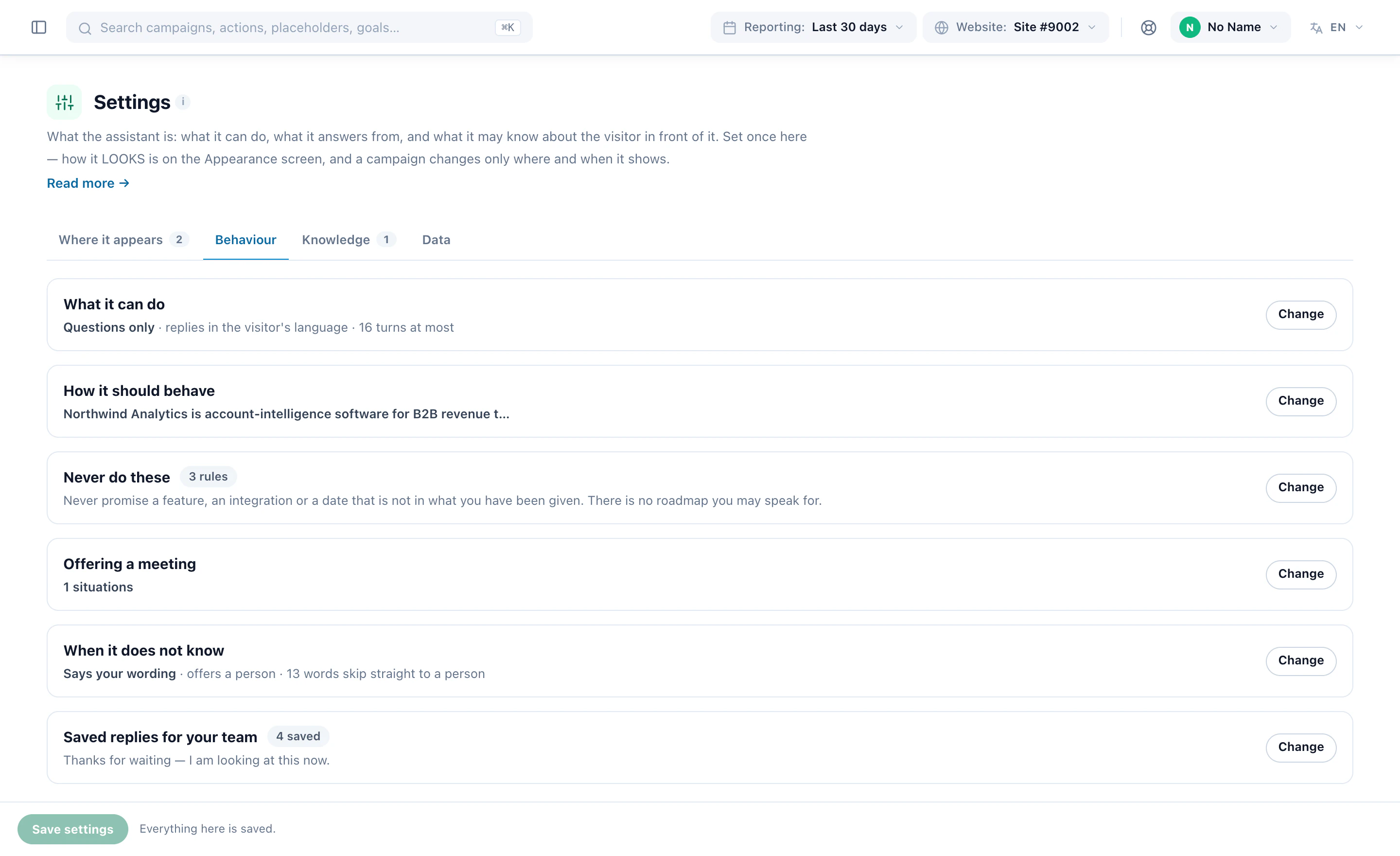
Let the AI chat offer the same demo. Under Offering a meeting in the chat’s Behaviour settings, say when it may: never, only in the situations you name — “they ask to see the product” — or whenever it judges a call would help. The visitor picks a time without leaving the conversation, and the report counts those bookings separately.
Count the demo as a goal and every booking is attributed to the campaign and the visitor that produced it, in the ordinary reports — beside the campaign’s views and clicks.
10Recipe 2: A session with a financial adviser
Advice is a considered decision. Offer the meeting once somebody has done the reading, not on their first page.
- WhoReturning visitors who have read your retirement or mortgage guides more than once.
- WhatA Retirement review, 45 minutes — one meeting type by phone and one in person at the office. The booker offers both and the visitor chooses.
- Notice and spacingA day’s least notice so the adviser can prepare, a gap after each meeting for notes, and a daily cap per adviser.
- What it asksWhat they would like to discuss, as a drop-down saved to their profile — so the adviser arrives knowing, and a later campaign can follow up on it.
On the booking page, add your cancellation policy and a note on what to bring. Several offices? One campaign per region, each offering a meeting type whose hosts are that office’s advisers.
11Recipe 3: An admissions call for a school or college
Applicants read for weeks before they ask, and many of them are abroad.
- WhoVisitors who viewed one program’s pages several times, or arrived from your open-day email.
- WhatAn Admissions call, 20 minutes on Zoom, with that program’s counsellors sharing the times.
- Their clockTimes in each applicant’s own time zone, laid out as pick a day, then a time — and in the page’s language on your international pages.
- Beyond the siteThe booking page’s QR code on the open-day brochure, and an email with the next free times to everyone who asked for a prospectus.
When somebody books, start an email on Books a meeting with what to have ready for the call, and save what the form asks — such as the intake they are aiming for — to their profile, where later campaigns can target it.
12Recipe 4: A survey answer that leads to a booking
Some visitors will not click “Book a demo”, but they will answer a question. Let the answer open the calendar.
- Ask what you need to know — “What’s holding you back?”, then “Would a short demo help you decide?”, asked only when an earlier answer calls for it.
- On the end the right answer leads to, choose Then show a booking calendar and the meeting type. The thank-you screen shows your Meetings calendar with its real free times, so the visitor books there and then.
- Fill the booking from what they already answered: any short answer for the name, their Email answer for the email. They can still change both.
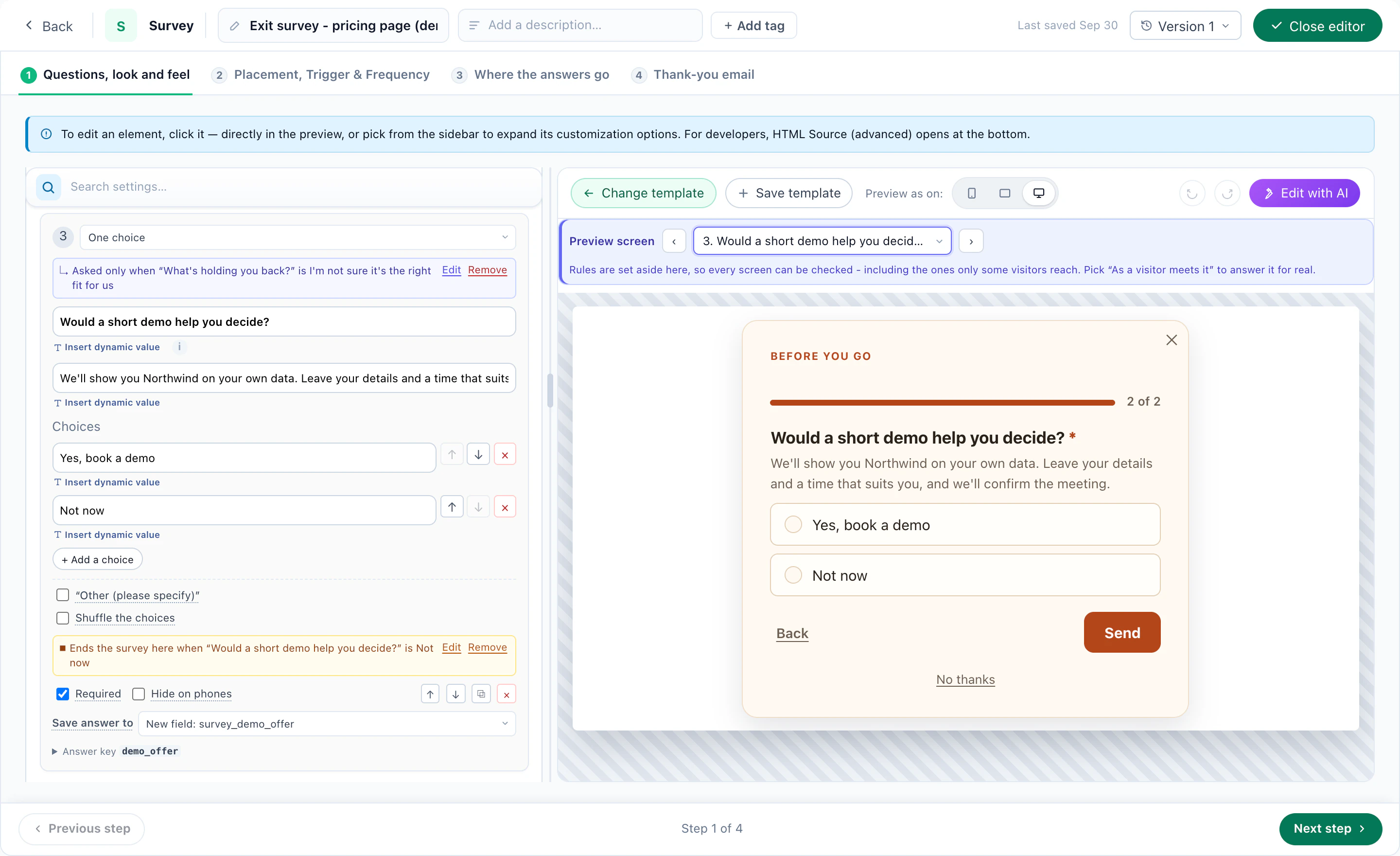
Or score the answers — a readiness check — and end the survey on the calendar only for those whose score is high enough; everyone else reaches your usual thank-you. A booking made there counts for its meeting type — its goal and the Meetings report — credited to the survey’s campaign. And the answers stay on the profile either way, so a visitor who said “Not now” can be offered a meeting on a later visit.
13Measure which invitation earned the meeting
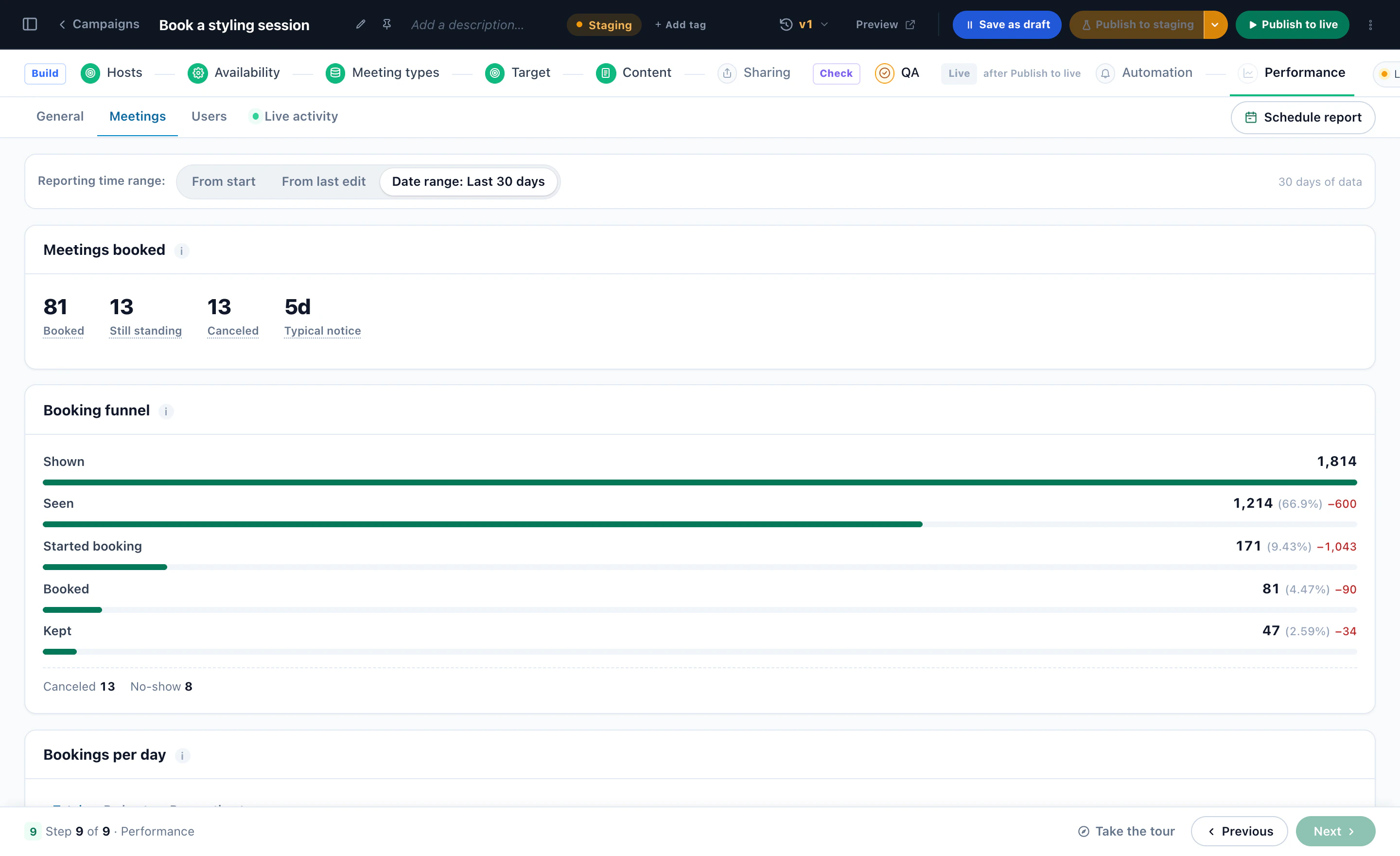
Each meetings campaign has its own Performance step. Its Meetings tab follows the booker from shown to kept:
- The funnelShown, seen, started booking, booked and kept — each as a share of the first, with how many were lost at every stage.
- What became of themStill standing, cancelled and no-shows. A high count with a wall of cancellations is calendar noise, not demand.
- Typical noticeThe middle gap between booking and meeting — what your least notice and reminders should be set against.
- The breakdownsBy host, by meeting type, by where it is held, by day and hour, and the bookings made inside a conversation.
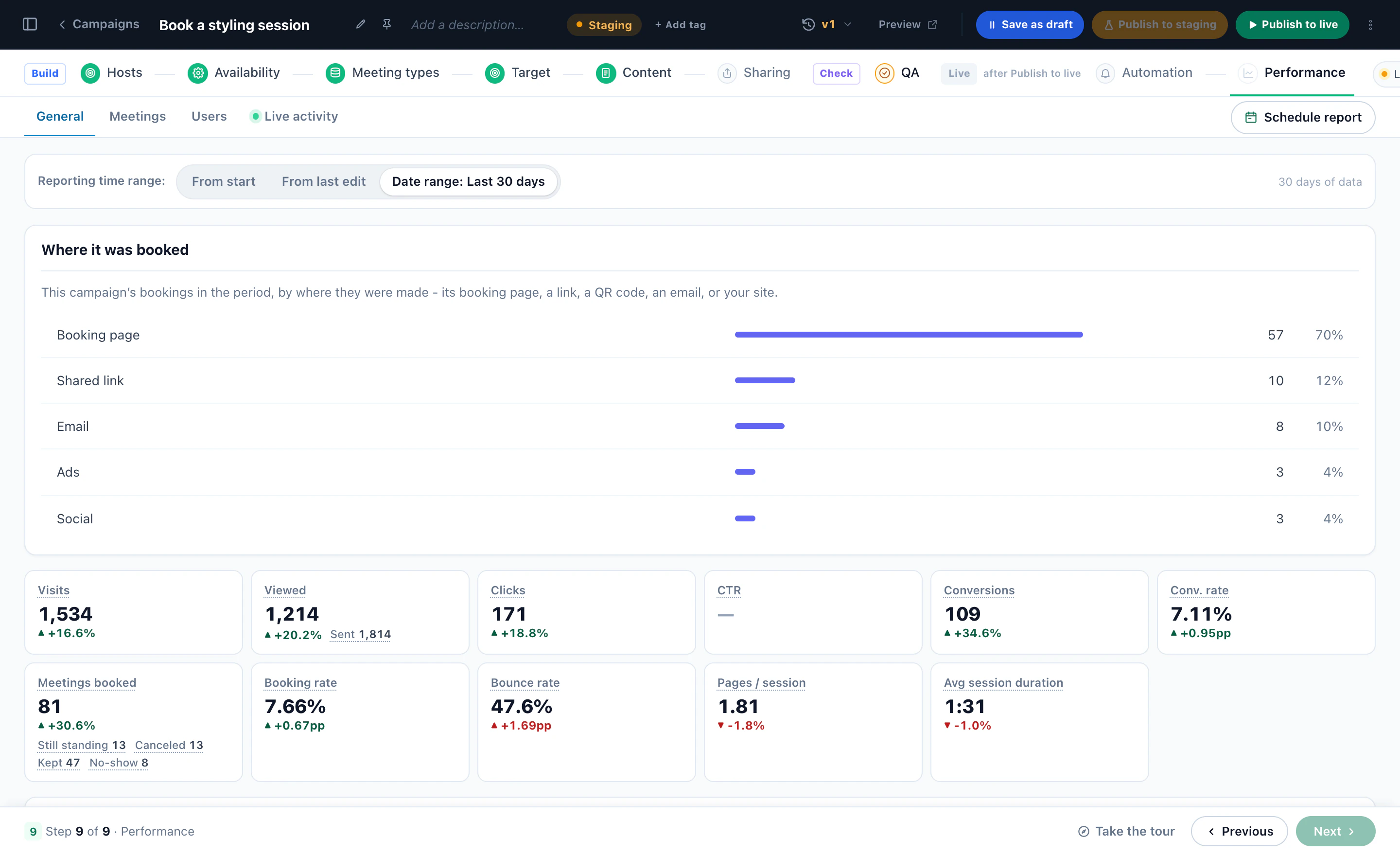
The General tab puts the bookings beside the campaign’s visits, views and conversions, with the booking rate — and Where it was booked: the booking page, a shared link, a QR code, an email, ads or social.
Every booking, and the visitor behind it
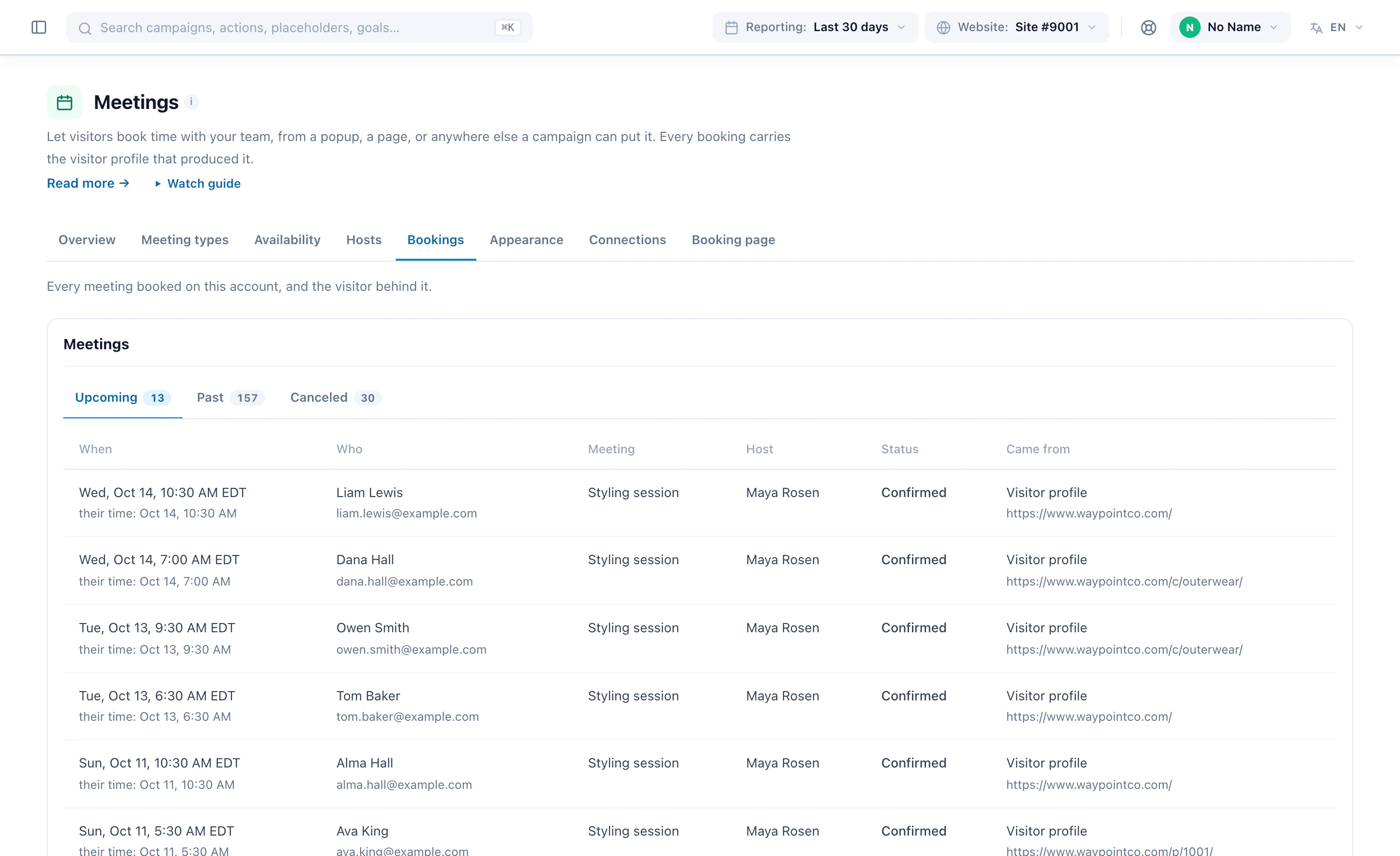
Bookings lists every meeting — upcoming, past and cancelled — with the time in the visitor’s own zone too, the meeting, the host, the status and the page it came from, one click from the visitor’s profile. Every figure counts a booking by when it was made, so a campaign shown in March that books an April meeting counts in March.
Read the bookings as a comparison, not proof: the visitors you target are the ones most likely to book anyway. To know what the invitation itself adds, run the campaign as an A/B test against a group that is never offered a meeting. More on the product: Meeting Scheduler.