
Let your site answer for itself.
A playbook for the AI chat agent — set it up in the order the panel does, teach it your own pages, put it where the questions get asked, and turn every question it could not answer into a better answer.
Start Now →


Watch the playbook done
Four walkthroughs in the real panel — the chat set up start to finish, a visitor handed over to a person, and the product and content finders. Then put one on your own site.
1Configure it: what it is for, and what it must never do
A chat on your site is four things, and the panel asks for them in this order: configured, given something to read, placed on your pages by a campaign, and switched on. Finishing one is not finishing the job — a chat with every setting filled in and no campaign is on no page at all.
There is one assistant per account. What it can do, what it answers from and what it may know about a visitor are set once, under AI Chat → Settings, and every placement follows them. A campaign decides where it appears, what it says first and how it looks there. Start on Behaviour:
- What it can doAn online shop, which searches your catalogue and recommends products, or questions only. Then the reply language — left empty, it follows the visitor — and the most turns in one conversation.
- How it should behaveInstructions in your own words, written as if you were briefing a new starter, and how long its answers should be: short, normal or detailed.
- Never do theseHard rules, one per line — “Never quote a delivery date for a specific order.” They reach the assistant as numbered rules it may not talk its way out of.
- When it does not knowWhat it says, and then: offer a person, take an email address, or end there. Words such as “refund” can skip straight to a person.
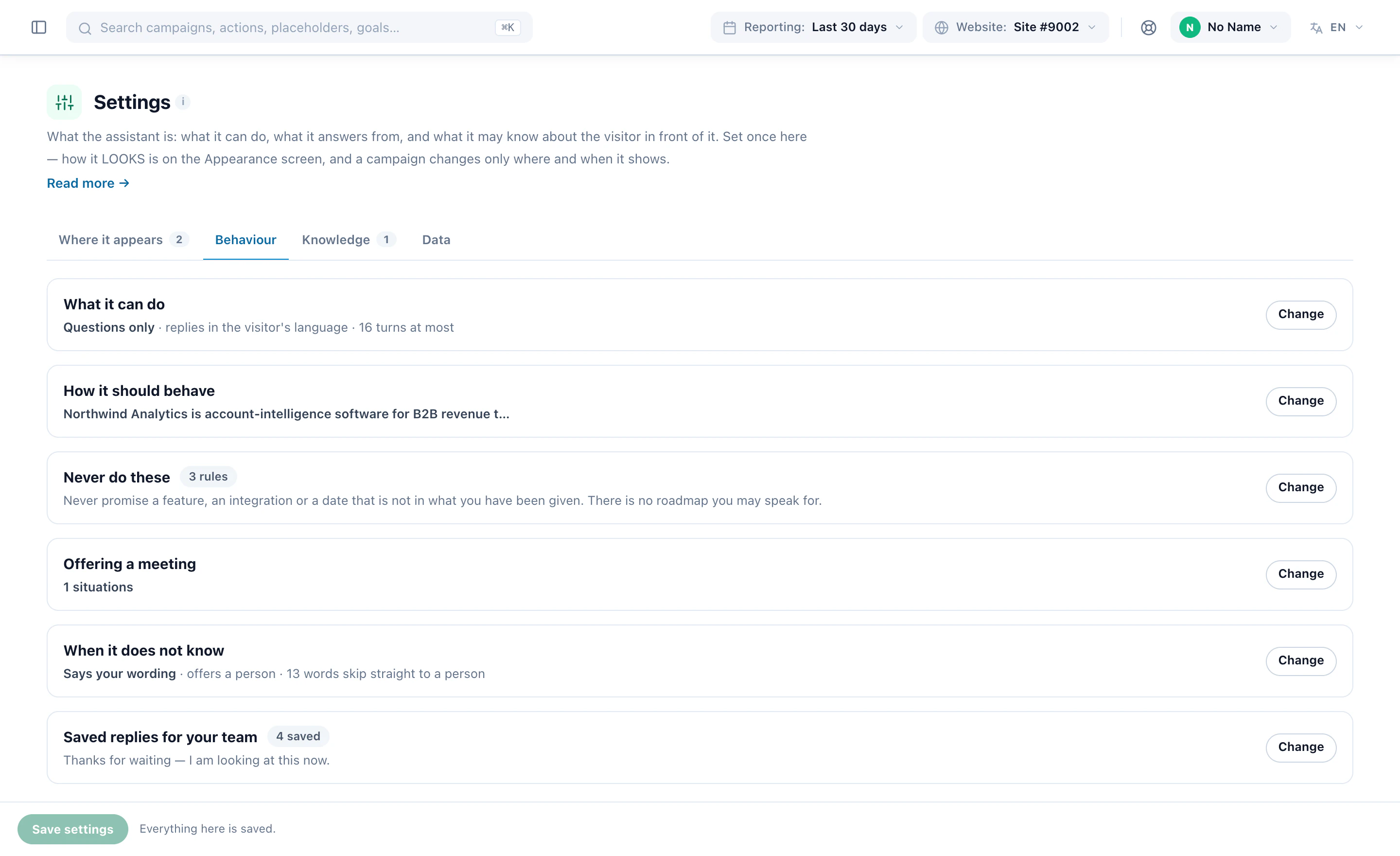
Whatever you write, it cannot invent a discount, a price or a promise: it repeats only what it finds in your catalogue and your sources. Saved replies are for your team, not for the assistant — shortcuts in the reply box of the operator screen, never shown to it and never said to a visitor.
2Decide what it may know about the visitor
The Data tab decides what the assistant sees about the person in front of it — and every switch starts off. Each one is described by what it reveals:
- About this visitThe page they are on, where they have been this visit, roughly where they are — country and region, never an address — and their device.
- About the personHow long they have been coming, what they have completed before, that they have chatted before (the number, never what was said), your own profile fields, the campaigns already emailed or pushed to them, and the products they have looked at.
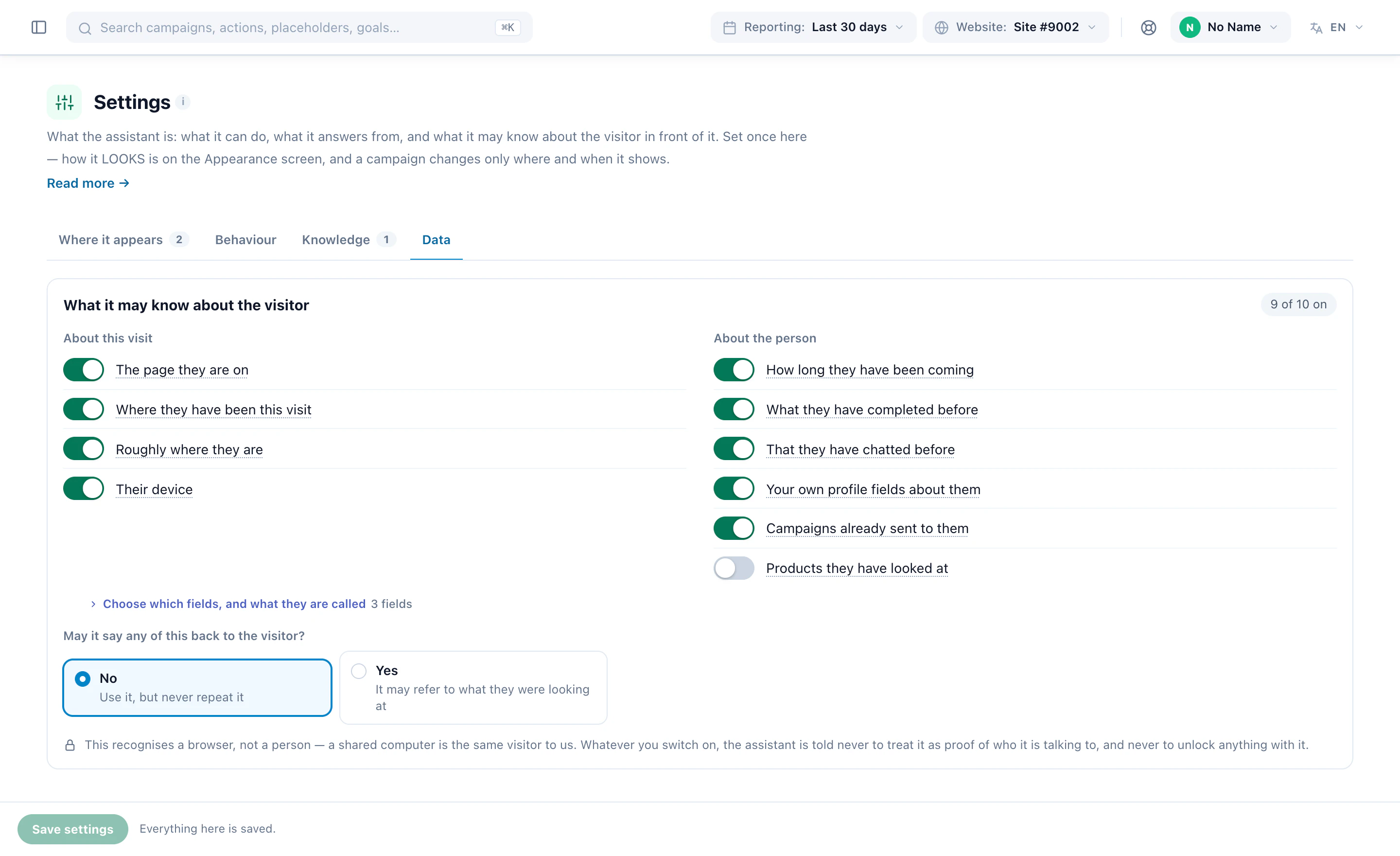
Switch on The page they are on and Where they have been this visit first: they are what let it answer “this one” without asking which. May it say any of it back? is a separate question, and No by default — it acts on what it knows without reading the record back to the visitor.
What it sees describes a browser, not a verified person — a shared computer is one visitor — so it is told never to treat any of it as proof of who it is talking to, and never to unlock anything with it. The same tab sets which catalogues it may search, and the same switches decide what a person who takes the conversation over can see.
3Give it something to read
This is the step people skip, and the one that matters most. With no sources it answers “I cannot confirm that” to almost everything, which reads as broken. One page — shipping, or returns — changes that more than any setting. On Knowledge, add a source:
- Your whole siteGive the address: it looks for a sitemap first, then the links on that page, and reads up to 40 pages by default, 200 at most, one at a time.
- One web pageA single address, read again whenever you ask.
- A fileText files: .txt, .md, .csv and .html. A Markdown FAQ keeps its questions as headings, which is what makes an answer findable. PDF and Word cannot be read yet.
- Pasted textThe paragraph your team keeps retyping.
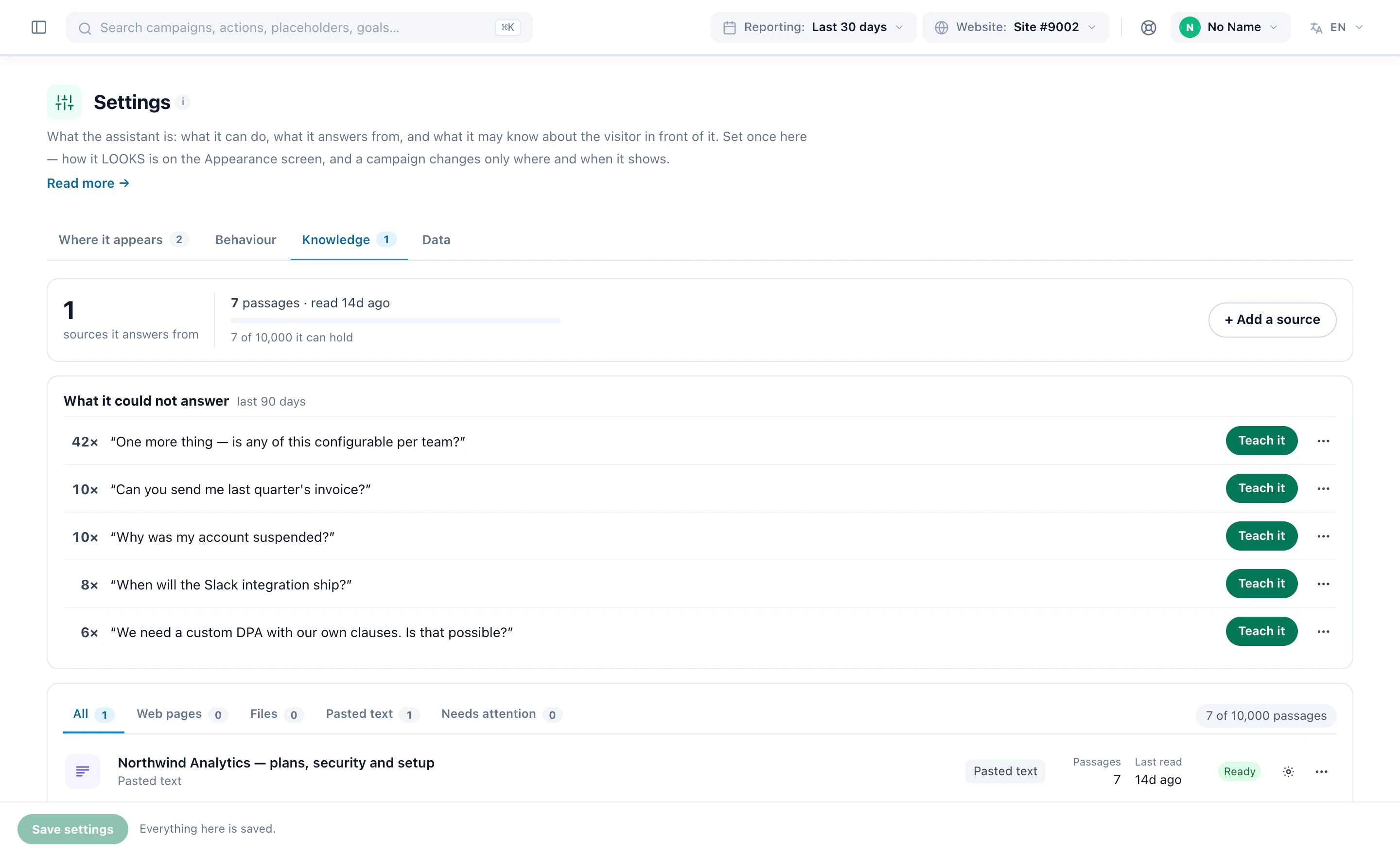
Leave your product and article pages out: the assistant already searches your feeds, and reading them again is slow and adds nothing. Add what a catalogue cannot answer — shipping, returns, warranty, sizing, care, about. If answers about single products feel thin, map the long description in your feed rather than crawling product pages.
Every source shows its passages, when it was last read and whether it read at all. Re-read a page after it changes — pasted text and files have nothing to fetch again. Give sources tags, and a placement can answer from one shelf of the library and nothing else.
4Place it with an AI Search & Chat campaign
Settings decide what the assistant is; a campaign decides where it appears. Until one exists the chat is on no page, however completely the settings are filled in.
Create a campaign and choose AI Search & Chat. It opens on the account’s own steps — Knowledge, Data and People, which edit the same account-wide settings — then the steps of every campaign: Target, Content, QA, Automation and Performance. On Content, pick where it sits:
- A chat bubbleIn a corner, on every page you target — the classic chat.
- An ask boxIn the page, like a search field, on a help or product page. It answers in a sentence, then shows the items it found.
- A product finderAsks what the shopper needs, then shows the products that fit, each with the reason.
- A content finderFinds the article, guide or page a reader is after.
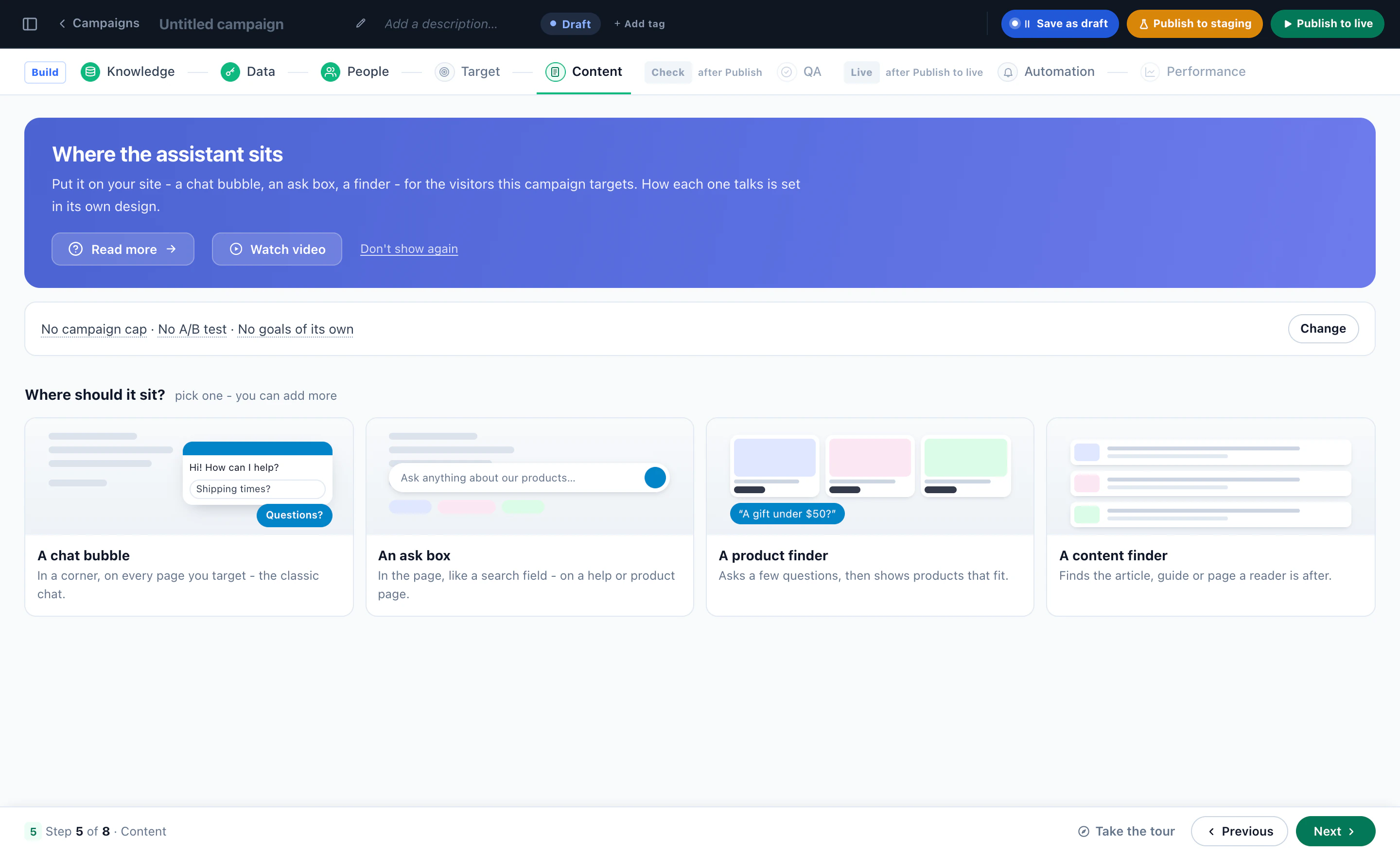
One campaign can hold more than one — an ask box on the help page and a bubble everywhere else. And because the chat is an action in a campaign, everything you use to target a pop-up targets it too: audience, page group, cart value, device, referrer, and how often it may appear.
For a first chat there is a shorter way: AI Chat → Settings → Where it appears creates the campaign from four questions — which pages, what it says first, how it appears, and whether it starts in testing or live.
5Write what it says first, and how it looks there
Each placement opens in the chat designer: its settings on the left, the chat itself on the right, answering as it will on your site. Preview as shows it to you as a real visitor would get it.
- Opening messageThe greeting and the suggested questions. Start from a ready set — on a product page, on checkout, a support desk — or write your own.
- The buttonIts label and shape, a card beside it, and whether it opens by itself. Zero seconds leaves it closed until somebody clicks — the polite default.
- What it answers fromOne tag of your knowledge and what to do when that tag has no answer, plus extra instructions and never-do rules for these pages only.
- Offers and meetingsThe discounts it may name, and whether it may offer a meeting on these pages.
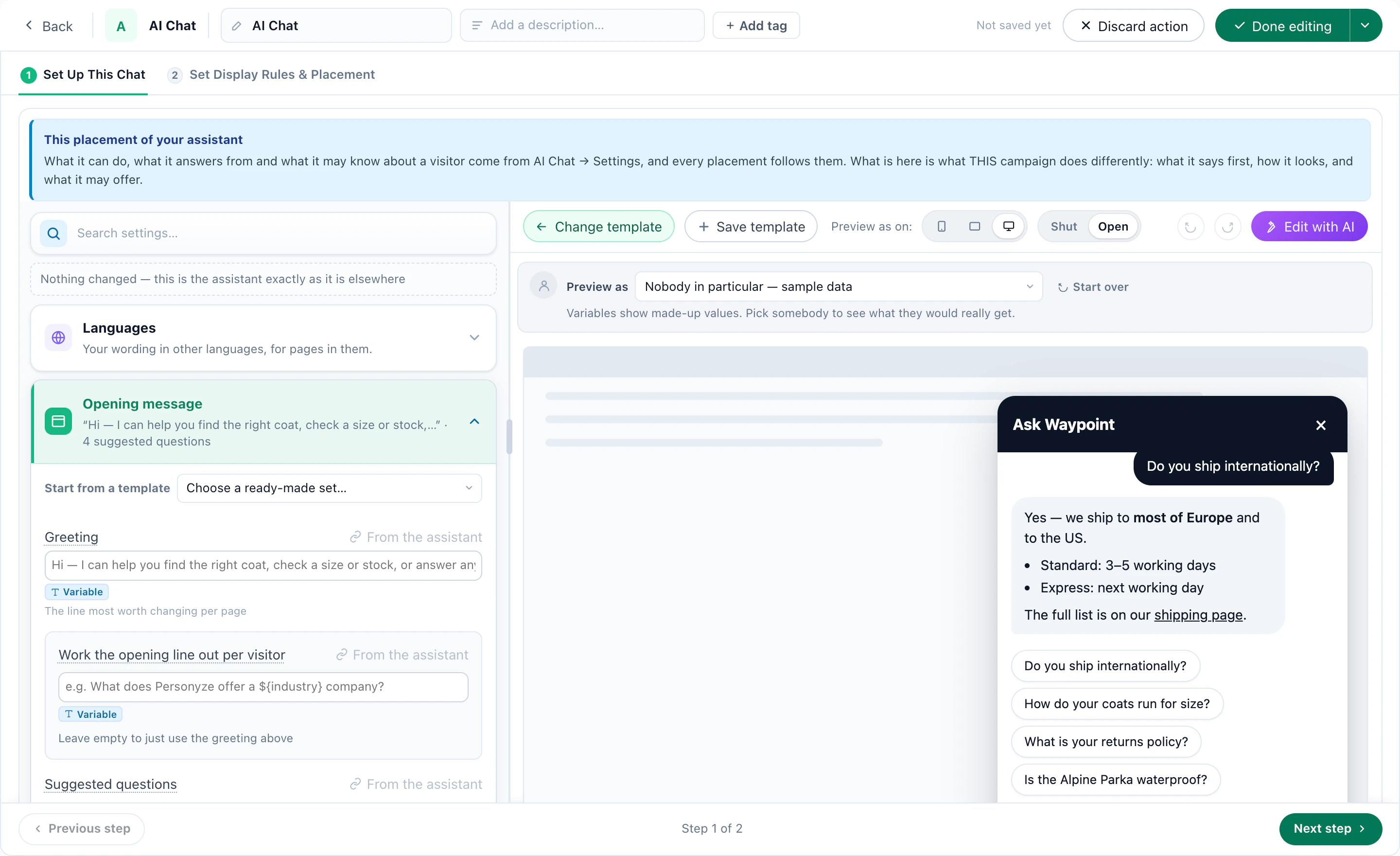
A placement can only ever be stricter than the account. Its rules are added to the account’s, never instead of them, and it can switch meetings off for its pages but never on.
Work the opening line out per visitor goes one step further: give it a question of its own — “What do we offer a visitor in ${city} when the forecast is ${weather}?” — and the answer becomes the first line. The visitor never sees the question, and one sentence covers every segment, because the variables are filled in for each visitor.
6Decide when a person takes over
A good chat knows when to stop. It passes a conversation to your team when it cannot answer and its settings say to offer a person, when the visitor uses one of the words that skip straight to a person, or when they simply ask for one.
The people who answer are on AI Chat → People. They sign in at a separate address that reaches the chat queue and nothing else in your account — never campaigns, audiences or reports. Invite them by email, and they choose their own password. Then decide, under When it does not know:
- Before handing overHand over straight away, hand over and then ask once for an email, or require an email address first.
- When nobody is signed inPass it on anyway — the team gets an email — or ask the visitor for an email address first, so the reply can reach them.
- Also ask forUp to six things in your own words, such as an order number, asked as part of the conversation and saved as a note on the case that the visitor never sees.
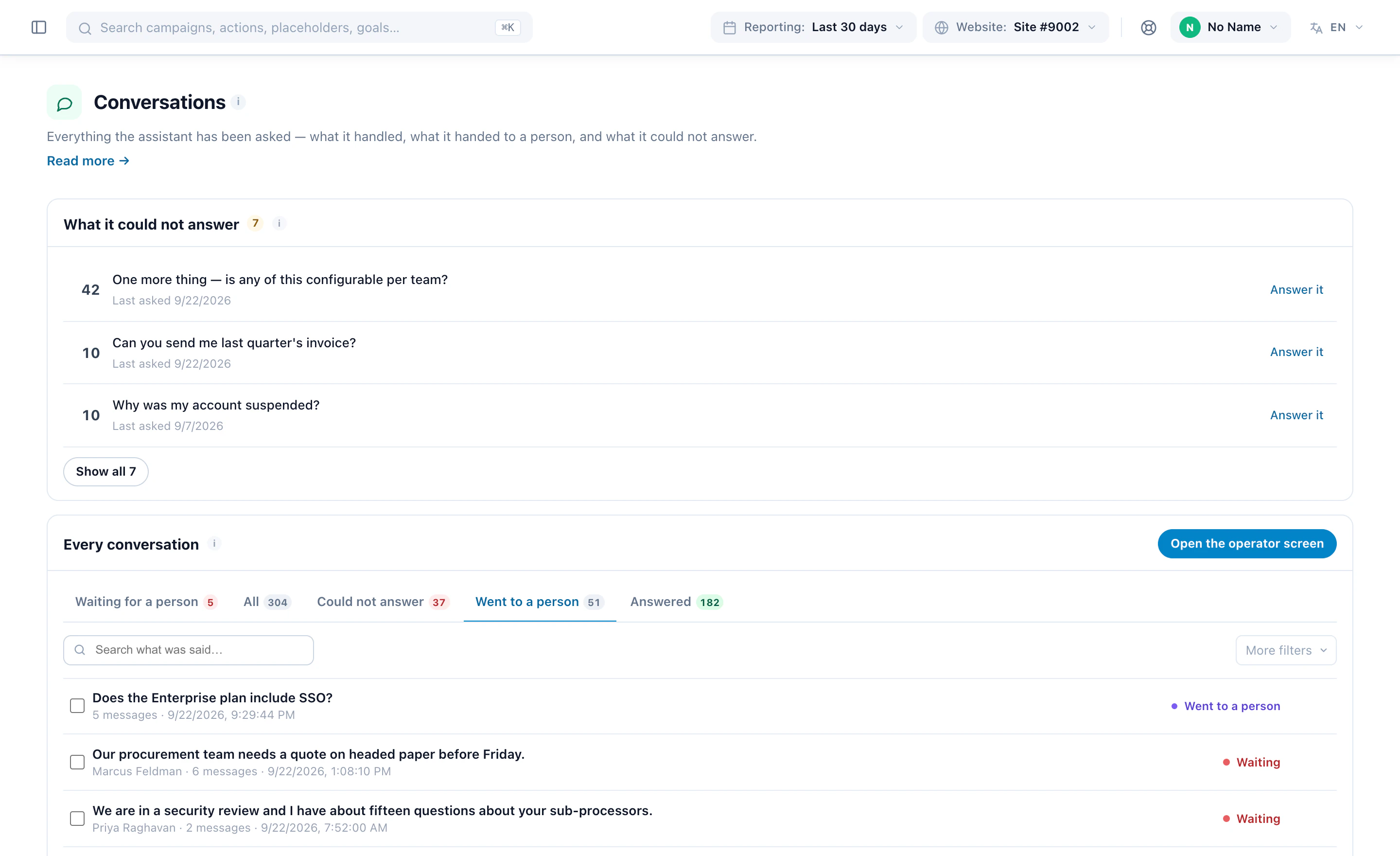
A handover opens a case with a subject written from what was actually being discussed, and whoever picks it up reads the conversation itself, in order, and answers in the same window. Until somebody is on the roster, a visitor who asks for a person is offered an email reply instead. Some visitors would rather use WhatsApp: add a WhatsApp chat button beside the chat, shown only while you’re open.
7Switch it on, try it in testing, then publish
One switch decides whether anything answers at all: Answering visitors, at the top of AI Chat → Overview. Off, campaigns can be built but nothing answers anywhere, whatever they say. On, the line beside it counts the live placements and the sources that are ready to answer from.
- Create the campaign in testing. Only you see it: turn on the staging view from the top bar and talk to it on your own site.
- Ask it the five questions your team hears most. Anything it cannot answer is a source to add before launch.
- Check the handover: ask for a person, and watch the case arrive on the operator screen.
- Publish to live when it reads right.
The chat is a paid add-on with an allowance of conversations per billing cycle. When the allowance runs out the chat switches itself off — it stops appearing rather than showing a chat that cannot answer, anyone already talking is allowed to finish, and it comes back when the allowance renews.
8Recipe 1: An online store answering fit and delivery
The questions before a purchase are nearly always the same few: will it fit, when will it arrive, can I send it back. Answer them on the product page, and the shopper never leaves it to look.
- What it can doAn online shop: it searches your catalogue, and price, stock and attributes come back exactly as stored — rows with a picture, not a paragraph.
- What it readsYour delivery, returns, sizing and care pages. Not the product pages — the catalogue already covers them.
- What it may knowThe page they are on and where they have been, so “will this one fit?” needs no product name. Add the products they have looked at, so it stops recommending what they already own.
- Where it sitsA bubble on product and cart pages, opening with “Any questions about this one?” — the ready set for a product page.
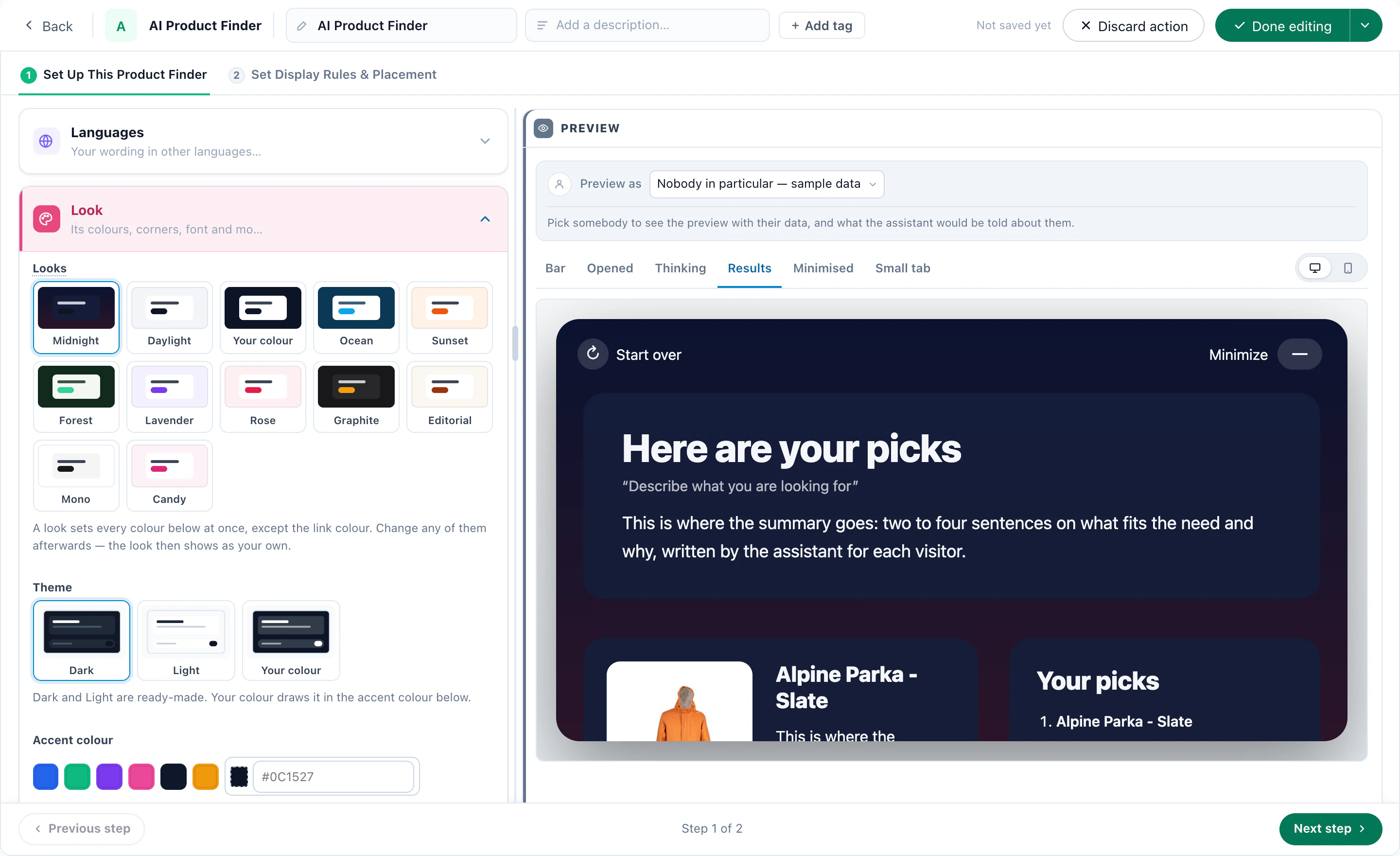
Before launch, give it the rules a store needs under Never do these: never estimate a delivery date for a specific order, never promise a discount, a refund or an exception.
If it may name a discount, write it down as an offer — with the terms that make it true, stated only to the visitors in its audience. With no offers written, it names a discount only from your Promotions list, if you use one, and never invents one.
9Recipe 2: A B2B site that answers, then books the demo
On a B2B site the best thing a chat produces is a meeting. Let it answer until a call would go better, and then offer one.
- What it can doQuestions only — no product search.
- What it readsYour pricing, security, integration and onboarding pages, and a pasted text with what your sales team says on calls.
- Offering a meetingOnly in the situations you name — “they ask to see the product” — and never when “they are asking about the free plan”. Situations, not keywords: it reads them and judges.
- Never do these“Never promise a feature, an integration or a date that is not in what you have been given.”
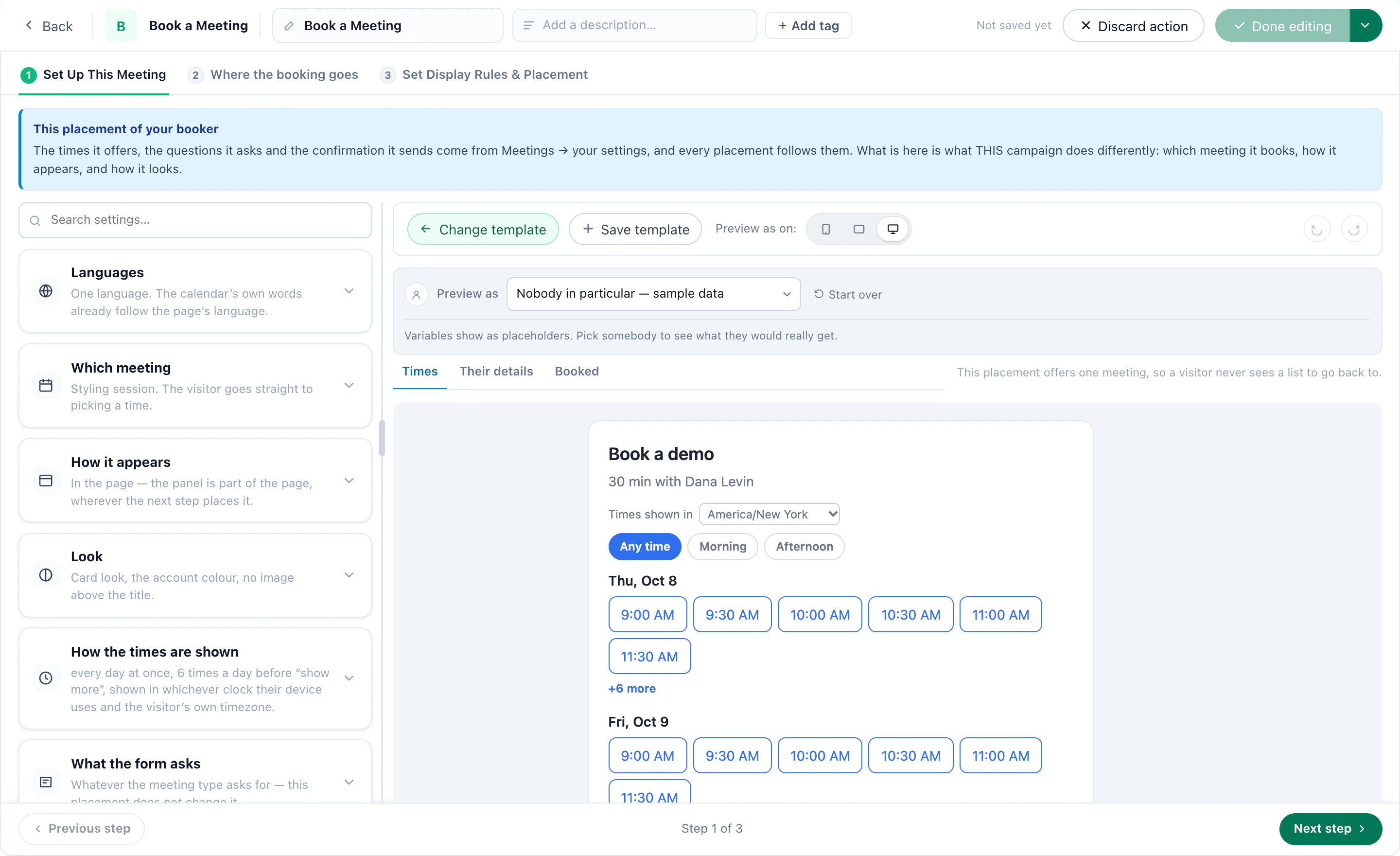
Meeting types, hosts and availability come from the Meetings screens; the chat decides only whether to put them in front of a visitor. When it does, it shows the free times in the conversation, and the visitor picks one and confirms it themselves. A placement beside your help articles can switch meetings off for its pages.
If an enrichment service or your CRM fills in the company behind a visit, let it see What kind of company they are — it is told this is a guess from their network or email domain, never a fact the visitor gave you. Then give your largest accounts an assistant of their own: see Recipe 4.
10Recipe 3: A publisher answering from its articles
A publisher’s archive answers most of what its readers ask — if they can find it. Let the assistant find it for them.
- What it searchesYour articles, imported as a content catalogue and switched on under Data. It answers in a sentence, with the articles behind the answer underneath.
- What it readsWhat the catalogue does not hold: subscriptions, the newsletter, account help, the about page.
- Where it sitsAn ask box at the top of the archive that answers from articles alone, or a content finder at the foot of the page.
- When it does not knowTake an email address, so a reader’s question still gets an answer from your team.
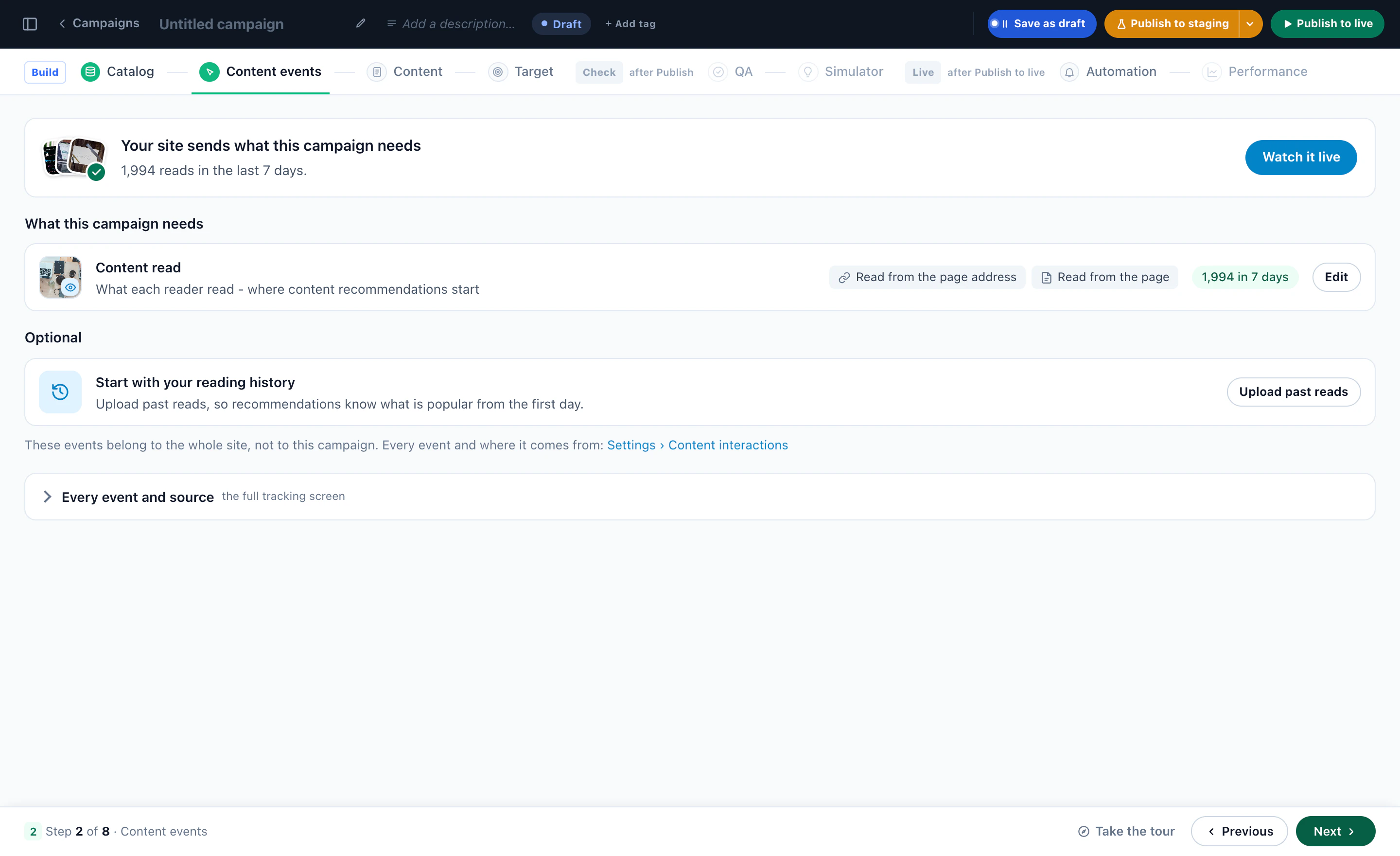
Read its unanswered questions more closely here than anywhere: each one is an article your readers went looking for and your archive does not have yet.
11Recipe 4: One assistant per audience
The chat is an action inside a campaign, so several campaigns aimed at several audiences put several assistants on one site — each with its own greeting, its own shelf of the knowledge base, its own extra rules and its own look, all on one account and one knowledge base.
- Enterprise evaluatorsCompany size 500 and up, on the pricing and security pages: it answers from the security and contract material only, and offers a person rather than wandering into anything else.
- A big basketCart value over your threshold, after a few minutes on the site: told to offer a person early, because a lost order now costs more than five minutes of your team’s time.
- A trial on day sevenTrial accounts that have not connected an integration yet: onboarding and the integration guides, and nothing about pricing.
- A third visit, no orderSizing, delivery and returns, and a greeting that carries the welcome code the campaign already holds.
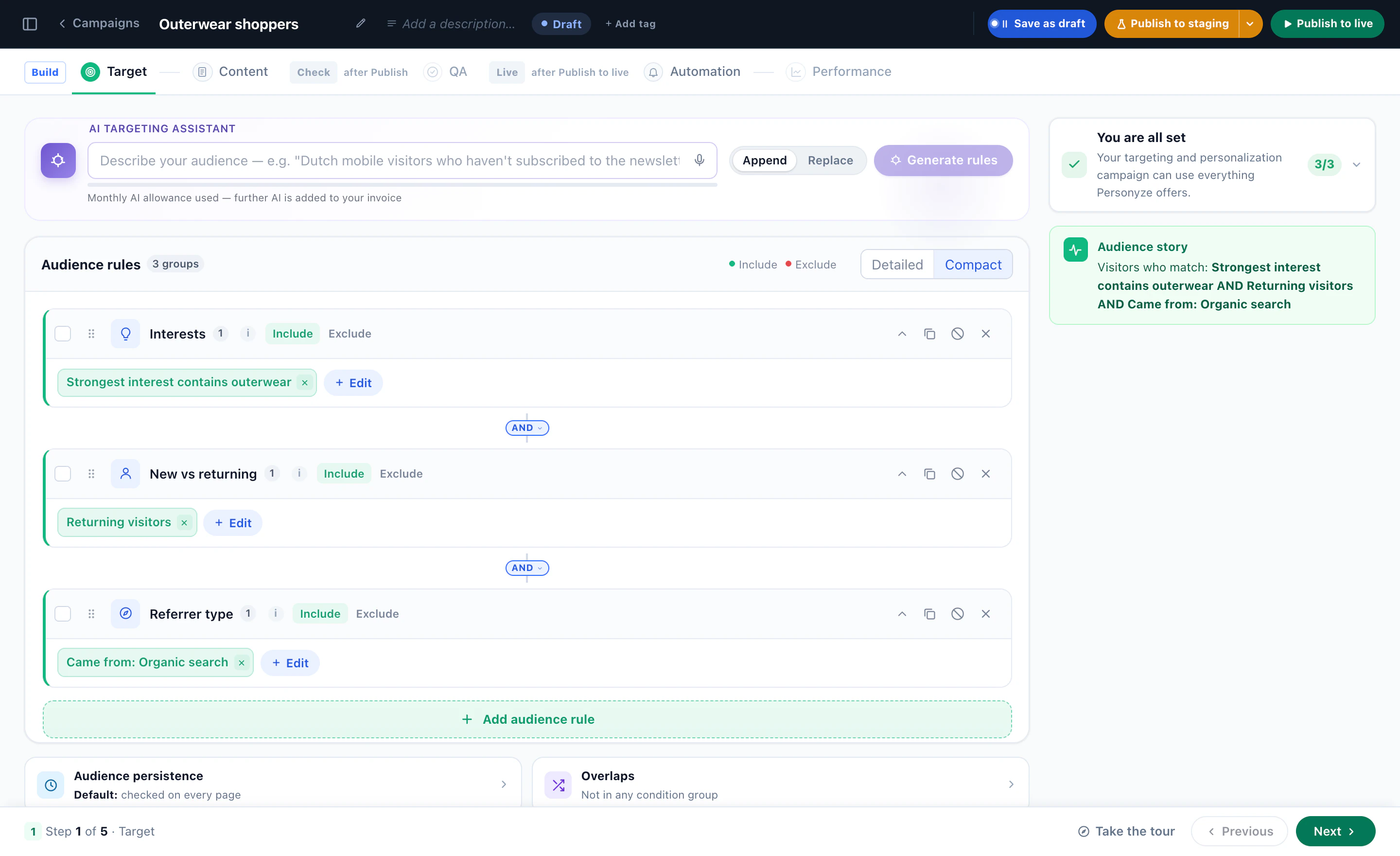
Each placement can narrow the account — a tag of the knowledge base, extra instructions, stricter rules, no meetings on its pages — and never loosen it. And each is an ordinary campaign, so it can be A/B tested and measured on its own.
12Measure it, and improve it from its gaps
The AI Chat report covers the last 30 days: reach — the share of visits that started a conversation — conversations and how many it answered, messages, what it could not answer and what it handed over, each against the 30 days before, with what needs you beside them.
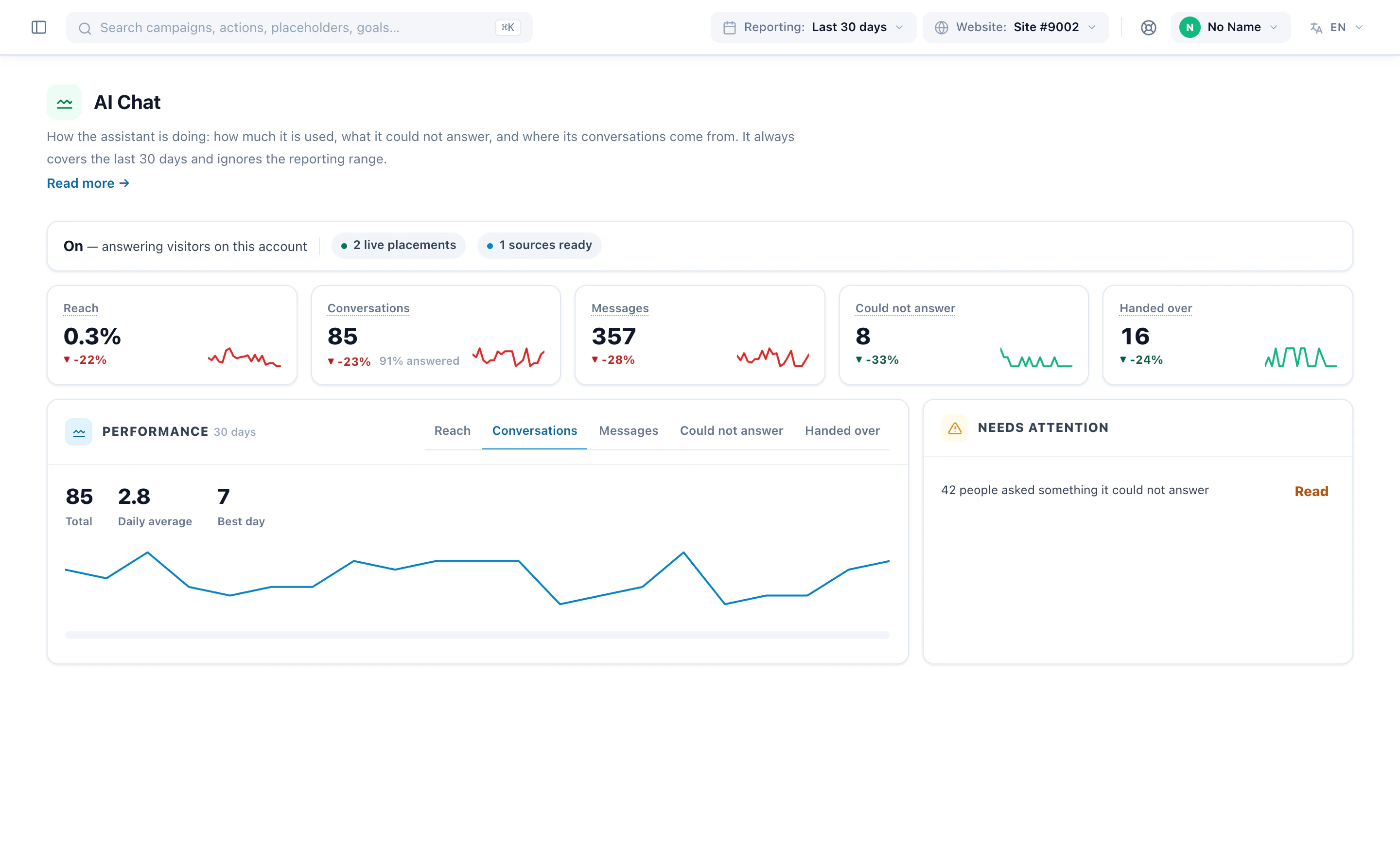
Close the loop every week
- Open What it could not answer — on Knowledge, or on Conversations — most asked first.
- Press Teach it: the question becomes the name of a new pasted-text source, and you write the answer. It has it from then on.
- When the answer belongs on your site, write the page and add its address instead — then every visitor gets it, not only the ones who ask.
- Read the answers visitors marked unhelpful the same way.
Count what it is worth
A chat placement reports like any action: a view when it appears, a click when the visitor sends their first message. Name an event for when a conversation starts, when a visitor gives their email, or when it is passed to a person, and build goals on them. Then A/B test the campaign, and read the conversions beside every other campaign you run.
More on the product: AI Chat Agent, and the AI chat agent example.