
AI Website Chat That Hands Over to a Person Live: How the Handover Works
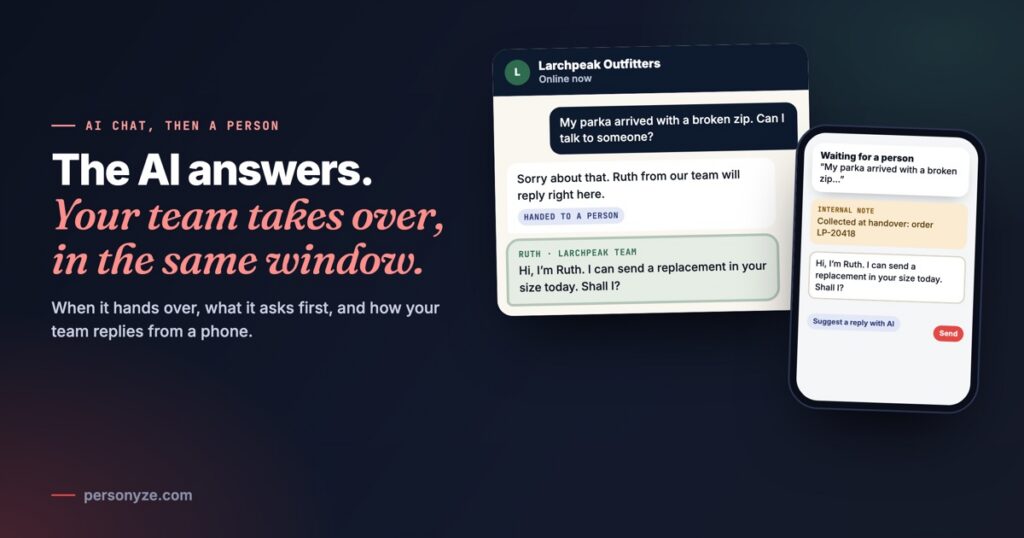
Most questions on a website have an answer on the website, and an AI chat can give it at any hour. Some do not: a parcel that arrived broken, a quote for fifty seats, a visitor who simply wants to talk to someone. For those, the chat should bring in a person, in the same window, while the visitor is still there, and the person should not have to ask everything again.
This is how that handover works in the Personyze AI chat agent: when it hands over, what it asks first, where the conversation lands, how your team answers from a phone without a panel login, and what happens when nobody is online. For what the chat itself should know, and how to add it to Shopify, WordPress or any site, see AI chatbot for ecommerce.
When should an AI chat hand over to a person?
Three things send a conversation to your team:
- The visitor asks for a person.
- It cannot answer. You choose what it does then: offer a person, take an email address, or say it does not know.
- A word you listed. Words such as “refund” can skip the assistant entirely and go straight to a person.
Each place the assistant appears decides whether it may hand over at all. A chat bubble may, by default; an ask box in the page may not, and then it says so plainly rather than promising a follow-up that will not come. A meeting is kept apart from a handover, because someone chasing a damaged order wants a person, not a demo: booking a meeting in the chat is a setting of its own.
What the visitor sees: a person, in the same chat window
The conversation goes to your team’s queue, and the reply lands in the chat window the visitor already has open, not in an email. If they have left the page, the reply waits for them. And a conversation survives following a link: the visitor keeps their history, and the operator holding the case keeps it, as they move through your site.

What it asks before it hands over
You decide whether a person costs the visitor an email address. The handover settings offers three choices:
- Hand over straight away, and ask for an email only if they offer one. Fastest for the visitor.
- Hand over, then ask once.
- Require an email address first. No case is opened without one. This is enforced on the server, not merely suggested to the assistant.
You can also list up to six things to ask for at handover, in your own words, such as an order number or a postcode. The assistant asks for them in the conversation rather than as a form, and the answers are saved as an internal note the visitor never sees, so your operator starts with them.
An email address given at handover is written to the visitor’s profile, not just onto the case. If it already belongs to one, the two merge: the next visit is recognised, and the person can be targeted like anyone you know.
Where the conversation lands: your team’s queue
In Personyze, Conversations › Waiting for a person is the queue. A reply there goes into the visitor’s chat window: the same thread they were already in.
The people who answer are operators you invite. They sign in at their own address and see nothing else in your account, only the conversations, so a colleague from support or sales can take chats without a panel login. Each shows as Online now, Away, Invited or switched off, and the list can be ordered by Longest wait or Still on site.
Beside each conversation, the operator sees what your site knows about the person, within the same data switches the assistant obeys: their city and local time, the pages they opened on this visit and what brought them, their earlier visits and last search, and the products they bought and looked at. With nothing switched on, it says so. The conversation refreshes itself, and keeps a half-typed reply where it was.
Answering from a phone, with no app to install
Each operator turns on notifications from their own screen, with the phone button. There is no app to install. On an iPhone the page must first be added to the Home Screen, because Apple only allows notifications for an installed page.
On a phone the operator screen shows one panel at a time. The visitor’s details open as a sheet with a Back to the chat bar that stays in view, and the reply box keeps Send on screen and grows as you type.
Replying faster: AI drafts, saved replies and notes
- Suggest a reply with AI writes a draft for the operator to check and send.
- Rephrase mine with AI tidies what they typed, with Put my wording back if they preferred their own.
- Saved replies are the answers your team types over and over, one click away in the reply box. The assistant never sees them and never says them to a visitor.
- Internal notes: switch the box to a note and only colleagues see it, marked “Internal note — the visitor cannot see this”. Anything collected at handover lands there too.
When nobody is online
Until someone is signed in, a visitor who asks for a person is offered an email reply instead. You choose what happens when nobody is signed in: ask for their email address first, or pass the case on anyway. Either way your team is emailed; the difference is whether a case is opened before there is a way to reply to it.
The teaser card can be honest about it too. Write {online} in it and it shows how many of your team are signed in; when nobody is, the card is not shown.
Closing, blocking, and what went to a person
Closing a conversation sends nothing to the visitor. Their chat stays open, and the assistant answers again if they write back.
An operator can also block a visitor from the close bar. The visitor is not told: for them the chat behaves exactly as it does on a site with the assistant switched off. Blocks are lifted only by you, under People › Blocked visitors, and nothing is ever blocked automatically.
Analytics › AI Chat reports reach, conversations, messages, what it could not answer and what was handed over. Each campaign that carries the assistant shows the same on its Performance step, with a Went to a person tab. What it could not answer is listed most asked first, each question with an Answer it button, so fewer questions need a person next time.
Operators can answer email too
The same operator screen answers email. Each operator has two buttons, Chat and Email; someone who answers both gets a Chat / Email switch at the top of the screen, each side with what waits on it. On the Email side they approve the AI’s drafts and answer the replies to your Personal emails and Automatic AI emails campaigns, from the address the campaign sends from.
How to set it up
- Set up the chat with AI. On the AI Search & Chat card, press Set it up with AI. It reads your site, drafts the greeting, the instructions and what it must never say, and gives you five test questions; each answer shows the pages it came from and says when it would pass the question to a person.
- Choose who takes over. On the People step, invite the colleagues who answer. Until someone is there, the questions it cannot answer go to your login addresses by email.
- Set the handover rules under AI Chat › Settings › Behaviour: what it asks first, what happens when nobody is signed in, the words that skip it, and your saved replies.
- Turn on phone notifications. Each operator does it on their own screen.
- Publish to staging, then to live. The setup publishes nothing by itself: you try it on staging, then publish it to live.
Everything about the assistant, from what it knows to who it hands over to, is set once for the account; the AI chat guide on the wiki has every setting.
Watch it in the panel
Two short films: the AI chat set up from your own site, and the inbox, where a visitor asks for a person and an operator answers in the same chat window.
Read the transcript
AI Search and Chat lets visitors ask in their own words, and answers from your own pages. On a software site: does it work with our tools? On a news site: that story about night trains.
On a university site: how do I apply? One assistant answers each. Here is how to set it up.
This is the setup. It reads your site, drafts how the assistant talks, shows where visitors ask, and you try it before you publish. Press Start the setup.
It makes a draft, which reaches no one. Now choose. Set it up for me, and the AI agent finds the right pages and fills in every setting.
Or check each step yourself. It opens the last step, with everything it decided for you. Step one, what it knows.
It answers only from pages it has read. It ticked the ones visitors ask about. Tick any others, and press Read.
Anything still missing is listed: write the answer yourself. Step two, how it talks. A greeting, starter questions and instructions, drafted from your site.
Change any word, and the chat beside it follows. Below, its name and colour, and what it does for visitors: search your articles, offer a meeting, pass them to your team. Step three, where it shows.
The bubble is drawn on your own home page, on a computer and a phone. Choose its corner, its pages, and how it opens. Step four, try it.
Press Ask, and your real chat answers what a visitor would ask, from your own pages, with its sources. And when a visitor asks for a person, it passes them to your team. Publish to staging, and only you and your testers see it.
Nothing reaches your visitors until you publish to live. AI Search and Chat. Set yours up.
The short version
A good AI chat answers what your site can answer, and knows when to stop. With Personyze, it hands the visitor to a person when they ask, when it cannot answer or when they use a word you listed; it asks first what your team will need; and the person replies in the same chat window, from a phone if need be, with no app and no panel login. When nobody is online, the visitor is offered an email reply instead.
Questions people ask
Can an AI chat on a website hand over to a live person?
Yes. When a visitor asks for a person, when the assistant cannot answer, or when they use a word you listed such as “refund”, the conversation goes to your team’s queue, and the reply lands in the chat window the visitor already has open, not in an email.
Do the people who answer need a login to the Personyze panel?
No. You invite them as operators. They sign in at their own address and see nothing else in your account, only the conversations.
Can operators answer from a phone?
Yes, with notifications and no app to install. Each operator turns notifications on from their own screen. On an iPhone the page must be added to the Home Screen first, because Apple only allows notifications for an installed page.
What happens when nobody from the team is online?
A visitor who asks for a person is offered an email reply instead. You choose whether the assistant asks for their email address first or passes the case on anyway; either way your team is emailed.
Does the visitor have to repeat everything to the person?
No. The operator sees the whole conversation, and anything the assistant collected at handover, such as an order number, is saved as an internal note the visitor never sees.
What happens when an operator closes the conversation?
Nothing is sent to the visitor. Their chat stays open, and the assistant answers again if they write back.
Can AI help the operator write the reply?
Yes. Suggest a reply with AI writes a draft, and Rephrase mine with AI tidies what the operator typed, with Put my wording back if they preferred their own. Saved replies are one click away too.
Book a demo with a personalization expert
30 minutes with a personalization expert. Bring your stack, your goals, your skepticism. We'll show you what changes when every visit feels like the only one.