
The Subject Line and Preheader: Write, Test and Check Them Before You Send
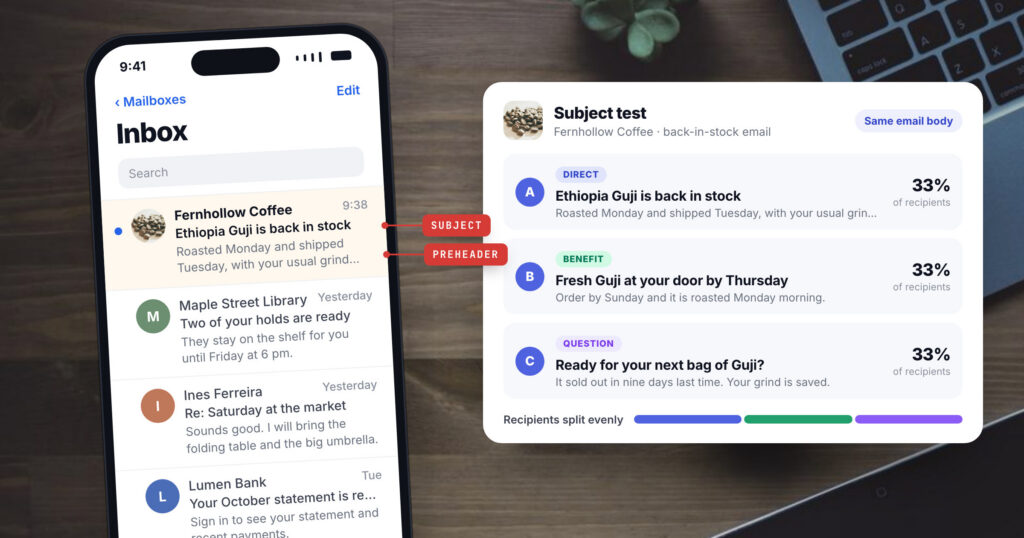
In an inbox, every email gets two lines: the subject, and the grey preheader text after it. That is all a reader sees before deciding to open, skip or delete. The design, the offer and the copy only reach the people those two lines persuaded.
This post covers the practical side of those two lines: how phones cut them off, how to get several good options quickly, how to test them so the result means something, and how to catch spam triggers before the send. It ends with replies, the other sign that an email worked. The examples come from the email editor in Personyze email personalization, and the advice holds in any tool.
What a phone cuts off
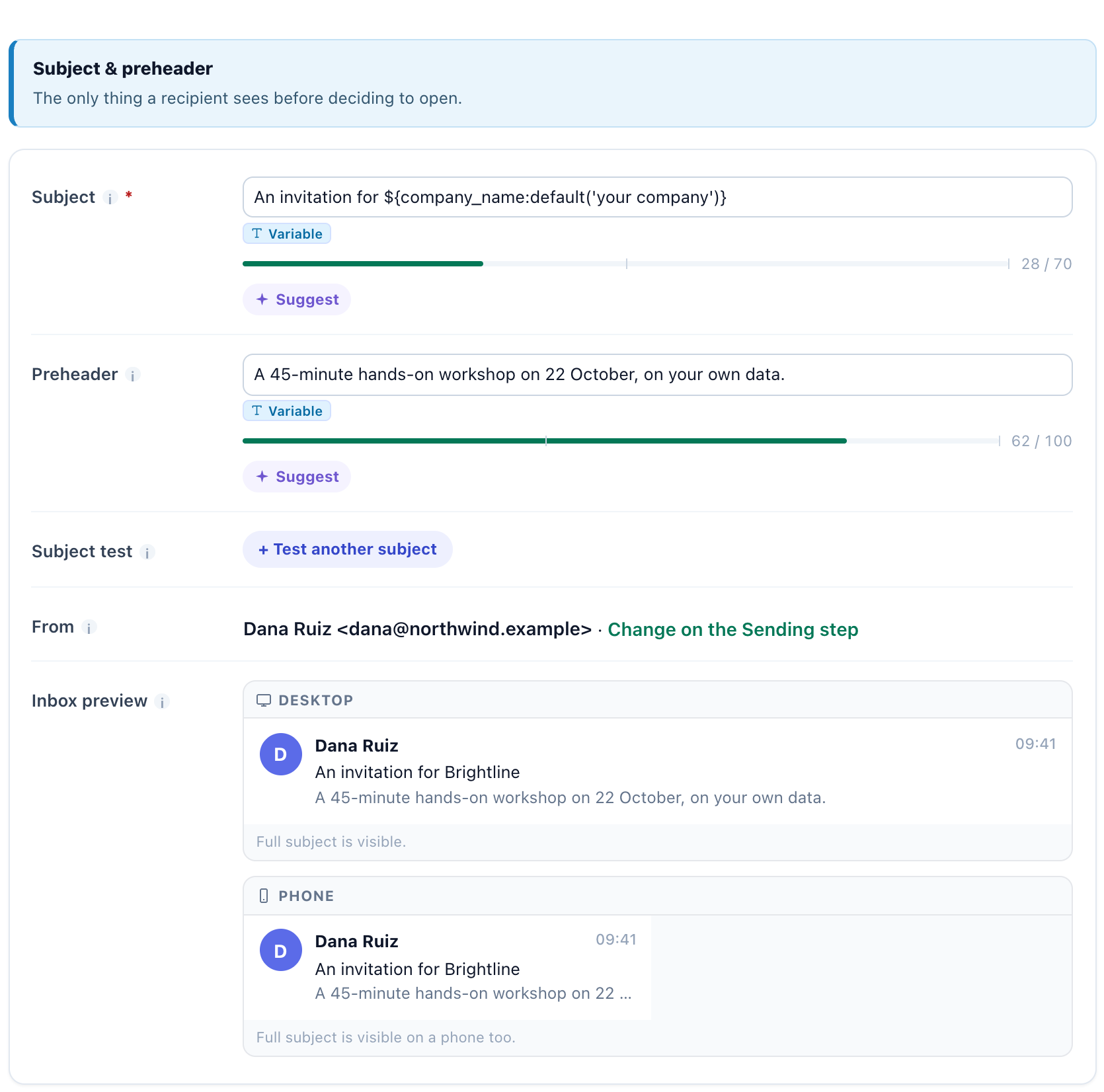
Each email in Personyze starts with a Subject field and a Preheader field. Both have a length bar, and under them is an inbox preview in two sizes, desktop and phone. The preview exists because the two lines rarely appear in full. On a phone the end of a long subject is cut off, and the preview shows the part that will be lost in grey.
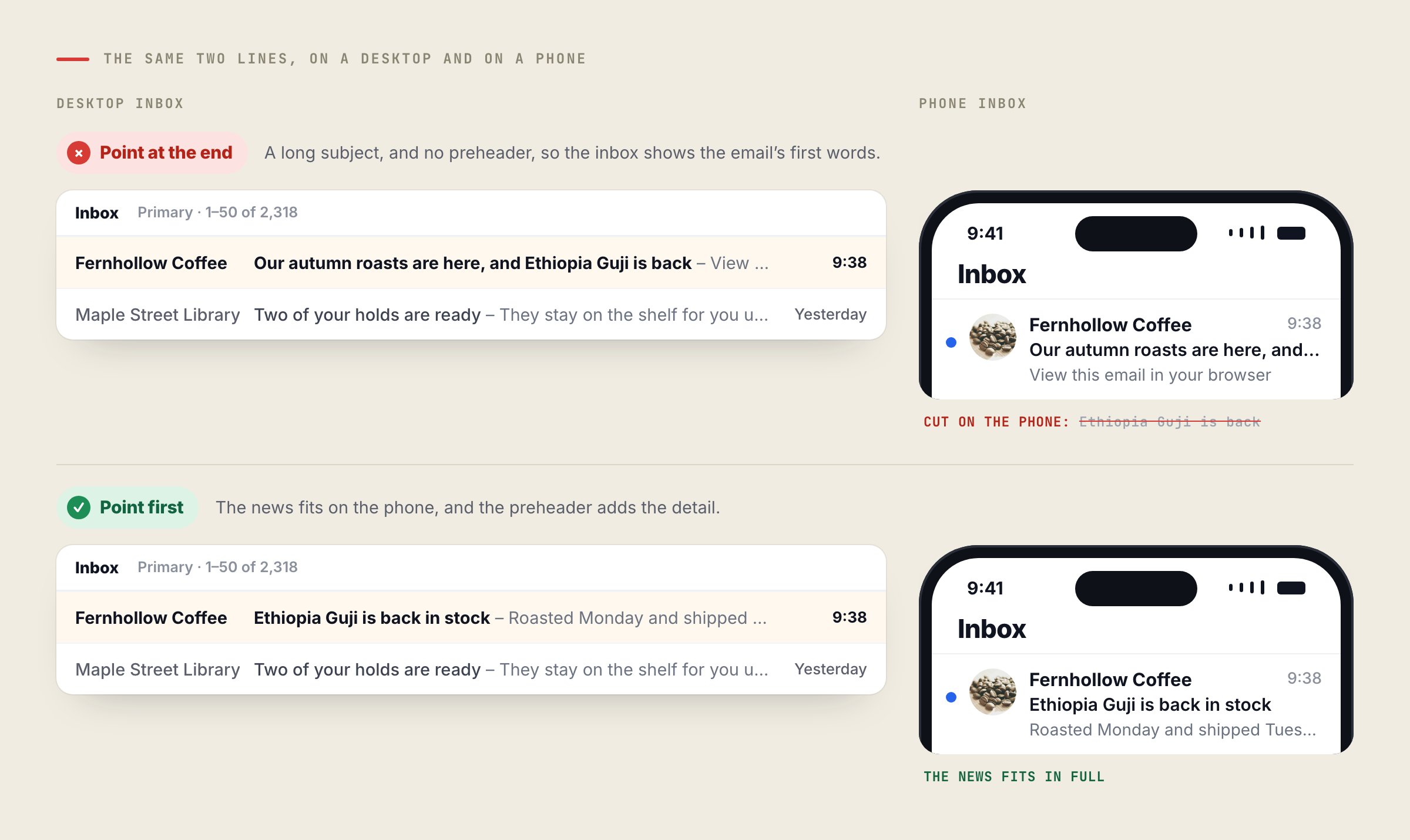
A common rule of thumb is that a phone shows about 35 characters of a subject and a desktop inbox about 70. The real number depends on the mail app, the screen and the reader’s font size, so treat the shorter figure as the budget for the part that has to land. Three habits follow:
- Put the point first. “Ethiopia Guji is back in stock” survives a narrow screen. “Our autumn roasts are here, and Ethiopia Guji is back” loses the news.
- Make the preheader add something. Repeating the subject wastes the second line. Give the detail the subject left out: the date, the reason, or what to do next.
- Always fill it in. With an empty preheader, most inboxes show the first words of the email instead, which is often a “View this email in your browser” link.
Getting several good options fast
The first subject you write is usually a description of the email. That is a fine start and rarely the best line. A quicker route to better ones is to write the same message from different angles: what the reader gets, what makes them curious, a question the email answers, what other customers did, or a plain statement of what is inside.
The Subject and Preheader fields have AI suggestions that do this for you. You get five at a time, each from a different angle, such as benefit, curiosity, question, social proof or direct, and each subject comes with a preheader written to go with it. Every suggestion has two buttons: Use puts it in the fields, and Test it adds it to a subject test beside your own line. Each account can ask for suggestions 200 times a day.
Read the five as a menu. If the benefit line and the question both look right, you don’t have to choose on instinct. Test them.
Testing subjects properly
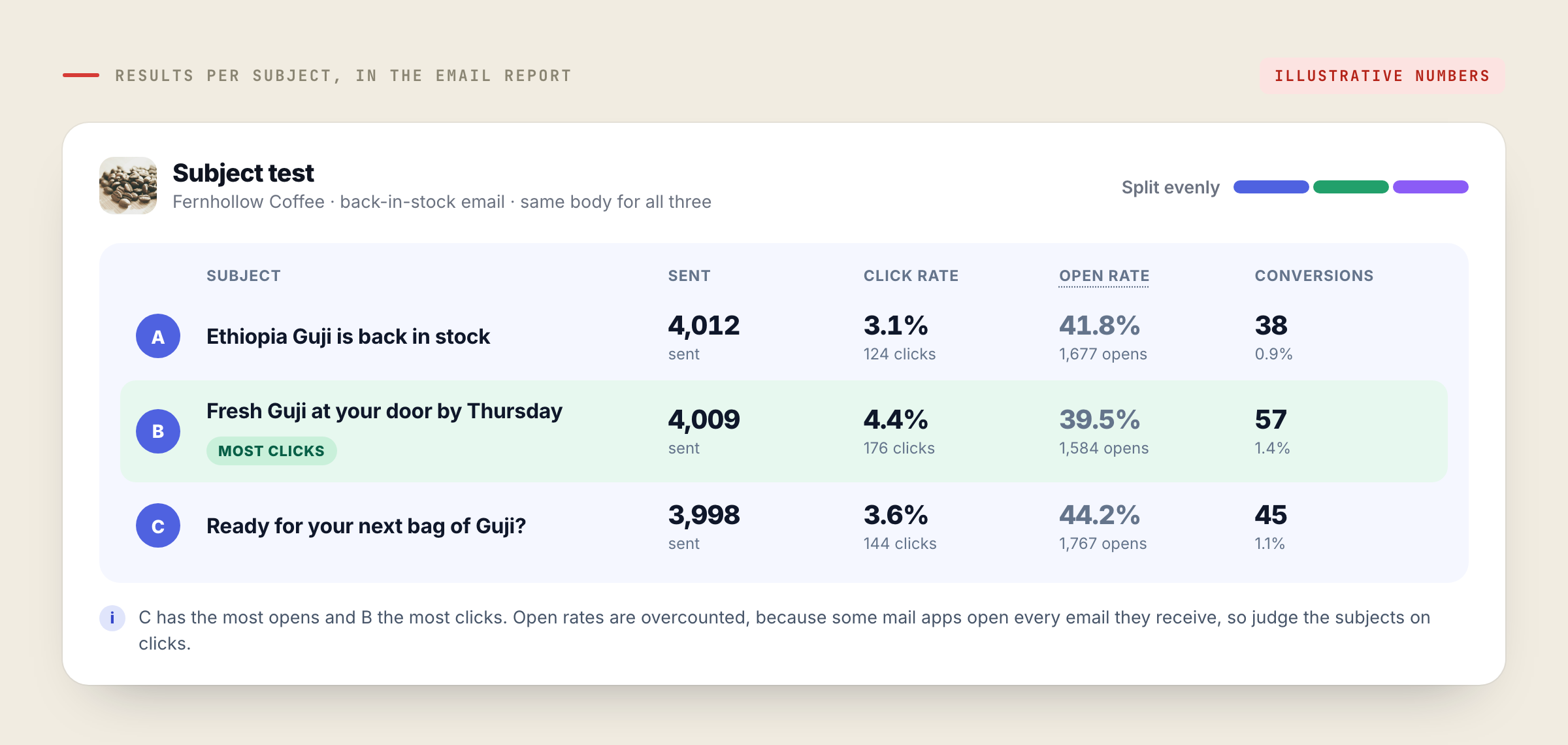
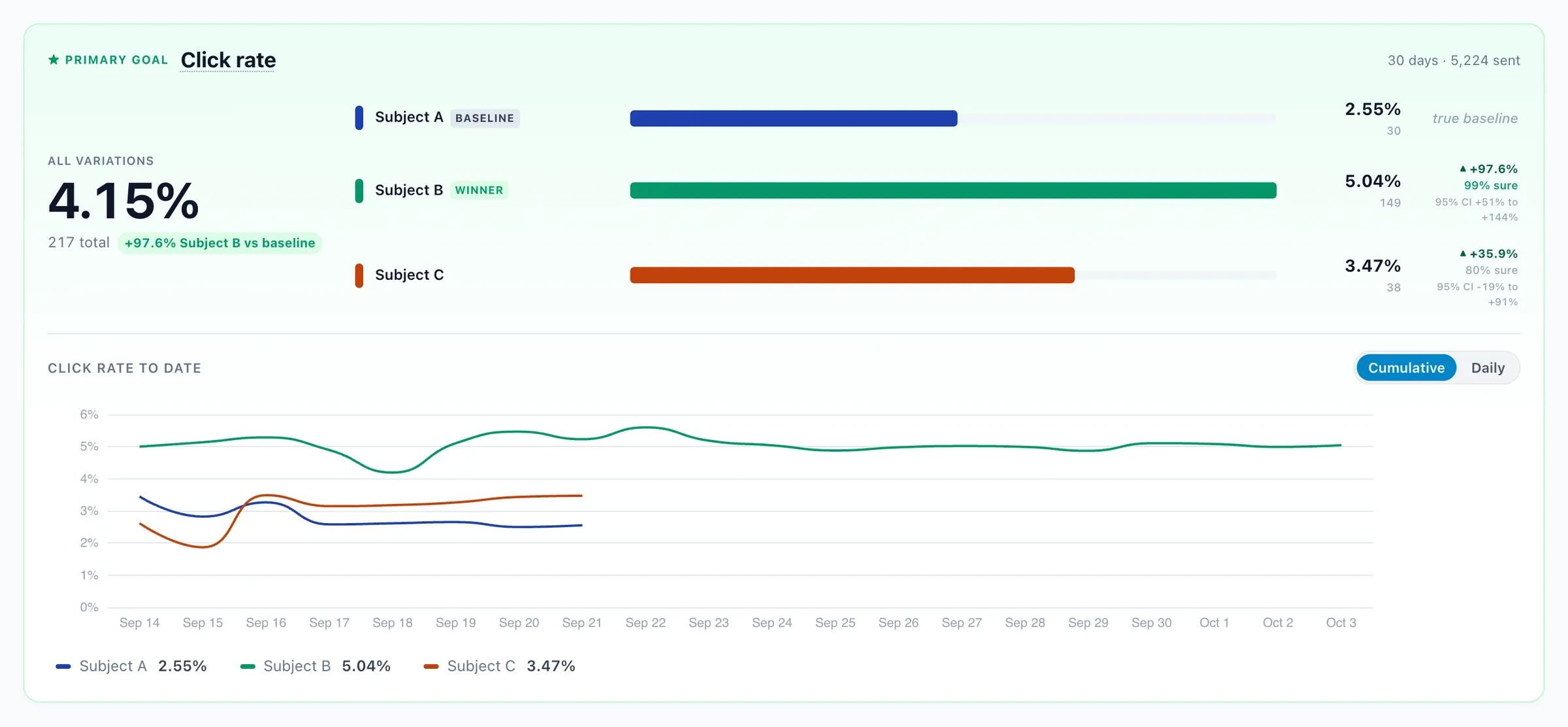
A subject test sends up to three subjects with the same email body. Recipients are split evenly between them, and the email report shows the results for each subject. Since the body is identical, a difference in results comes from the subject line.
A few rules make the result worth trusting:
- Make the options different. Two subjects a word apart will usually perform the same. Put a benefit against a question, or a short line against a specific one.
- Send to enough people. With a few hundred recipients per subject, a gap of a point or two is usually chance. Test on your larger sends, and let the numbers settle before you read them.
- Judge on clicks. Open rates are overcounted, because some mail apps open every email they receive whether anyone reads it or not. Clicks, and what people do after the click, are the better judge. In the example above, subject C has the most opens and subject B the most clicks.
- Keep the lesson. A test tells you about this list and this kind of email. Note which angle won, and start the next email from it.
Catching spam triggers before you send
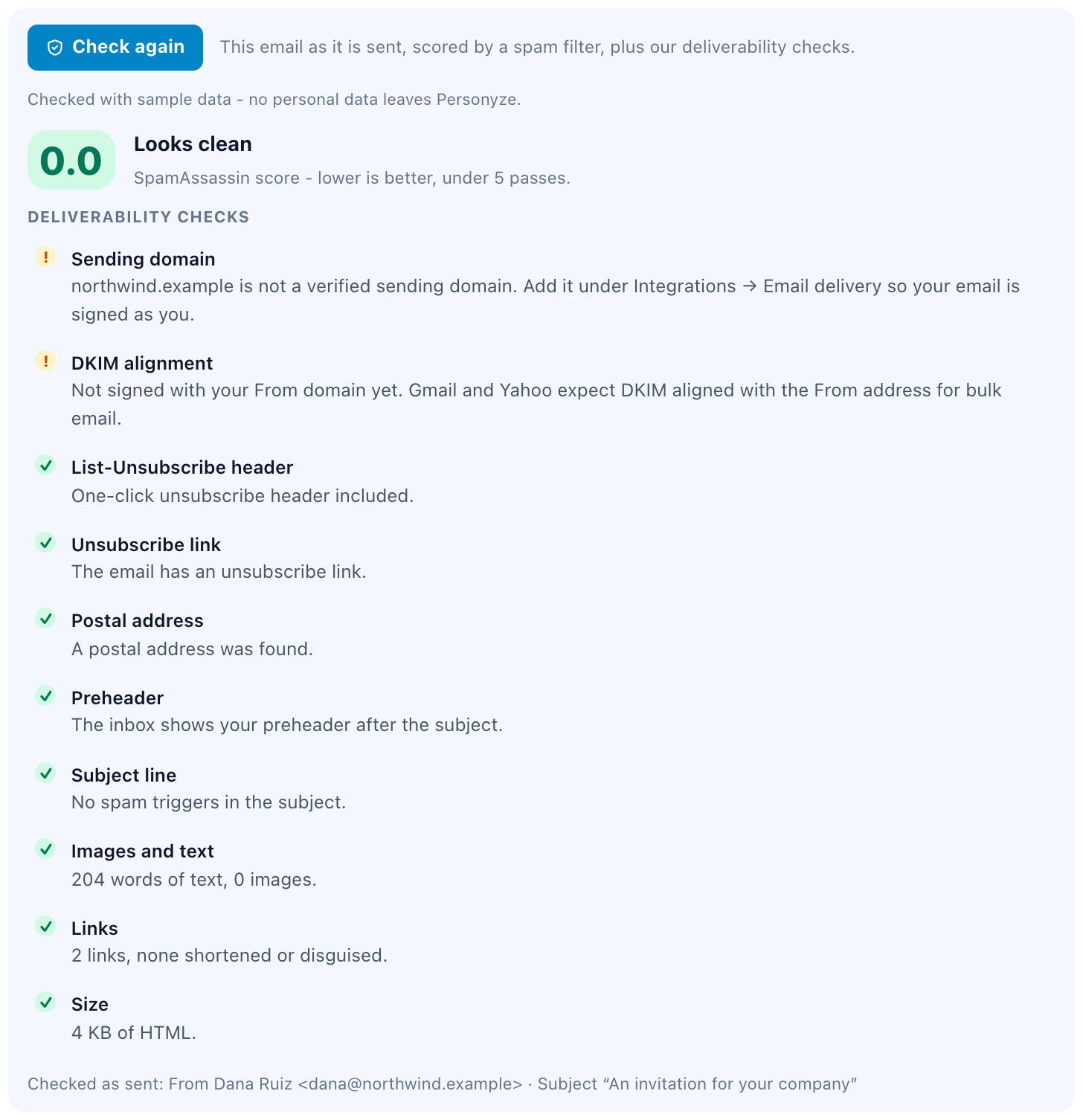
A strong subject does nothing in the spam folder. The QA step of an email campaign has a Check for spam button. It runs the email through SpamAssassin, the open-source filter many mail servers use, and returns a score where lower is better. The check uses sample data, so no personal data leaves Personyze, and each account can run it 60 times a day.
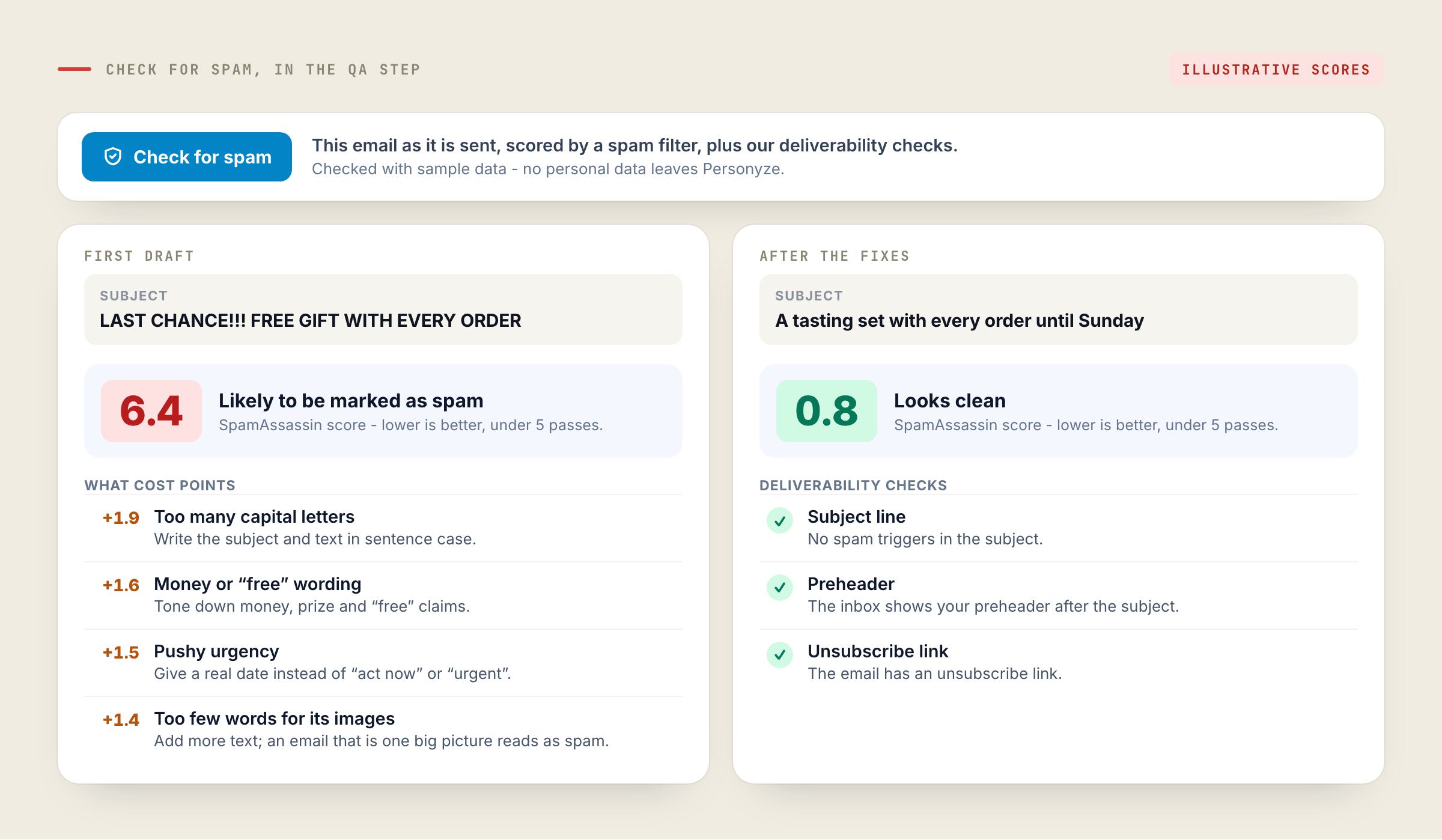
Spam filters score a message against many rules, and some of the easiest points to lose sit in the subject and the first lines:
- capital letters, and more than one exclamation mark;
- “free”, prize and money claims;
- urgency with no real date behind it, such as “act now” or “last chance”;
- link shorteners, and link text that shows a different address from the one it opens;
- an email that is mostly one big image with very little text.
Run the check after your last edit, because a late change to the subject can change the score. A clean score is one part of reaching the inbox. Your sending domain and how readers respond to your email over time count as well.
Replies: the other sign an email worked
Opens and clicks show that an email got attention. A reply shows that someone read it and cared enough to write back. For some emails, such as a check-in from an account manager, a question to past buyers or an invitation, the reply is the result you are after.
Switch on Track replies for an email sent through the Personyze server, and replies are recorded on the visitor. Auto-replies and out-of-office messages are filtered out, so they never count as replies, and human replies are forwarded to you so someone can answer them. Replies then work like any other behaviour:
- Target with them. The Emails replied to condition lets you follow up with the people who wrote back, or leave them out of the next reminder.
- Measure with them. Email reports have a Reply rate column, so you can see which emails start conversations.
- Let sequences respect them. A reply ends an email sequence for that person, so nobody who answered gets the automated follow-up.
If replies matter, ask for them. End the email with one easy question, and write the subject so it reads as if a person sent it.
Email personalization in PersonyzeSubject and preheader with an inbox preview, AI suggestions, subject tests, a spam check and reply tracking, in the same editor as the email.Questions people ask
How long should an email subject line be?
Short enough that the important part fits on a phone. A common rule of thumb is about 35 characters on a phone and about 70 on a desktop, but it varies by app and screen. Put the point in the first few words and check the phone preview.
What is a preheader?
The grey line of text an inbox shows after the subject. If you leave it empty, most inboxes show the first words of the email instead. Use it to add what the subject left out.
How many subject lines can I test on one email?
Up to three, all with the same email body. Recipients are split evenly between them, and the email report shows the results for each subject.
Does the spam check send my contacts’ data anywhere?
No. Check for spam uses sample data, so no personal data leaves Personyze.
Do automatic replies count as replies?
No. With Track replies on, auto-replies and out-of-office messages are filtered out. Human replies are recorded on the visitor and forwarded to you.
Book a demo with a personalization expert
30 minutes with a personalization expert. Bring your stack, your goals, your skepticism. We'll show you what changes when every visit feels like the only one.