
The right offer for every visitor.
A playbook for AI promotion management — one list of banners, text promotions and coupons, a code for each visitor, the store nearest them, and the lift that proves it worked.
Start Now →


Watch the playbook done
The two walkthroughs this playbook follows, in the real panel — a whole Promotions campaign, then the coupons behind it. Then do it with your own offers.
1Set it up in the order the editor does
Create a campaign and choose Promotions. The editor walks it in order — Your promotions and its Calendar, then Content and Target, then QA before anything goes live, and Automation and Performance after.
The list comes first because everything else picks from it. A campaign holds the widgets that show your promotions; the list belongs to the whole account, so a promotion you add or pause counts for every widget on the site.
The line above the pictures holds the campaign’s cap, its goals and an A/B test — one line, changed when you need it.
2Load your offers into one list
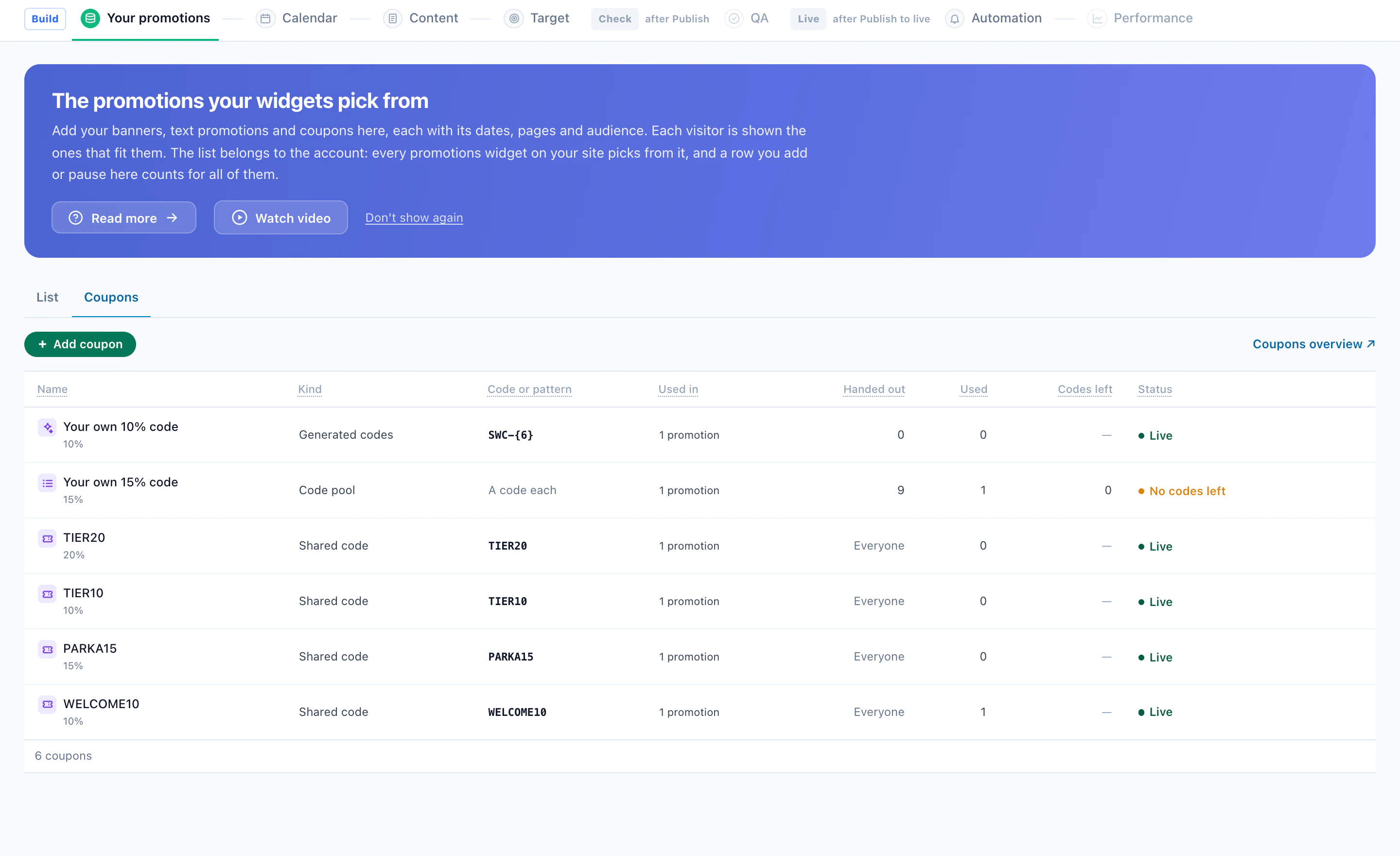
Each row of the list is one promotion: an image banner, a text promotion or a coupon. Add rows with Add promotion, upload a CSV or Excel sheet made from Download template, connect a Google Merchant Center promotions feed, or give a feed address that is read again on a schedule. Suggest with AI drafts rows for you; a draft waits for your approval before it can show.
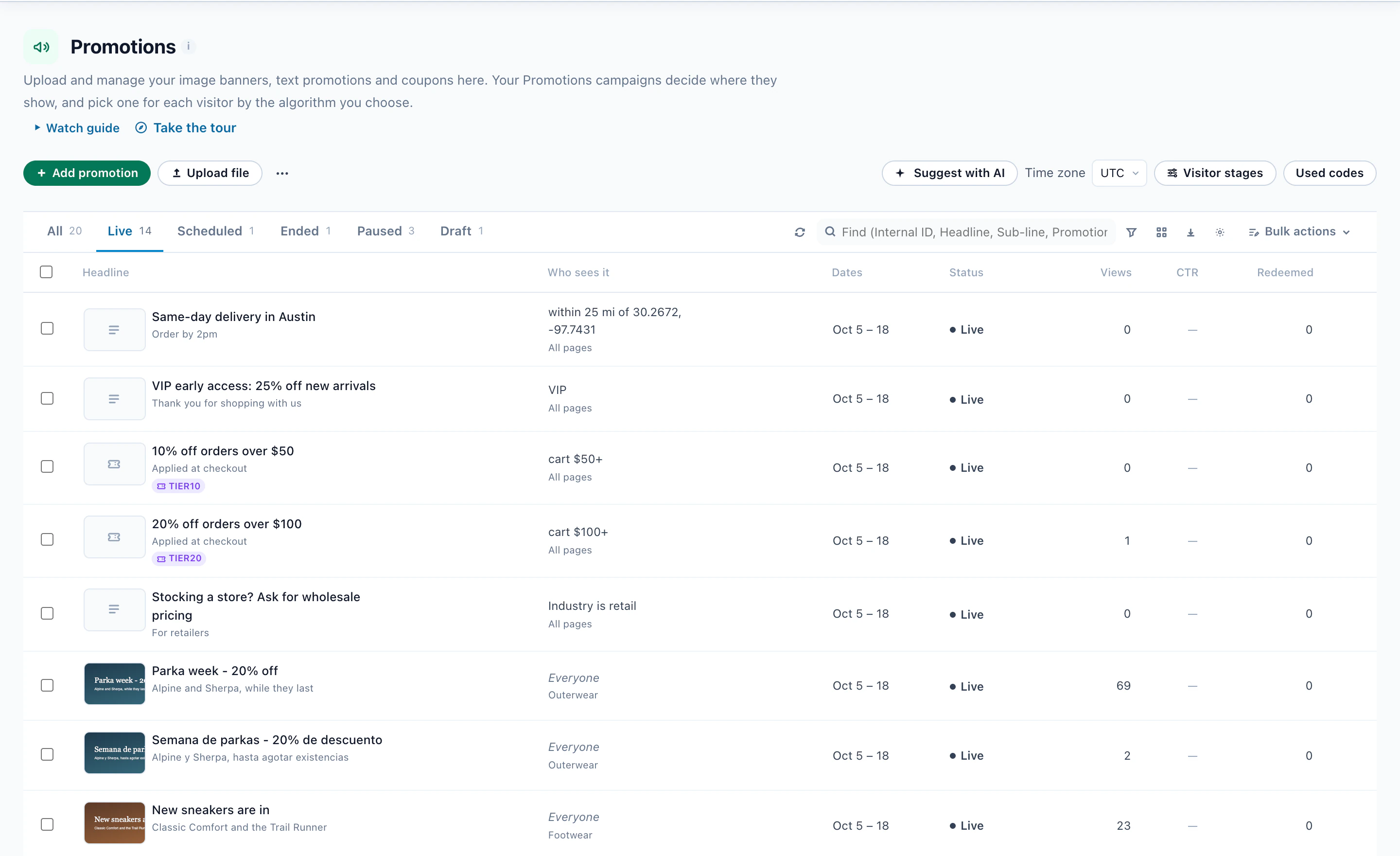
What a promotion says
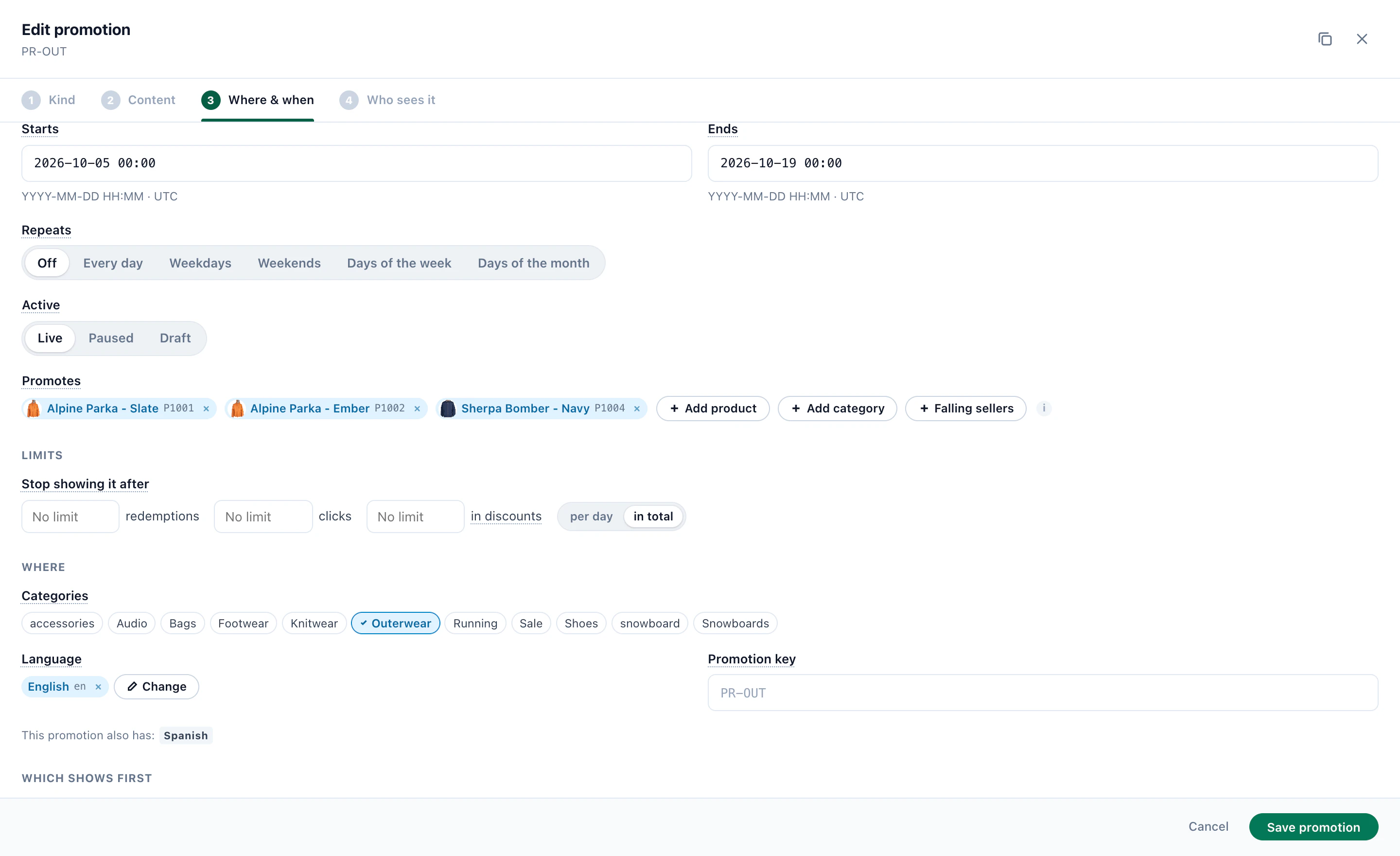
A headline, a sub-line, a button and a link, a discount, and pictures for desktop and phone. Write with AI drafts the words, Translate with AI adds languages, and Make the picture builds a banner image from the products the offer promotes, in your brand’s color.
Where and when it runs
- Dates, in the time zone you set, and repeats: every day, weekdays, weekends, days of the week or days of the month, with hours.
- Promotes — the products or categories it sells. When none of them is in stock, the promotion pauses by itself. Falling sellers promotes the products whose sales fell 30% or more on last week, and each drops out once its sales recover.
- Limits — stop showing it after so many redemptions, clicks or discounts, per day or in total.
- Categories and language — the page categories it belongs to, and the language it is written in.
Who it is for
Every promotion is for everyone until you add a rule: a country, a state or a distance from a place, a cart value, a lifecycle stage, a field from your CRM or the visitor’s profile, the categories they viewed lately, their device, or having redeemed another promotion.
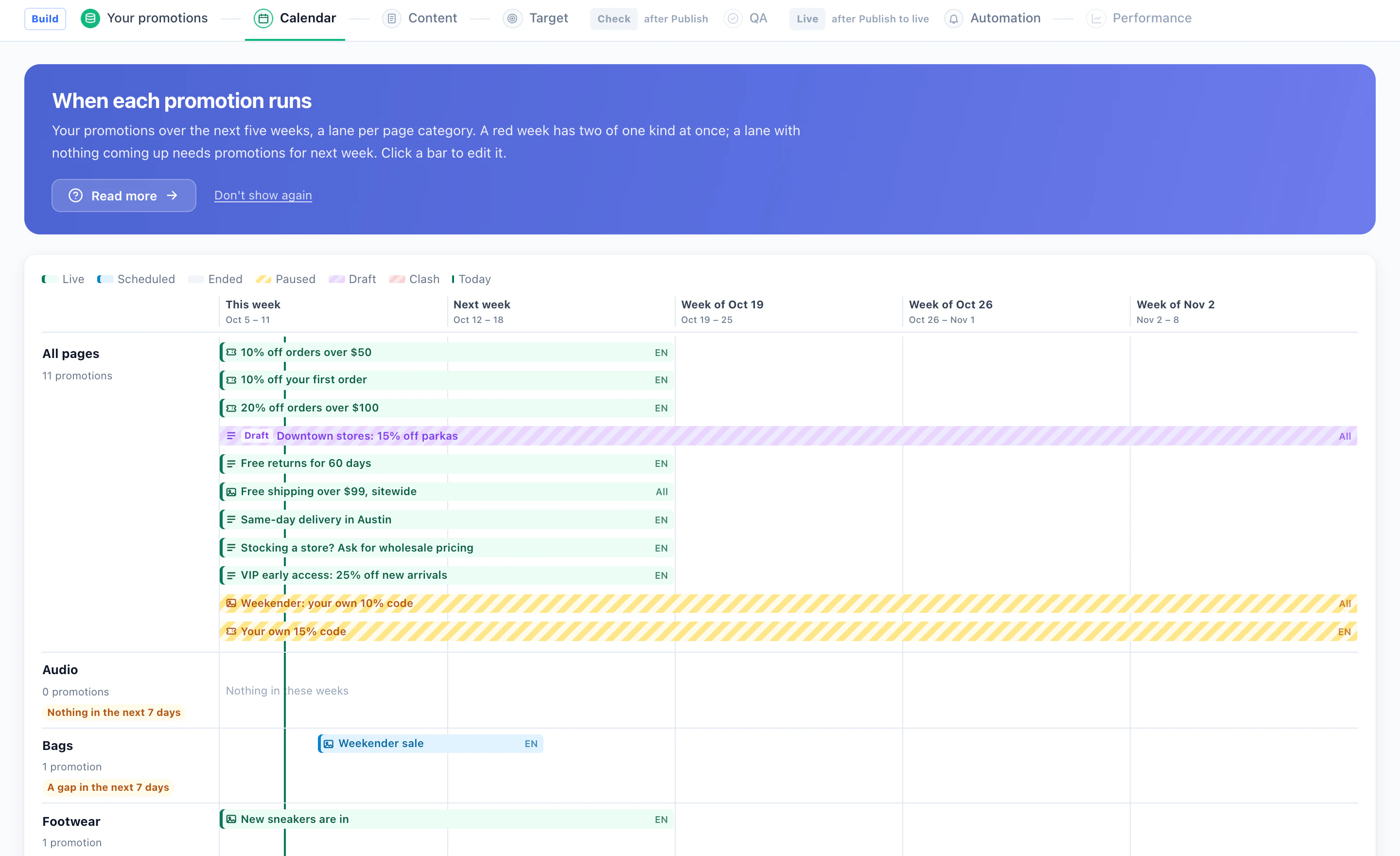
See the weeks ahead
The Calendar shows five weeks, a lane per page category: what is live, scheduled, paused or a draft, a week in red where two of one kind clash, and the lanes with nothing coming up. Click a bar to edit it.
3Give each visitor a code
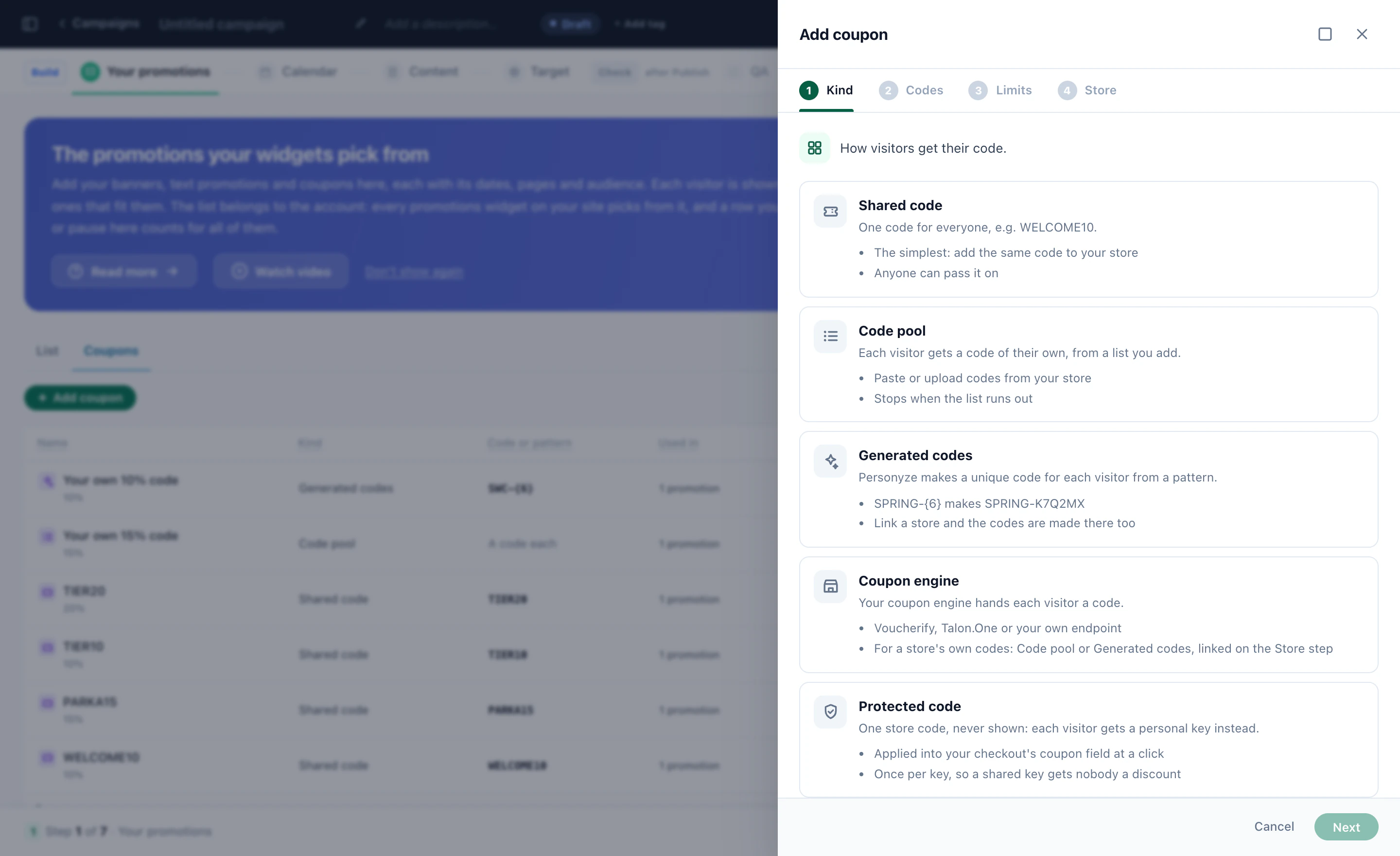
A coupon promotion carries a code. Choose how visitors get theirs:
- Shared codeOne code for everyone, such as WELCOME10 — the simplest, and anyone can pass it on.
- Code poolEach visitor gets a code of their own from a list you paste or upload; it stops when the list runs out.
- Generated codesPersonyze makes a unique code per visitor from a pattern: SPRING-{6} makes SPRING-K7Q2MX.
- Coupon engineYour own coupon engine hands each visitor a code — Voucherify, Talon.One or your own endpoint.
- Protected codeOne store code that is never shown: each visitor gets a personal key, applied into your checkout’s coupon field at a click, once per key.
A visitor who comes back keeps the same code. Limit how many go out and until when; every code handed out and redeemed is counted, and the Overview tells you when a pool has run out.
Make the code part of the moment
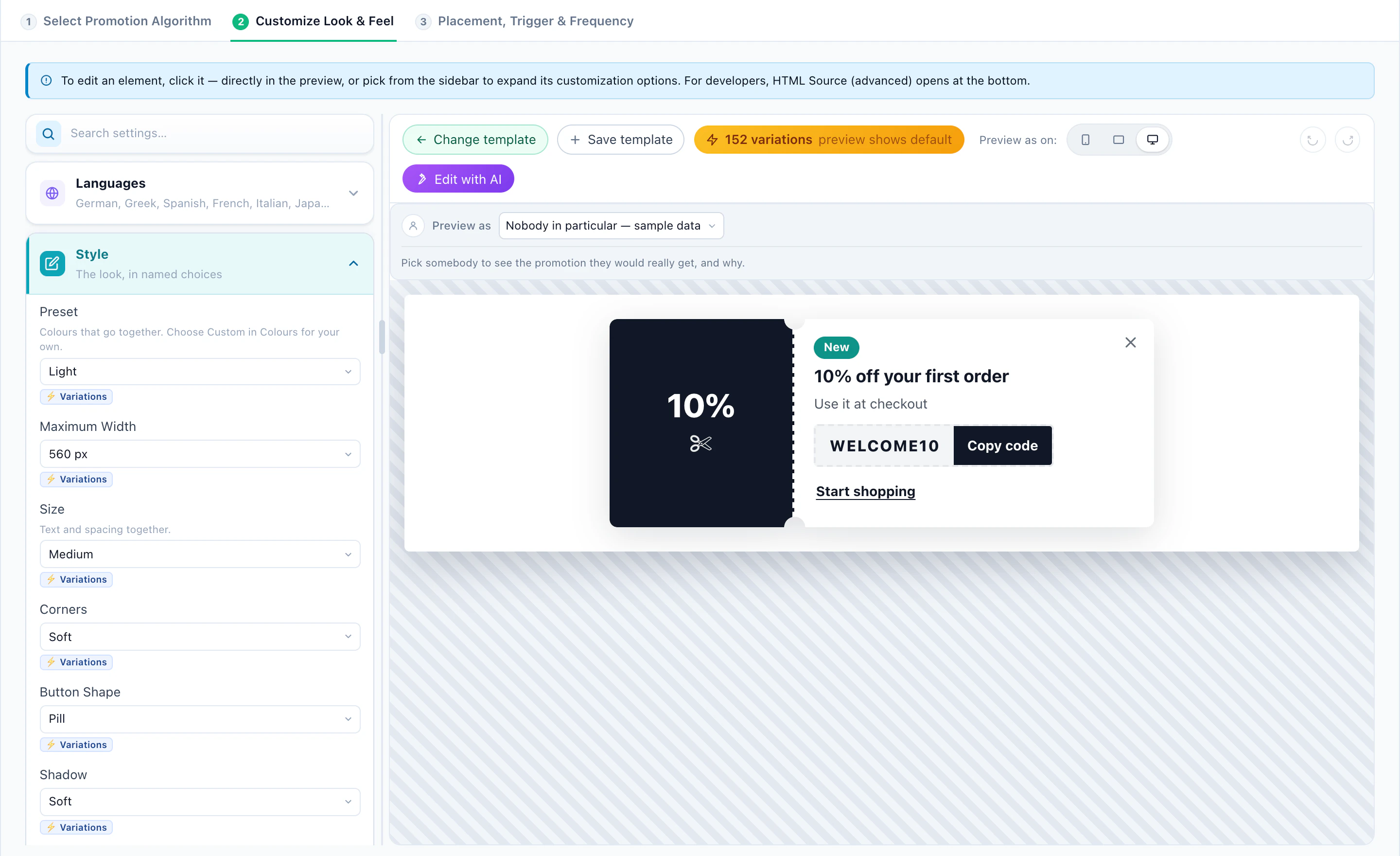
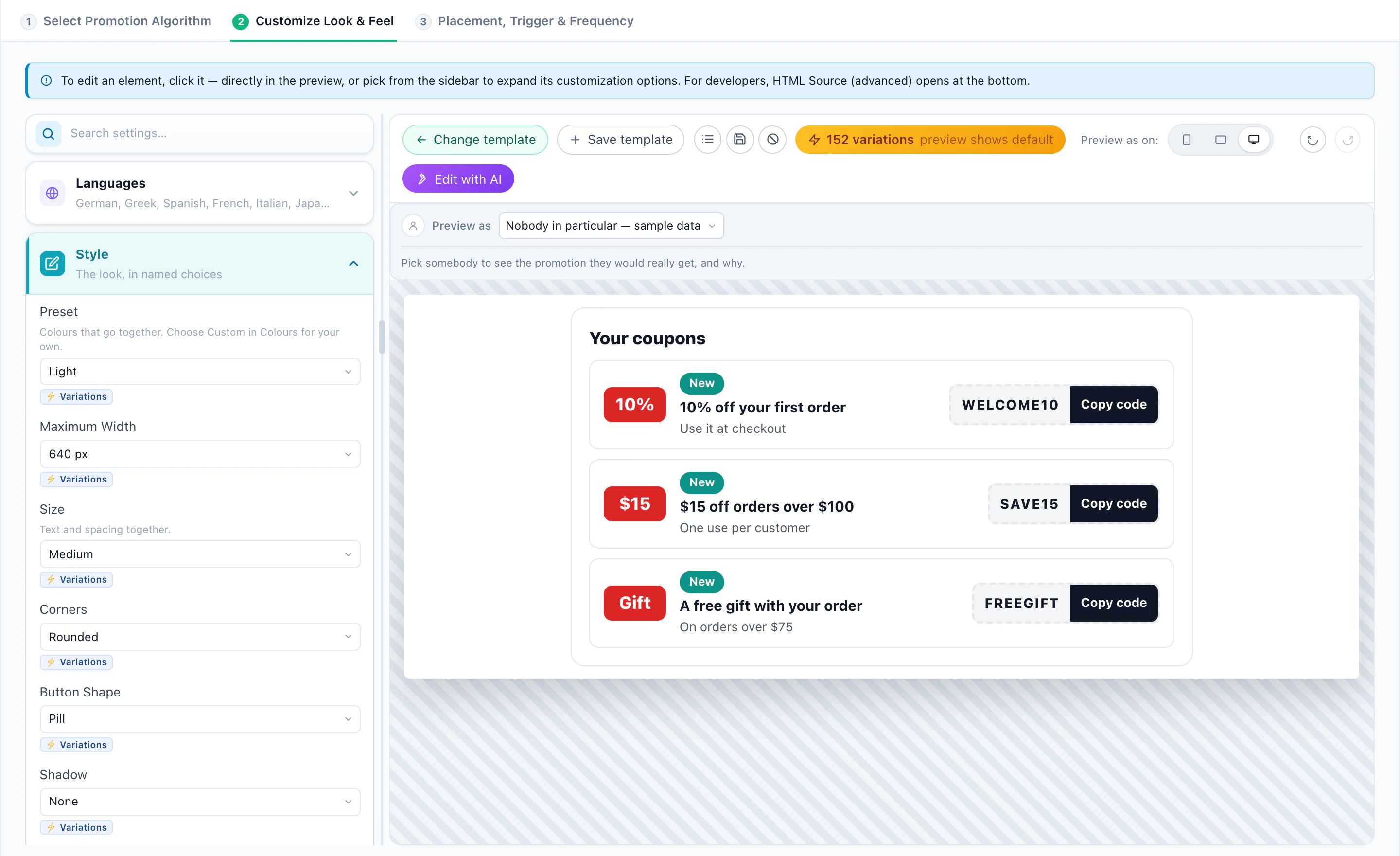
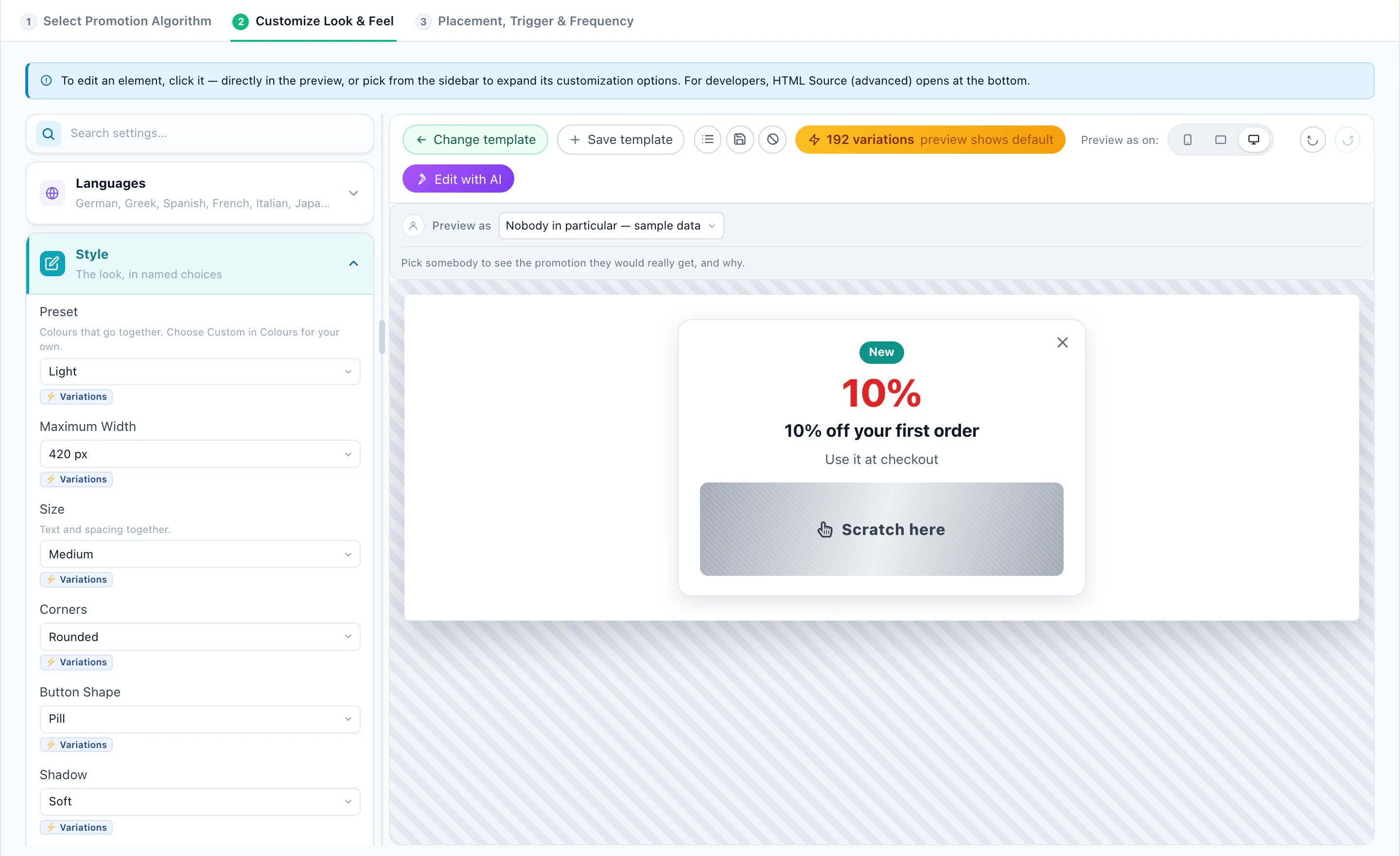
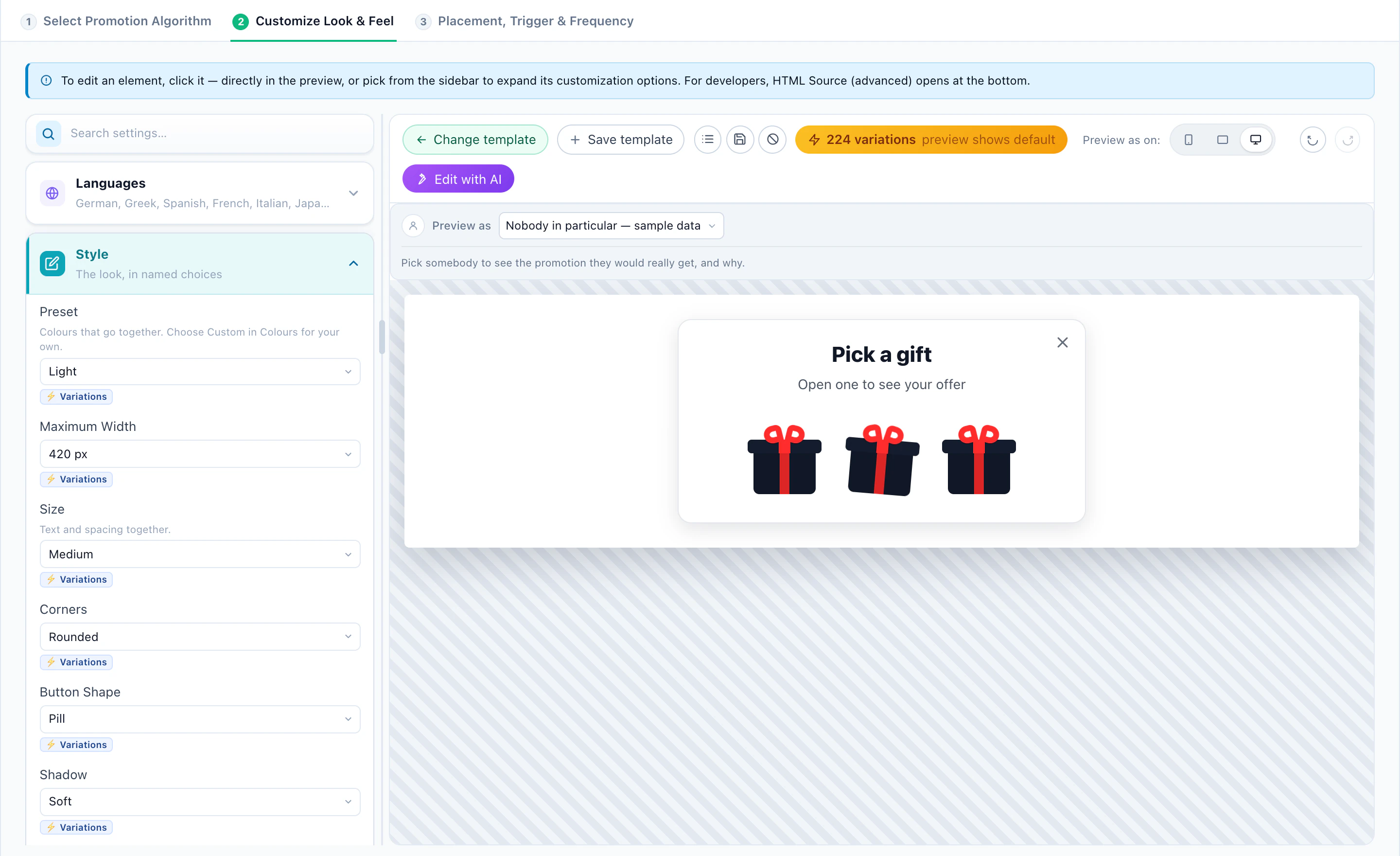
A coupon can be a ticket, a picture beside the offer, a wallet of every code the visitor qualifies for, or a game: a scratch card whose foil hides the code, or a choice of gift boxes. A revealed code is counted once, and remembered on the pages after.
4Choose how each visitor’s promotion is picked
A widget considers only the promotions whose dates, pages, language and audience fit the visitor. Among those, its algorithm picks:
- Matches this categoryThe promotion tagged with the page’s category.
- From their recent categoriesThe categories the visitor viewed lately.
- Matches their searchThe visitor’s last search on your site.
- PersonalizedPromotions for the visitor’s interests.
- Nearest location’s offerThe offer valid at the location nearest the visitor.
- Most popularThe most clicked promotion.
- Popular near the visitorMost clicked by visitors from their region or country.
- Newest this weekThe promotions that started most recently.
- Optimize aloneThe best earner, learned live.
- Personalized by audienceWhat visitors like this one respond to.
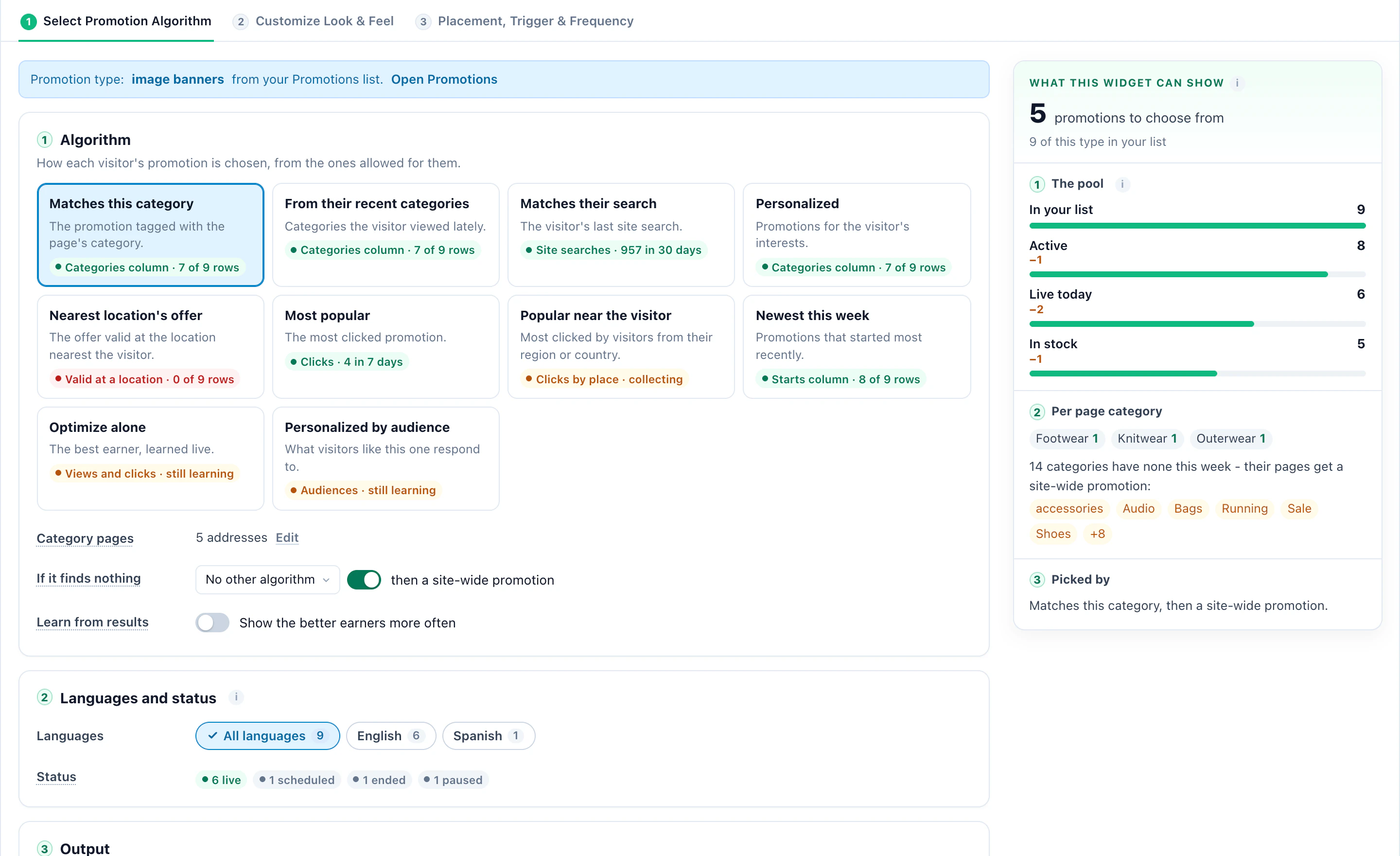
- If it finds nothing — a second algorithm, then a site-wide promotion, so no page is left with an empty slot.
- Learn from results — show the better earners more often.
- Holdout — a share of visitors who see no promotion at all: the baseline the lift is measured against.
5Pick a design, then make it yours
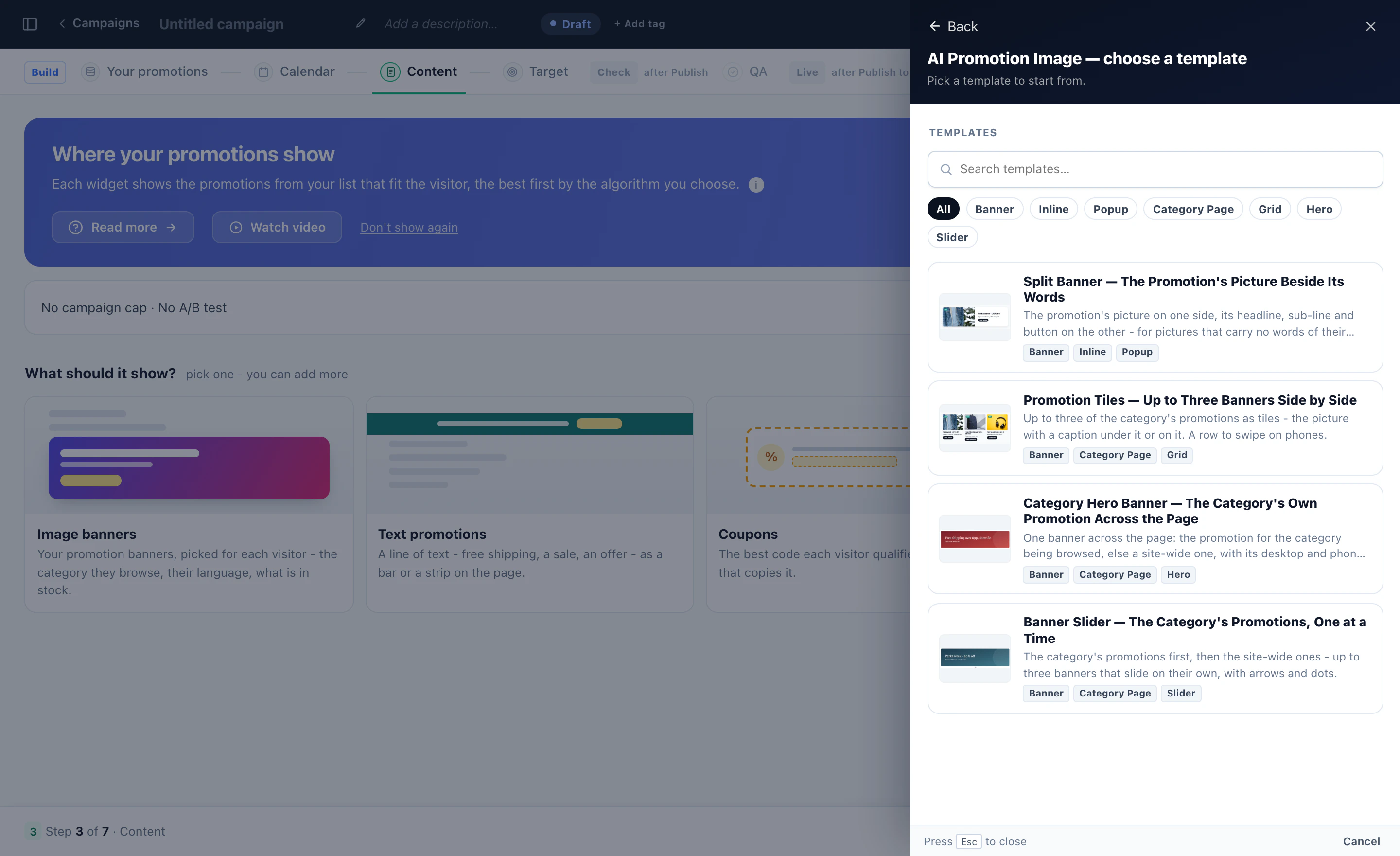
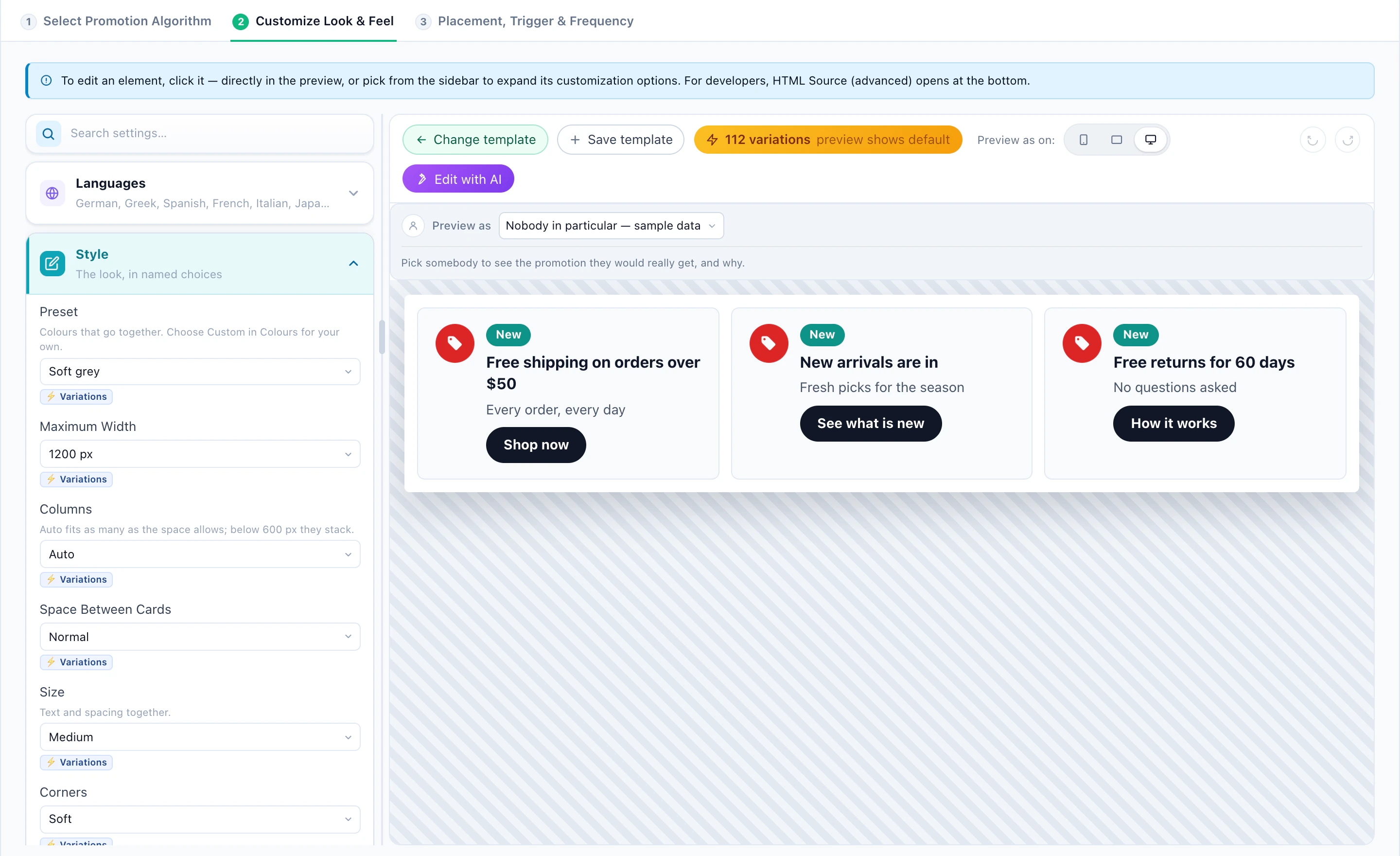
Each widget starts from a design and opens in the editor: the design on the right, its settings on the left — colors, size, corners, buttons — or Edit with AI to describe the change. Preview as shows it for a real visitor, with why each promotion was shown or left out.
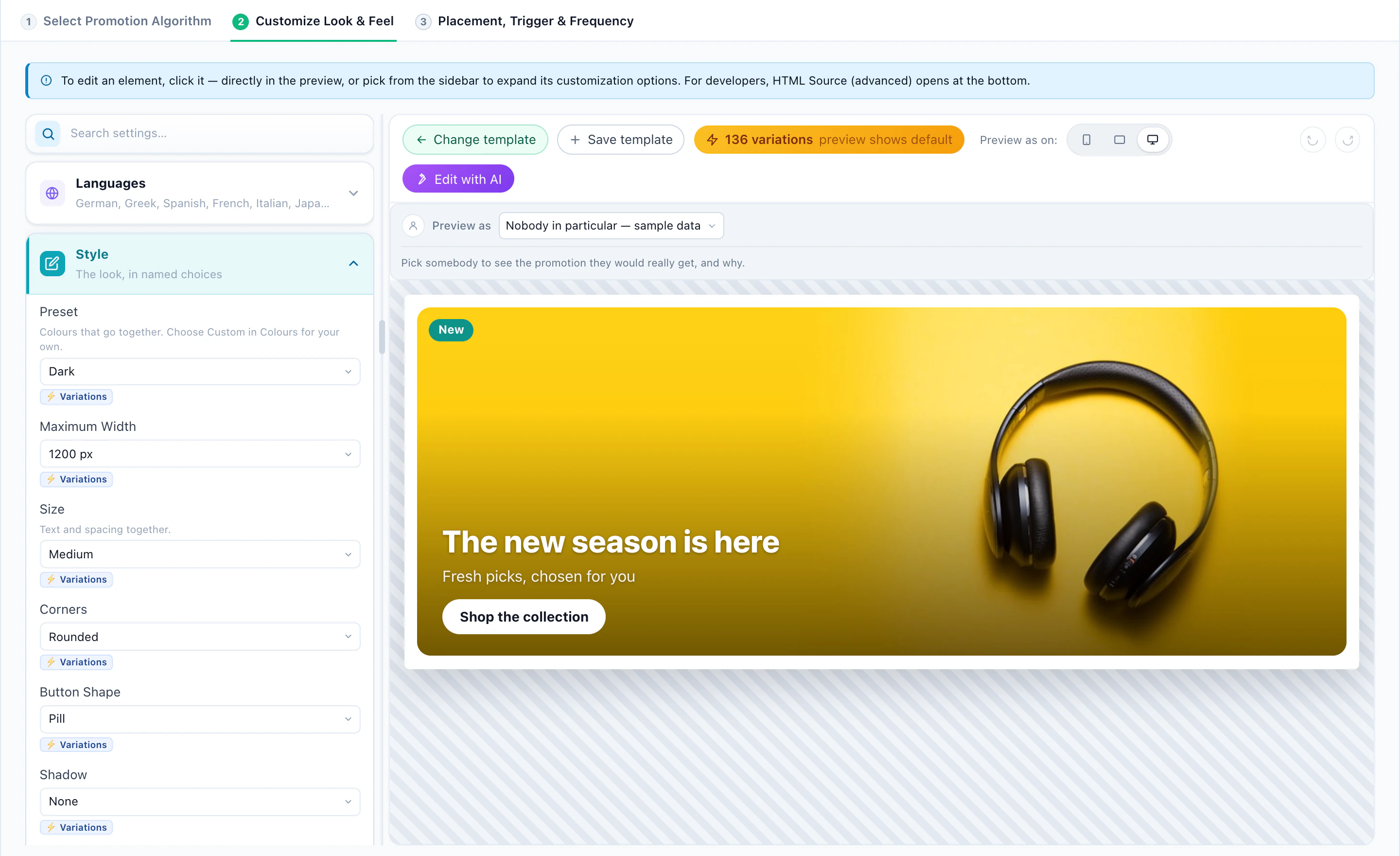
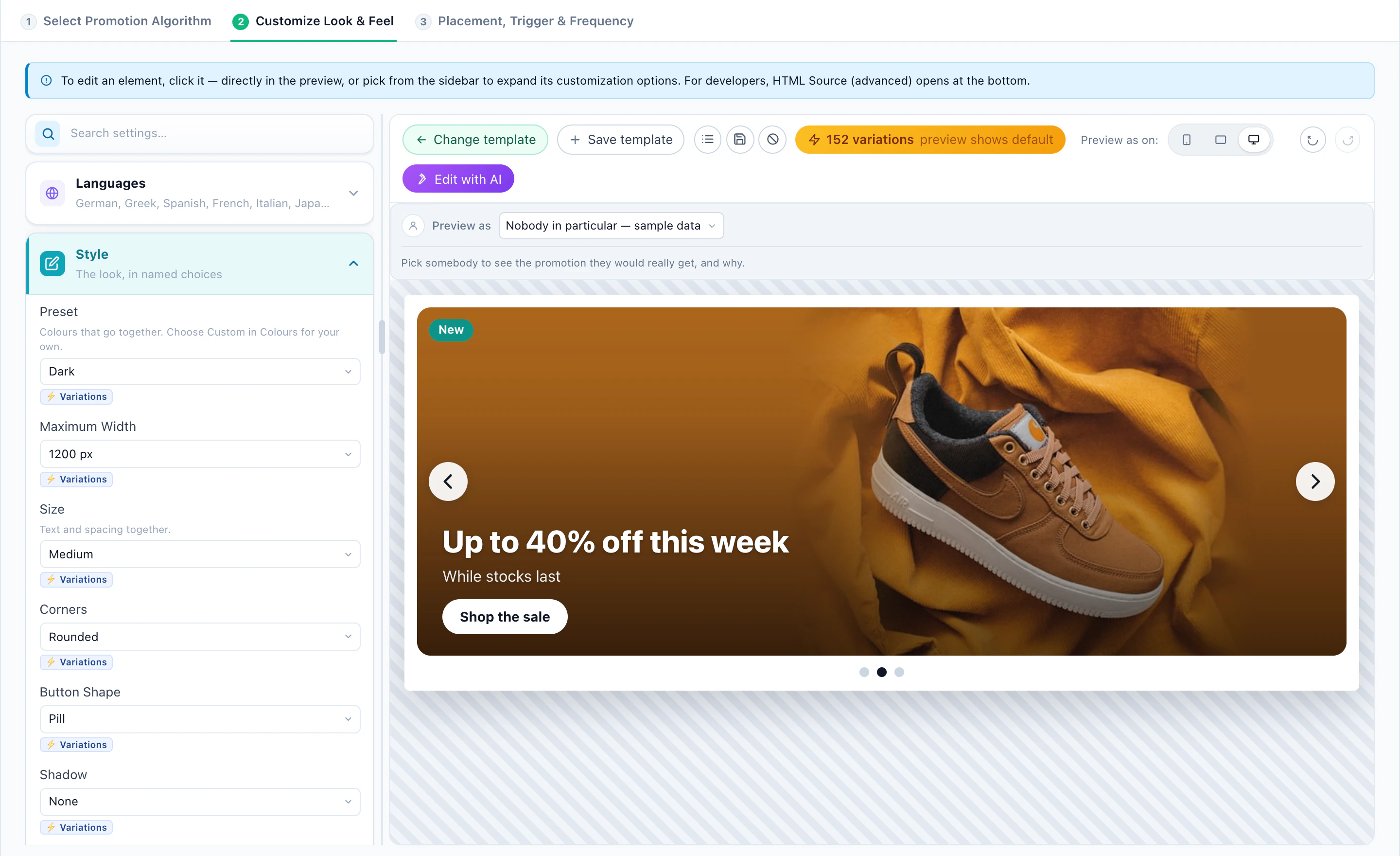
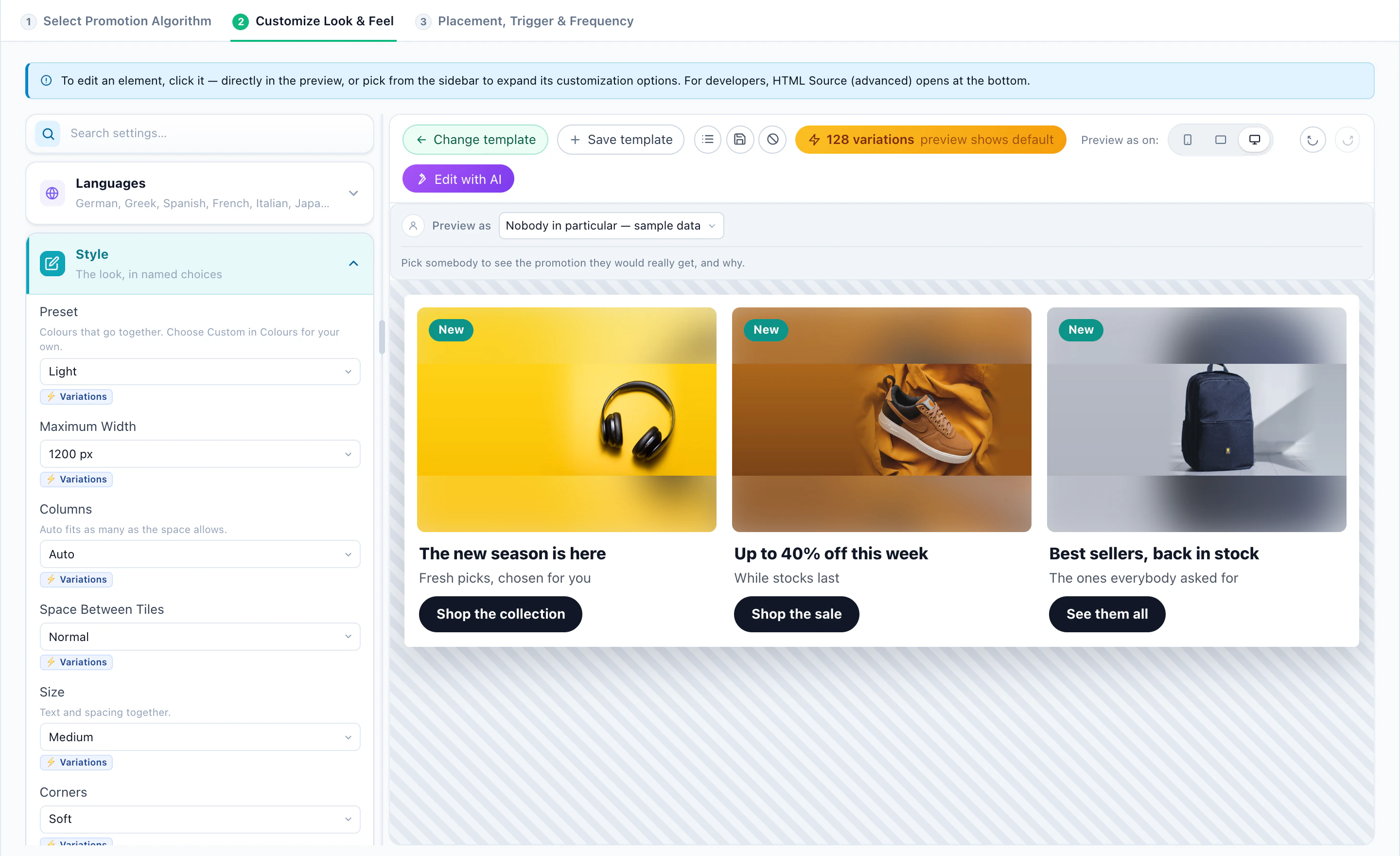
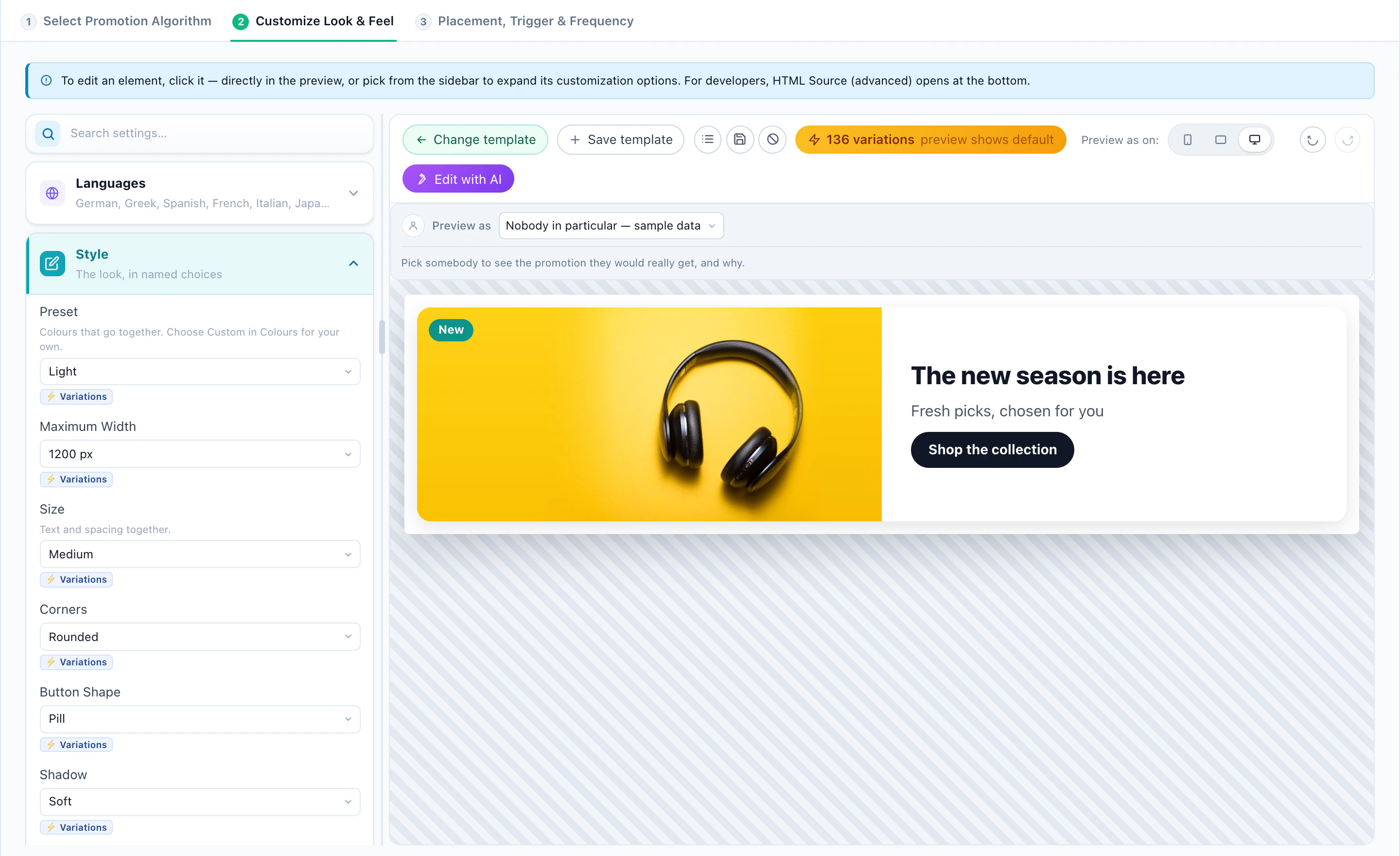
- Image banners — Category Hero Banner, Banner Slider, Promotion Tiles, Split Banner. Each has a Show the visitor’s code switch: the same banner with or without a code, so you can test one against the other.
- Text promotions — a promotion bar, a rotating bar, a strip of three, or a callout beside the buy button.
- Coupons — a card, a bar, a ticket, a picture, a wallet, a scratch card, a pick-a-gift, or the coupon of the visitor’s nearest location.
- Nearest store — a store card, the three nearest stores, or an open-now bar.
Place it
Put it in a spot on the page, or show it as a bar, a slide-in or a pop-up — on page load, after a delay, on scroll, on exit intent or when the visitor goes idle — with the frequency caps of any Personyze campaign.
6Recipe 1: The online store
A store has a promotion for almost every page. Let the page decide which one fits.
- Category pagesA Category Hero Banner with Matches this category: the parka sale on Outerwear, the sneaker launch on Footwear, a site-wide offer everywhere else.
- The cartCoupons by cart value: 10% over $50, 20% over $100 — each shown only to carts that reach it.
- First orderA code of their own from a pool or a pattern, so the discount cannot travel to coupon sites.
- Slow moversA Falling sellers row: the products whose sales dropped, shown to the visitors they fit, and gone once sales recover.
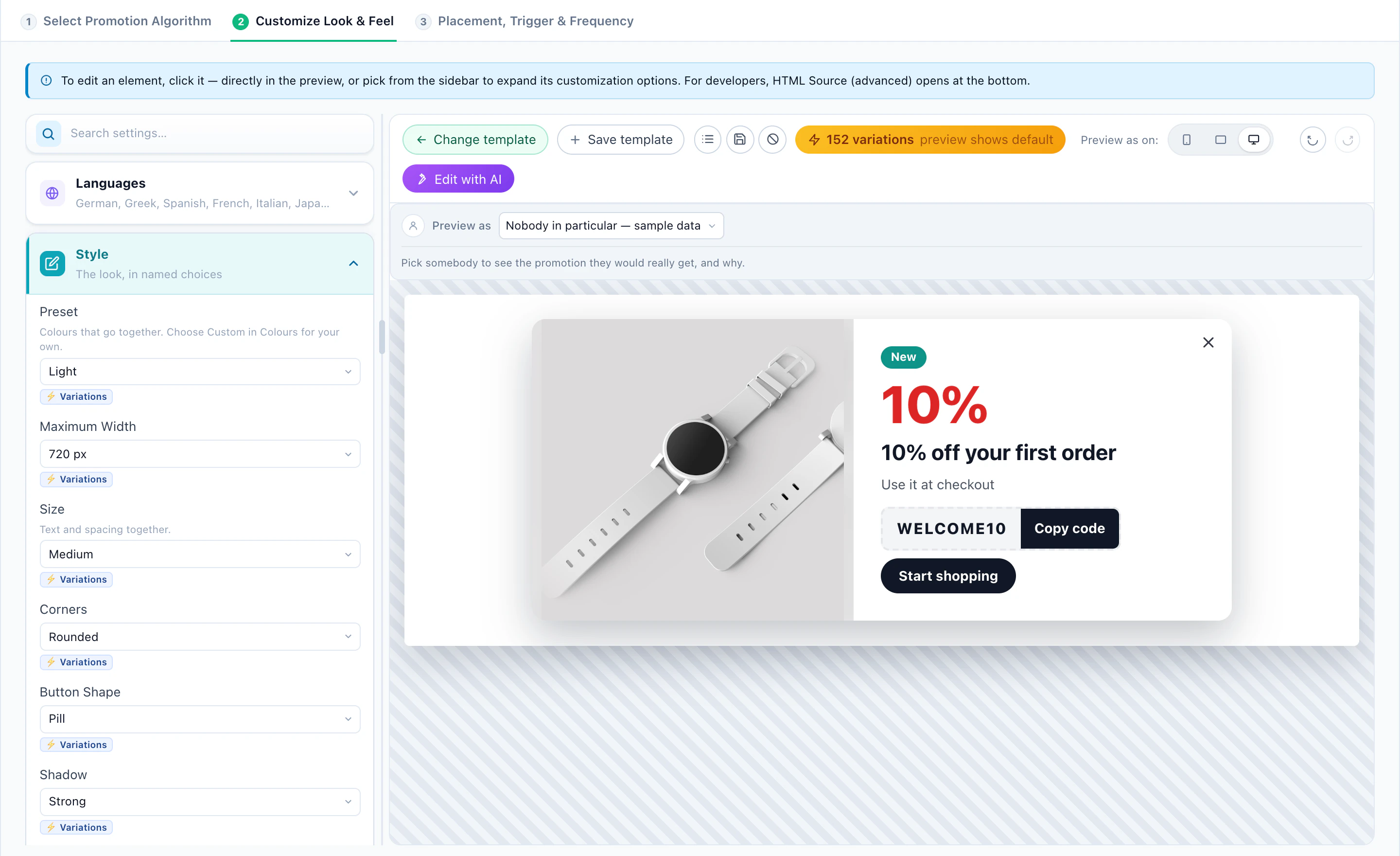
Give the cart coupons Learn from results once they have traffic, and keep a holdout so you see what they add, not just what they hand out.
7Recipe 2: Stores and locations
When you have shops, clinics, dealerships or branches, send each visitor to the one near them.
- Upload your locations once — a sheet, or a Google Business Profile export — with addresses, phone, a photo, weekly opening hours and special hours. “Open now” is kept current in each store’s own time zone.
- Show Store shows each visitor their nearest store: how far it is, Open now, Closes at 21:00 or Opens tomorrow at 9:00, today’s hours, phone and directions.
- The right store, not just the nearest — stores that carry the brand or category the visitor is looking at, or stores matched to something you know about them, such as a car make. Matching stores first, or only matching stores.
- Coupon near you — make an offer valid at every location, at locations with a tag, or at chosen stores, and pick Nearest location’s offer: each visitor gets the offer of the store nearest them, with their own code.
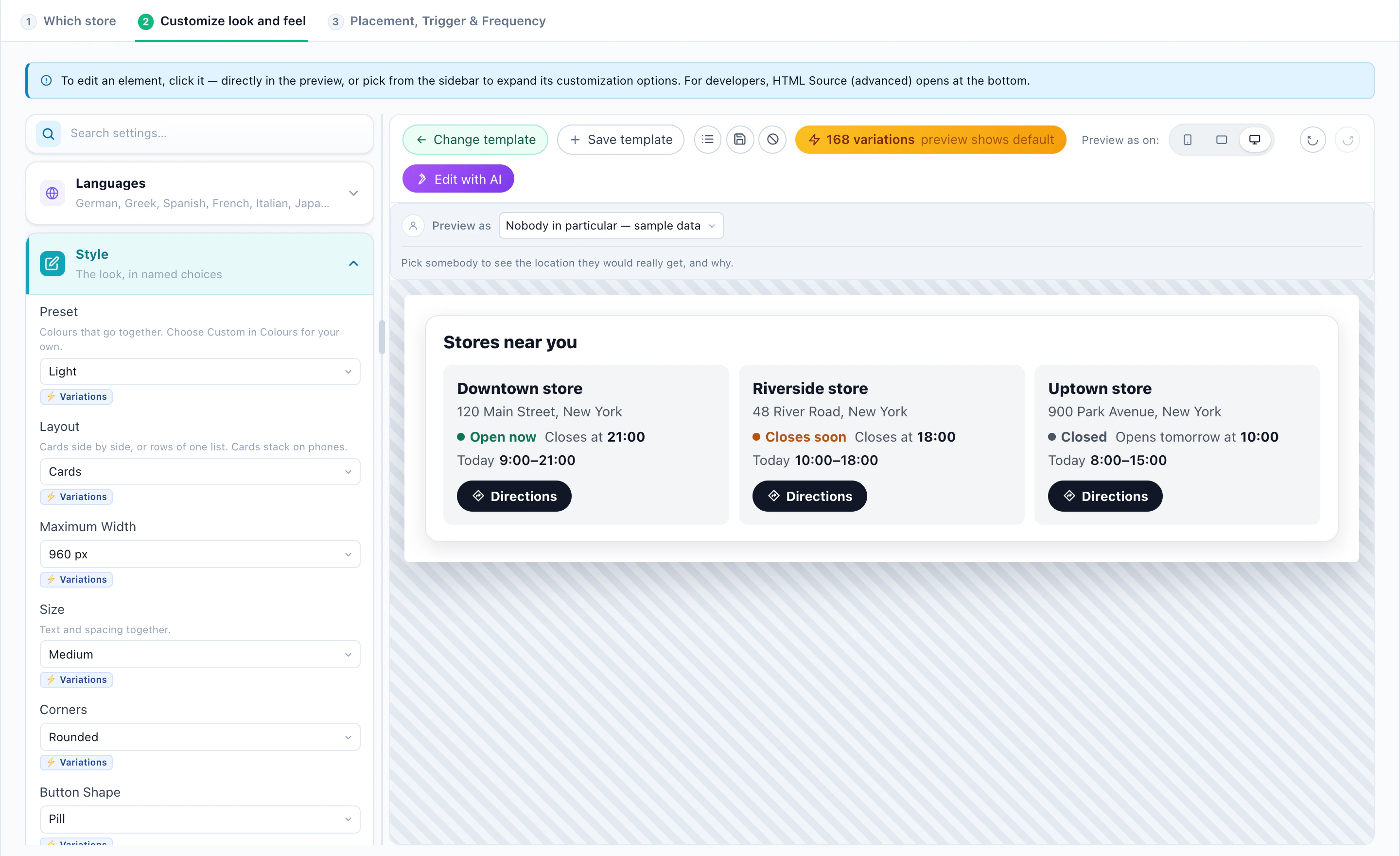
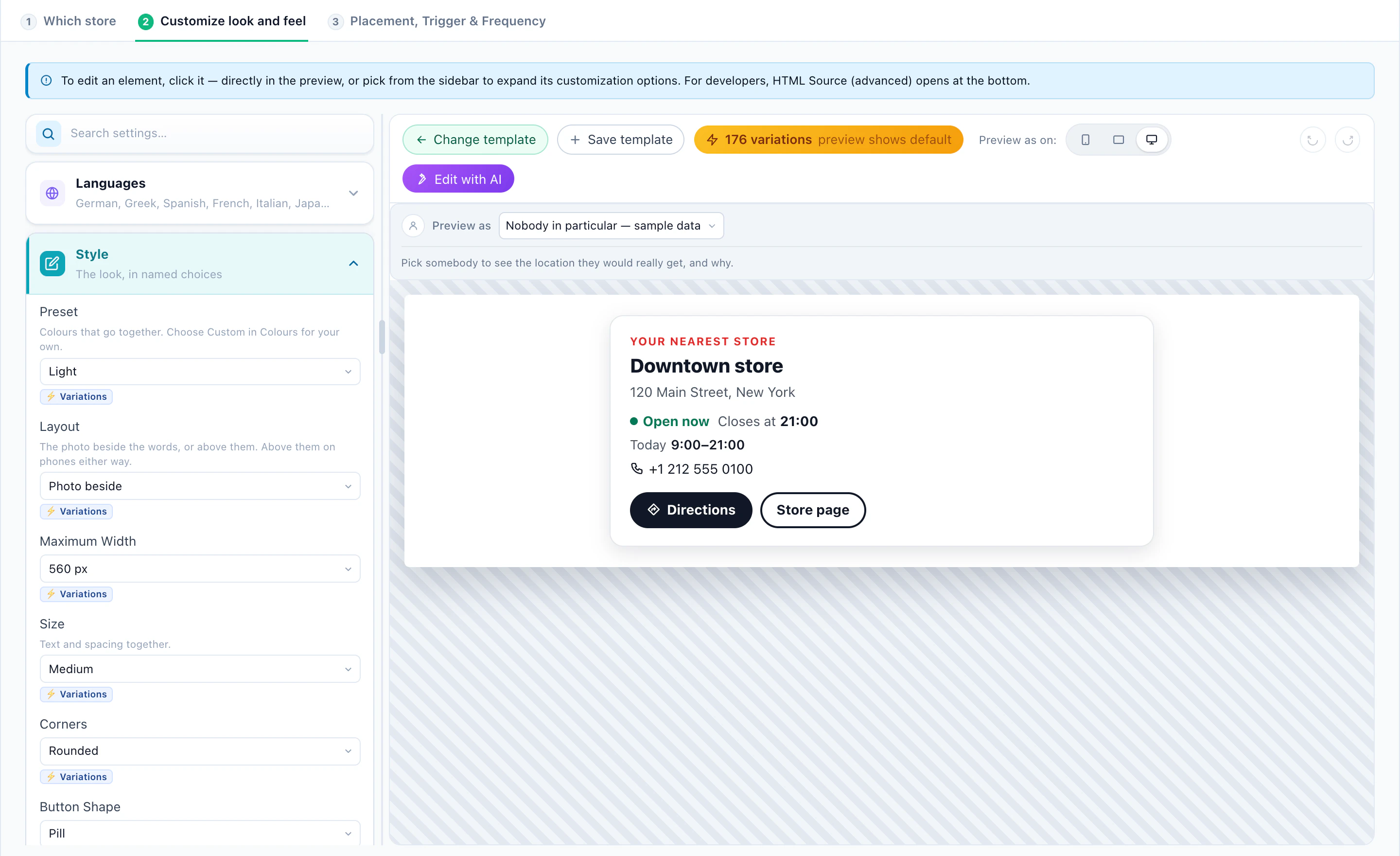
The visitor’s place is their city, from their IP address — enough to find the nearest store, never a street-level position.
8Recipe 3: Travel, SaaS and services
Offers are not only for carts. The same list works wherever there is something to book, upgrade or sign up for.
- A travel siteCity breaks for the city they searched (Matches their search), fares from the airport near them, a members-only perk for signed-in members.
- A SaaS productAn upgrade coupon for trial users on days 10 to 14, a pilot offer for companies with 1,000+ staff from your CRM, an annual-plan promotion on the pricing page.
- Services and educationAn enrolment deadline as a rotating bar, a free consultation for visitors from the regions you serve.
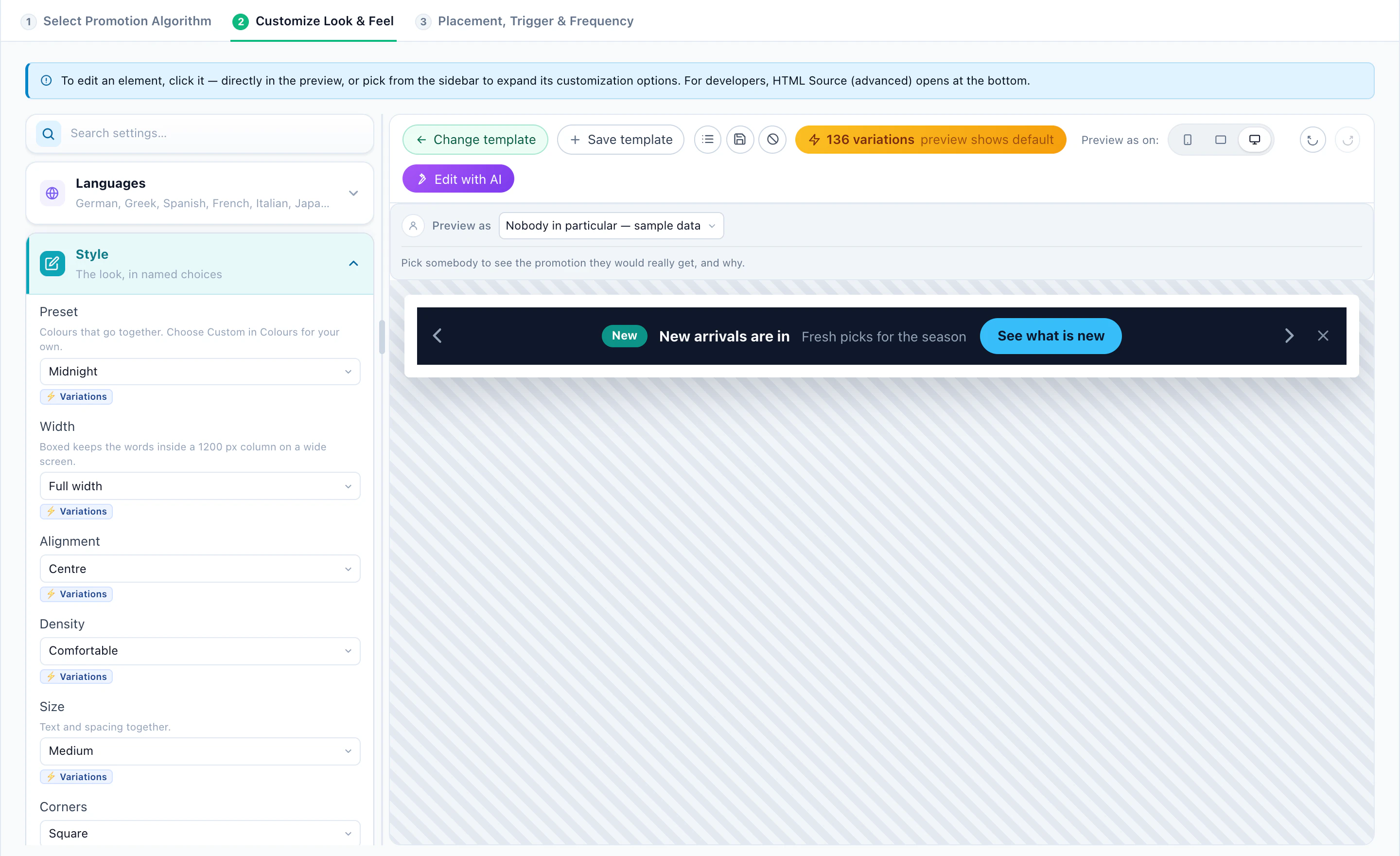
Use Personalized by audience where the offers differ by who the visitor is rather than where they are on the site.
9Beyond the page: email, push and chat
- Email — a Best offer block shows each recipient their own targeted promotion, as an image that works in any email platform. A recipient who already holds an unused code from a pool sees that code. When nothing fits, you choose: a default banner, or nothing, with no gap left in the email. With your stores loaded, it can show the offer of their nearest location, with its name and address.
- Web push and mobile apps — the same promotions, picked the same way.
- AI Chat — the chat can offer a fitting promotion and its code in the conversation.
One list behind every channel means one place to change a date or pause an offer.
10Measure the lift, not just the clicks
A promotion always gets clicks and redemptions. The question is whether it adds purchases that would have happened anyway.
- On the widget, set a holdout: a share of visitors who see no promotion.
- Pick the goals that count — purchases, or any goal you track.
- Read the lift once the holdout has 50 visitors: purchases and goals of everyone else, against them.
What the report shows
- Per promotion: views, clicks, CTR, purchases, revenue, codes revealed, redemptions and goals.
- Cut by goal, widget, category, language, sales boost and audience — and Who responds to what, once there is enough to tell.
- The Overview lists what needs you: a draft waiting for approval, a promotion paused because its products are out of stock, a pool running out of codes.
Before you publish, Preview as any visitor and the QA step show exactly what they would get — and why each other promotion was left out. More on the product: AI Promotion Management.