Personyze
Scan your siteA first AI personalization plan for your site: the best ideas drawn on your own pages, before you have any data.
Starts right away · about 4 minutes · no email needed
Website & app
Website PersonalizationContent, offers and layout shaped to each visitor — one profile across every page and every session.Recommendation EngineWhat each visitor wants next, ranked by the algorithm you pick or one you write.A/B TestingA winner per audience, promoted mid-campaign rather than after it.Dynamic Landing PagesThe whole page recomposed per visitor — headline, imagery and offer from the ad they clicked and their own interests. On pages you already run.AI Search & Chat AgentAnswers from your own pages and catalogue, and a search box that replies in a sentence.Banners & Pop-UpsYou decide who sees each banner or pop-up — by behavior, source, location or CRM field — and when it appears.AI Promotion ManagerYou list the offers; the AI picks the one each visitor sees and keeps learning from what converts.Social ProofLive scarcity, ratings and what other people just did.
Email, push & SMS
Email PersonalizationContent and recommendations picked per reader at open time — sent from Personyze or pasted as one block into your ESP.Push, SMS & WhatsAppFired by what they just did rather than by a schedule.Hosted Landing PagesThe same per-visitor page, served by us — your domain or ours, no site to deploy to.
Targeting & analytics
Behavioral TargetingSegments that update themselves from what people actually do.Audience DiscoveryPlain-language audiences found in your own data — visitors who convert several times more often than average, targetable in a click.ABM MarketingThe company behind an anonymous visit, joined to your CRM.Website AnalyticsSessions, bounce and revenue — then click a row and there is a person.
Platform & integrations
MCP ServerRun your account from Claude, ChatGPT or any MCP client.IntegrationsHubSpot, Salesforce, Twilio Segment, Tealium, GTM and the REST API.App MarketplaceThe integrations built in to every plan, and apps from other companies that Personyze reviews before listing.APIs, SDKs & AutomationOne REST endpoint over every object, server and mobile SDKs, rules and reports that run on their own.Inspire meType your site: who visits, what to show each of them, and the best ideas drawn on your own pages.
Reviews, surveys & chat
Reviews & TestimonialsReviews from 17 platforms and your own site, matched to each visitor.Surveys & NPSOne question or a whole survey — every answer ready to target.AI Chat AgentAnswers visitors’ questions from your own pages, and hands over to a person.Meeting SchedulerThe right visitors book time with your team, on your own page.
PricingVideosProduct TourShort narrated videos of the real platform, one feature at a time.
← All articles
PersonalizationOctober 6, 2026

Product Recommendations, Start to Finish: Catalog, Algorithm, Design and a Preview for Any Shopper
P
Personyze TeamPersonalization experts
Product Recommendations, Start to Finish: Catalog, Algorithm, Design and a Preview for Any Shopper

A recommendation widget looks like a design problem — a row of products under a heading. It is mostly a data problem. What it can recommend depends on your catalog; what it learns from depends on the events your site sends; what each shopper sees depends on the algorithm, its fallbacks and what it is told to skip. The design comes last.

Personyze’s campaign editor walks it in that order: Catalog, Product events, Content, Target, then QA and the Simulator before anything goes live, and Performance after. This post follows one campaign through every step — “Recommend products where people decide, on product pages” on a demo store. The screens are real; the numbers are the demo account’s.

  1. Check the catalog
  2. Check the events
  3. Pick the algorithm and its fallbacks
  4. Design it, and preview it as a real shopper
  5. Test it against no widget
  6. Decide where it appears
  7. Try it on any product
  8. Read the results

1. Check the catalog

Recommendations choose from your product catalog: its pictures, names, prices and stock. Connect your store once — Shopify, Magento and the other store apps keep it current by themselves — or import a feed. The first step of every recommendation campaign checks the catalog against what this campaign needs from it.
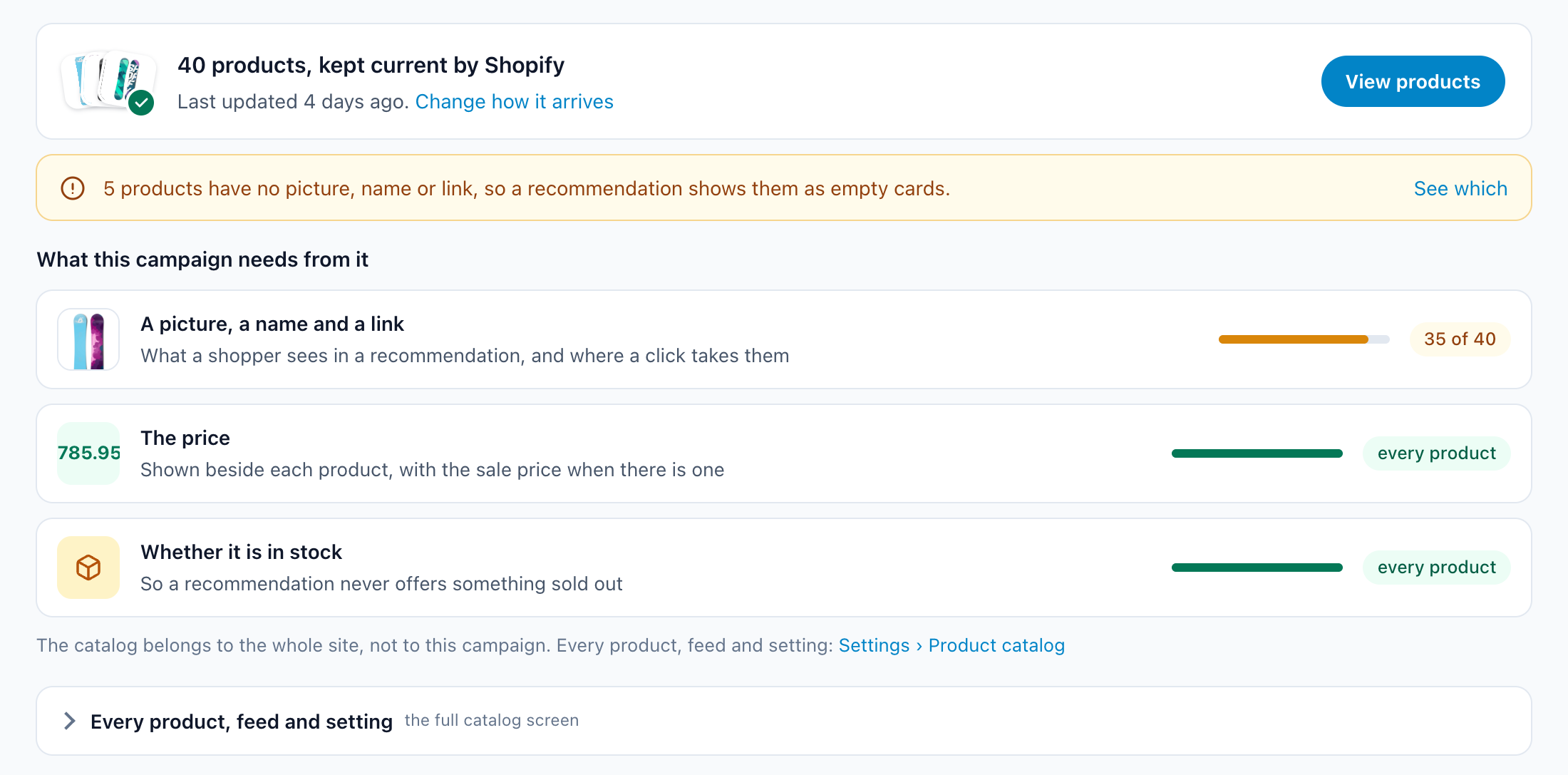
The Catalog step: 40 products kept current by Shopify, a warning that 5 products have no picture, name or link, and what the campaign needs - a picture, name and link for 35 of 40, the price and stock for every product
The catalog, checked. 40 products kept current by Shopify. Every product has a price and a stock status; 35 of 40 have a picture, a name and a link — the other five would show as empty cards, and See which lists them. A demo store.

Fix what the warning names before you design anything. A recommendation that shows a blank card or a sold-out product costs more trust than it earns clicks.

2. Check the events

Recommendations learn from what shoppers do with your products: which ones they view, what they put in the cart, what they buy. The Product events step shows which of those your site already sends, how many arrived lately and where each is read from — on most stores, the same events Google Analytics already receives.
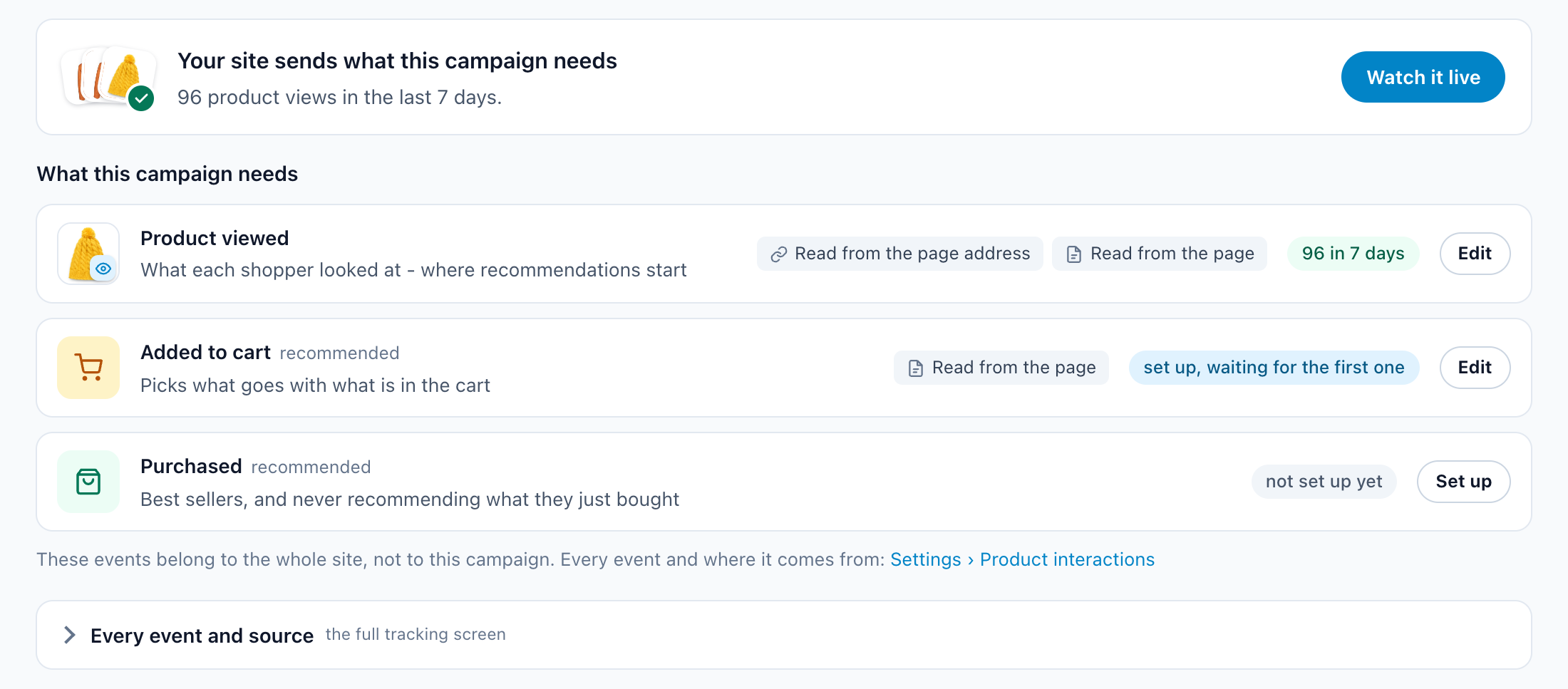
The Product events step: the site sends what the campaign needs, 96 product views in 7 days; product viewed is read from the page, added to cart is waiting for its first event, purchased is not set up yet
What the site sends. 96 product views in the last 7 days, read from the page address or the page itself. Added to cart is set up and waiting for its first event; Purchased is not set up yet — it powers best sellers, and stops you recommending what someone just bought. Watch it live shows events as they arrive.
Watch it · 2:04 The catalog, its four import sources, a connected Shopify store, and the product events with the three ways to send them.

3. Pick the algorithm and its fallbacks

Add the widget from the Content step: pick Product recommendations, then the template it starts from.
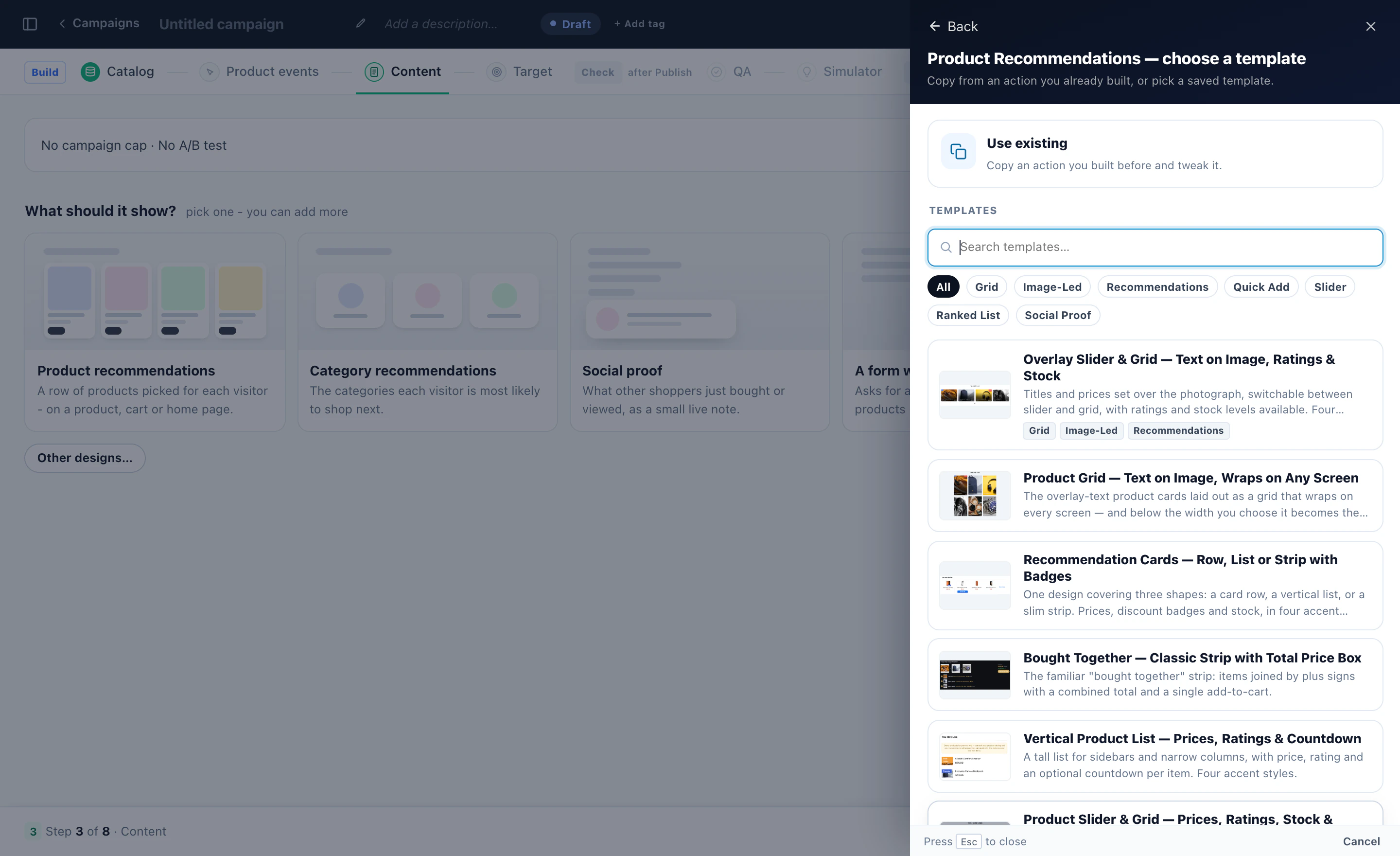
A new campaign's Content step with Product recommendations picked and the template list open: overlay slider, product grid, recommendation cards, bought together and a vertical list
Adding the widget. Product recommendations opens the templates it can start from, with filters for grids, sliders, ranked lists and social proof — or Use existing copies a widget you already built. The template is only where the look starts.

The widget opens on the algorithm: what it recommends, and in what order. Pick the page it will be on first — the same algorithm works from the product being viewed on a product page, from everything recently viewed on the home page and from the cart on the cart page.
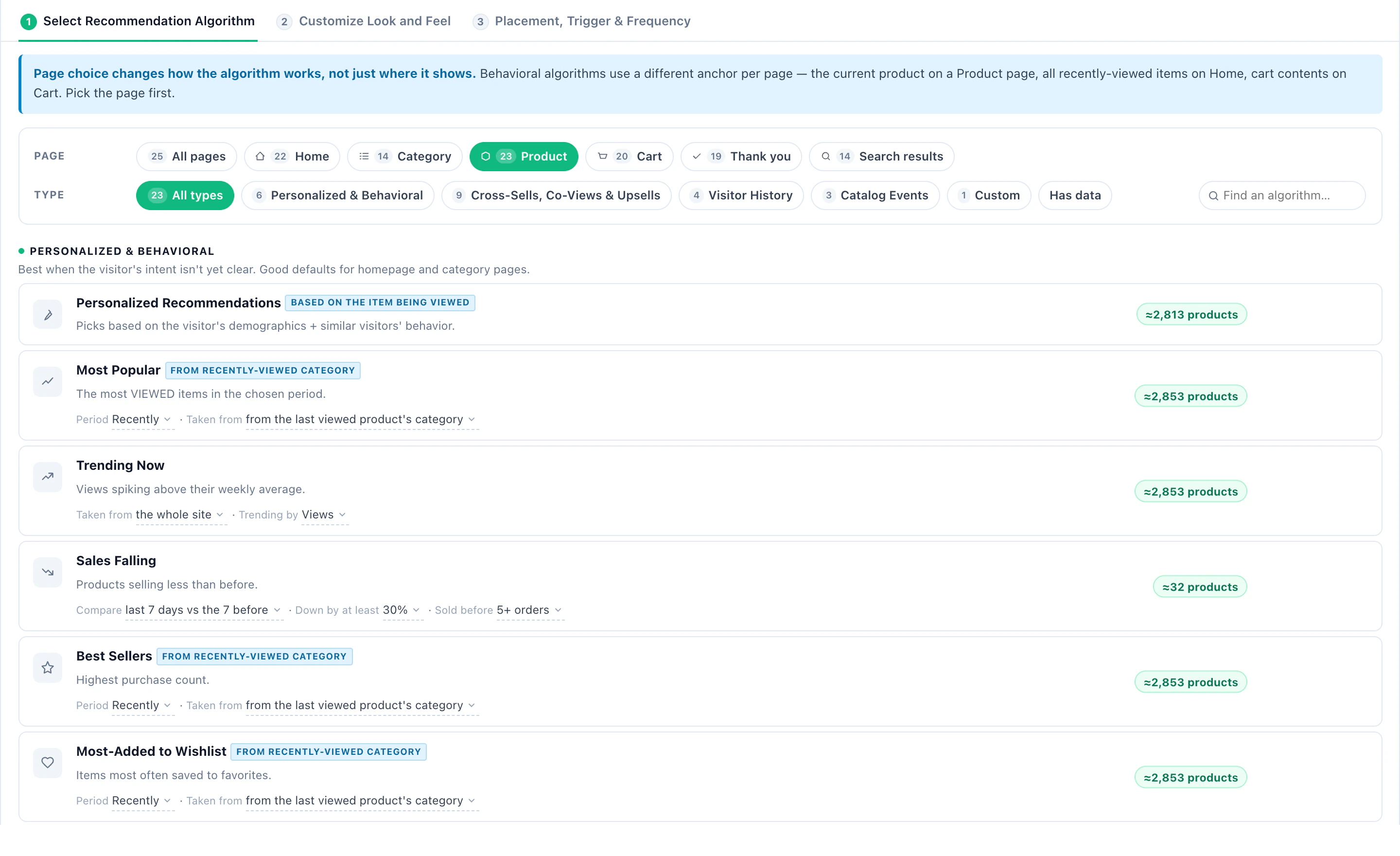
The algorithm picker on a product page: Personalized Recommendations, Most Popular, Trending Now, Sales Falling, Best Sellers and Most-Added to Wishlist, each with about 2,850 products
The algorithm picker, on a product page. 23 of the 25 algorithms work there, grouped by type, each with how many products it has data for — here a store with about 2,850 products, not the demo store.

On a product page, Others Who Viewed Also Viewed is the natural choice — products co-viewed by other visitors with the one on screen.
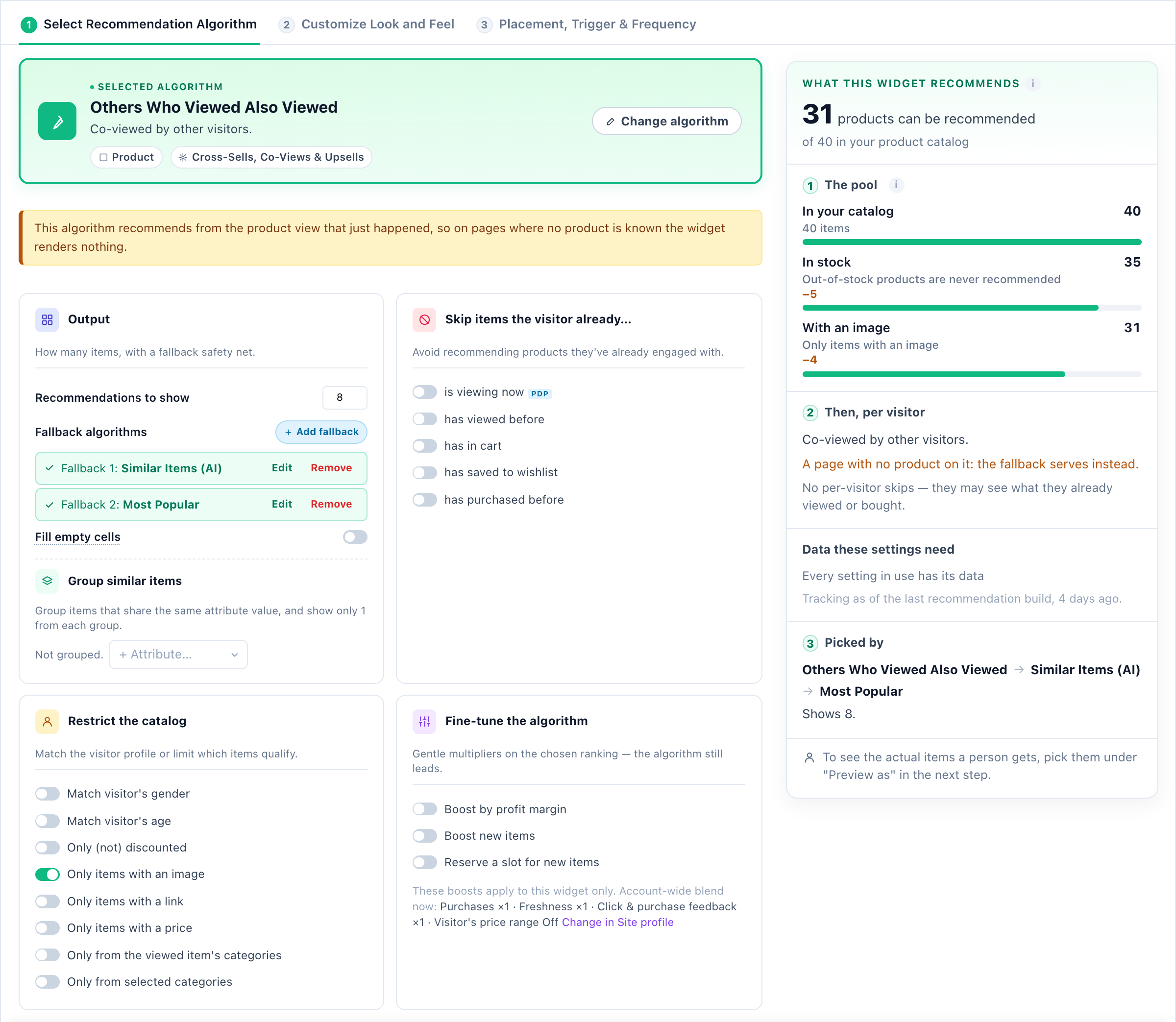
The algorithm step: Others Who Viewed Also Viewed, 8 recommendations with Similar Items (AI) and Most Popular as fallbacks, the items to skip, catalog restrictions, boosts, and 31 of 40 products that can be recommended
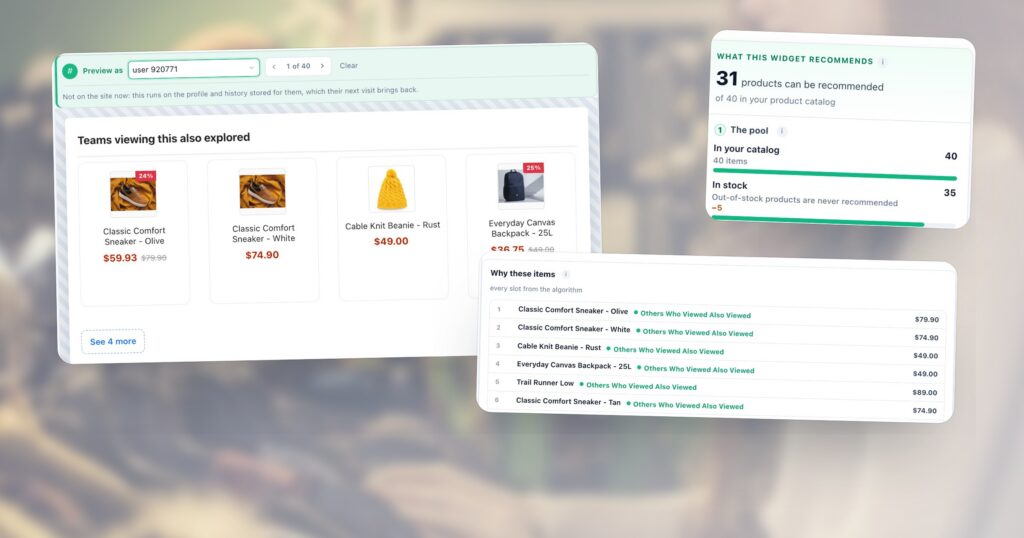
The algorithm step. Eight recommendations, with Similar Items (AI) and then Most Popular as fallbacks. On the right, What this widget recommends: 40 products in the catalog, 35 in stock (out-of-stock products are never recommended), 31 with an image — so 31 can be recommended.

The settings around it are where a widget becomes yours:

  • Fallback algorithms fill the slots when the main algorithm has too little to go on — a new product, a quiet day. The yellow note above them is about the main algorithm: it works from the product being viewed, so it needs a product on the page — which is why this campaign is shown on product pages.
  • Skip items the visitor already… is viewing now, has viewed, has in the cart, has saved or has bought.
  • Restrict the catalog — match the visitor’s gender or age, only discounted items, only items with an image, a link or a price, only the viewed item’s categories.
  • Fine-tune the algorithm — gentle boosts for profit margin or new items, or a slot reserved for new items. The algorithm still leads.

How an engine weighs these is covered in how a personalization engine decides.

4. Design it, and preview it as a real shopper

The second step is the look: a template, a style accent, the layout, fonts and the order of a card’s parts, or Edit with AI to describe the change. Preview as on switches between phone, tablet and desktop.
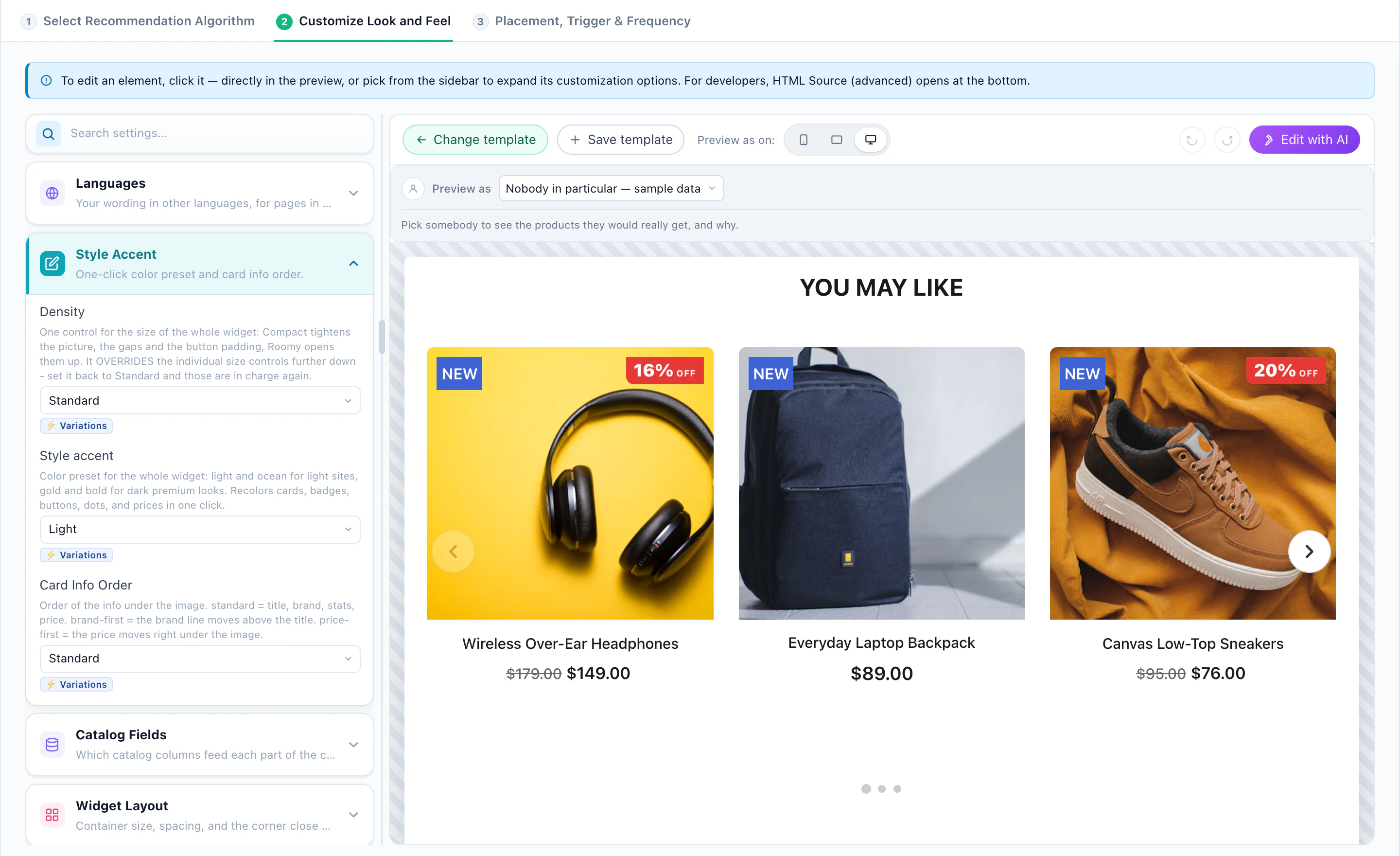
The design step with the Product Slider and Grid template: Style Accent and Density open in the sidebar beside the live preview
The design step. The widget on the right, its settings on the left — here the Product Slider & Grid template with Style Accent and Density open. Click any part of the preview to open its settings. Change template swaps the look; the algorithm stays. Until you pick a person, the editor shows sample products.
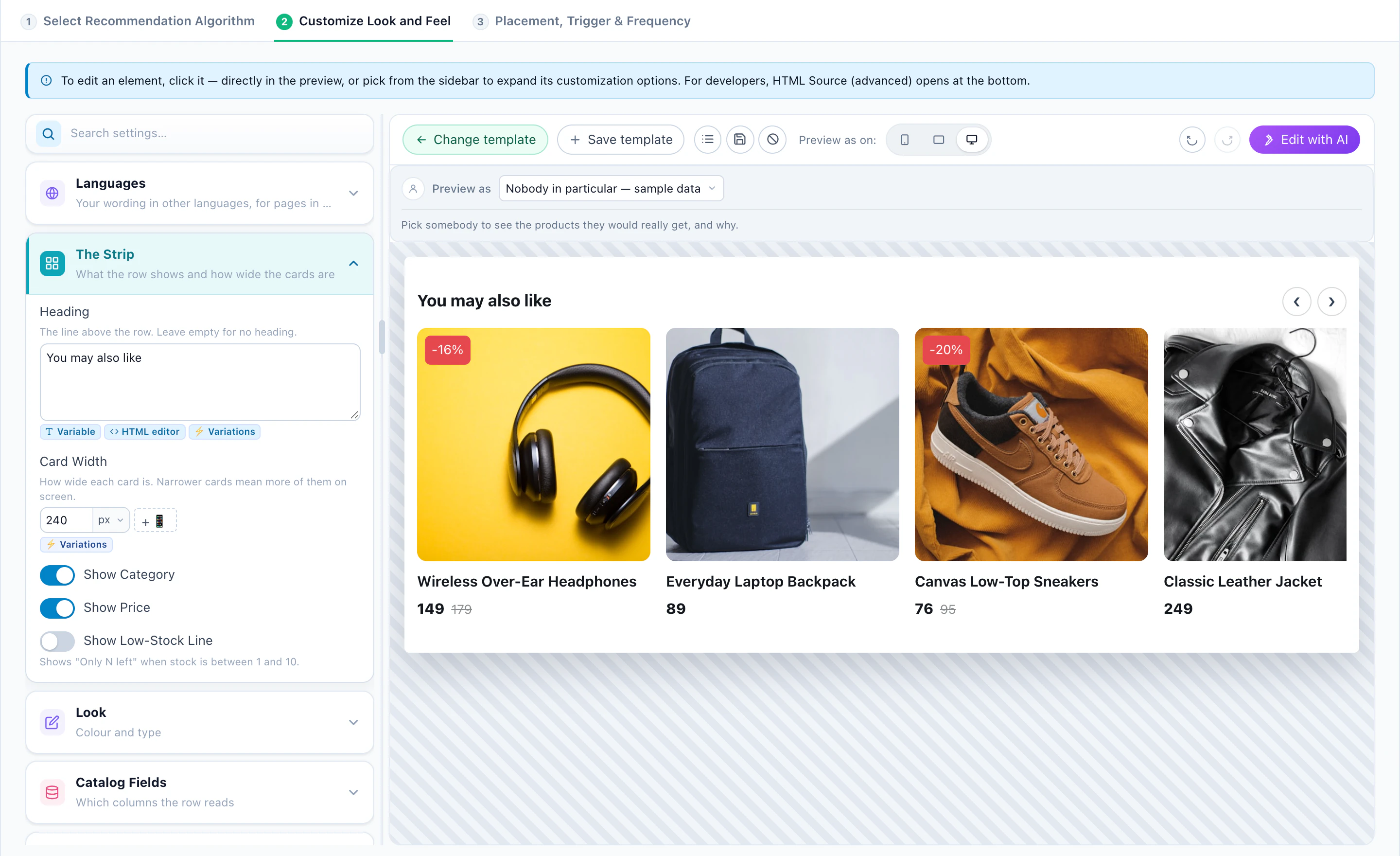
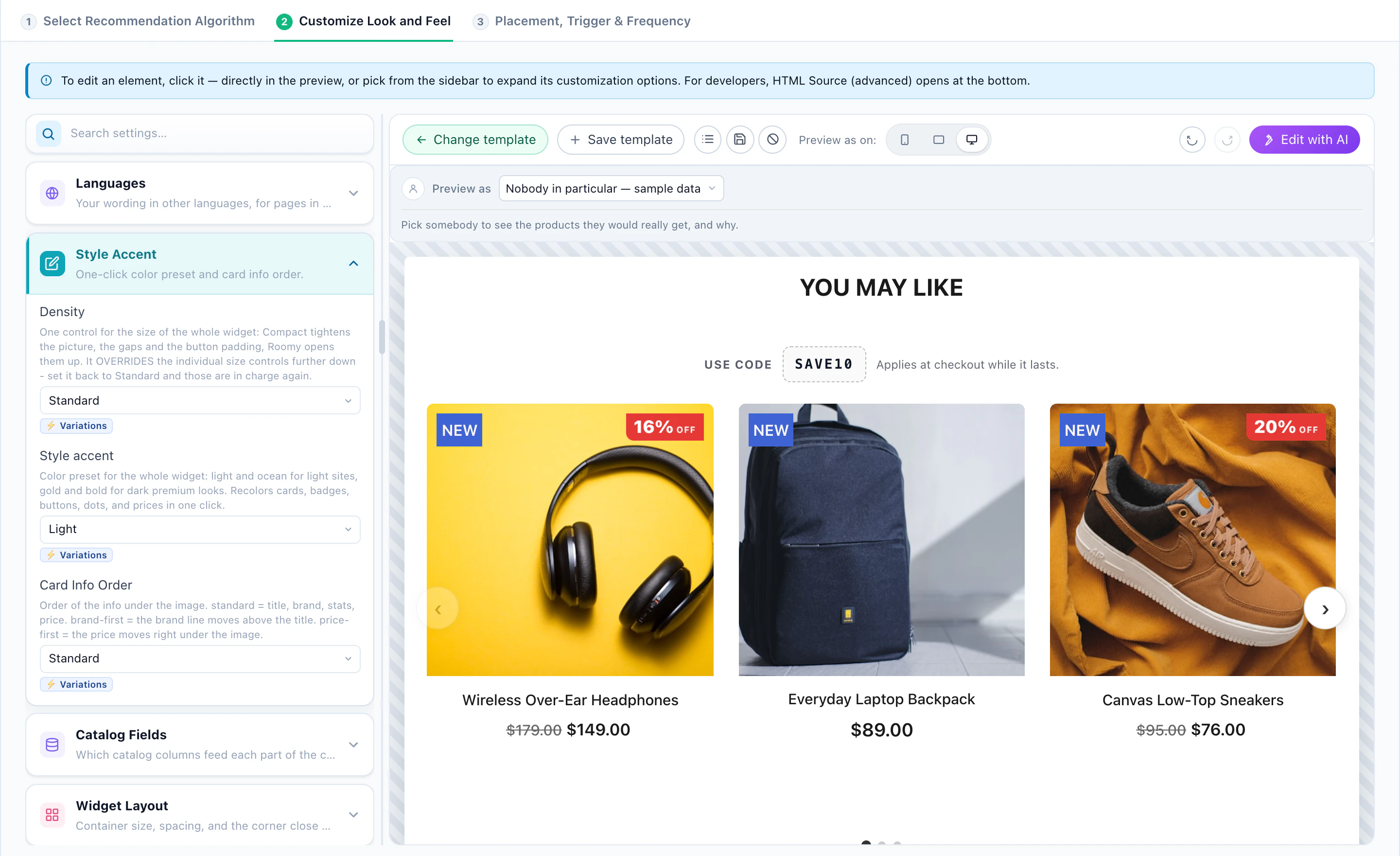
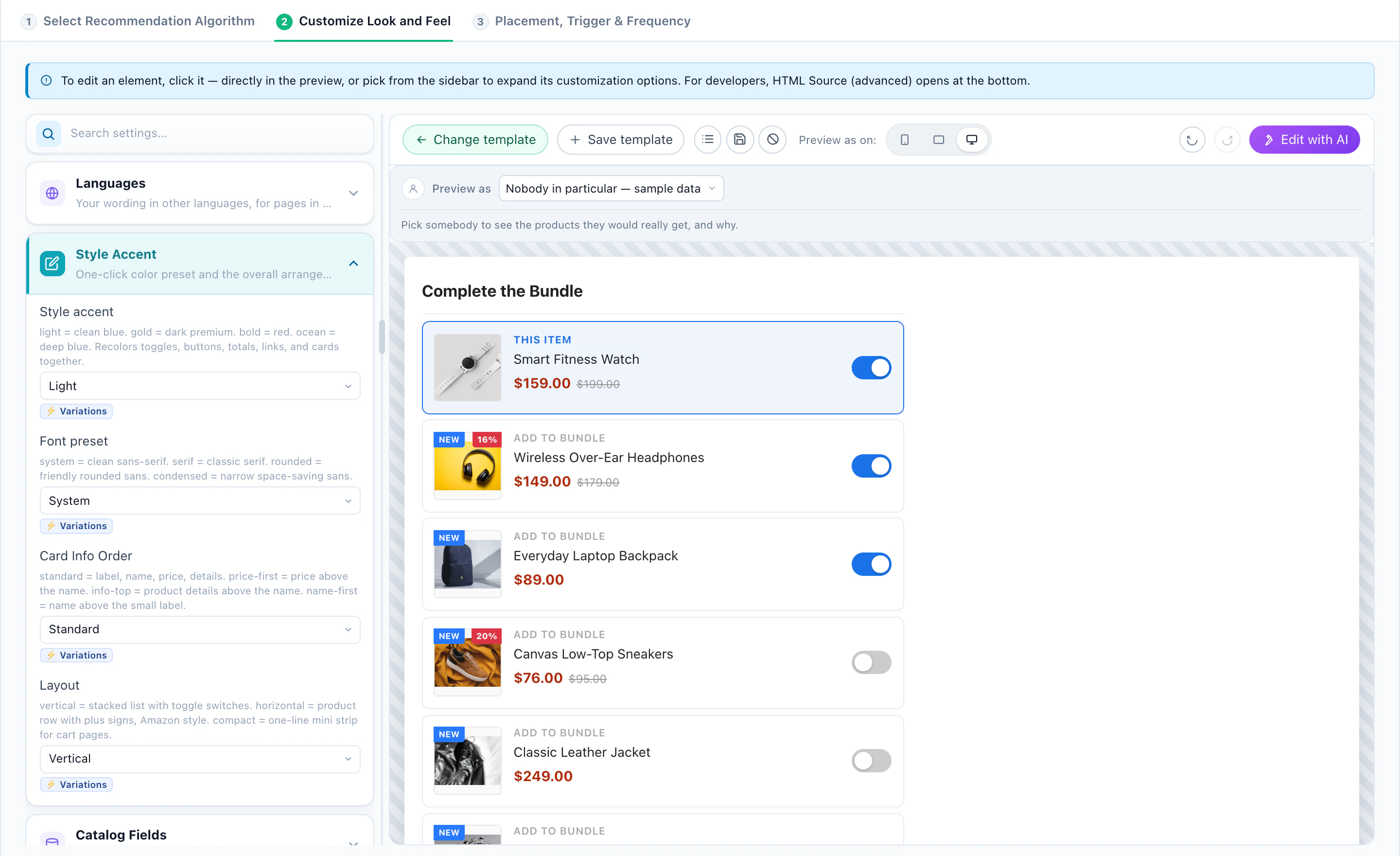
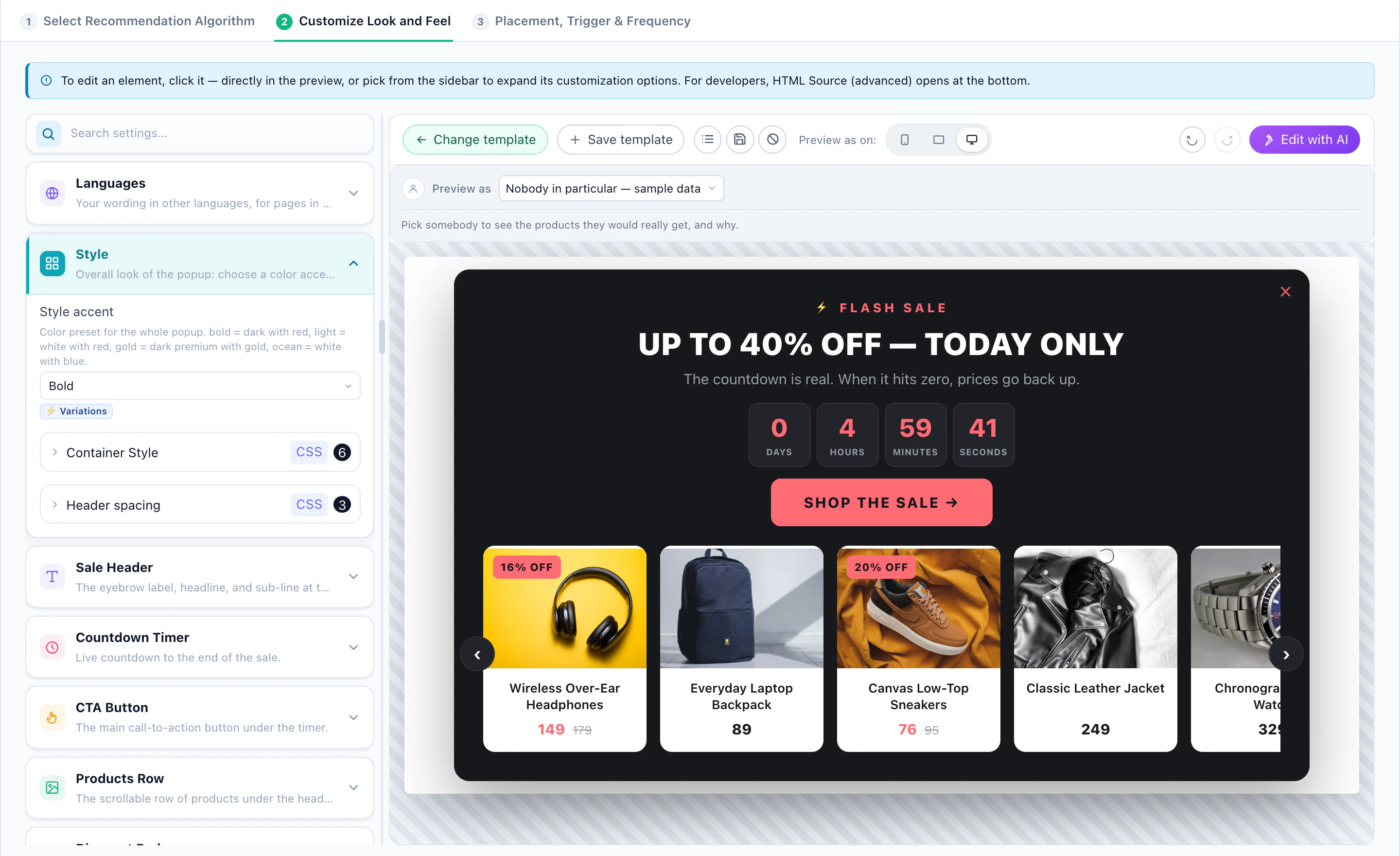
The Flash Sale Countdown template: a pop-up with a timer, a Shop the sale button and the productsThe Product Carousel template: a swipeable strip with discount flagsThe Add-On Offer template: a coupon code above the recommended productsThe Complete the Bundle template: items switched on or off, with the price of each
Four more templates, in the same editor. A flash-sale pop-up with a countdown, a swipeable carousel, the products under a coupon code, and a bundle the shopper builds by switching items on and off. Each opens with its own settings: the timer, the card width, the code, the layout.

Above the preview sits the most useful control in the editor: Preview as. By default the widget shows sample data. Pick a person instead — the list opens on real visitors, filtered by what they did: viewed, added to cart, purchased — and the widget renders the products that person would really get.
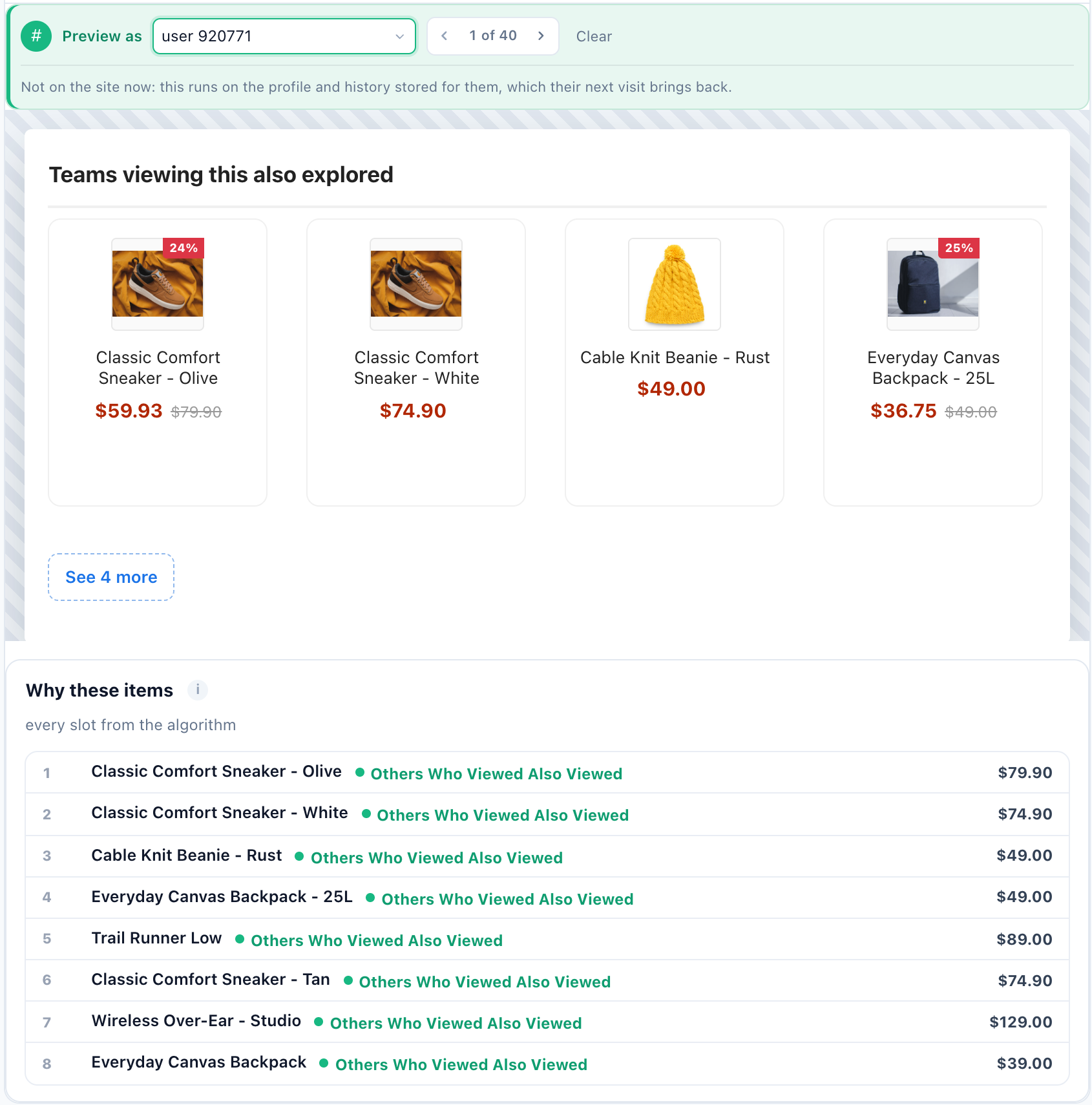
Preview as one shopper: the widget with the eight products this person would get, and Why these items listing each one with the algorithm that picked it
Preview as one shopper. The eight products this visitor would get, and under them Why these items: every slot with the algorithm that put it there — here all eight from the main algorithm, none from a fallback. The arrows step through the next person (1 of 40). A demo store.

A visitor who is not on the site right now is previewed from the profile and history stored for them, which is exactly what their next visit brings back. Step through a few people with the arrows before you publish: someone with a long history, someone who only bought, and someone new — who should see the fallback, not an empty row.

5. Test it against no widget

A recommendation widget always gets clicks. The question is whether it adds orders that would not have happened anyway. The answer is a baseline: a share of visitors who see the page exactly as it was.
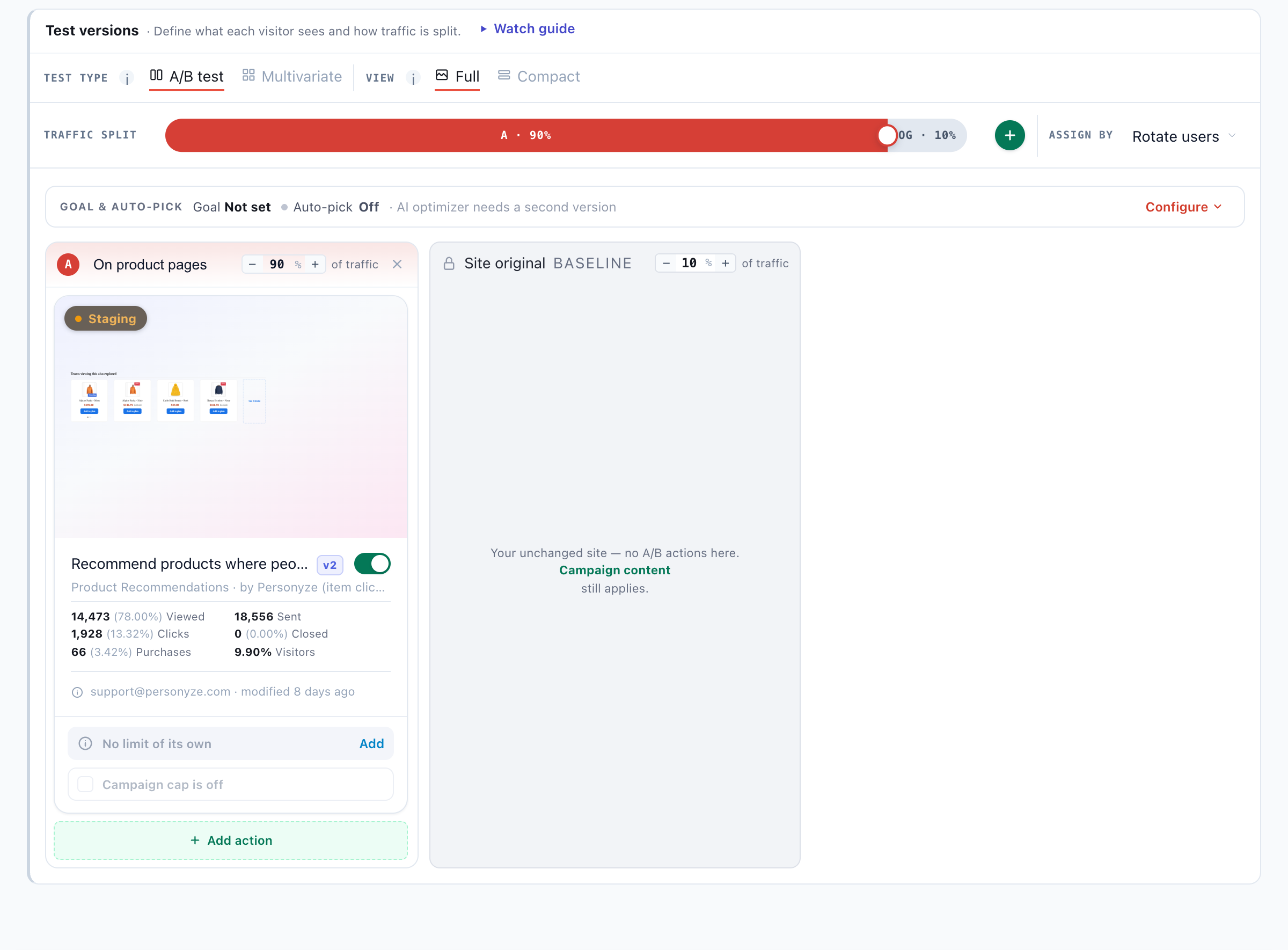
The A/B test: 90% of traffic sees the recommendations on product pages, 10% sees the site original as the baseline, with views, clicks and purchases for the widget
The widget against the site original. 90% of traffic sees the recommendations on product pages; 10% sees the unchanged site as the baseline. The widget’s card counts its views, clicks and purchases. A demo store.

Add a second version — another algorithm, another layout — and Auto-pick can move traffic to the winner by itself. How to read the result is in how to read A/B test results.

6. Decide where it appears

The widget is built; the Target step decides which pages and which visitors it appears for. Everyone matches until you add a rule. This one needs a single rule: product pages.
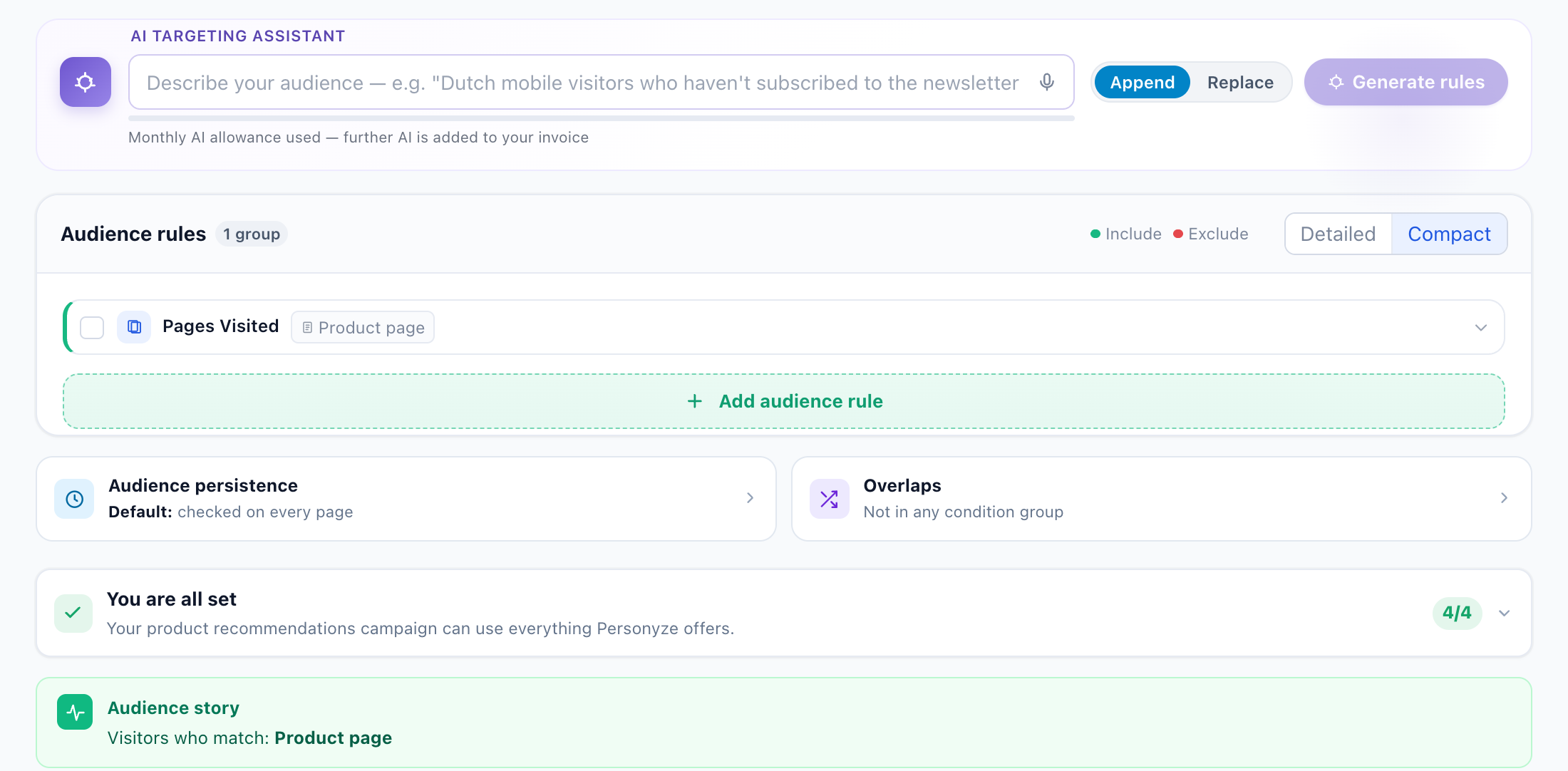
The Target step: one rule, Pages Visited is a product page, with the AI targeting assistant above it and the audience story below: visitors who match product page
One rule. Pages Visited is a product page, and the Audience story says it back: visitors who match, product page. The AI targeting assistant above the rules builds them from a sentence.

A different widget for a different audience — first-time visitors and returning buyers, say — is a second campaign with its own rules, so each can be measured on its own. Describing an audience in plain words is covered in the AI targeting assistant.

7. Try it on any product

QA checks the campaign as a whole before launch — who it would reach, what it presents and where. The Simulator next to it runs the recommendation algorithm on its own, for one real visitor, for one product, or for a new visitor with no history at all.
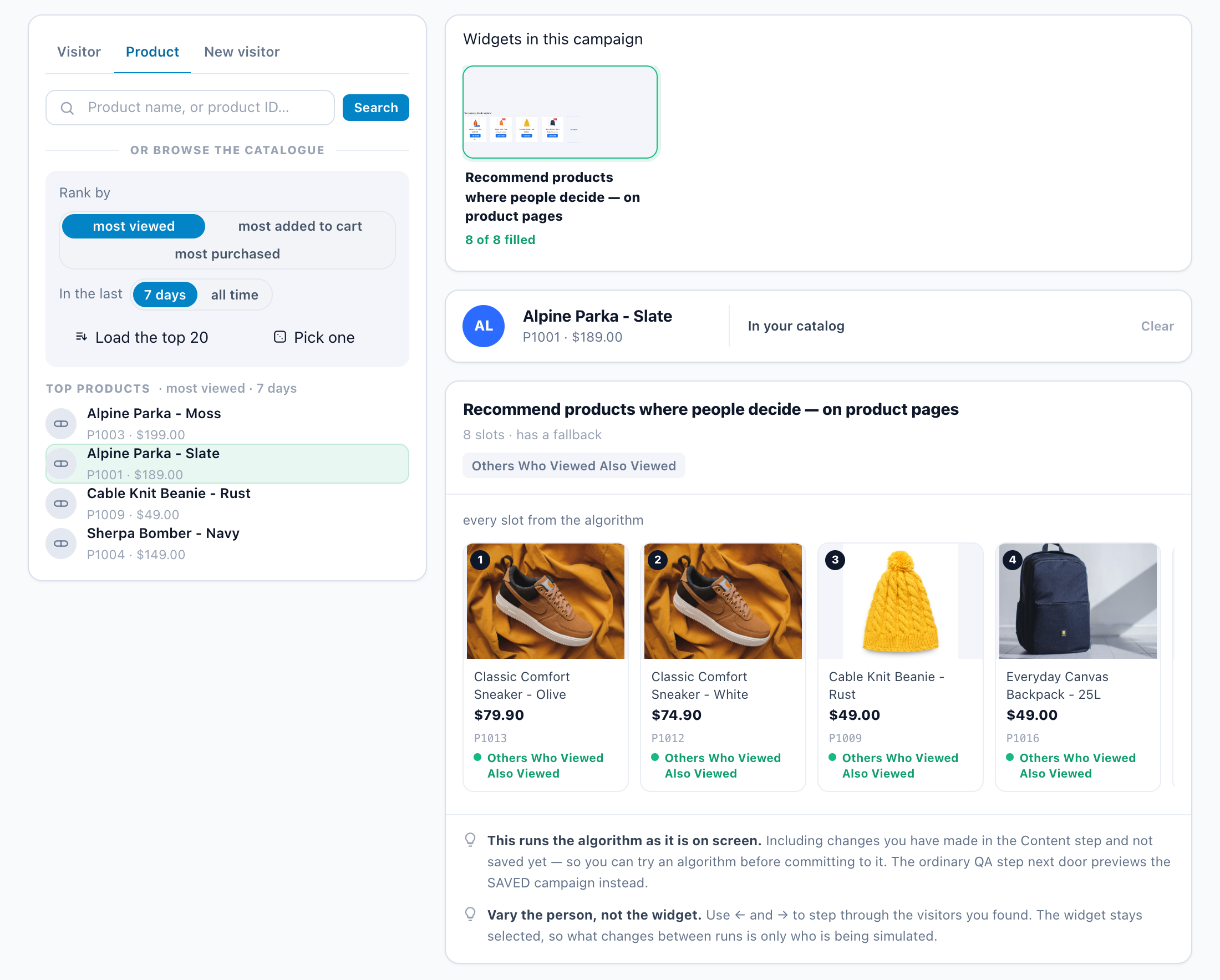
The Recommendation Simulator: one product picked from the catalog, Alpine Parka - Slate, and the eight products the widget recommends beside it, every slot from the algorithm
One product, eight recommendations. Pick a product from the catalog — here by most viewed in the last 7 days — and the widget fills all eight slots for it, each from the algorithm. A demo store.

It runs the algorithm as it is on screen, including changes you have not saved, so you can try a setting before committing to it. Keep the widget, vary the person or the product: what changes between runs is only who or what is being simulated.

8. Read the results

Once it is live, Performance shows the widget’s whole funnel: how often it was shown and actually seen, how many sessions engaged with an item, added one to the cart and bought, and the revenue attributed to it.
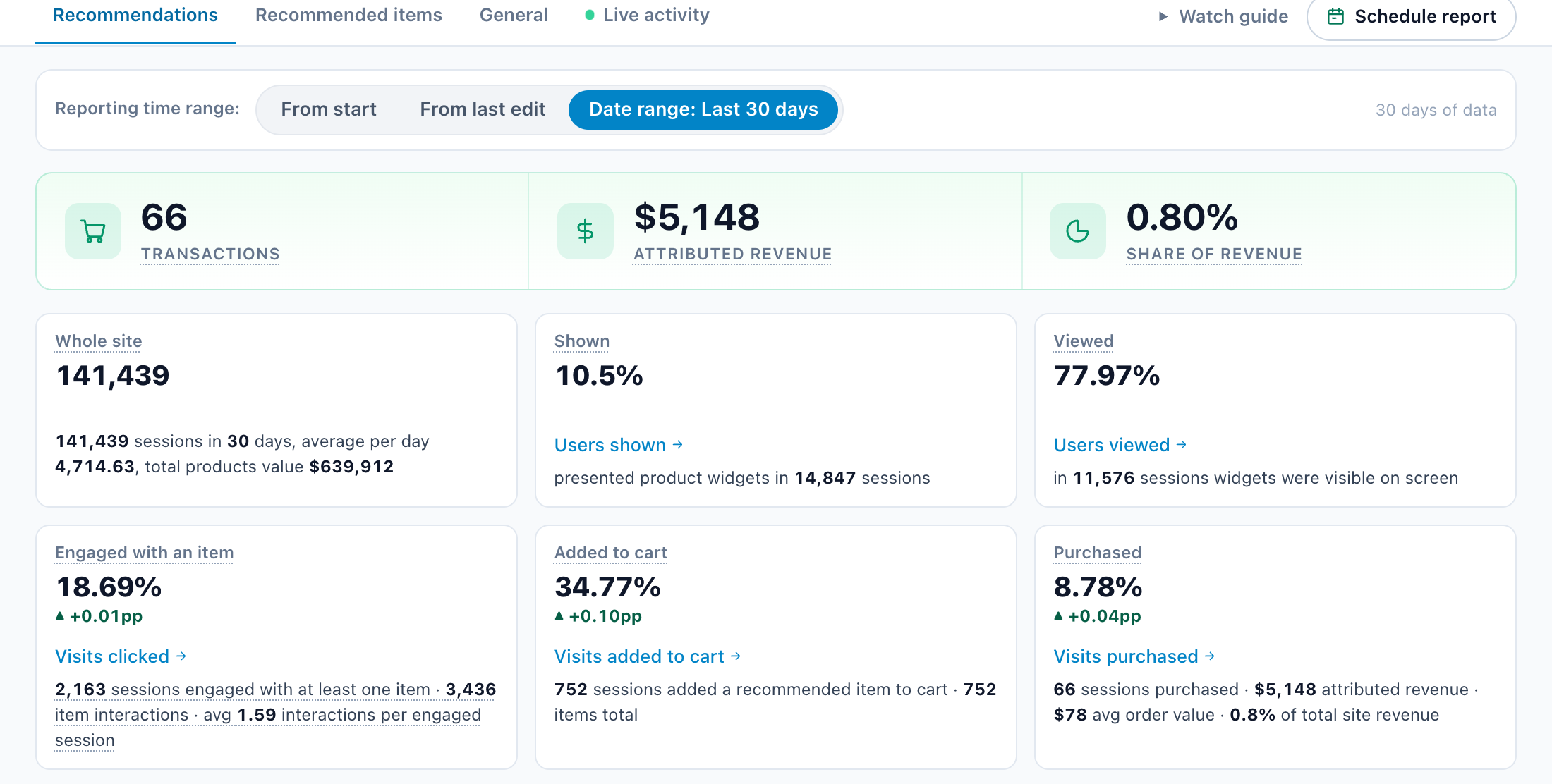
Recommendation results for 30 days on a demo store: 66 transactions and $5,148 attributed revenue, with how often the widget was shown, viewed, engaged with, added to cart and bought from
30 days on a demo store. 66 transactions and $5,148 in attributed revenue; the widget shown in 10.5% of sessions and seen in 78% of those; 18.7% of the sessions that saw it engaged with an item, 34.8% of those added one to the cart, and 8.8% of those bought. The numbers are illustrative.
Watch it · 0:33 The results tabs, the funnel and the revenue attributed to the widget.

The checklist

  • Catalog: no product without a picture, a name and a link; stock kept current.
  • Events: product views arriving; add to cart and purchase set up.
  • Algorithm chosen for the page; two fallbacks; skips set.
  • Preview as three real people — long history, buyer, newcomer.
  • A baseline share that sees no widget.
  • One rule per campaign; a second audience is a second campaign.
  • Simulator run on a few products, including a new one.
  • Results read on orders and revenue against the baseline, not on clicks.

Questions people ask

What does a recommendation widget need before it can work?

A product catalog with a picture, a name, a link, a price and stock for each product, and the product events your site sends: at least product views, ideally add to cart and purchases too. The first two steps of the campaign check both.

What happens when the algorithm has nothing to recommend?

The fallback algorithms fill the slots, in order. A product-page algorithm such as Others Who Viewed Also Viewed works from the product being viewed, so put that widget on product pages.

How can I see what a particular shopper will get?

Use Preview as in the widget’s design step. Pick a person from the list, filtered by what they did, and the widget shows the products they would really get, with the algorithm or fallback behind each one.

How do I know the widget adds sales?

Keep a share of visitors on the site original as a baseline and compare orders and revenue, not clicks. The A/B settings on the Content step split the traffic.

Will it recommend products that are out of stock?

No. Out-of-stock products are never recommended, and you can also skip items the visitor is viewing, has in the cart or has already bought.

See product recommendations in PersonyzeAlgorithms and fallbacks, a design that matches your store, a preview for any shopper, and results measured against no widget.
Let's talk

Book a demo with a personalization expert

30 minutes with a personalization expert. Bring your stack, your goals, your skepticism. We'll show you what changes when every visit feels like the only one.