
AI Chat Widget Design: Make the Chat Look Like Your Site
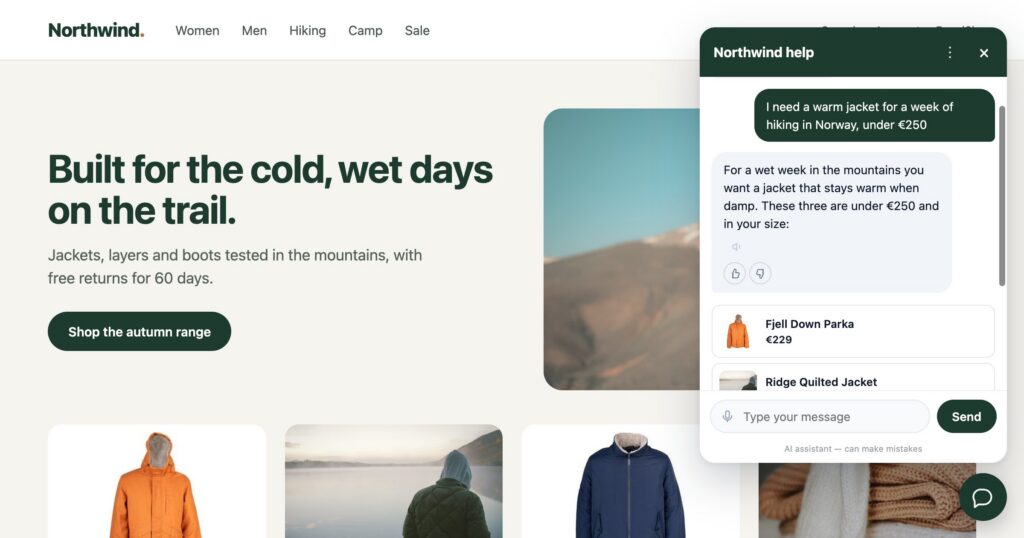
A chat widget is the one piece of somebody else’s software that sits on every page of your site. When it arrives in the vendor’s blue, with the vendor’s bubble and the vendor’s font, visitors notice — and so does whoever looks after your brand.
In Personyze, how the AI chat agent looks is a set of settings under AI Chat › Appearance: you can match it to your site without writing CSS, and add CSS when you want to. Below are six looks built from those settings, with each option named the way the panel names it. Every picture is the real chat, running on a made-up shop and a made-up software company.
Start from a template, then make it yours
The chat designer’s template gallery holds seven ready-made designs — Modern, Welcome Screen, Minimal, Dark, Shopping Assistant, Support Desk and Quiet Corner. Pick the one closest to your site and change what you need. The look you set for the account is the default for every chat on your site, and a campaign can change it for its own pages: a dark chat on the outdoor range, a quieter one on the help centre.
Colour, colour scheme, typeface and corners
Four settings decide most of what a visitor sees:
- Colour. One colour for the header, the button, the visitor’s messages and Send. Pick a preset or type your own hex value; the text on it is made readable for you.
- Colour scheme. Always light, Always dark, or Follow the visitor’s device. A chat built into your page follows the page instead.
- Typeface. The font your site already uses, named exactly as your site names it — the page has loaded the file, so naming it is enough. Left empty, it uses the visitor’s system font.
- Corners. Rounded, Soft or Square, for the window, the message bubbles, the result rows and the input. The button has its own shape, so a round button on a square window is fine.
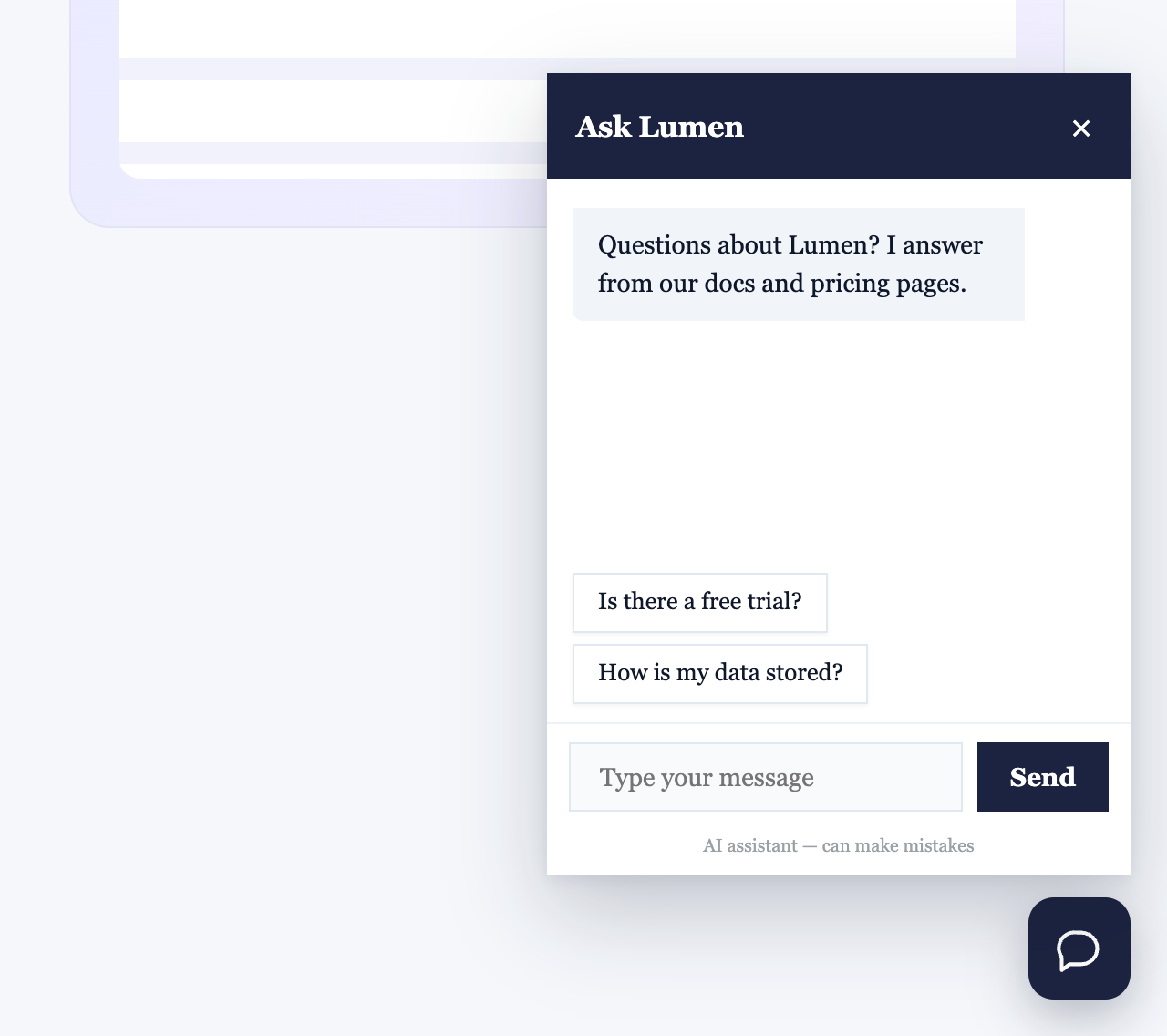
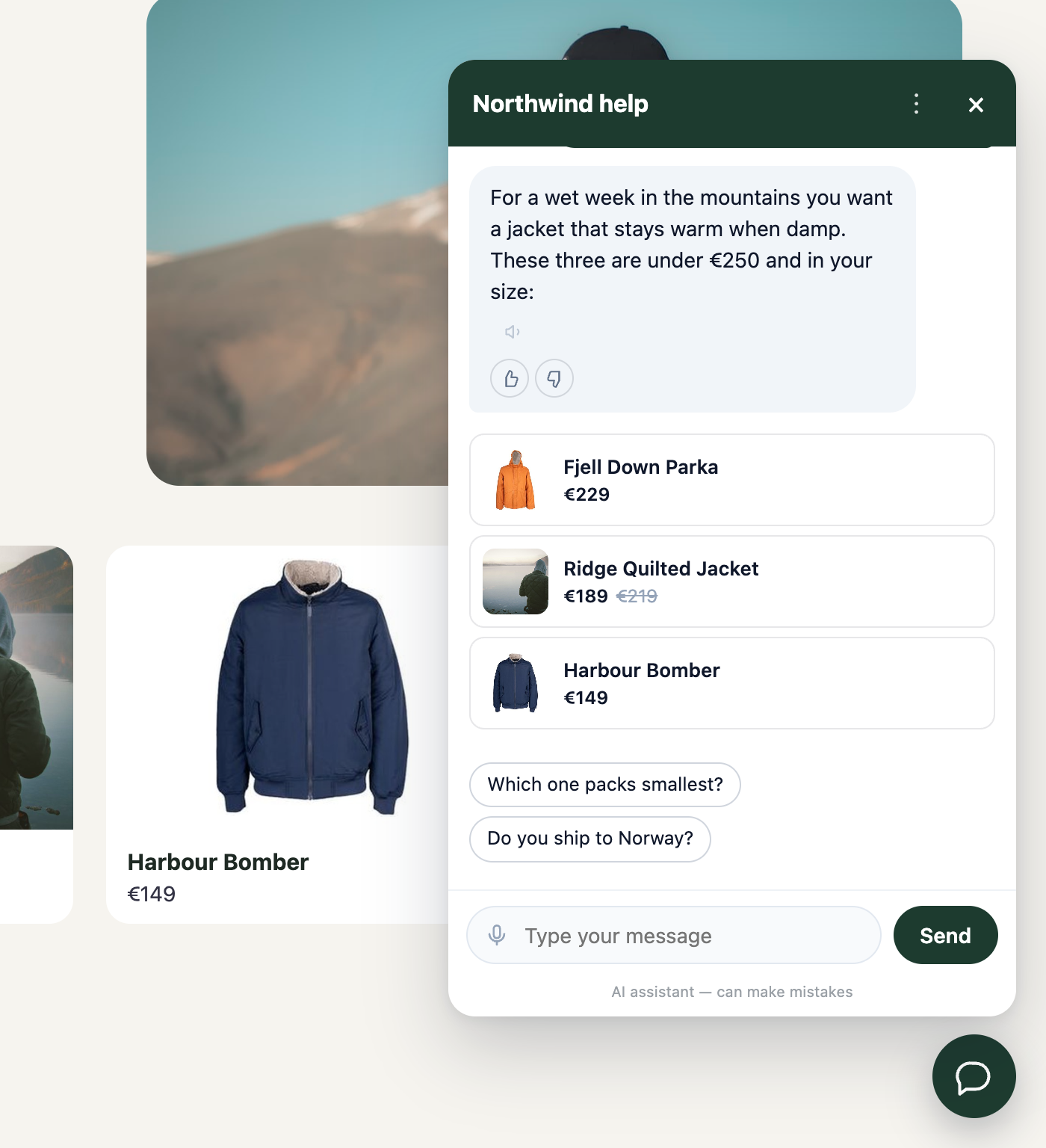
Two more settings shape the window itself. Window size is compact, standard, tall or wide, and a chat built into your page simply takes the size of its box. Result list shows products and articles as Cards with a picture and price, or as plain Rows. Anything the settings do not cover goes in Custom CSS.
Who the visitor is talking to
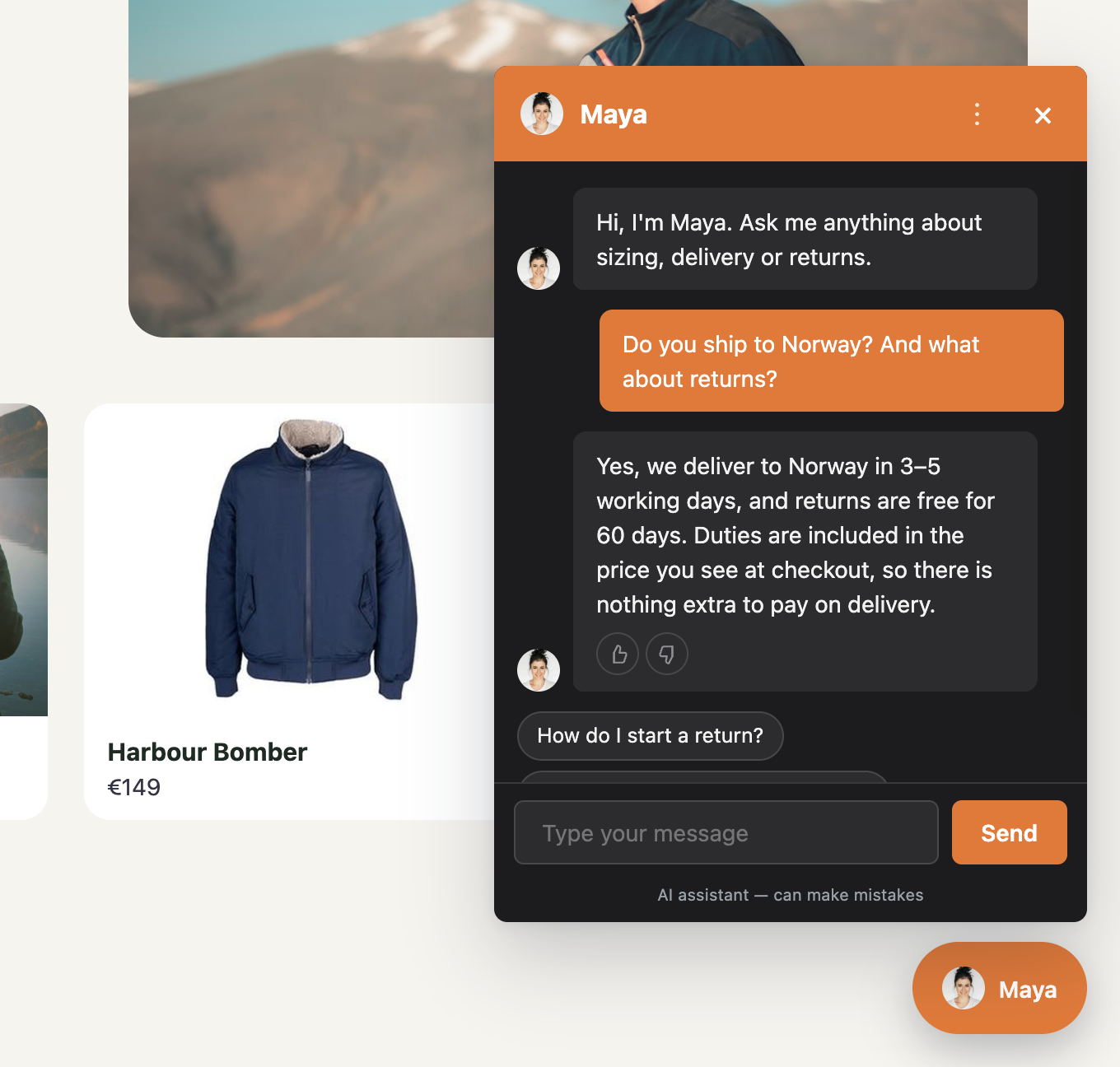
Under Who they appear to be talking to the chat can be just your logo, with no face, one person, every time, the team in rotation, or whoever is signed in right now. The header can wear your logo or the person, and each reply can carry their face, an icon or nothing. When a face is shown, the small print that says it is an AI assistant cannot be left empty — a photograph should not let anybody think they are typing to a person when they are not.
The button, and what it says first
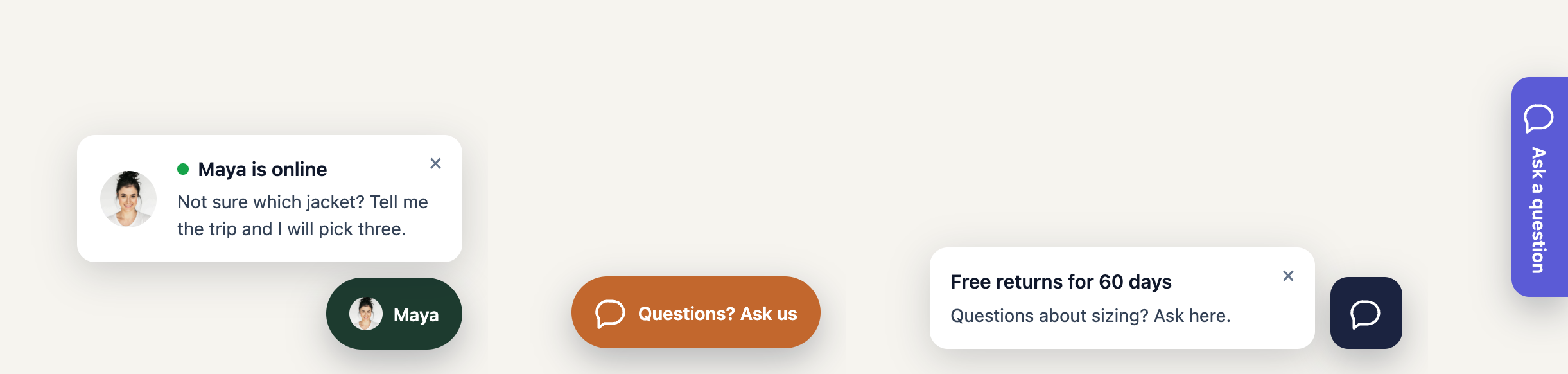
The button is the part of the chat every visitor sees, including the ones who never open it. Button shape is a Circle, a Pill with a few words in it, a Rounded rectangle, or a vertical Tab on the edge of the page. What the button shows is a person, when there is one, or an icon. Movement is Still, or a small cue to catch the eye — the icon rocks, a ring pulses out, or the button hops.
Above or beside it can sit a teaser card: a title and one line of your own (“Free returns for 60 days”), with a face on either side or none, shown after the number of seconds you choose. A title can say how many of your team are online, and a card that relies on that number stays hidden while nobody is.
A home screen before the conversation
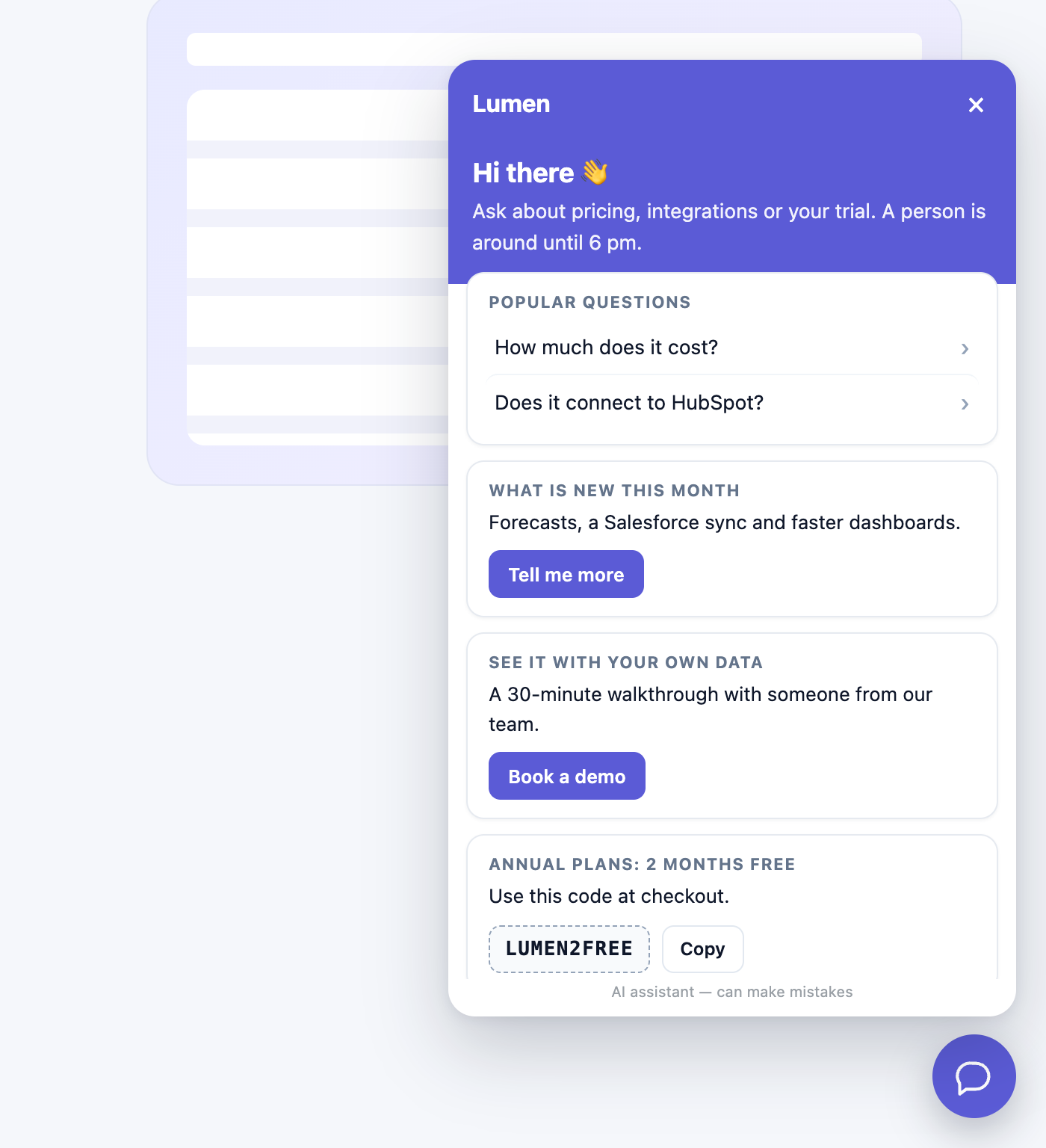
Switch on Open on a home screen and the chat opens on a first screen instead of an empty conversation: a headline and a line under it, the questions your visitors ask most, buttons to ask your own question or reach a person, and up to four cards. A card can be plain text, a link (“Book a demo”), a button that asks the assistant a set question (“What is new this month?”), or an offer with a code the visitor can copy. Somebody already in a conversation goes straight back to it.
Inside the conversation
- An opening line for each visitor. The first message can be worked out from what the platform already knows — their industry, the page they are on — rather than one greeting for everybody. More in the chat opens with the answer.
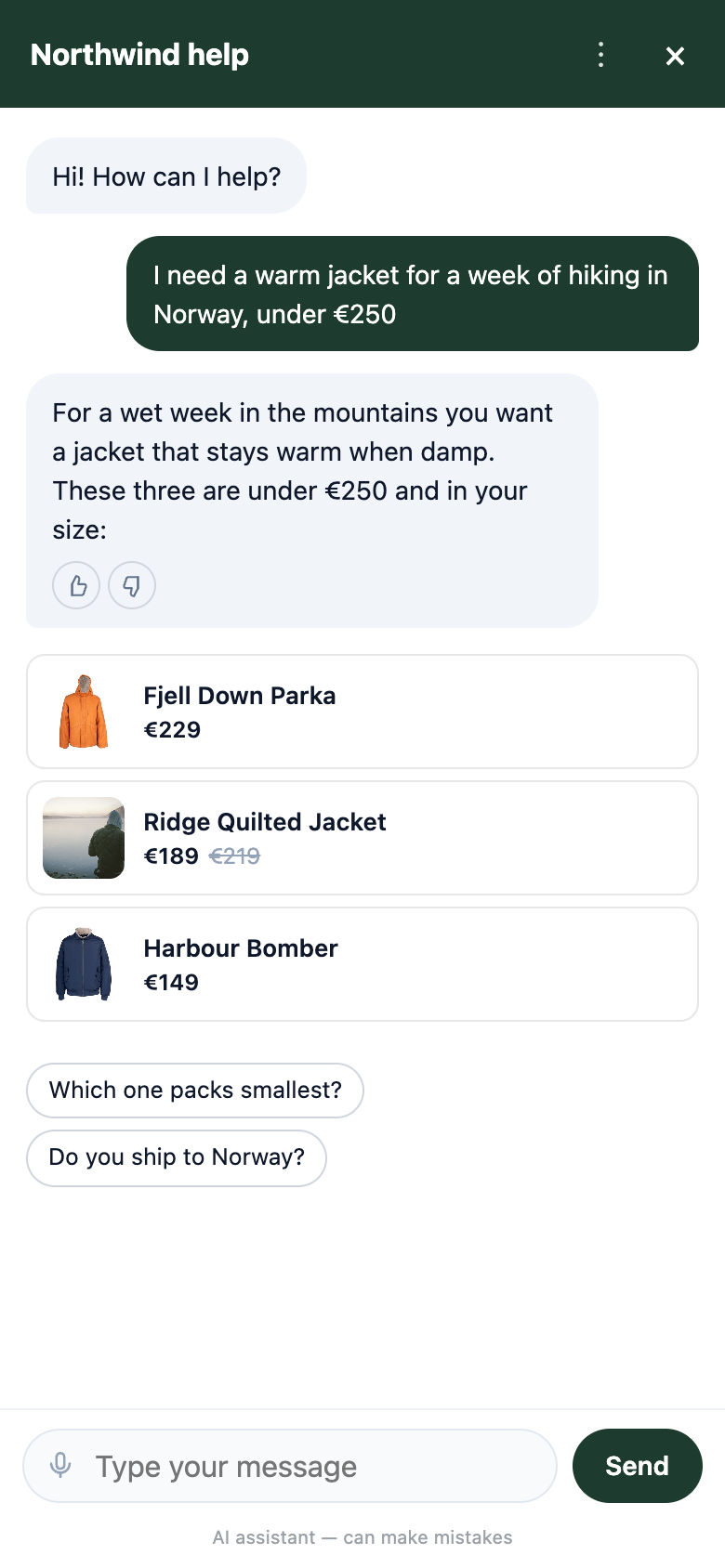
- Suggested questions as chips under the greeting, and follow-up questions under each answer: two or three, written with that answer, so a question about Shopify is followed by Shopify questions.
- Thumbs up and down on each answer. The ones marked unhelpful get their own filter in Conversations, and their questions join the list of what the chat could not answer.
- Voice. A microphone in the message box fills it with what the visitor says — it is never sent until they press Send. A speaker button on each answer reads it aloud with the voice already on their device.
- File uploads (images, once a conversation has started), a sound when a reply arrives — only after the visitor has written something — and, when a person takes over, read receipts if you want them.
- Products, articles and offers. Answers can carry items from your catalogue, a code from the campaign (discount codes in the chat), or a meeting booked in the thread (the chat books the meeting).
On phones, on a timer, and in other languages
- Fill the screen on phones: on a phone the open chat takes the whole screen, with your header and its close button at the top, instead of a small box over the page. Or Hide on small screens altogether.
- When the chat opens by itself: after a number of seconds you set, on the home screen or straight into the chat, with a choice of how often it may do that again.
- How long a conversation is remembered: until they close the tab, for an hour, a day, a week, a month, or across visits with no limit.
- Languages: each placement’s wording can be written in other languages and is picked by the page’s language, and the assistant replies in the visitor’s language.
Not only a chat bubble
The same assistant can sit in other shapes on the page: built into the page content instead of a corner, as an ask box — a search-style box that turns into a conversation — or as the AI Product Finder and AI Content Finder, a bar at the foot of the page that opens a page of picks with a written answer. The finders have look settings of their own, and every one of these is an ordinary campaign, so it can be targeted, A/B tested and reported on like any other.
Questions people ask
Can I make the chat match my brand without writing CSS?
Yes. Colour, colour scheme, typeface, corners, window size, button shape and movement, the teaser card and the home screen are all settings under AI Chat › Appearance. Custom CSS is there for anything they do not cover.
Can the chat use my website’s font?
Yes. Type the font family exactly as your site names it. Your page has already loaded the font file, so naming it is enough. Left empty, the chat uses the visitor’s system font.
Is there a dark mode?
Yes: always light, always dark, or follow the visitor’s device. A chat built into your page follows the page.
Can different pages show a different chat look?
Yes. The account’s look is the default, and each campaign can change it for the pages it runs on — for example a different colour, button or home screen for one product range or one audience.
Does the chat work on phones?
Yes. It can fill the screen on phones, with your header and close button at the top, or stay a small window — or you can hide it on small screens.
Book a demo with a personalization expert
30 minutes with a personalization expert. Bring your stack, your goals, your skepticism. We'll show you what changes when every visit feels like the only one.