
Email banners that update on open.
A playbook for live email banners — serve images, offers, and countdowns that reflect real-time data the moment each email is opened.
Start Now →1How to Guide: Open-Time Email Banners
This process allows you to embed a dynamic HTML banner into any third-party email template. Unlike standard static images, these banners change based on who opens the email and when they open it. To begin, create a campaign of the type Get Code for Emails: Personalized Banner.
Prerequisites
To deliver targeted banners, you must have:
- Tracking Code: The Personyze tracker installed on your site to capture user behavior and location.
- User Identification: A method to link the email recipient to their onsite profile (e.g., passing
?utm_email=user@test.comon click or capturing login data). - Data/Feed (Optional): Required only if you want to pull product images dynamically; otherwise, static images work fine for banners.
Real-World Examples
- Location-Based: If the visitor is from New York, render a banner showing the Empire State Building with a "Meet us in NYC" text overlay.
- Industry-Based: If the user is flagged as "Healthcare" in your CRM, show a banner featuring a medical case study instead of a generic product.
- Account Status: If the user is a "Free Tier" subscriber, show a "Upgrade to Pro - 20% Off" banner. If they are already "Pro," show "New Features Released."
- Interest-Based: If the visitor last browsed jackets, show the jacket collection instead of the generic hero.
Step-by-Step Summary
- Select Wizard: Choose the "Add Personalized Banner" option.
- Design: Create your banner layout (Hero image, CTA button, Text).
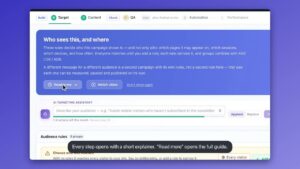
- Target: Define rules (City, Industry, Account Type) to swap content elements.
- Identify: Choose how to recognize the user (an email or your own user ID) so the targeting rules apply.
- Embed: Get the code, populate it with dynamic variables (Merge Tags), and paste it into your email.
- Analyze: Track views, clicks, and post-click conversions.
2Design & Conditional Targeting
The power of open-time banners lies in Conditional Content. You can change any aspect of the template look and content based on user data.
1. Design the Template
Use the WYSIWYG editor or AI tools to build the base structure of your banner. Ensure it is responsive and matches your brand guidelines.
2. Apply Targeting Rules (Use Cases)
Define logic to personalize the experience. Examples:
- By Location: "If visitor is from New York, show the 'Empire State Building' background image."
- By Account Type: "If user is Free Tier, change the CTA text to 'Upgrade to Pro'."
- By Industry: "If user is from Healthcare, show the 'Medical Case Study' banner."
Note: If no rules match, a "Default" banner is shown. This is also useful if you just want to embed a banner for remote content control and tracking without personalization.
3User Recognition & Data Sync
For the targeting rules (City, Industry, etc.) to work, Personyze must know who is opening the email.
Requirement: Site Data Grab
The email or user ID passed in the banner code must match a user profile in Personyze. This means you must have Personyze set to "grab" the user's email/ID during their site visits (via login forms, URL parameters, or cookies).
Recognition Options
- Email or user ID: The standard method for 1:1 personalization. Allows targeting based on individual history and attributes.
- None (Anonymous): If you do not pass an ID, the banner will display the Default design. This is still valuable for:
- Remote Control: Update the banner image from Personyze without changing the email code.
- Performance Tracking: Track views and clicks centrally.
4Get & Embed the Code
Once your design and rules are set, generate the HTML snippet.
1. Copy the Code
You will receive an HTML block containing dynamic image links. These links point to Personyze servers to render the banner at open time.
2. Populate Dynamic Variables
To enable personalization, you must dynamically populate the code with the recipient's email address using your Email Provider's Merge Tags.
Find the placeholder
email=REPLACE_ME in the code.Mailchimp: Change to
email=*|EMAIL|*Klaviyo: Change to
email={{ email }}Salesforce: Change to
email=%%emailaddr%%
5QA & Preview
Verify your targeting logic before sending the campaign.
Simulation Step
- Open the snippet’s image link with a test recipient in place of the merge tag.
- Use a specific email or user ID.
- Personyze will generate a preview of the banner exactly as that user would see it.
Test Case: Enter the email of a known "Healthcare" client. Does the banner switch to the "Medical Case Study" image?
6Performance & Analytics
Personyze tracks the full funnel starting from the email open.
Tracking Features
- UTM Parameters: In the template editor, you can wrap every link with unique UTMs (e.g.,
utm_campaign=winter_sale_banner) to pass data to Google Analytics. - Personyze Dashboard: View internal metrics including:
- Views: Number of times the banner was loaded.
- Clicks: Number of clicks on the banner.
- Conversions: Goals achieved (purchases, signups) during the session after the visitor clicked the email.
7Example: Retail / E-Commerce Banner
A "Flash Sale" banner that adapts to the user's location and purchase history.
Step 1: Visitor Activity
Visitor Mike (mike@example.com) visits your site from London.
- Data Captured: Location (London, UK), Last Category Viewed (Jackets).
Step 2: The Email Campaign
You send a generic "Weekly Update" email to your entire list.
Step 3: Open-Time Rendering
Mike opens the email. The Personyze Banner Widget checks his profile.
A Hero Image featuring jackets with the text "New in for London" (Rule: Location + Last Category Viewed).
Step 4: Performance Metric
Mike clicks the banner.
- Metric: "Banner Click" is recorded.
- Metric: "Purchase" is attributed if Mike buys a jacket in that session.
8Example: B2B / SaaS Banner
Targeting users based on their Account Status (Free vs. Pro).
Step 1: Visitor Activity
User Jane (jane@company.com) logs into your SaaS platform.
- Data Captured: Account Status = "Free Tier", Industry = "Marketing".
Step 2: The Email Campaign
You send a monthly "Product Newsletter".
Step 3: Open-Time Rendering
Jane opens the email.
A high-contrast banner saying: "Unlock Pro Features for Marketing Teams - 20% Off Today". (Rule: Account Status = Free AND Industry = Marketing).
(Note: A "Pro" user opening the same email would see a banner for "Advanced Tutorials").
Step 4: Performance Metric
Jane clicks and upgrades.
- Metric: "Goal Conversion" (Upgrade) is tracked in the Personyze Dashboard.
Playbook questions, answered.
Common questions about open-time email banners. Anything else, our team is one message away.
How does the email banner change in real-time?
The banner is an HTML image link pointing to Personyze servers. When the email is opened, we check the user's profile or context (e.g., location) and generate the correct image instantly. This means the content is decided at the moment of open, not when you hit send.
Do I need to change my email template for every campaign?
No. Once you embed the Personyze code into your template, you can change the banner image, text, or targeting rules directly from the Personyze dashboard. The email content will update automatically without you needing to edit the HTML code again.
What happens if Personyze doesn't recognize the user?
If the user ID is missing or the user is unknown, Personyze will display the Default Banner you designed. This ensures no broken images appear and allows you to still use the banner for general announcements.
Does this work on mobile?
Yes. The templates created in the Personyze editor are responsive. The image generation adjusts to ensure the banner looks correct on both desktop and mobile devices.
Can I use animated GIFs?
Yes. You can upload a GIF as the banner creative.
How do I link the banner to specific pages?
In the Design step, you define the Destination URL for the banner. You can also make this dynamic—for example, if the banner shows a specific product category, the link will direct the user to that category page.
Can I use CRM data to target the banner?
Yes. If you sync CRM data (like "Industry," "Account Status," or "Gender") with Personyze, you can create rules to show different banners to different segments (e.g., "Show B2B Banner to 'Manufacturing' clients").
Do I need to be a developer to set this up?
No. Design the banner in the visual editor, set the rules for who sees which version, and paste the generated code into your email template once.
How do I test if the rules are working?
Open the snippet’s image link with a test recipient’s email in place of the merge tag: Personyze renders exactly the banner that person would get.
Does this work with Mailchimp / Klaviyo / Salesforce?
Yes. The output is standard HTML that works with almost all major Email Service Providers (ESPs). You just need to swap the placeholder in the code with your ESP's specific merge tag (e.g., *|EMAIL|*).
Can I A/B test different banners?
Yes. You can set up an A/B test within Personyze to serve two different banner designs to the same audience segment and track which one generates more clicks or conversions.
What metrics can I track?
Personyze tracks Views (how many times the email was opened), Clicks on the banner, and Conversions (purchases or goals completed on the site after clicking).
Can I overlay text on the banner image?
Yes. The WYSIWYG editor allows you to add text layers over your background image. This text allows you to include dynamic variables like the user's name or a coupon code directly in the image.
Does the banner expire?
You can set schedule rules in Personyze. For example, you can set a banner to stop showing after a specific date (e.g., "Sale Ends Friday"). If a user opens the email after that date, they will see the fallback/default banner instead.
Make every open fresh.
You have the full playbook — now serve live, real-time banners that update the moment each email is opened.