How to Use Personyze for Dynamic Content Replacement
Personyze allows you to go beyond simple text swaps by utilizing its powerful website personalization engine. You can inject real-time user data—from weather conditions to ABM firmographics—directly into your website’s existing HTML, pop-ups, and custom scripts.
This guide covers how to capture, store, and “print” these variables to create a hyper-relevant experience that creates a seamless “Message Match” between your visitor’s intent and your landing page.
1. Data You Can Capture & Store
You can print virtually any data point Personyze tracks. These values are stored as User Profile Variables and can be inserted dynamically into your content.
Common Data Sources:
- Geolocation: City, Country, Zip Code, or calculated distance from your store.
- Weather: Current temperature, condition (Rain/Sun), or forecast.
- PPC & Traffic: The exact keyword used on Google (e.g., dynamic keyword insertion), UTM campaign names, or referring URL.
- Behavioral History:
- Last Product Viewed: Display the exact name or image of the last item they browsed.
- Last Brand Purchased: Useful for cross-selling (e.g., “Accessories for your [Last Brand] device”).
- Site Engagement: Number of visits, days since last visit, or total cart value.
ABM & B2B Integration:
If you use Personyze’s Account-Based Marketing (ABM) features, you can inject specific company details regarding the visitor:
- Company Name (e.g., “Welcome, Microsoft team!”)
- Company Industry
- Company Size (Employee count)
- Company Revenue
2. Proven Strategies to Boost Conversion (The “Angles”)
Using dynamic text isn’t just about being fancy—it’s about relevance. Here are three high-value strategies you can implement immediately:
Strategy A: The “Message Match” (PPC & Referrers)
When a user searches for “Best CRM for Small Business” and clicks an ad, your landing page headline should match that exact intent. This reduces bounce rates and improves Quality Score.
- The Variable:
${search_term}or${utm_campaign} - The Heading: “The #1 Solution for ${search_term:default(‘Your Business’)}“
- Why it works: It confirms to the user instantly that they are in the right place.
Strategy B: Local Scarcity & Urgency
Generic offers are often ignored. Location-specific offers feel exclusive and urgent. You can use this for shipping offers or local events.
- The Variable:
${user_city} - The Heading: “Free Shipping to ${user_city} Ends Tonight!”
- Why it works: It triggers the “Cocktail Party Effect”—we naturally focus on things that mention our own location or name.
Strategy C: Tech-Specific Targeting
If you sell software or apps, irrelevant download links kill conversions. Detect the user’s tech stack to show the right offer.
- The Variables:
${device_os}(Windows/Mac) or${device_type}(Mobile/Desktop) - The Heading: “Download our App for ${device_os}“
- Why it works: It removes friction by pre-selecting the correct version for the user.
3. How to Insert Dynamic Variables
You can inject these variables into Pop-ups, HTML Content, or Existing Site Elements (like your Hero Header) using three main methods.
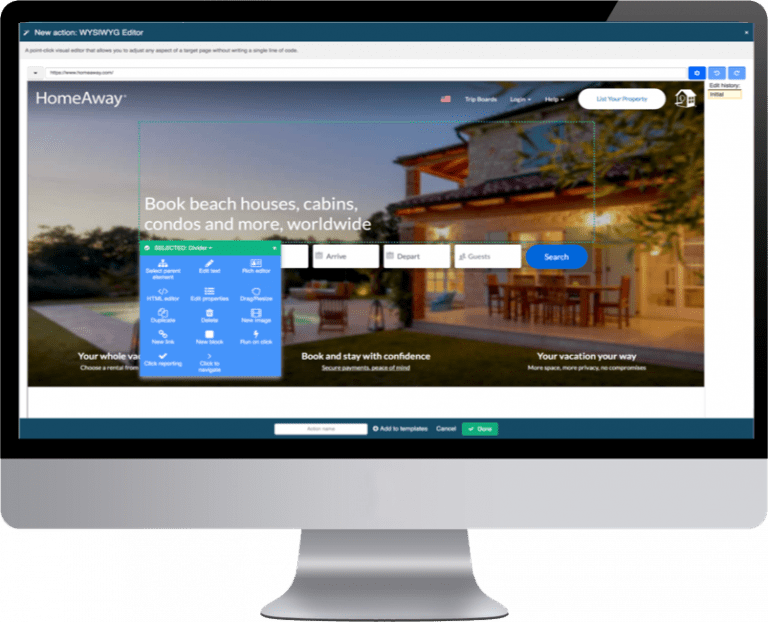
Method A: The Visual Editor (WYSIWYG)
When creating an action (like a Pop-up or a “Replace Element” action):
- Open the HTML/WYSIWYG Editor.
- Look for the “Dynamic Variable” icon in the toolbar.
- Select your variable from the dropdown list (e.g.,
User First Name,User City,ABM Company Name). - Set a Default Value: Always define a fallback. For example, if “First Name” is unknown, print “Friend”.
Method B: Replacing Homepage Content (CSS Selectors)
This method is ideal for creating dynamic landing pages with personalized titles and CTAs without coding:
- Create a “Content” action in Personyze.
- Choose “Replace Element” or “Insert After/Before”.
- Use the Point-and-Click Selector to choose the text on your live site you want to change (e.g., your main H1 headline).
- In the editor, replace the static text with your dynamic variable to personalize the hero section immediately.
Method C: JavaScript Variables
Dynamic variables are also available inside the JavaScript / Custom Script action. This allows you to pass Personyze data into third-party tools or complex logic.
4. Using Aggregated Data & Social Proof
You can also use “Crowd Wisdom” to print aggregated statistics. This creates urgency and social proof.
- Product Views: Print the number of people who viewed the current product in the last 24 hours. (e.g., “15 people are looking at this right now.”)
- Purchase Counts: Print the total number of purchases for a specific item (e.g., “Bought 540 times this month.”)
- Distance Calculations: If you have physical branches, you can calculate and print the distance from the user’s current location to your store.
These variables are available anytime you select an HTML action that includes the editor, allowing you to seamlessly weave data into your customer’s journey.